

About Xero and Gojee
Intro to Xero Integration
Gojee is heavily integrated with Xero, using its solid accounting base as a backbone. Gojee and Xero operate independently, but a lot of data is shared between them.
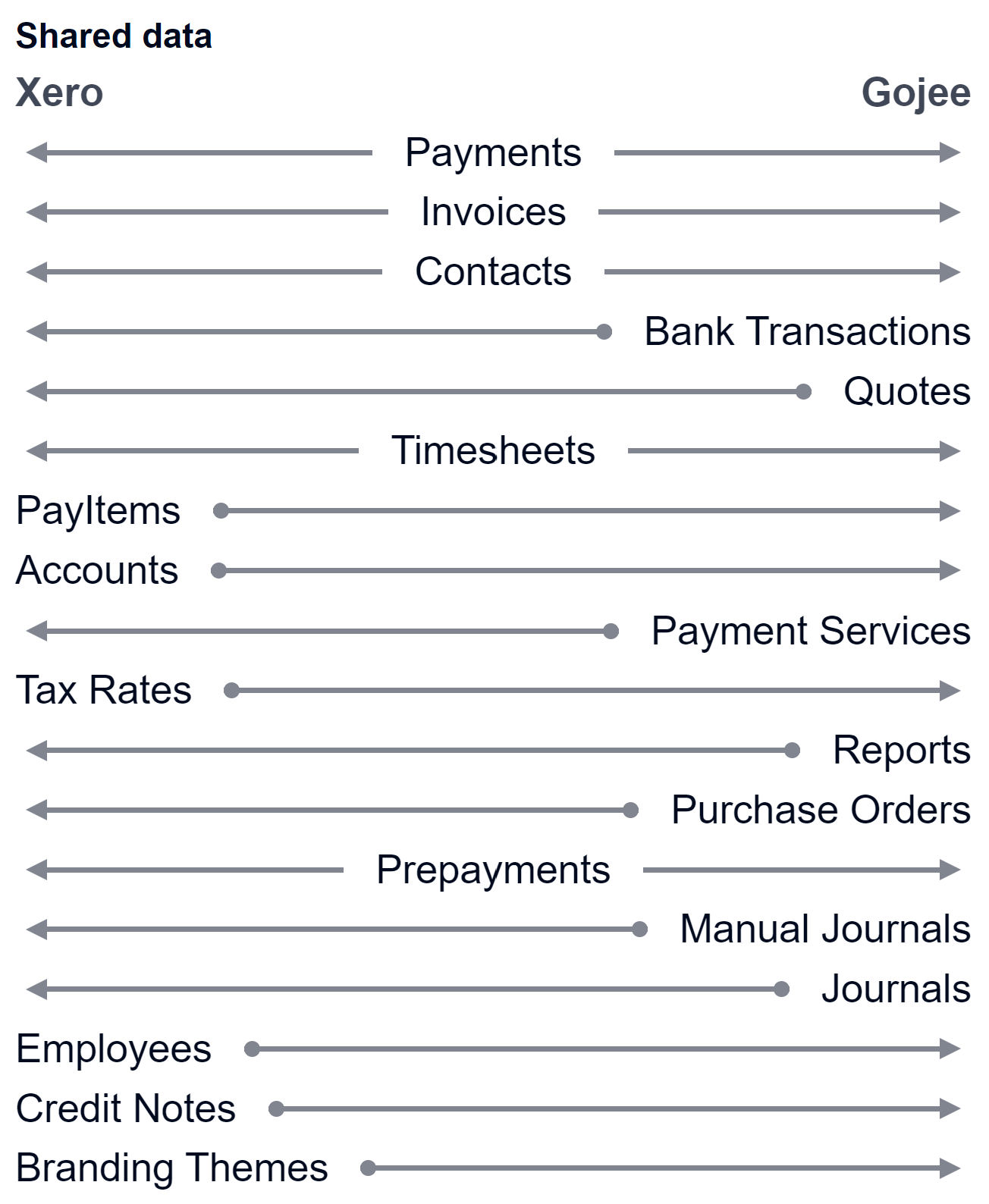
Gojee will send updates to Xero whenever they occur. However, Xero does not automatically send information back to Gojee unless requested. Gojee will run an overnight sync in order to pull in data that does not change so often, such as organisation configuration information or invoice payments made from Xero. Gojee can also run any type of sync on demand for administrators.
Opening Xero from Gojee
For administrators, there is a convenient shortcut to open Xero in a new tab direct from the Navigation Dashboard. The Open Xero option will be at the bottom, next to the Setting s option:

If the user logged into Gojee with the Xero Sign On option, then the Xero page will load already logged in to save you time.
If the user logged in with Gojee credentials, they will will presented with the Xero login page:
Configuring Xero
In order to complete configuration of Gojee, some of the necessary settings and processes are available only in Xero. Here is a list of things that will require you to be in Xero to make fundamental changes:
- Branding themes
- You will need to modify these to format quotes and sales orders properly.
- New contact currency settings
- If you are using multi-currency, you will need to set a contact's currency from Xero initially. In Gojee, you will be able to modify contact currencies to any from among the currencies shared among your contacts.
- Accounts and account types
- Check these if you run into issues with items that should be or shouldn't be taxed.
- Employee earning rates
- Tax rates
- These should be set up already if you are using Xero.
Of these, you will most likely need to modify your branding themes the most in order to get the most out of Gojee.
In order to modify branding themes, go to Invoice Settings in Xero. If you are using a custom Xero .docx theme, you must ensure you have the appropriate .docx files uploaded for each type of form you wish to use.
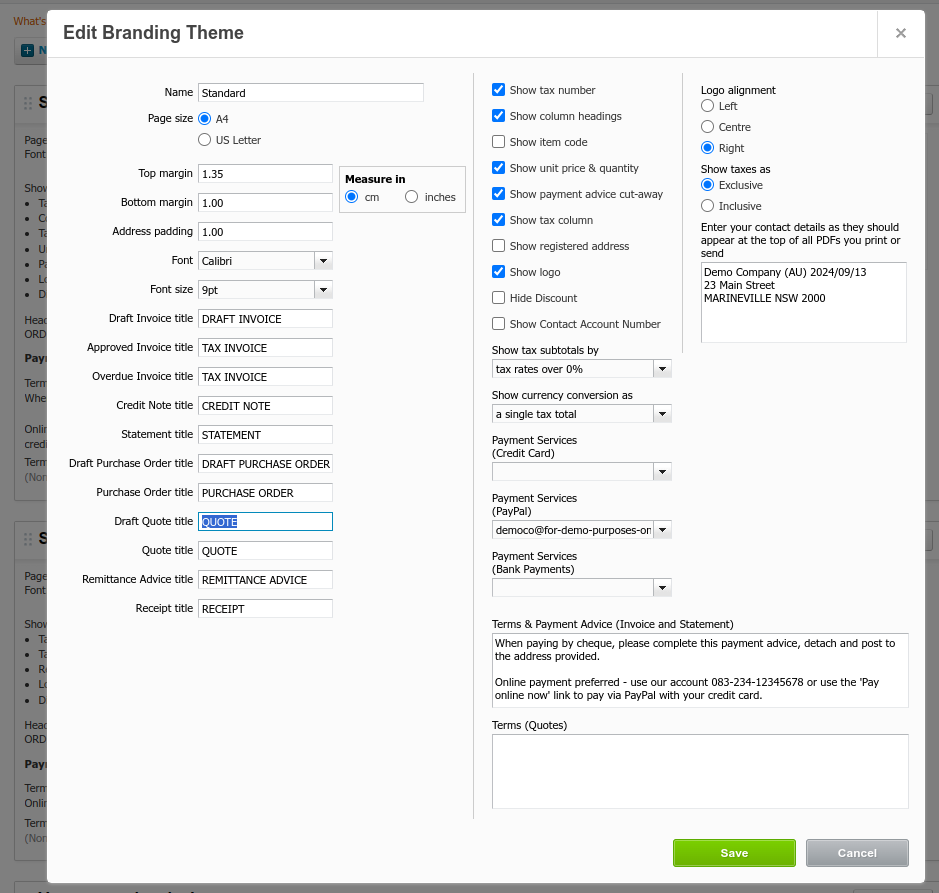
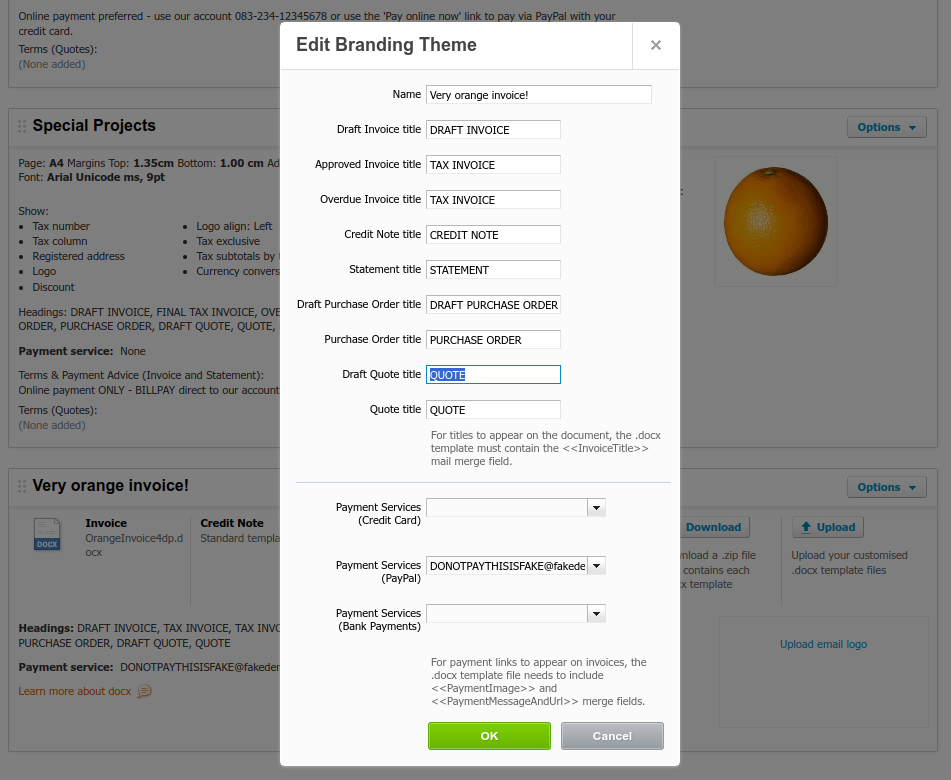
For easy use of quotes generated through Gojee, you will need to change the "Draft Quote" title to Quote. Gojee does not force Xero to send the quote when generating the quote PDF, so it will generate with "Draft Quote" until it has been marked as sent in Xero. Click on Options > Edit on your theme.
For standard branding themes:
For .docx themes:
You should also check your branding themes in Gojee (under Organisation Setup > Branding Theme Mapping) to make sure that you are using the correct one.
Sales Orders need to have a separate theme set up just for them if you are interested in using them. For more information on how to set up Sales Orders, please consult the Sales Orders page.
Next: Back to Knowledge Base.