

Gojee POS Jobs
Create a POS Job
The POS module in Gojee allows you to sell your inventory items over the counter, and either take payment for these items on the spot, or allocate invoices to customers' accounts.
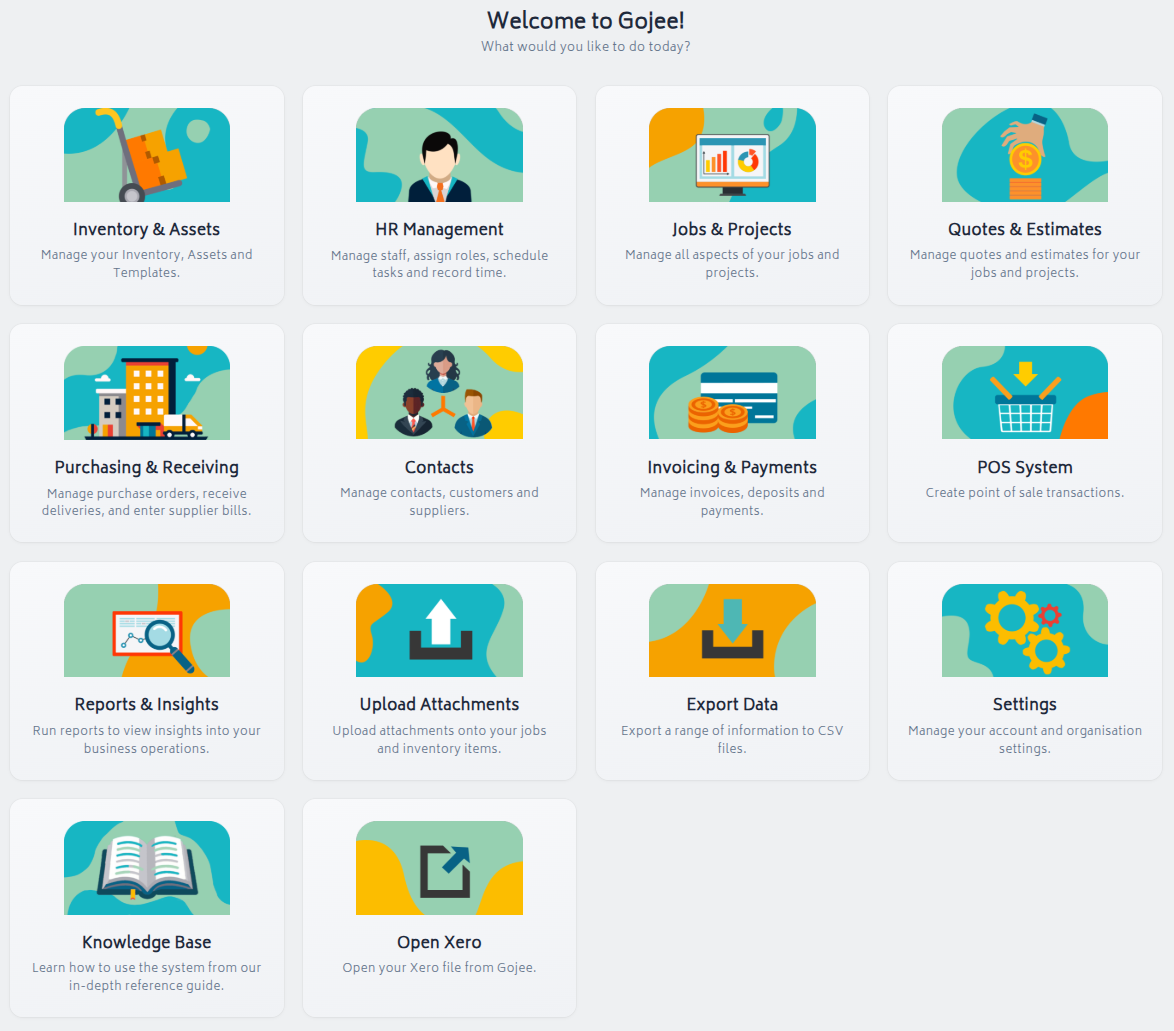
To get started, navigate to POS System from the Navigation Dashboard:
You will be directed to the Bill of Materials page for creating a job. Add the items for the sale, and update the quantity of each line item:
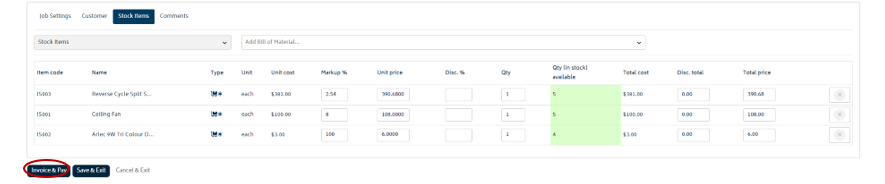 Note: If you don't have sufficient stock on hand for any tracked item, you will not be able to process the sale.
- If you'd like to assign a customer for the sale, click on the Customer tab and choose the customer from the dropdown list, or create a new customer on the fly (refer to Create a Job for more information on creating new customers from the job page).
- Once you're happy with the sale, click “Invoice and Pay”. This will create an approved invoice in your Xero file. You will be directed to the view invoice screen once the invoice has been generated:
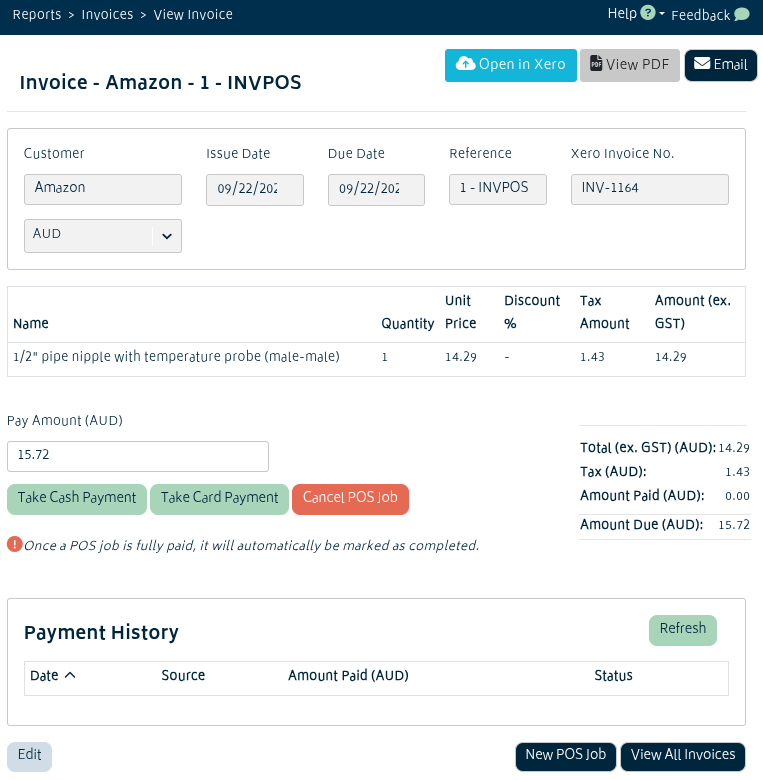
You have the following options from this screen to complete the sale:
Take Payment for POS Jobs
Take Cash Payment:
- If you'd like to take a payment on the spot, enter the cash payment amount and click “Take Cash Payment”.
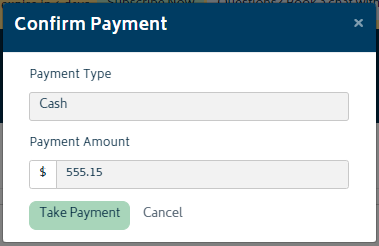
- The system will ask you to confirm the payment. Click “Take Payment” and you will be able to see the payment made under “Payment History” as below:

Take Card Payment:
- This requires Square integration to be set up. Refer to the Add-ons section for more information on how to set it up.
- If you are using Gojee from a mobile device, tablet or iPad, and you have the Square app installed, you'll be able to take a physical card payment. You'll be directed to the Square app to take the card payment and then back to the Gojee app once complete.
- If you are using Gojee on a desktop device, once you select take card payment you will be presented with the following modal.
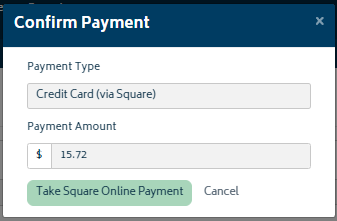
- Taking the online payment will direct you to the following secure web based payment screen powered by Square:
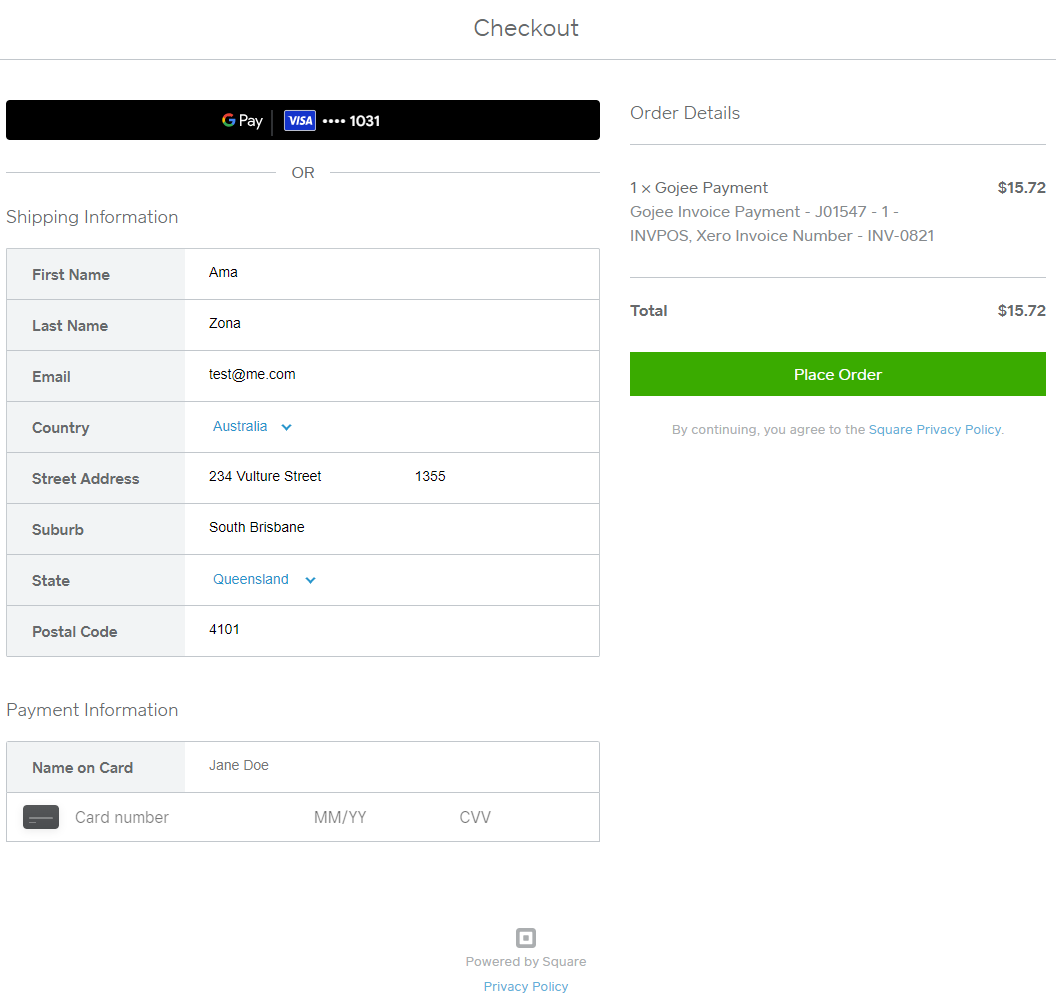
- You can enter the card details to process the online payment.
Note: All POS jobs will be marked as completed automatically after a payment has been made.
Other Payment Methods:
If you wish to take payment for your POS transaction via bank transfer or cheque, you can do this from within Xero.
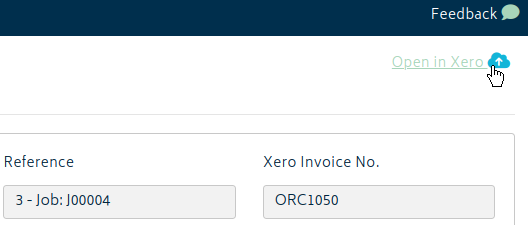
- Follow the POS process and generate an invoice, but don't process payment immediately. When you do receive payment, go back to the recorded POS job and click the Open Xero button at the top right of the invoice:
- From here, you will be able to enter information regarding the account the funds have been deposited in:
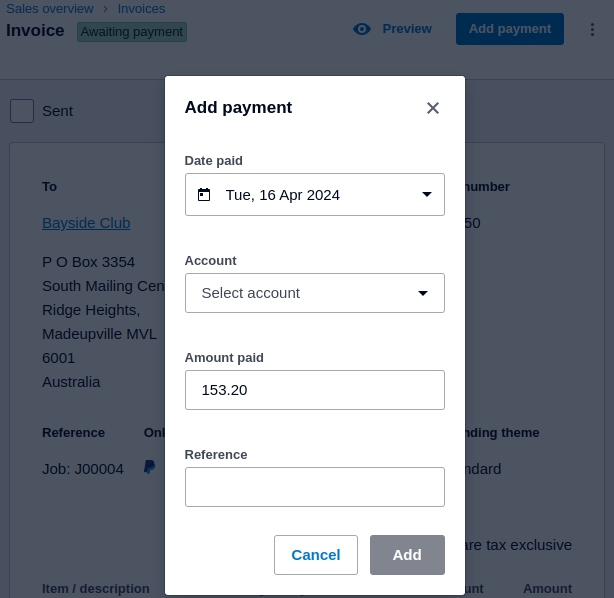
Once Xero syncs with Gojee and the invoice's payment is accounted for, the POS transaction will be marked as completed. At the bottom of the screen, you will have the option to start a new POS job.
Cancel POS Job
Select the red Cancel POS Job button from the POS Invoice screen. This will cancel the POS job, void the invoice and any stock consumed onto the job.
Set a Default POS Customer
You can set up a default customer for POS jobs to save time when creating sales. You could create a new customer in your Gojee file called "Cash Sale" or similar for example, and then assign this as the default for all POS sales.
Note: you can still change the customer for each POS job if required.
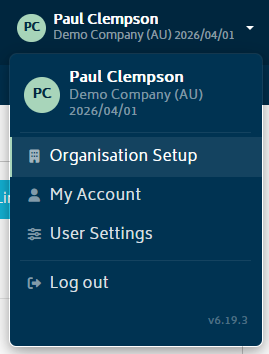
To get started, click on your organisation's name on the top right in Gojee and select "Organisation Setup".
Select “Payment” and select the customer you created for POS jobs.
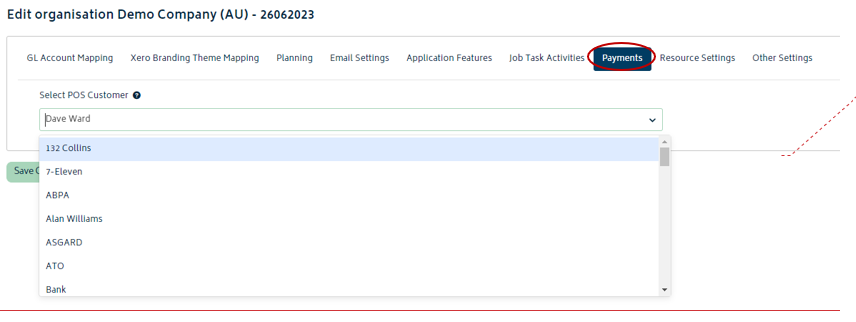
Click Save and all new POS jobs created from this point will have the default customer assigned.
Next: Back to Knowledge Base.