

Contact Management
All your customers from Xero will automatically be synced with Gojee upon successful setup. The configuration between Gojee and Xero is two ways, which means any customer that you add through Gojee will be pushed into Xero and vice versa.
-
Add New Customer
- To add new customers, add them directly in Xero, or into Gojee 1. Bulk customers, best to do with Xero import and then Sync Gojee with Xero and they will all be pulled into Gojee.2.
- One off best to do directly in Gojee: 2.1
- You can either navigate to customers by clicking Resources > Customers from the top menu or click onto “Customers” from Home Screen:
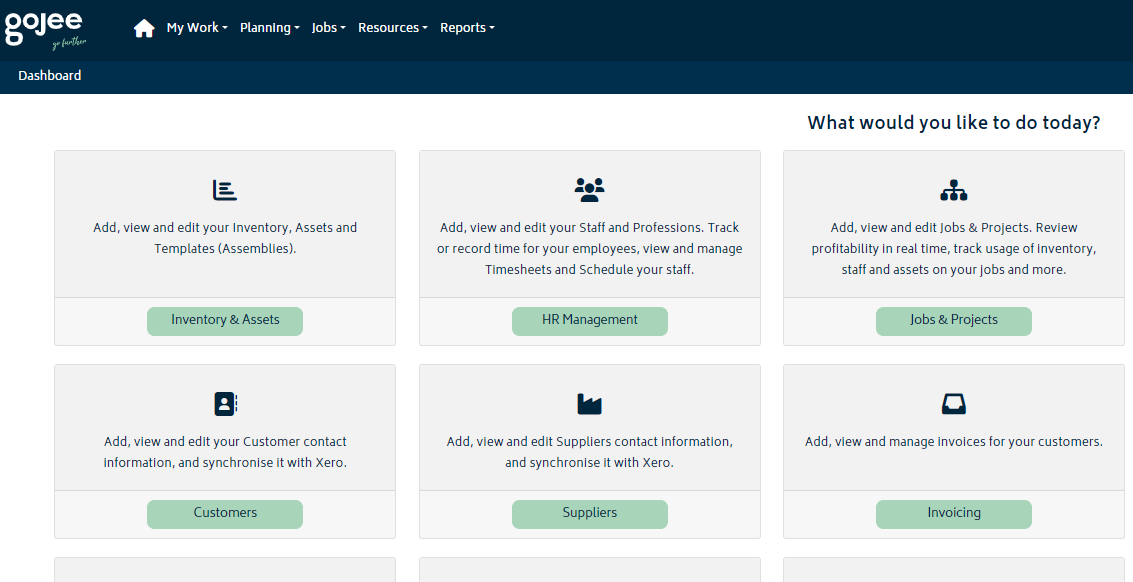
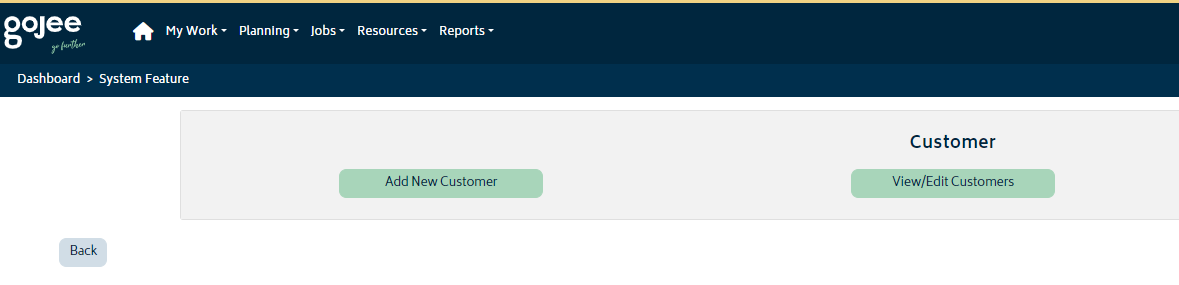
2.2 Click “Add New Customer”
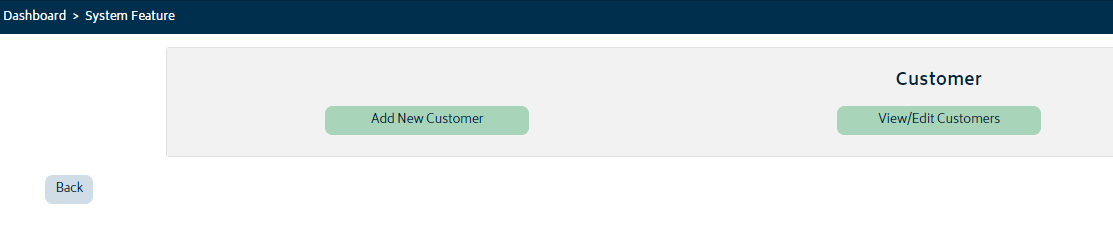
2.3 You will be navigated to customer creation page as below:
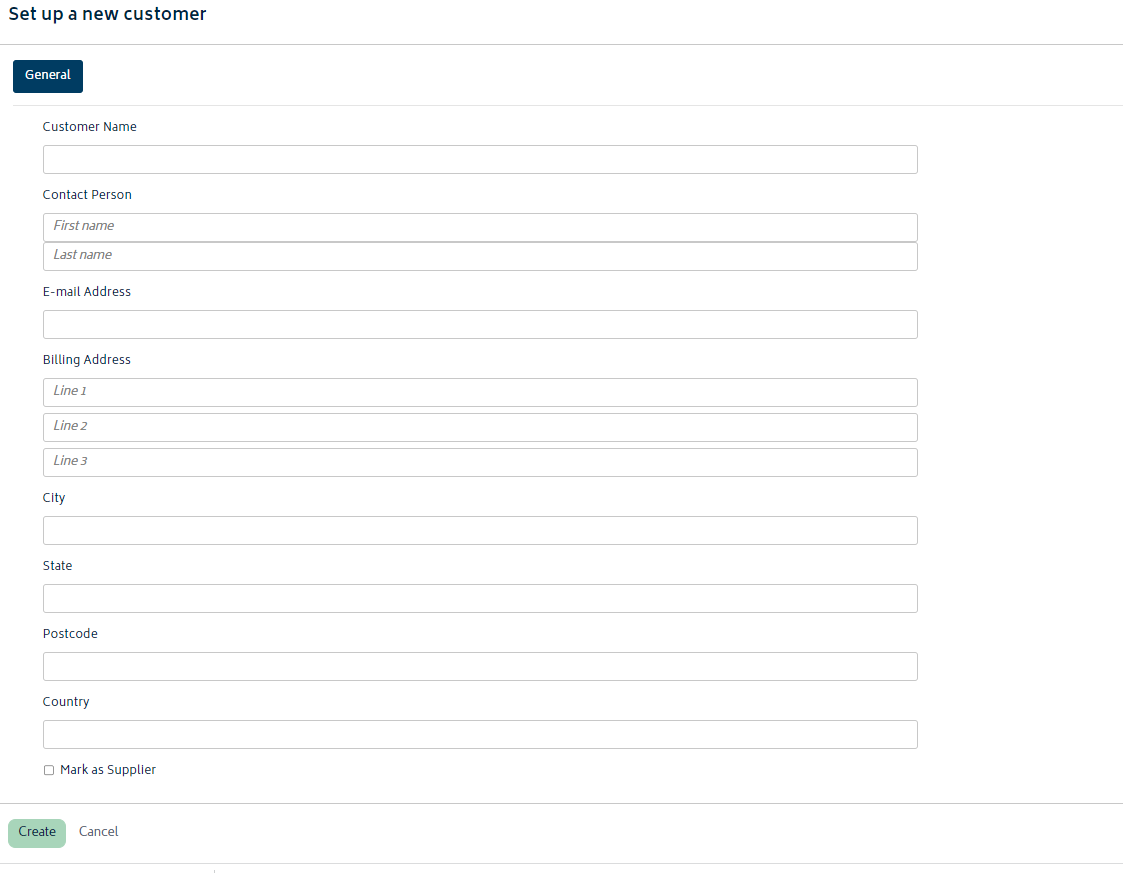
2.4 Enter the information and click “Create” and a new customer will be created successfully.
Note: The only requirement to create a customer in Gojee is to have a customer’s name however we recommend you entering as much information as possible.
2. View/Edit Customers
2.1 You can either view all the customer by navigating from the top menu from Resources > Customers or by clicking “Customers” from the home screen:
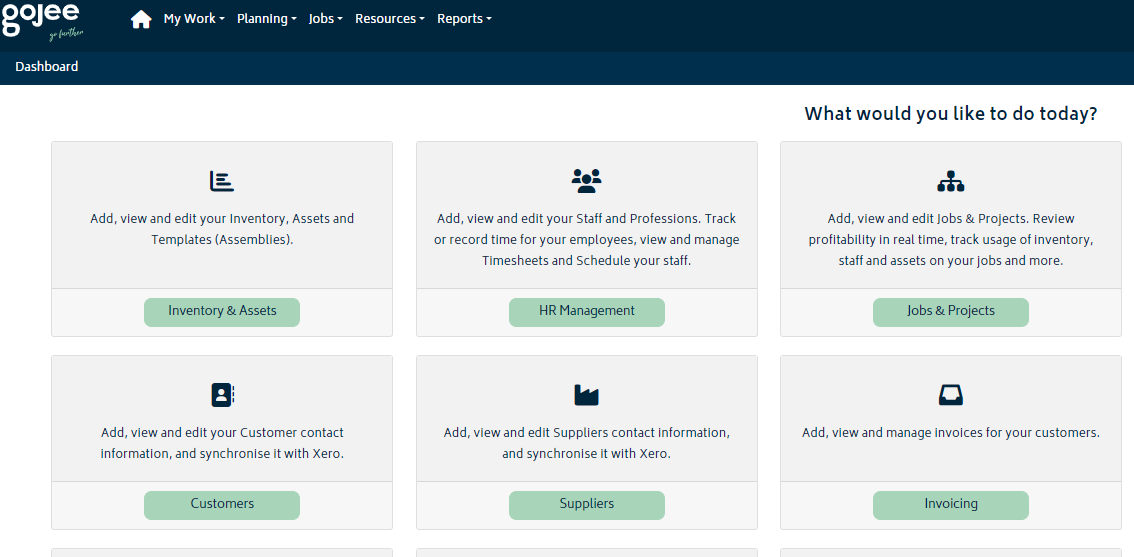
2.2 Click on “View/Edit Customers”
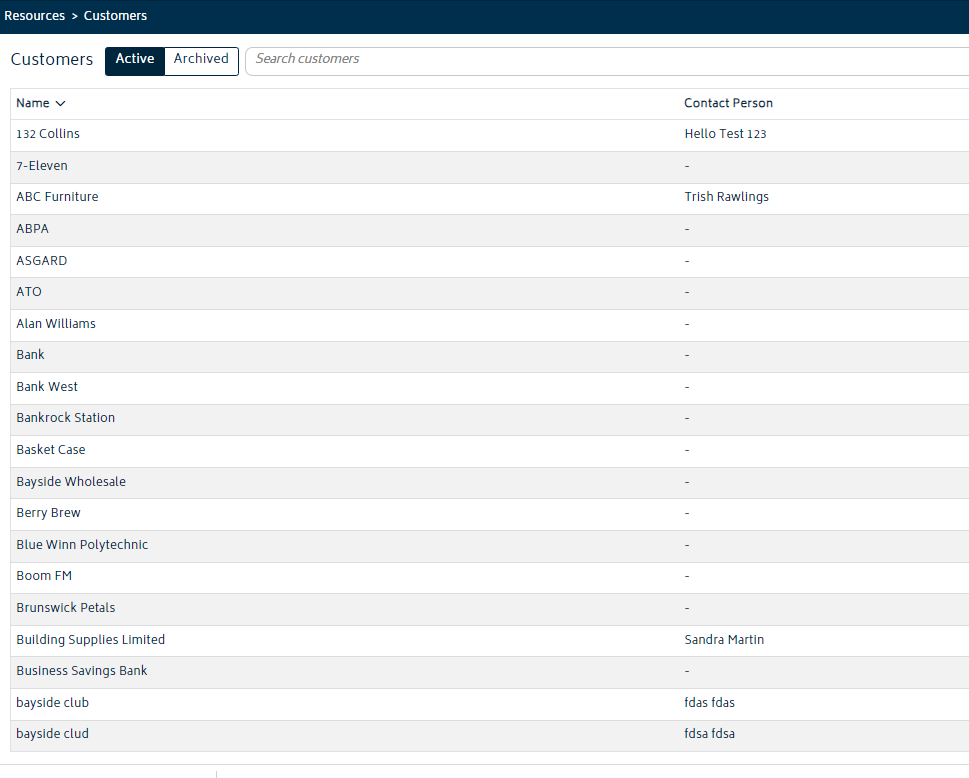
Note: You will be navigated to all the existing customers list in the system. You can search for customer by entering the name in the top search bar. Clicking onto a customer will take you to customer’s details where you can edit / update any of the details required for a customer.
3. Sync Now With Xero
-
- A request to sync Contacts data from Xero has been registered, you will receive an e-mail once completed.