

Supplier Catalogues
Introduction
In Gojee, you can have multiple suppliers for each inventory item.
You can add a supplier to an inventory item manually via a purchase order, the BOM, or by editing the item (this is a one off manual process), or you can go to a supplier's page and bulk import a list of items they can supply.
- To view which suppliers supply an inventory item (refer to View and edit inventory items).
- To import a supplier's catalogue and perform a bulk update, refer to the section below.
Supplier Catalogue Page
The supplier catalogue tab on a contact's page is used to bulk import a catalogue of items that a supplier can supply.
To get started, navigate to the contact list under Resources > Contacts. You can then filter this by Supplier.
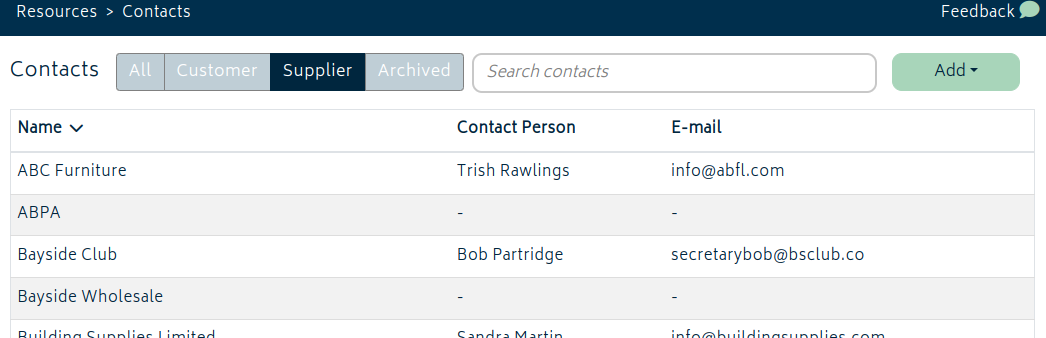
Select the supplier that you wish to update the Supplier Catalogue for.
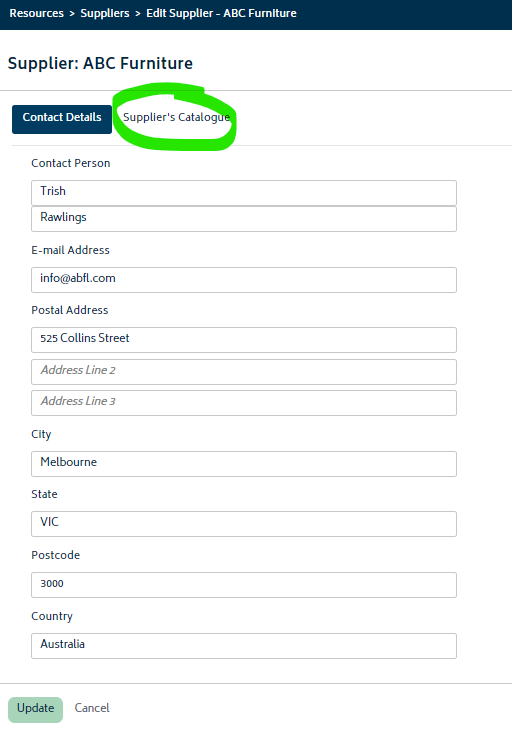
Click on the Supplier Catalogue tab and you'll be presented with the following screen:
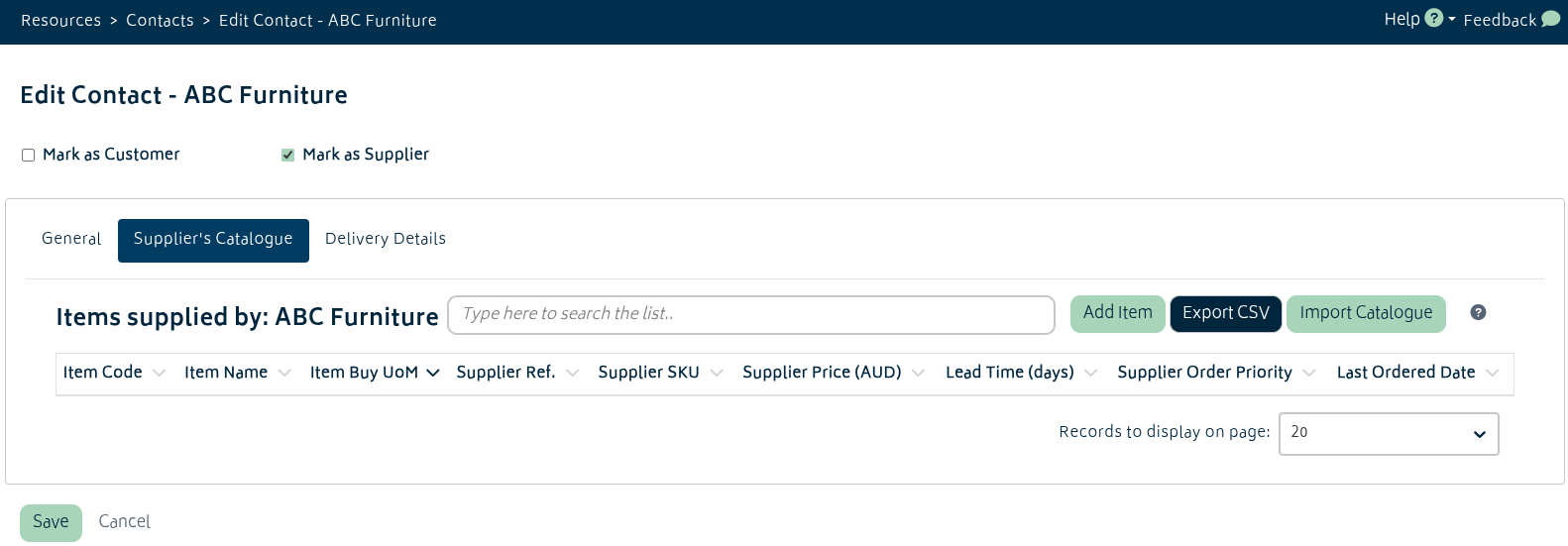
Note: If this is the first time you are updating the supplier catalogue, the list will be blank. Once you've added items they will show in the list on this page.
Importing a Catalogue
To import / update a supplier catalogue, click "Import Catalogue" from the top right of the page.

You will be presented with a modal where you can download the supplier catalogue template and update it with your supplier's items before uploading it into Gojee:
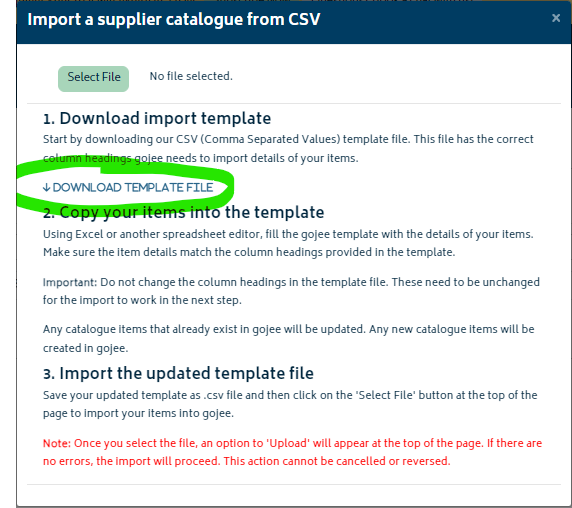
Please read the instructions in the modal carefully as not following the template as it will create issues while uploading the catalogue.
The supplier catalogue template file:
An example template file is shown below (as opened in Microsoft Excel or similar):
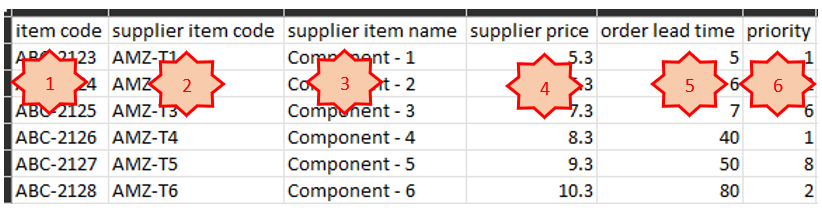
The numbered items in the image are described below:
- The “Item Code” needs to match an inventory item code for an item that exists in you Gojee file. If you havent yet added the items into gojee, refer to Create a new inventory item. The item code can be the same or different to the supplier’s item code (the next column in the file). This column is required.
- “Supplier Item Code” indicates the supplier item code through which they identify what item it is in their database. This can be the same as column 1, or different.
- “Supplier Item Name” This is to indicate what is the name of the item in supplier’s database.
- “Supplier Price” is the selling price of the item by the supplier (i.e. your purchase price).
- “Order Lead Time” indicates how long does the supplier take to deliver the item after it has been ordered. The lead time will be used to calculate estimated delivery time after a purchase order has been raised.
- “Priority” indicates the priority of this supplier as a supplier for the item. This is useful when more than more suppliers can supply the same item.
Note: You can always leave “Order Lead time” and “Priority” blank should it not be applicable for your business. The item code is technically the only required field, but it's good practise to fill in the other fields if you have the information on hand.
When editing this template make sure to save it as a CSV file, and save it in an accessible location for upload.
Note: Any example lines in the template file must be deleted prior to uploading into your system, otherwise they will be added to the import.
Once the template has been updated and saved, simply go back to the modal, click select file, then choose Upload file as per the image below:
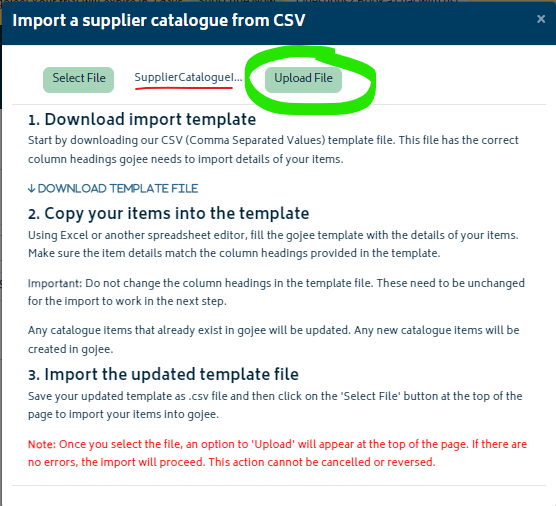
If there are any issues with the import the modal will advise of the problems. Once the import is complete, the items will be visible in the "Supplier's Catalogue" tab of your supplier's file.
Exporting a Catalogue
Whether an existing catalogue needs to be updated, you want to work with the data, or the catalogue needs to be moved over to a new contact, the CSV of the supplier catalogue can be exported with little trouble. Simply click the "Export CSV" button and the existing supplier catalogue will be exported as a downloadable CSV.
With this CSV, you will be able to perform bulk updates to prices, names etc. You can then re-import with the "Import Catalogue" button.
Next: Back to Knowledge Base.