

Sales Orders
Introduction to Sales Orders
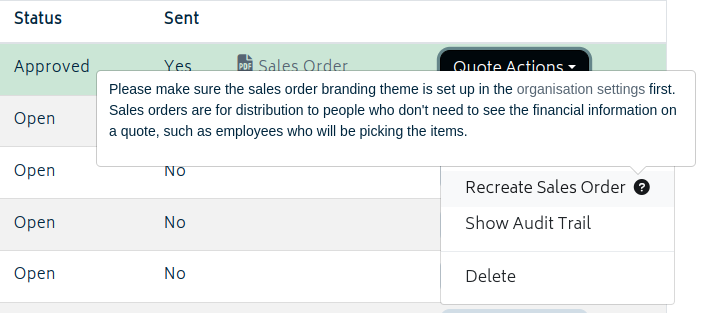
In the Quote Actions list, you have the option of creating a Sales order.
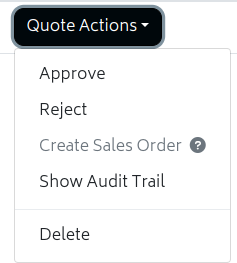
Note: If the document is not approved, you will not be able to generate a Sales Order.
The sales order is intended to be used for internal purposes when preparing the job so that your workers know what has been approved by the customer. It uses a separate Xero style, and is intended to be a way to give them this info while removing all financial information or extraneous info.
Setting up the Sales Order style
Xero doesn't provide a style that works with sales orders by default. Internally, sales orders use the "Draft Invoice" style Xero provides. In order to make it work properly, you will need to set up a custom .docx style that works with sales orders. For more information on customising Xero Branding Themes, refer to Xero Central's article.
If you are already using .docx Xero branding themes, you can modify your Invoice template and save it as a new theme. Otherwise, a sales order theme template is provided by us here: Sales Order Xero Theme
To set it up easily, do the following:
- Go to Xero's Invoice Settings page.
- Create a new .docx theme.
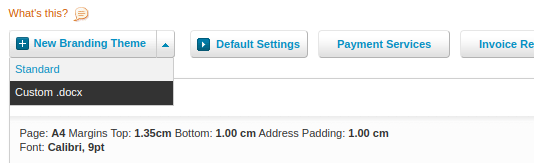
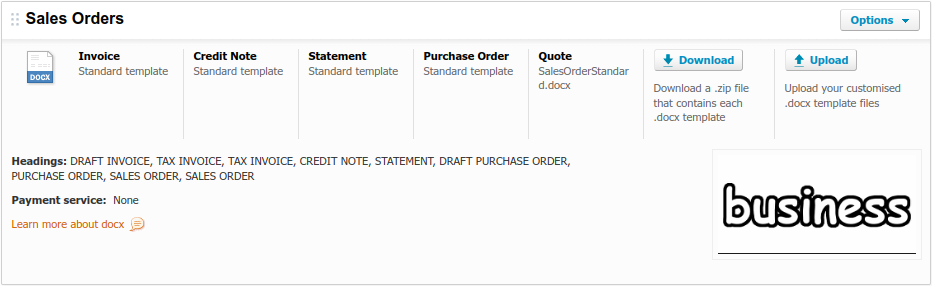
- Either download the sales order theme .docx we have provided above, modify your own org's Invoice .docx theme, or download the .zip of templates and create your own.
- Upload your .docx file under the Quote heading in the new theme.
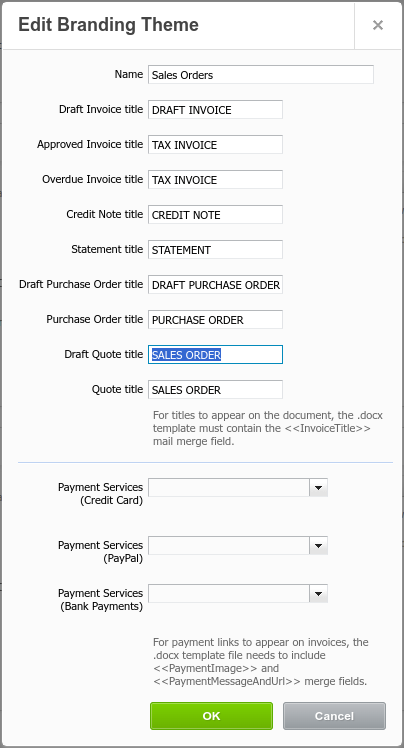
- Make sure to edit the theme and change the Draft Invoice heading to SALES ORDER (or whatever you like).
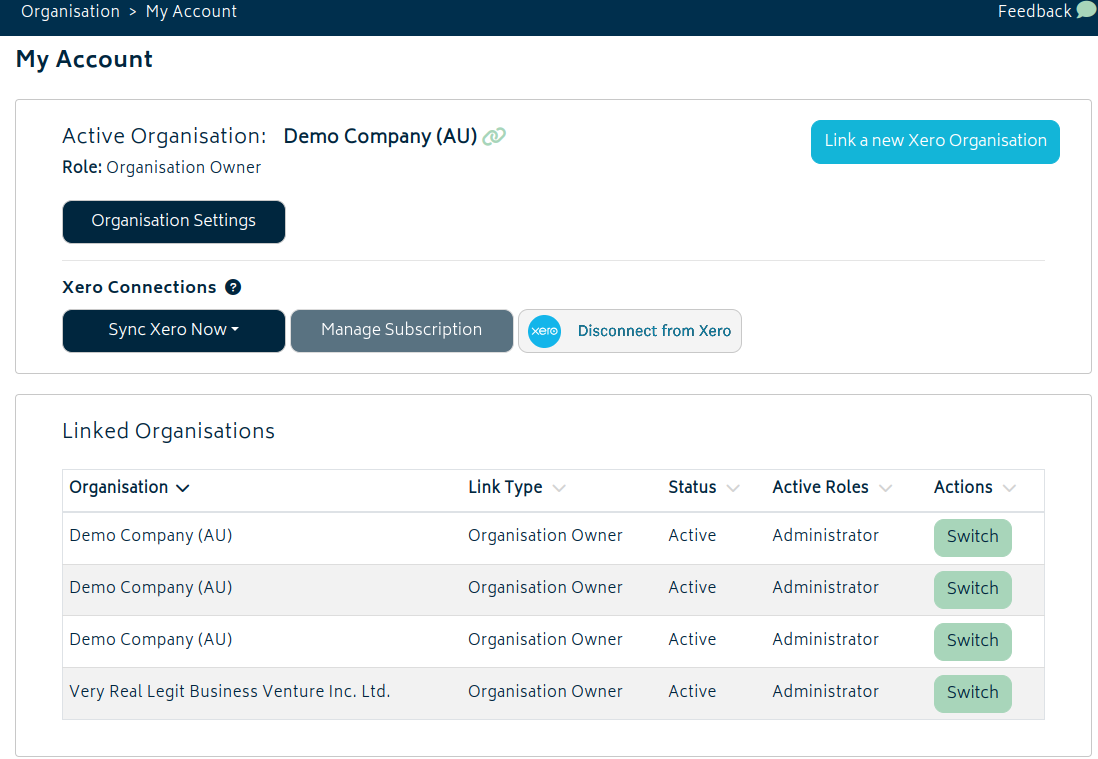
- Go to My Account and use Sync Xero Now to sync Xero organisation settings. You may have to wait for a while until the sync completes.
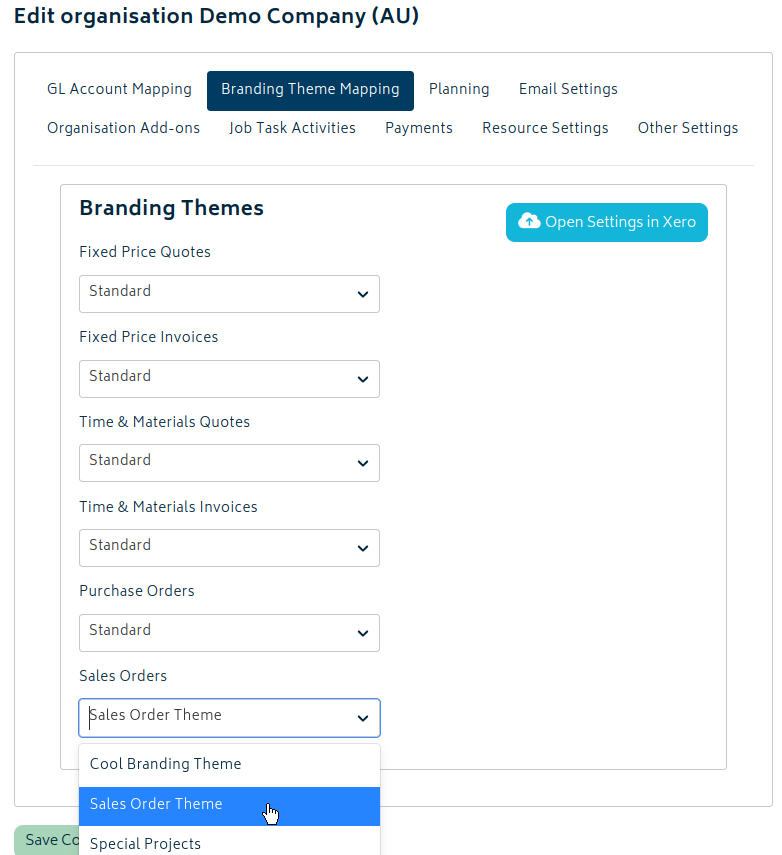
- Go to Organisation Settings > Branding Theme Mapping and choose the new Sales Order theme for sales orders, then save.
Creating the Sales Order
In order to create the sales order for a job, follow these steps:
- Approve the quote/estimate.
- Click on the Create Sales Order option in the Quote Actions menu.
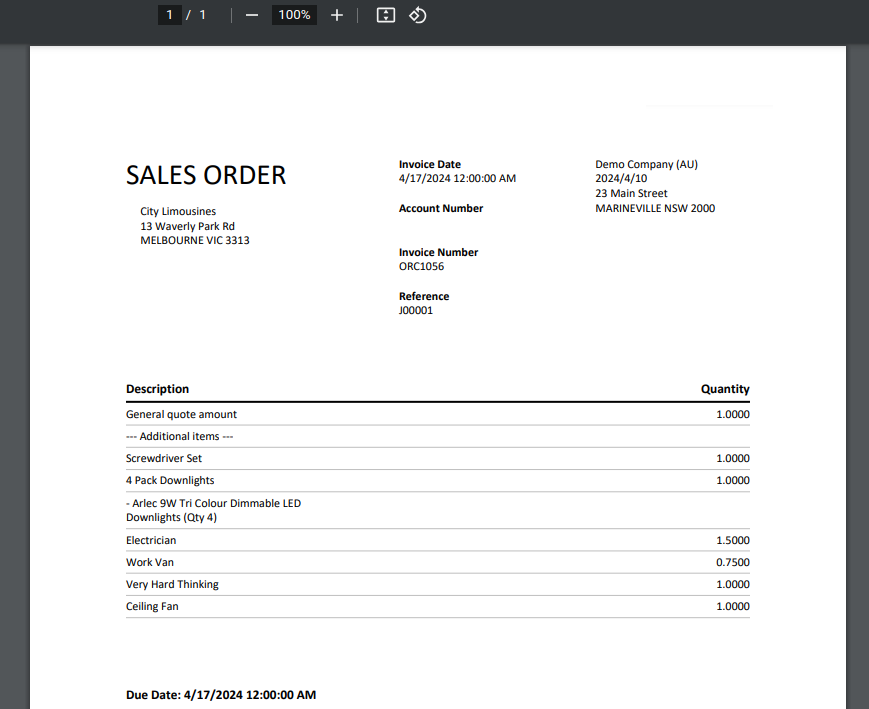
- A PDF document will be created and load in a new tab. It will be a copy of the approved quote with the Sales Order branding theme applied.
- The choice of branding theme allows the removal of the financial information from the quote.
- If you navigate back to the job quote/estimate list page, you'll also see a link to the PDF you can access at any time.
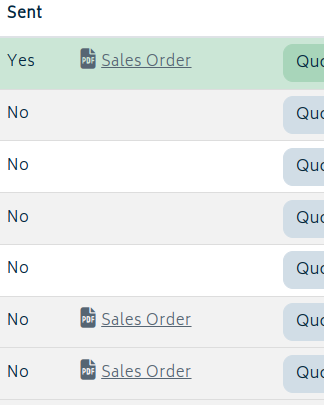
Note: While it's possible to un-approve a quote and generate a sales order for a different quote, only the sales order tied to the approved quote will appear from the Job Actions list. Just as there can only be one approved quote at a time, there should be only one sales order. You can will still be able to see previous sales orders from the Quotes/Estimates list for the job.
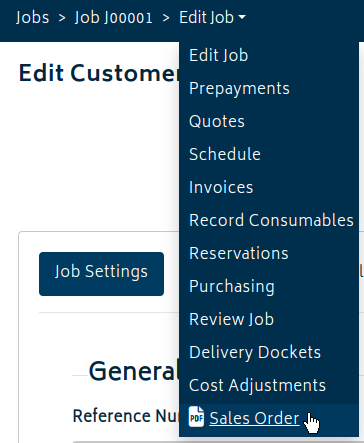
The PDF will also be accessible from the Job Actions breadcrumb.
Next: Back to Knowledge Base.