

Create Quotes & Estimates
Choosing a Quote or Estimate
In Gojee, the different job types differentiate whether a Quote or Estimate will be generated.
- A Quote will be generated for Fixed Price Jobs
- An Estimate will be created for Do and Charge Jobs
- For POS jobs, the quote/estimate function is not available as these are over the counter sales that produce an invoice directly.
Refer to Create a Job for information on the different job types in Gojee and how to select them for your job.
Before creating your first quote/estimate
There are some general concepts for quote/estimate generation in Gojee that users should be aware of before starting:
- The quote page is designed to enable users to present the information from the BOM page in whatever view they would like to the customer (refer to Create a Job for more information on the BOM page).
- This includes giving users the flexibility to show or hide line items, and/or price and qty information.
- When the quote page loads it will default to the information shown on the BOM page.
- Depending on the visibility setting of each line on the BOM page (i.e. the
 and
and icons), the line will either be hidden or included in the quote such that:
-
-
If all items are visible on the quote, then the list of items on the BOM will match the list of items on the quote.
-
If some items are hidden on the quote, they will not appear on the quote list. In this case, a new line item at the top will be added to the document which contains the price associated with the hidden item(s).
- This line item will have the description "General quote amount".
- A second line to separate out the detailed items from the General quote amount will be shown with description: "--- Additional items ---".
- The description of either of these lines can be changed as required, and the Additional Items line can be removed altogether if preferred by clicking on the (x) icon at the end of the row.
-
-
- If a line is hidden on the quote, it will show at the bottom of the page in the "Not Included" list. You can add the item back onto the quote from this list by clicking the Add button.
- If you'd like to remove a line item altogether from the quote, this can be using the (x) at the end of the row (as detailed below), and the line item will then move into the "Not included" list.
Note: Changes made on the quote page to price or quantity of the items will not be updated on the BOM page for the job. This document is purely for the purpose of presenting the information you'd like to the customer. You can go back to the job and update the BOM at any time, and you can also create multiple quote options for the one job.
Changes made to the visibility of line items (i.e. if they are shown, or not shown on the quote) will be saved onto the job BOM page.
Starting from a New Job
A job is the starting point for a quote or estimate, and without a job the quote or estimate document cannot be created.
To get started with a new job, refer to the Create a Job section to create the job.
Once you're in the job:
- Fill in the bill of materials to pull into the quote, then
- Select either “Save” to create the job and continue working on it, or “Issue Quote” to create the job and immediately proceed to quote creation.
Refer to the section below for building the quote or estimate document once you're on the quote/estimate creation page.
Start with an Existing Job
You can create a quote/estimate for an existing job either via the Job Actions of the job, the "Create Quote" button on the edit page of the job, or via the Navigation Dashboard, where you can select Quotes & Estimates:

Then click “Create a Quote for an Existing Job”, then select the job number from the dropdown list of existing jobs:
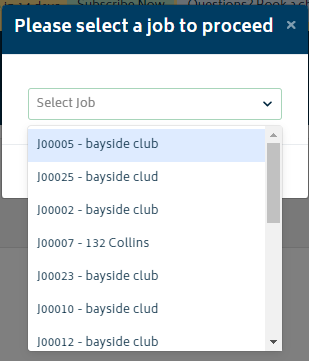
You will be directed to the quote/estimate creation page in any of the above cases.
Creating the Document
Once you have a job and you are on the quote/estimate creation page, you will be presented with the following screen:
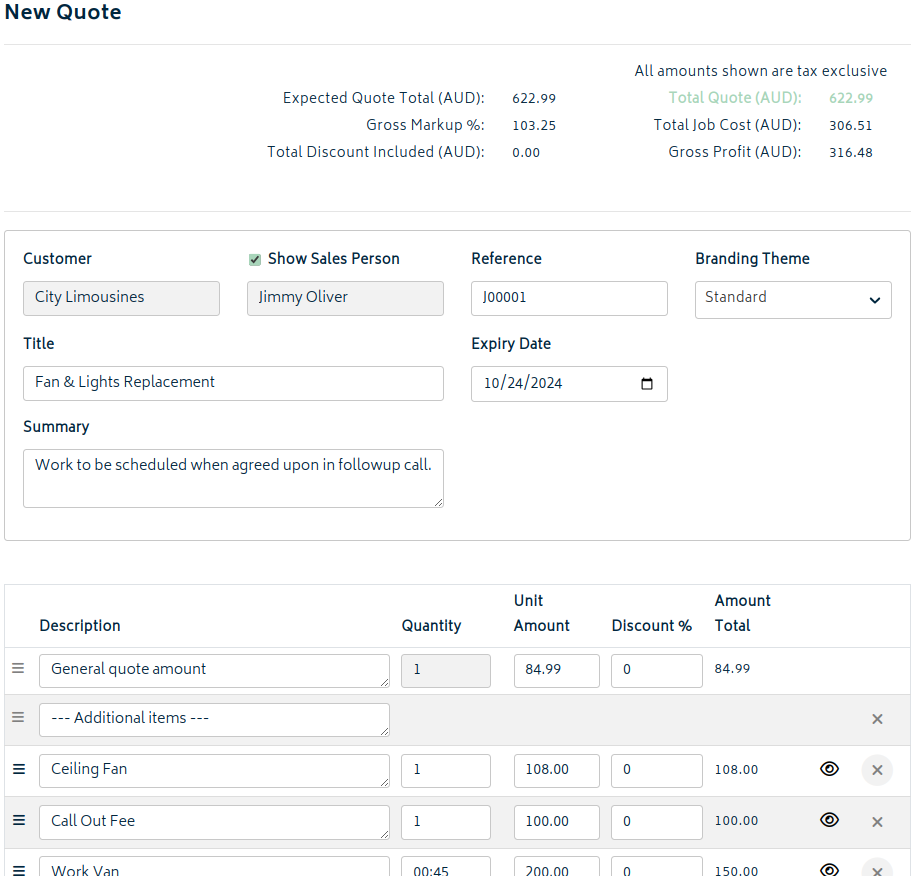
The items in the table are described below.
Description: This is an editable field and a user can add or amend the description in this field. The information in this field will default to that from the catalogue.
- Note that for inventory items there is an additional field to set a separate description for the item to be shown in quotes/invoices. If this field is set on the item (refer to Create a new inventory item for more information), then it will override the internal name and description.
- You can expand this field by dragging out the bottom right corner of the field, and you can include any addition text including writing down any sort of instructions that you might want to display on your quotation.
Quantity field: The number of items to be used for the job. The field can be updated here independently of the BOM.
Price fields:
- Unit Amount: The price per unit. This field and the discount % can also be updated independently of the BOM.
- Discount %: The percentage discount rate.
- Amount: The total amount the customer can expect to pay for this line item - calculated from the quantity, amount, and discount fields.
General Quote Amount: If any prices or items are hidden, the General Quote Amount line will appear.
Note: If you modify this number directly or click the field, it will flag this field as user-edited and freeze the value. If this happens, it is possible that the quote amount will not match what is shown in the BOM. To fix this, you can:
- Refresh the page - You will lose any changes you have made.
- Change general quote amount to 0, then show all prices and add all items back to the quote and save. You will be able to edit the quote and hide the items again.
Toggle to show or hide prices or quantities: These toggles give you the flexibility to show or hide the quantity and price fields for individual line items. You can show just the description of the item on the quote if you'd like to.
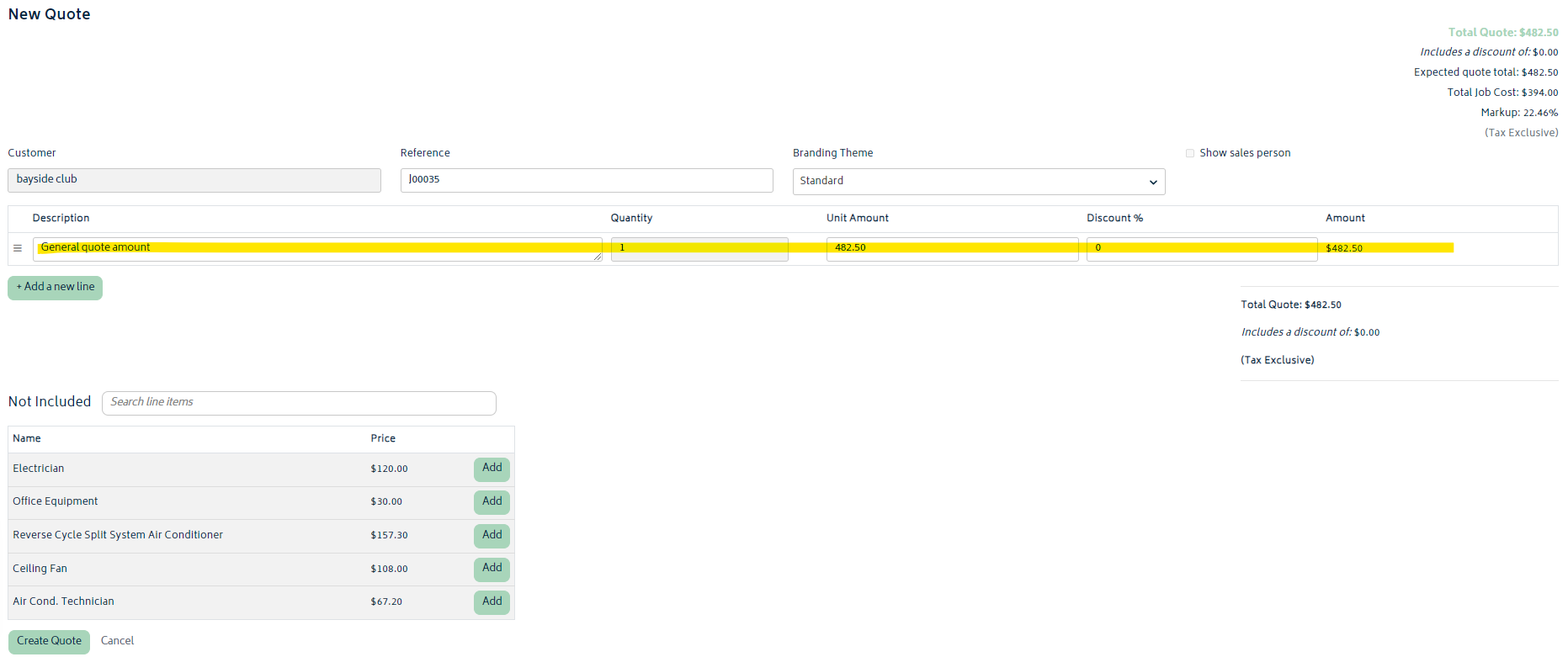
Remove a line  : This allows a user to completely hide a line item altogether along with description, quantity and amount and add the actual amount of the line item into the general quote amount.
Below is the screenshot of an example quote where we have deleted all the line items and the General Quote Amount shows the total price of the job:
The Add a new line allows user to add a custom line item to the quote.
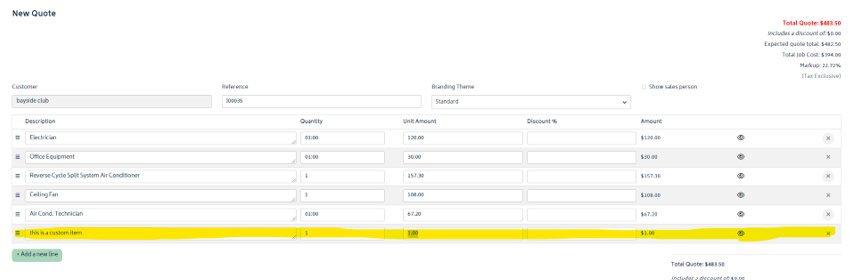
- Note: as per the general concepts section above, keep in mind adding an item to this quote will not add the item to the BOM page for the job, it's just for representation to the customer. You can use it with free hidden quantity/price items to add more descriptions or instructions to your quote.
Drag and Drop Rows:  The icon on the far left of each row is a handle which allows you to drag and drop the row to re-order it on the table. When you grab a row, the row itself will show in yellow highlight. You can move the row above or below any item or interpose the position with another row.

- Move the mouse to another row location and it will highlight in green to show that the row is allowed to be dropped there.

After you have customised the quote, you can hit “Create Quote” button.
If you've chosen a Xero branding theme, Gojee will automatically communicate with Xero and use that theme to create a quotation. Both a PDF format quote with your logos and styling and a quote in Xero will be generated. You will be able to follow the deep link for this quote to view the quote in Xero.
Setting up Terms
When creating a quote, you will have the option to modify the terms and conditions. If your organisation has not set up any terms, this will be blank by default. Otherwise, it will be pre-filled with the default terms.
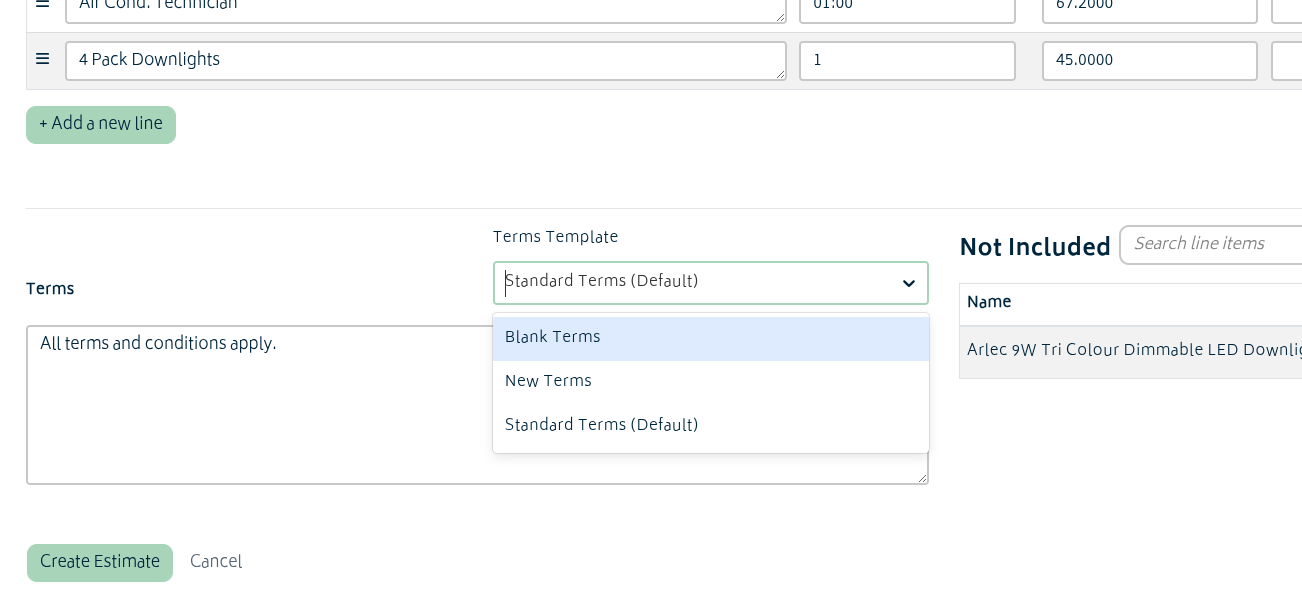
If you have modified the terms section and wish to change to a different terms template, you will be warned that unsaved changes will be lost. Terms templates can be set up under Resource Settings when modifying organisation settings.
Next: View Quotes and Estimates.