

View Quotes/Estimates
View Quotes and Estimates on the Job
The following instructions can be used to view all the quotes or estimates for a particular job. You can use the navigation page or select Quotes (or Estimates) from that job's Job Actions.
Note: You can also navigate to the View all Quotes/Estimates page by navigating to Reports > Quotes from the top navigation menu. To execute all of the actions listed below however, including emailing, approving etc., you will need to be inside the job quote/estimate page, and not the global reports > quotes page.
Navigate to the customer job list - either select Jobs & Projects from the navigation dashboard and click “See Customer Jobs” or select Jobs > Customer Jobs from the menu. Then select the job that you want to view all the quotes/estimates for.
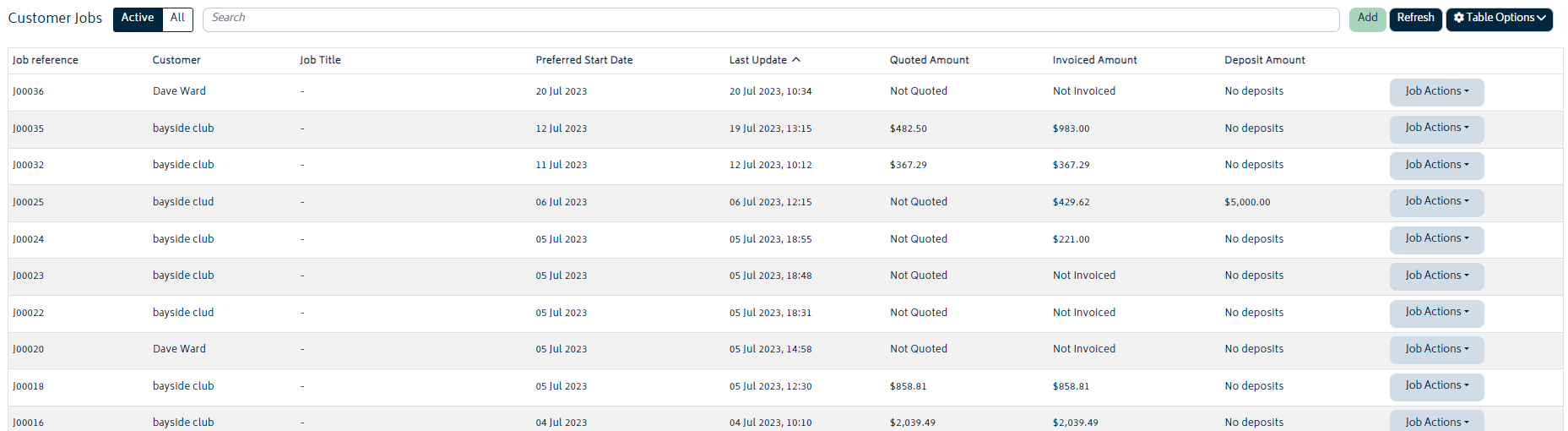
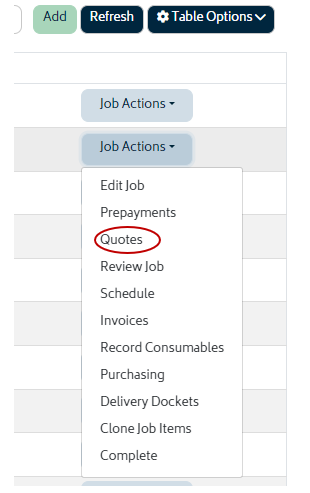
Click the Job Actions button & select either Quotes or Estimates.
You will be navigated to the quotes/estimates page for that specific job.
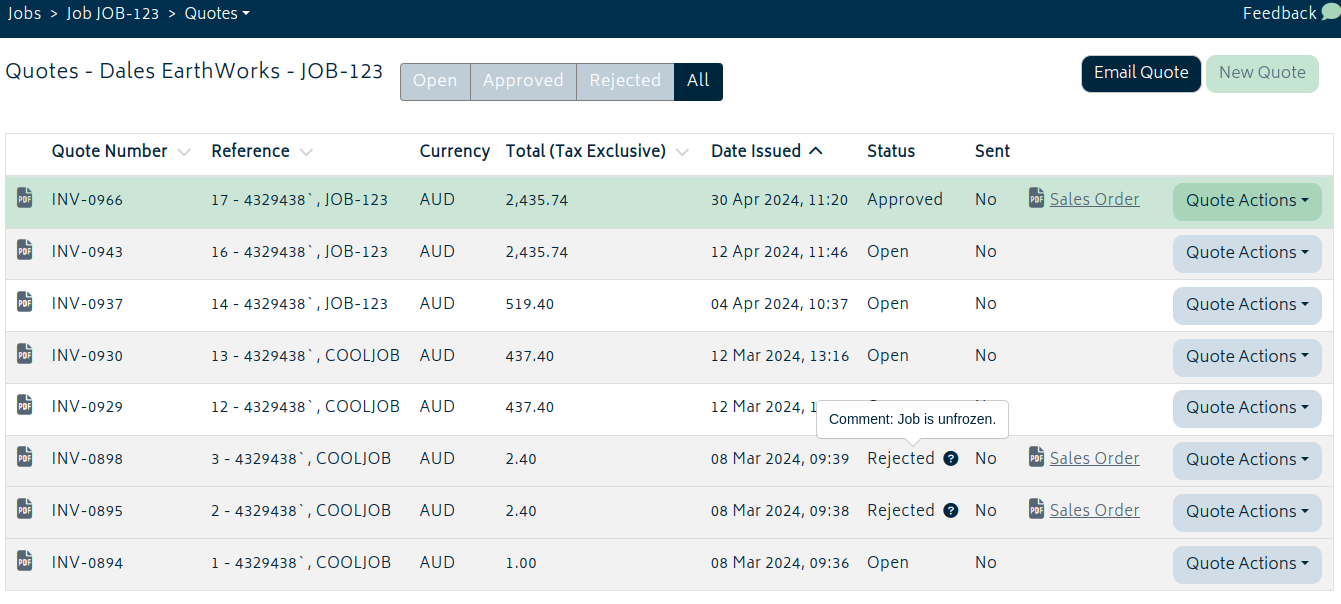
Note: This page will also be displayed once you've created a quote using the steps provided in the section above.
About the Quote/Estimate Page
Each of the elements in the quotes page will be explained below.

- Filter Buttons: Choose to show only Open / Approved / Rejected quotes. By default, system will show you all the quotes raised for this particular job with All.

- Email Quote: Allows user to email the quote/estimate from Gojee to customers directly.
- New Quote: Create a new quote for the same job. This will start the create quote process again. You can have any number of quotes for a job.

- Leftmost PDF symbol: Direct link to the PDF of this quote, created using the chosen Xero branding theme. Click on this to download or view the PDF.
- Quote Number: Internal number for keeping track of quotes globally.
- Reference: By default, this number is the quote number and the job number, although this can be changed.
- Currency: Which currency the quote is in. This should be your organisation's currency unless Multi-currency is enabled in Add-ons.
- Total: The total value of the quote.
- Date Issued: Timestamp of when the quote was created.
- Status: Whether a quote is Open, Approved, or Rejected. Rejected quotes will always have a grey background, and the approved quote will have a green background.
- Sent: Whether or not a quote has been emailed to the customer.
- Sales Order PDF: Link to the generated Sales Order for this quote. Will not appear unless generated.
- Quote Actions: Allows users to either approve, reject or delete a quote altogether. You can also create sales orders here and view audit logs tracking changes and events.
- This button will be green if the quote is not rejected or grey if the quote has no further meaning. If an approved quote exists, buttons from non-approved quotes will also become grey like rejected quotes.
Emailing Quotes/Estimates
On the right-hand side of the page, there is an option to email a quote/estimate directly from Gojee:
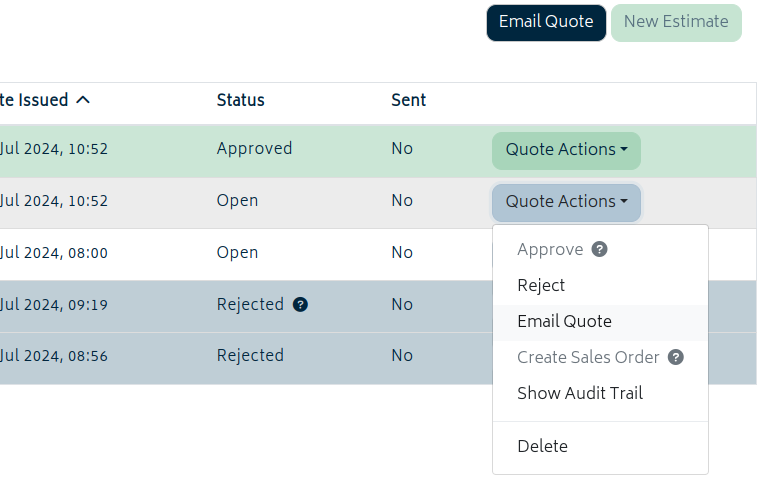
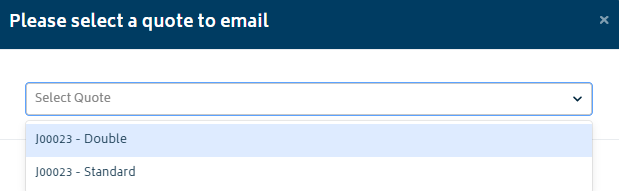
To email a document, you can either click on the Email Quote button and choose which quote you'd like to send from the dropdown list, or click Email Quote from the Quote Actions for a specific quote. If you select the Email Quote button from the top of the page, you'll have a choice of which to send:
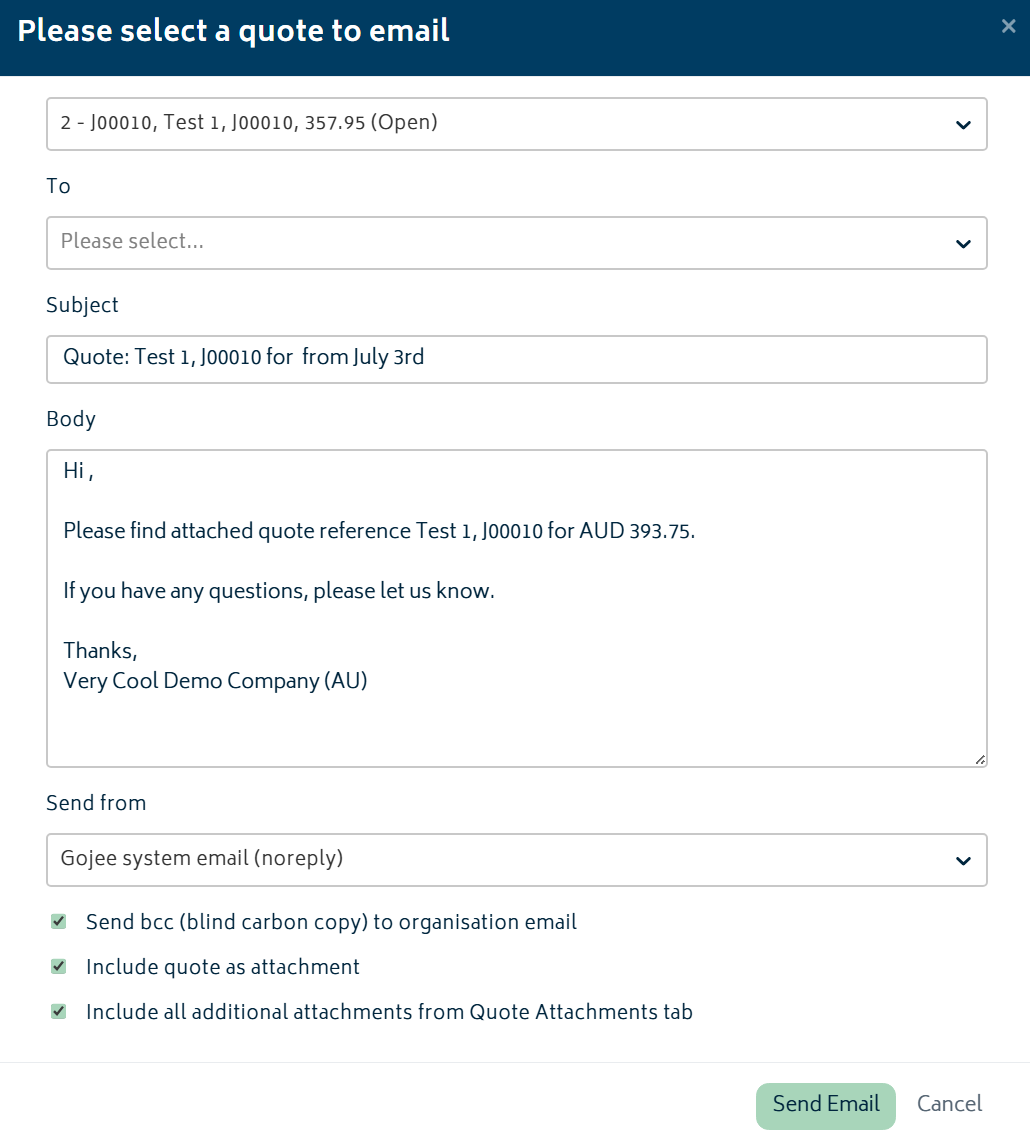
- The Email will default to the customer’s email address, as set up in the Contacts section. A new address can be added, or the address can be changed.
- The Subject will default to the dynamic text as shown, including the job number, the quote reference and the sender's organisation name.
- The Body will default to the dynamic text as shown, including the quote reference and the price. This can be customised to the business's needs if required.
- If organisation email settings is set up correctly, a linked email can be chosen from the "Send from" tab for personalisation. It can also be left as a noreply email however a reply email must be linked.
- Options to bcc the organisation email and include the quote as attachments are provided.
- Any attachments that have been added to the quote (this can be done while editing) can also be included at this time.
If your organisation has connected Microsoft or Google email accounts, the email modal will also include a Send from dropdown to pick where the mail is to be sent from. Users can send from an available connected mailbox. The default account for sending emails from can be configured in Organisation Setup > Email Settings.
To send the email, hit the Send Email button.
Note: By default, when sending emails from Gojee, they will be sent from the address no-reply@gojee.com.au. A reply-to must be set in Organisation Setup > Email Settings.
If you would like to personalise the email used, this can be done by linking a supported email in Organisation Setup > Email Settings.
Once the quote has been sent, the "Sent" field for the document on the job quote/estimate list page will note so. (If this status doesn't show immediately, simply refresh the page.)
Approve or Reject Quotes and Estimates
For each quote, you can choose to approve or reject the quote to make it clear which ones you will and will not be moving forward with from the Quote Actions menu:
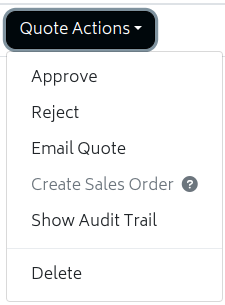
To approve a document, follow these steps:
Click on the Approve option in the Quote Actions menu for the document you want to approve. You will be presented with the following screen:
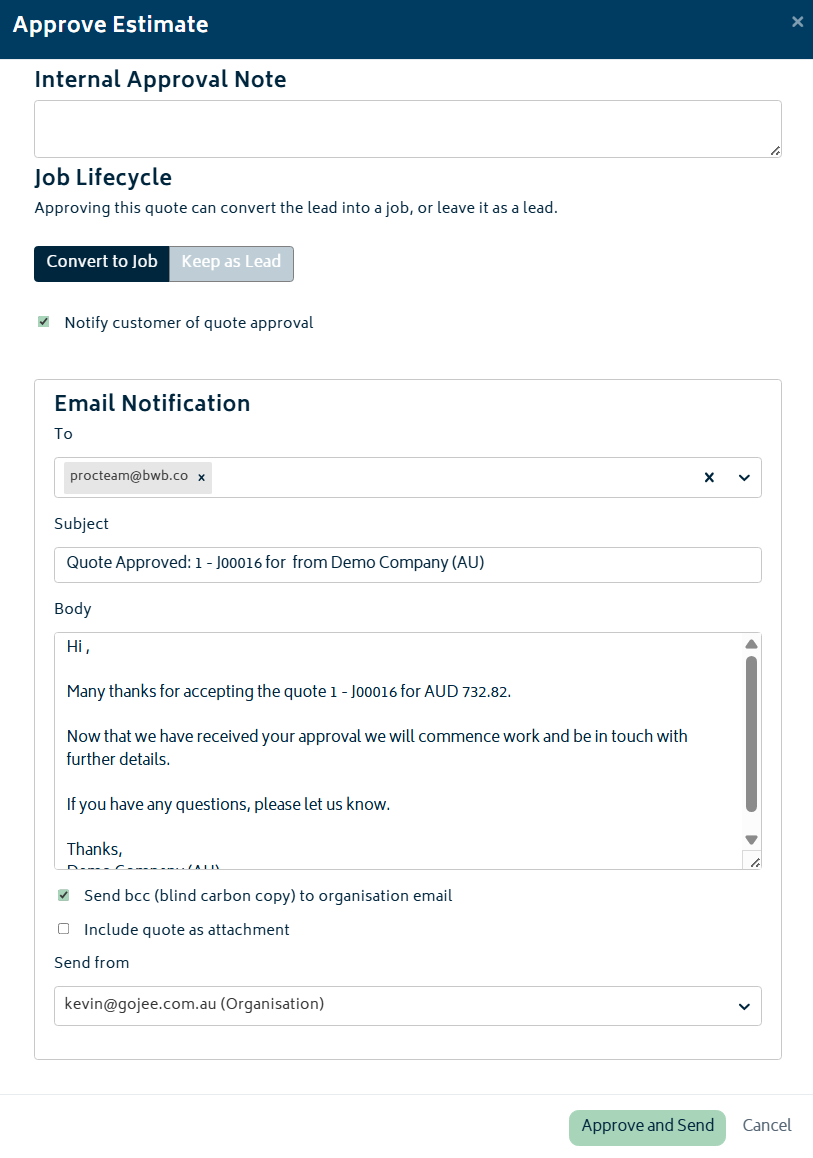
From this screen, you are provided the following options:
- Add an internal approval note - this is a free text field where you can add any relevant text (reason for approval, date, etc.). This text will not be available to the customer.
- Option to notify customers of the document approval - if you click this checkbox, the details of the email will be provided as shown in the image above. There is a standard email body presented which is editable.
- If the email option is selected, the user can also choose to BCC the organisation email (as set in the organisation settings) so a copy is sent to that email address also.
- An option to attach the approved document and any other attachments from the quote is also provided.
- If set up, an option to select a linked email to send from.
Note: After a quote/estimate has been approved, we recommend locking the job budget at its current state via the BOM Actions to prevent accidental changes.
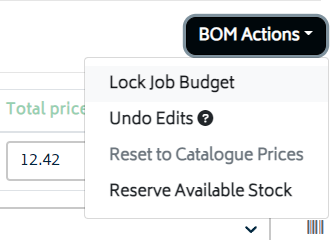
Note: Only one quote can be approved for each job. You can however reject an approved quote, and then approve another quote.
To reject a document, follow these steps:
Click on the Reject option in Quote Actions for the document. You will be presented with the following screen:

From this screen, you are provided the option to add an internal rejection note - this is a free text field where you can add any relevant text (reason for rejection, etc). This text will not be available to the customer.
Creating multiple quotes/estimates for one job
The New Quote button allows you to create any number of different quotes for any one job.
- This means you can start with one version of a BOM for the job, raise a quote or estimate for that, and then modify the BOM and create another quote for that version of the job and so on.
- When the customer chooses the version they like, you can simply approve that version.
- If you want further control over the BOM and have drastically different quotes you want to send to customers, please see the Variations add-on article.
Note: If there is an approved quote/estimate, the new quote button will be disabled. If you'd like to create a new quote for this job, you'll first need to reject the approved quote.
Creating a Sales Order
When the quote/estimate is in approved status, you will have the option of creating a Sales Order for internal use (or regenerating one that has already been generated, should one already exist for the quote in question).
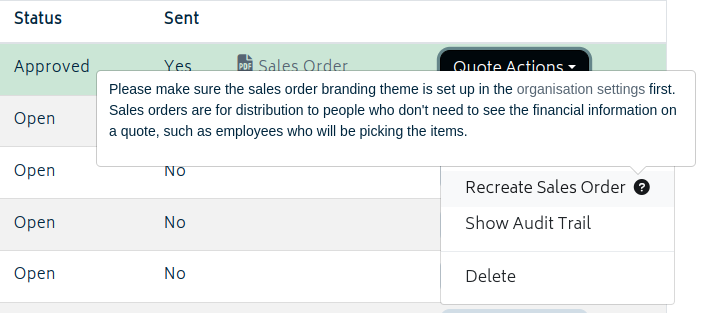
As noted above, in order to properly generate a Sales Order, you must set up a special Xero style. To learn more about Sales Orders and learn how to set them up, please refer to the Sales Orders article.
Delete Quotes and Estimates
In each Quote Actions list, there is a button to delete the quote.
It is possible to delete any quote (even approved quotes), but it is not advisable. If the document is deleted, it is completely removed from the records and is not retrievable. There will be no history of the document being created or sent, and the audit trail will become irrecoverable. Please be careful.
Quote Audit Trail
In the Quote Actions menu you will find the Audit Trail option. This function will present you with a log of actions taken regarding a quote.
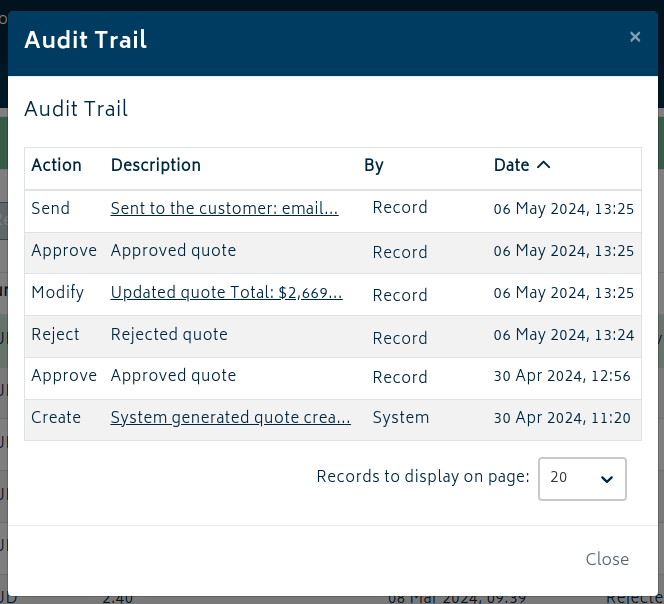
Clicking truncated records will display the full record.
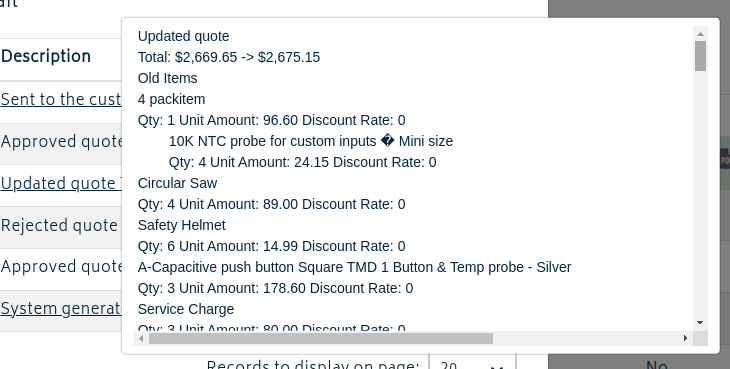
When the items or amounts on the quote change, full text copies of the quote in the before and after state will be saved. Emails sent will list the recipients, but not the contents of the email.
Note: If a quote is deleted, there is no way to retrieve its audit log.
Next: Edit Quotes and Estimates.