

Variations
What are Job Variations?
Variations enable flexible scoping and versioning of job scope, cost, and deliverables while maintaining a clear audit trail of all proposed and applied changes. This will produce a document that the customer can sign off on - and then apply those changes individually. Variations can be enabled as an add-on under Organisation Setup.
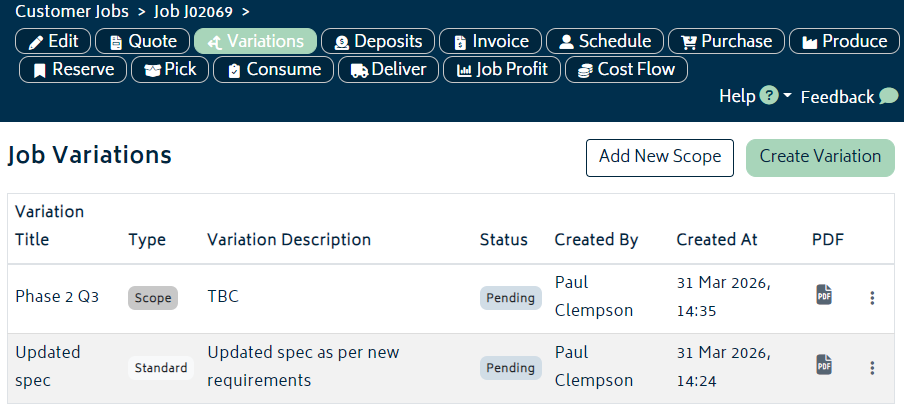
When creating variation quotes/invoices, you can choose the relevant Xero branding theme for that variation document, or leave it as the organisation default.
There are two types of variations you can create:
- Standard Variations: Modify the existing Bill of Materials (BOM) by changing line items, quantities, or costs. Standard variations compare against the current job state and lock if the job's base structure changes.
- Scope Variations: Add entirely new sections to the job scope. These are purely additive and never become outdated, even if the base job is modified.
Creating Variations
Standard variations allow you to modify or update line items in the existing job's Bill of Materials before customer approval.
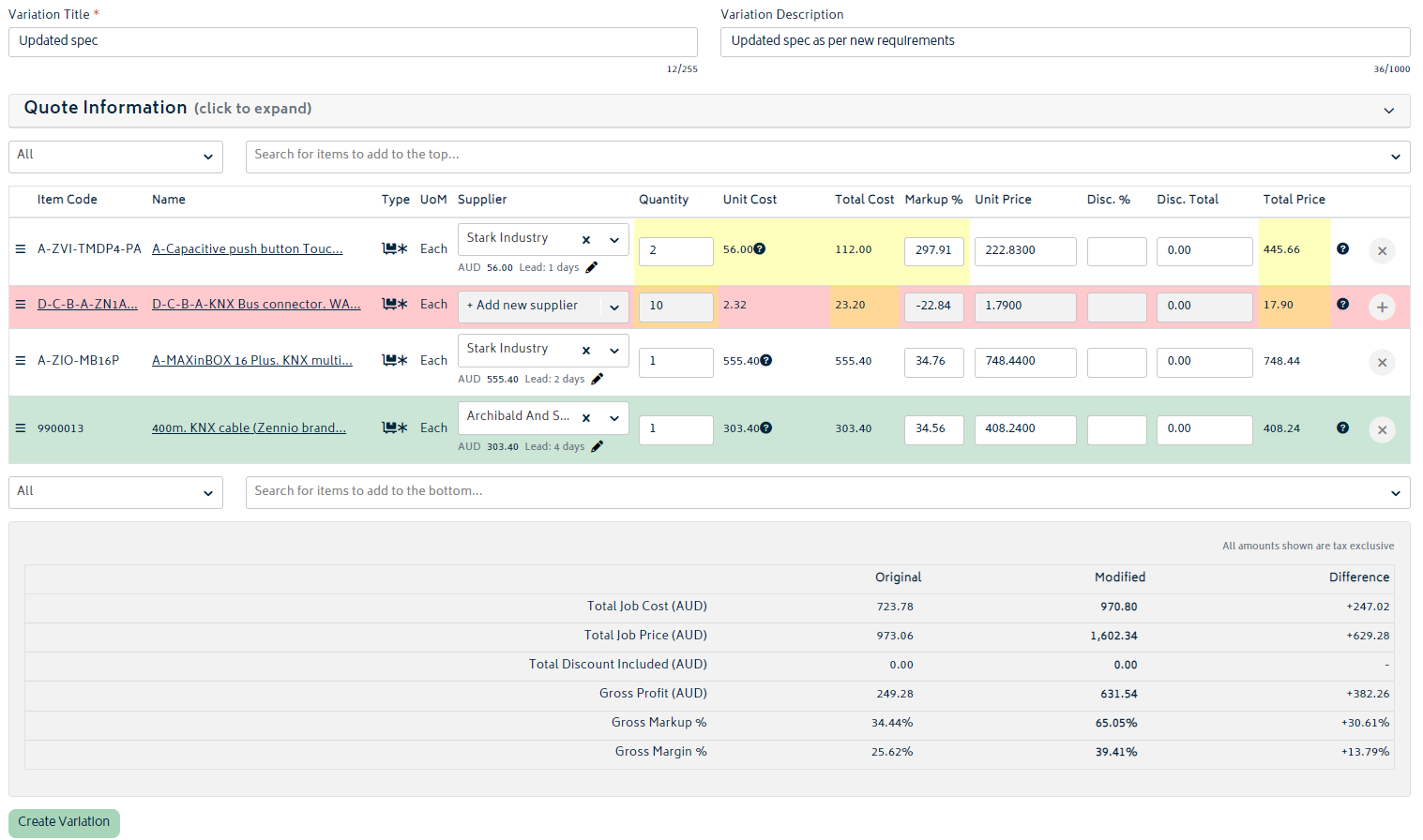
To create a variation:
- Navigate to the job's Variations page via Job Actions
- Select Create Variation
- Modify existing line items, add or remove line items, adjust quantities, or update line descriptions as needed
- Review your changes in the comparison of the modified items
- Add a description explaining the scope change (optional but recommended for customer and internal clarity)
- Optionally, expand the Quote Information section and modify the information to present to the customer.
- Click Create Variation to save
Your variation is now in Pending status and ready to be reviewed and rejected or approved, and thus applied to the job. You can view it at any time.
As long as the variation remains in Pending status and is not invalidated due to changes to the BOM, you can reopen it from the variation list and choose Edit to continue refining the lines, description, or quote information before approval.
Important: If the job's base BOM is modified after you create a standard variation, your variation may become locked and marked as outdated. In such cases, you will need to create a new variation.
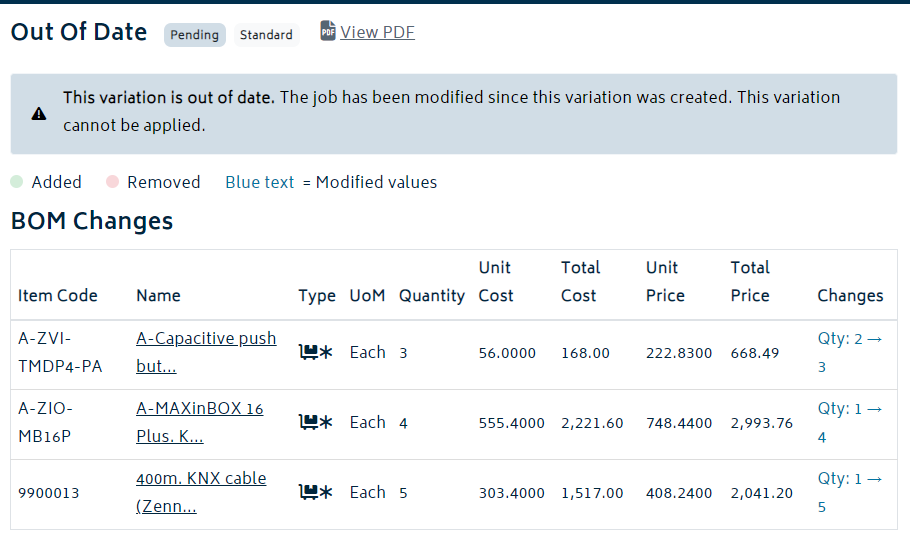
Creating New Scopes
Scope variations add entirely new sections to the job without modifying existing line items. These are useful for proposing additional work, services, or optional upgrades that can be added independently.
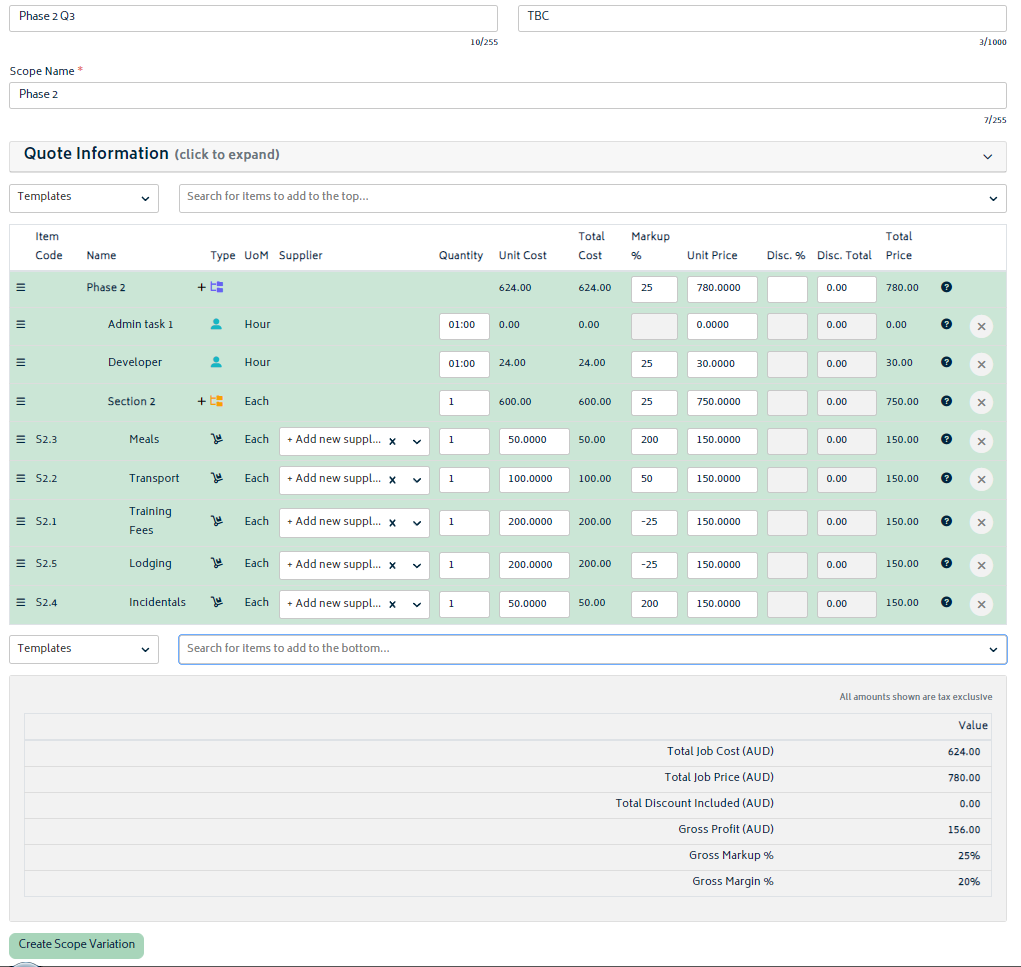
To create a new scope:
- Go to the Variations page from a job's Job Actions
- Select Add New Scope
- Enter a name for the new variation and for the section (e.g., "Additional Flooring" or "Premium Installation")
- Add line items to the new section with descriptions, quantities, and costs
- Add a description explaining the additional scope
- Click Create Variation to save
Scope variations remain available for application and edits regardless of any changes to the base job scope.
Applying or Rejecting Variations
Once a variation is created and ready for review, you can apply it to the job or reject it entirely.
To apply a variation:
- Go to the Variations section on the job page
- Locate the variation in Pending status
- Review the proposed changes (the "Before" and "After" snapshots for standard variations)
- Click Apply Variation
- The variation status will change to Applied
To reject a variation:
- Locate the variation in Pending status
- Click Reject Variation
- The variation status will change to Rejected
Note that only pending variations that are not out of date can be edited, approved, or rejected. Applied and rejected variations remain available for viewing and audit history, but not for further editing.
Tip: If a standard variation becomes locked due to base job changes, you can create a new variation from scratch.
Next: Organisation Add-ons.
Or: Back to Knowledge Base.