

Cost Adjustments: Using Cost Recovery Mode
Cost Recovery Mode
This module enables you to get a better representation of your direct and indirect costs in Xero. In so doing, you will have a better understanding of your overhead costs, and it will allow you to price your jobs better and make sure both your jobs and your overall business is profitable.
With this module, Gojee provides the ability for you to recover costs relating to labour and asset usage on your jobs from the operating expense accounts to the cost of sales accounts.
There a two main steps involved in using the Gojee Cost Recovery mode as listed below:
- Incur job costs using the normal process (i.e. using the Record Consumable or Purchasing functions from the Job Actions menu), then
- Recover the costs (this happens automatically for inventory items, for labour and asset costs there is a manual step required to recover the costs).
Manual journals posted to Xero will have an effective date that can be modified in Gojee. This will default to the current date except for the following cases:
- Receiving goods on a purchase order. Journal is dated with the receipt date, so a backdated receipt produces a backdated journal.
- Receiving goods on a production order - same behaviour as purchase orders.
The topic links on the left detail how to use all aspects of this WIP module.
Getting Started
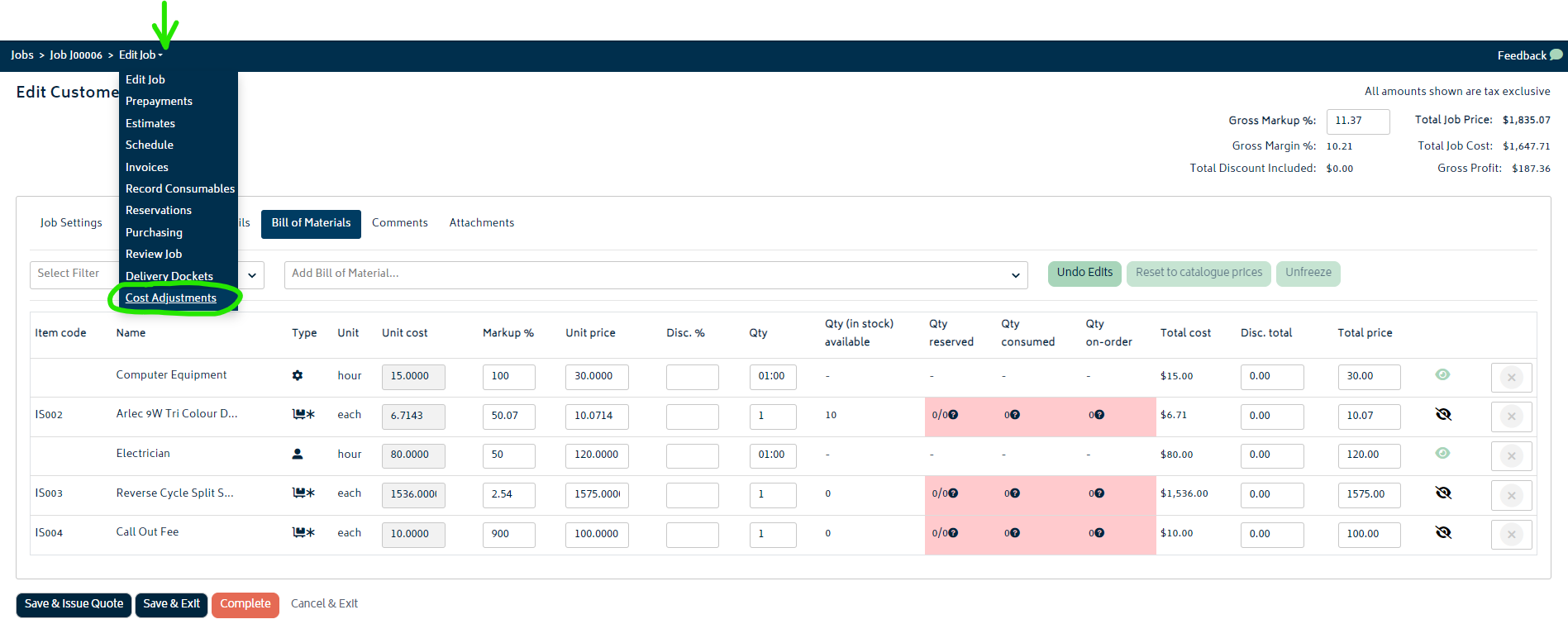
Once you have enabled this add-on, Cost Adjustments for a job will be able to be found under Job Actions:
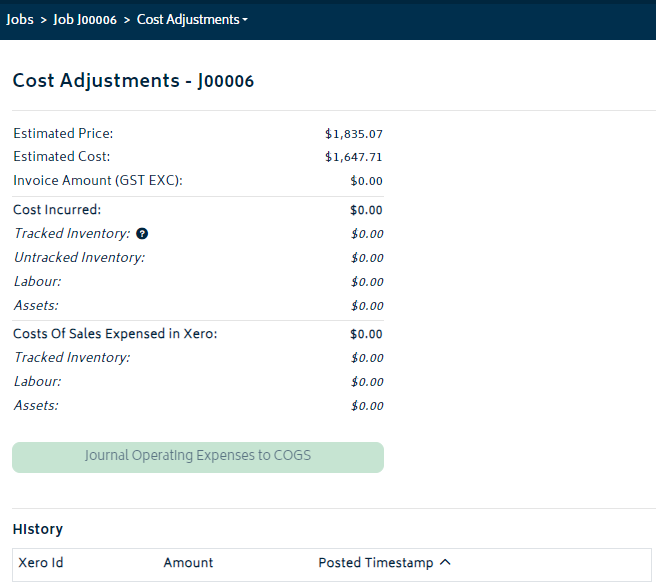
For a job which has no costs consumed onto it as of yet, the Cost Adjustment page will appear as follows:
Cost Incurred Section
After you have consumed costs on the job, the Cost Adjustment table on the page will look more like this:
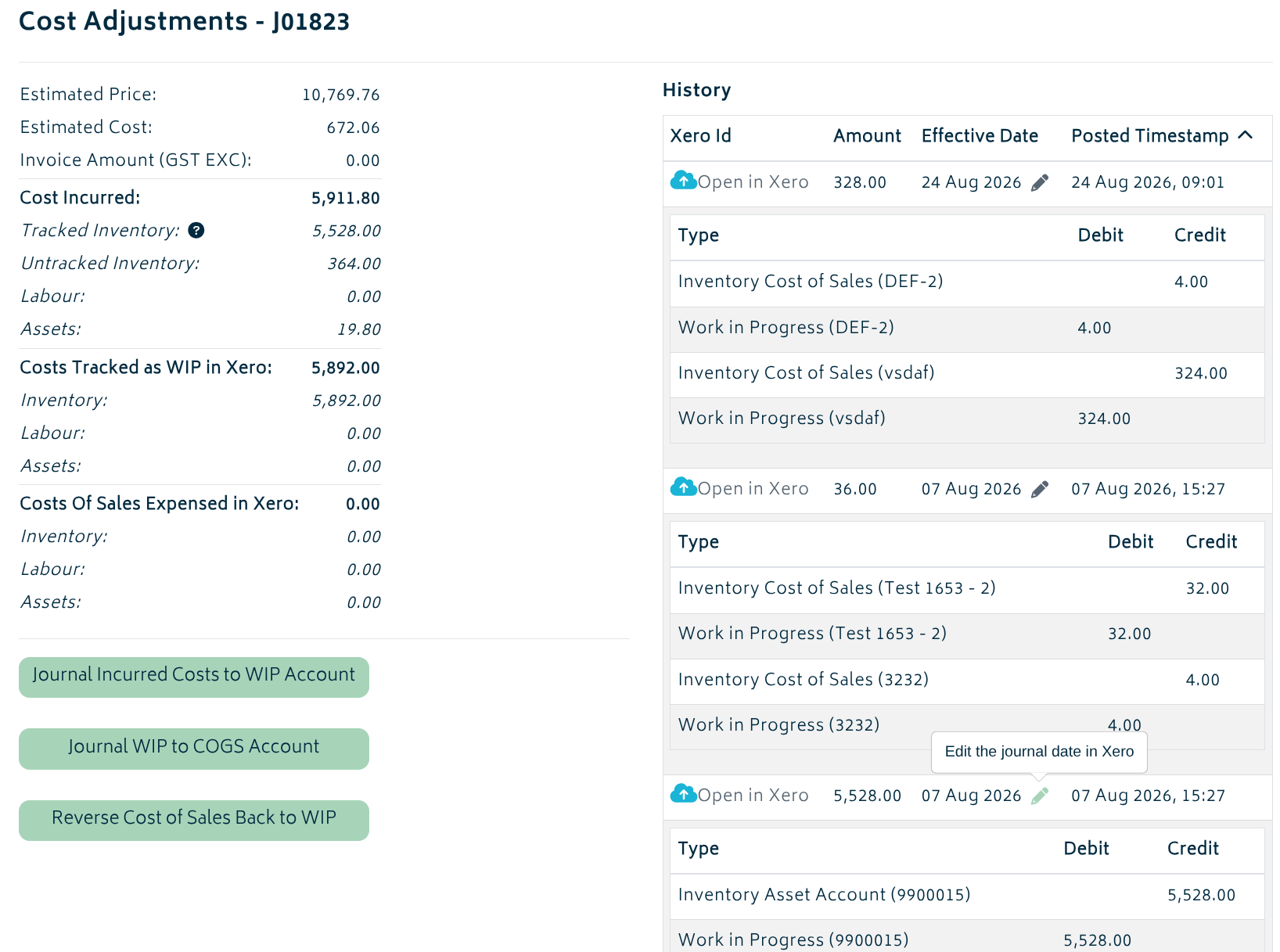
The cost incurred section shows the latest job costs and will match what is shown on the Job Review page. Additionally, so long as transactions have occurred, manual journals will be visible under the History section. You have the option to open each transaction in Xero or to modify the effective date of the journal.
Note: So long as the Automated Consumption button is selected when receiving ordered goods, any inventory purchases made for a job will automatically be consumed for a job - and have the costs allocated on the job review page - once the item has been received. Refer to the Purchasing section for more information.
For your existing stocked inventory and assets, you will need to manually consume these costs against the job. Refer to the Record Consumables section for more information.
For professions, your employees or a manager must record time against the profession for a particular job in order for the costs to show on the job review page. Refer to the Time Tracking section for more information.
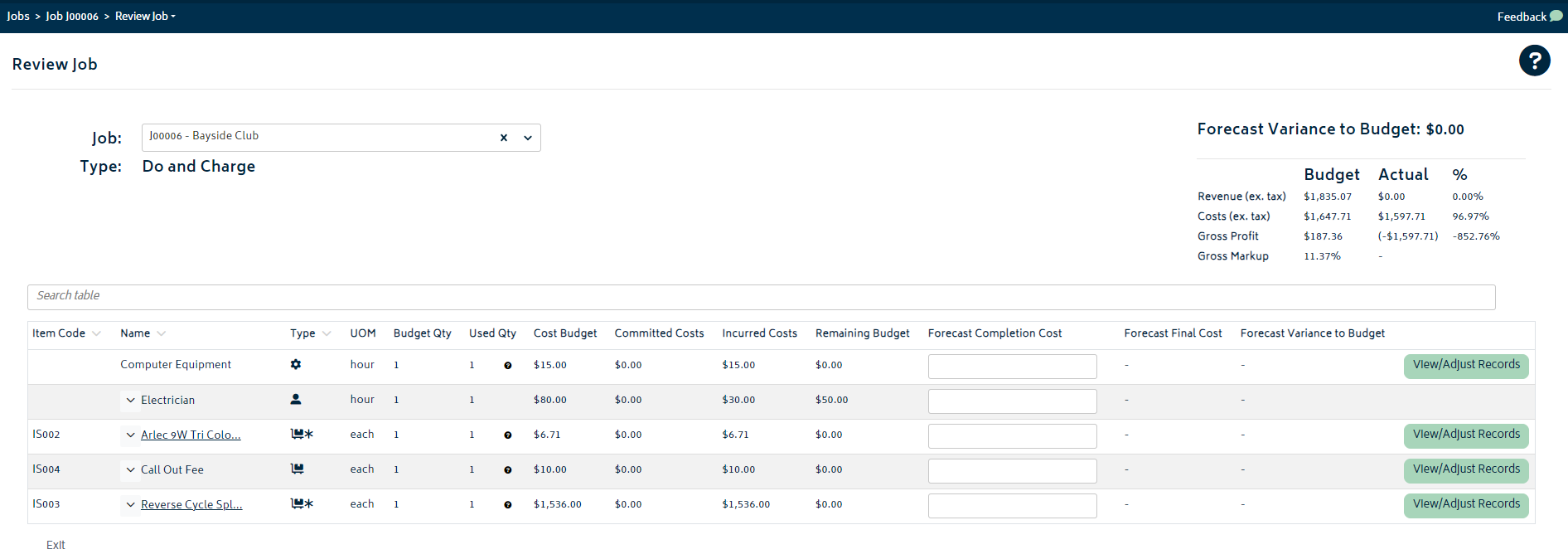
The incurred costs from the image above will be represented on the Review Job page:
Expensing Inventory - Automatic Transactions
Tracked inventory on the job will automatically be journaled to the Cost of Sales accounts when consumed onto the job in the Cost Recovery mode.
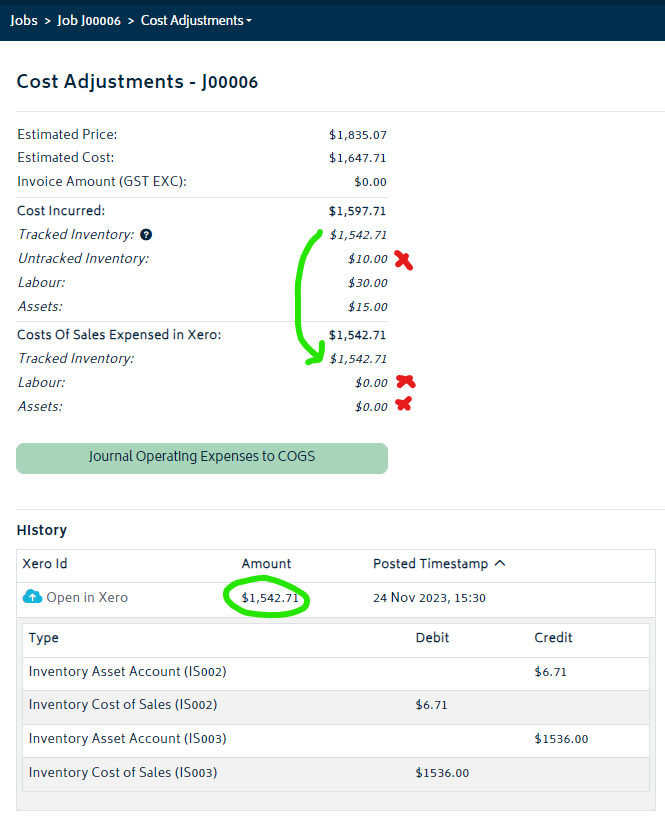
Journals will be created automatically in Xero for this job that detail the inventory consumed.
Account Transactions Summary:
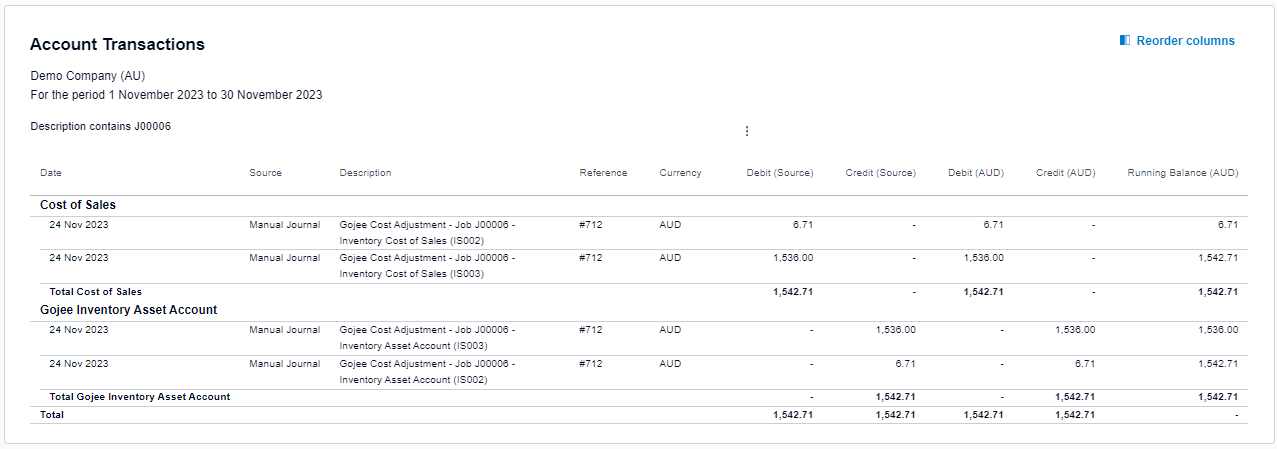
Note: If tracked inventory is returned to stock from the job record consumables page, a reversing journal will automatically be processed into Xero.
Note: Untracked items will not have cost adjustment journals created. These items do not require a cost recovery, as their costs not put into an inventory asset account first. Instead, they are posted directly into the cost of sales account for each item. This account can be individually selected for each item on the inventory edit page.
Recovering Operating Expenses - Manual Transactions
Note: Unlike inventory items, labour and asset costs will need to be manually processed into the cost of sales accounts to recover them from their operating expense accounts. These need not be done individually, as there is a method to do them all at once.
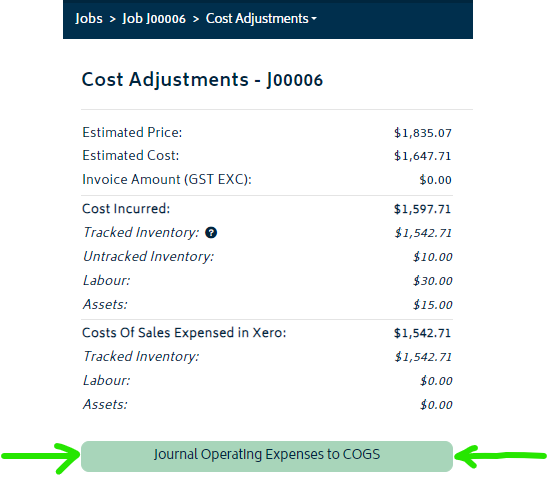
To recover the Labour and Asset costs to COGS from the Operating Expense accounts, you can use the green button at the bottom of the table:
You will be presented with a modal to choose the amount of costs to expense. The default amounts will show from what is left to be expensed from the incurred cost:
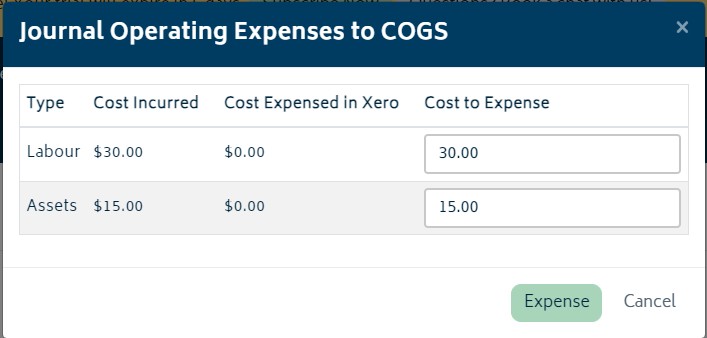
Update the Cost to Expense field as desired for Labour and Assets and then click the Expense button. The Cost Adjustments table will now have those costs noted to be expensed to Xero:
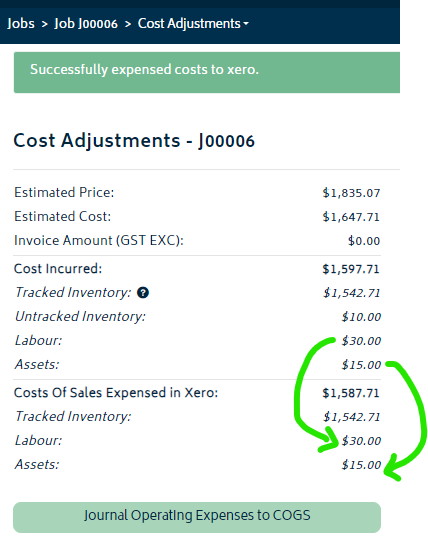
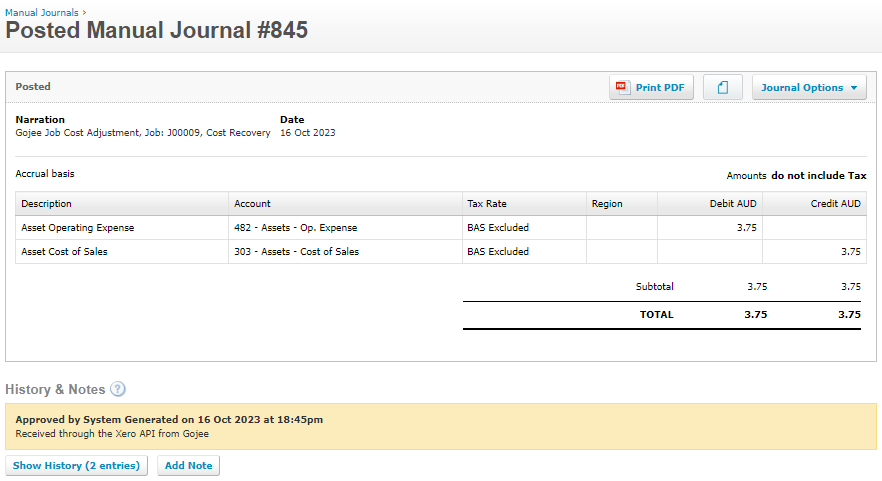
A summary of the transactions that have been journaled into Xero will be shown as manual journals:
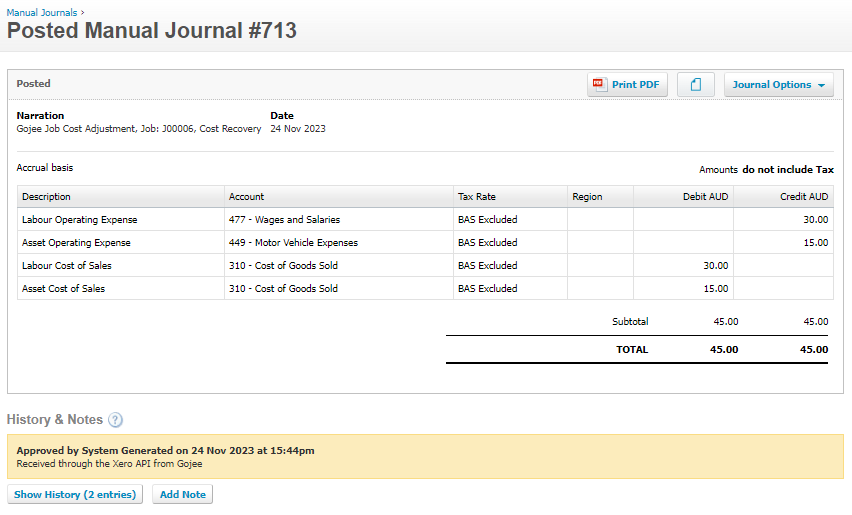
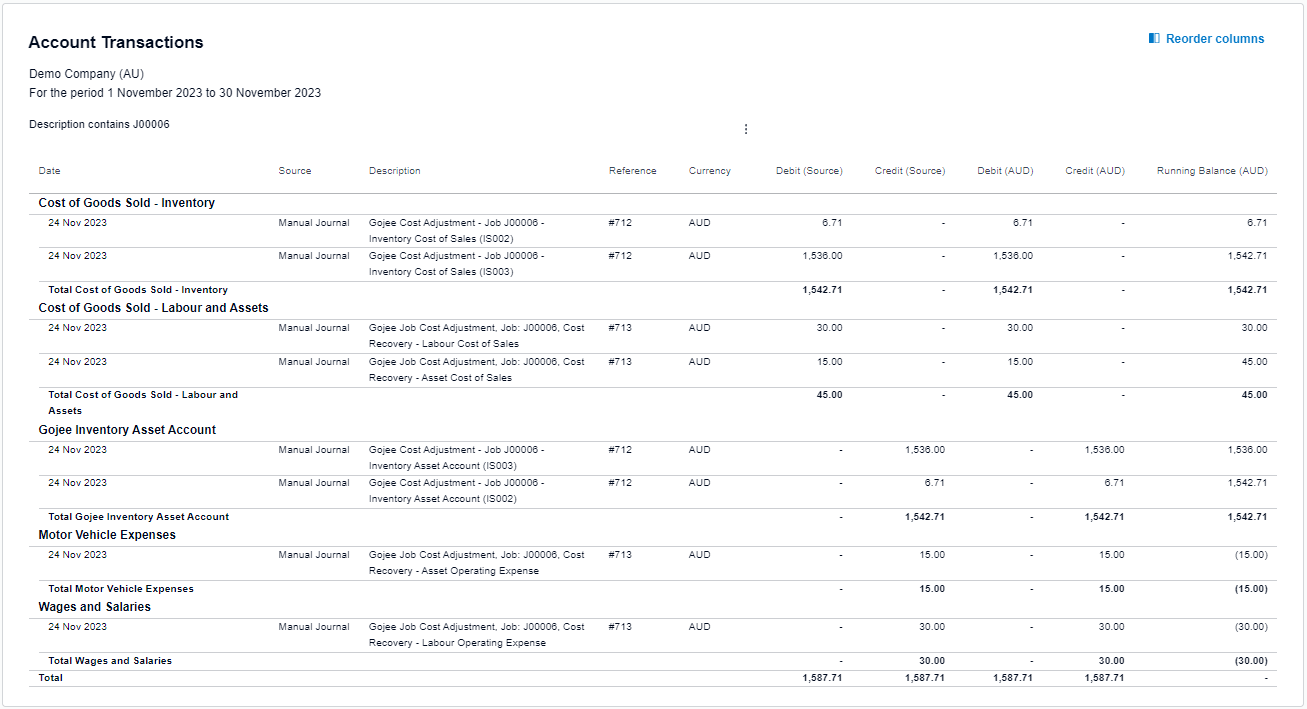
The resulting cost recoveries as posted through to Xero are shown on the Account Transactions statement for this job below (inclusive of the prior inventory adjustments above):
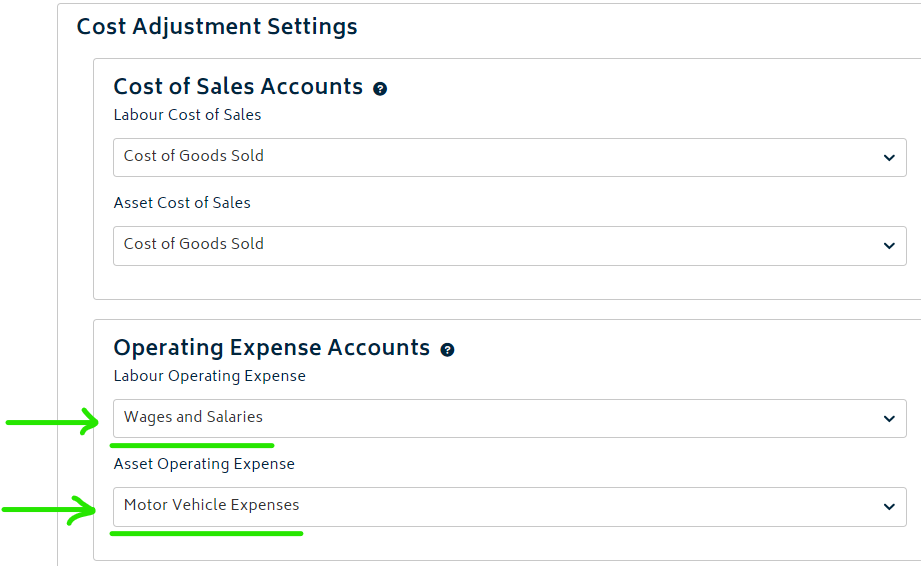
Note: in the case of the example we're using, the operating accounts selected for labour and assets in the setup of this demo organisation are "Wages and Salaries" and "Motor Vehicle Expenses" respectively:
Reverse Over Allocated Labour and Assets
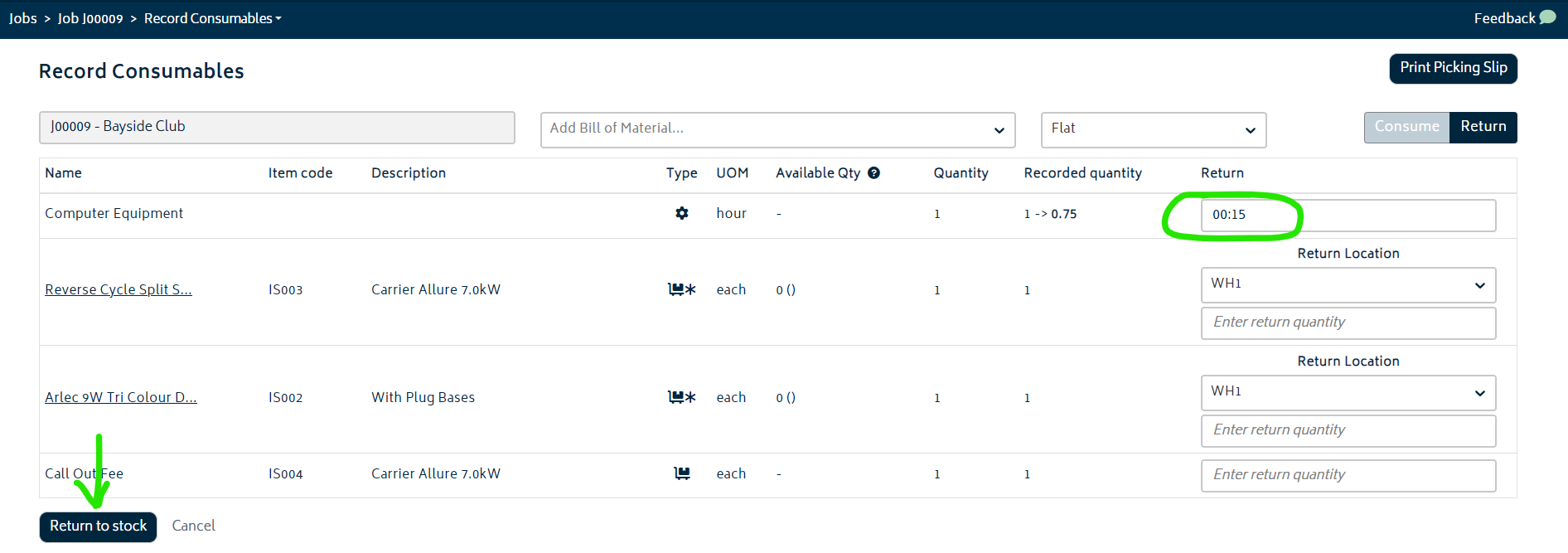
If you need to return any of the assets consumed on the job, or if you have adjusted the times tracked on the job to be less than that already expensed, you can reverse these journals accordingly. The example below describes the process for removing some of the time consumed for the asset on the job.
First, navigate to the record consumables page and return some time for the asset:
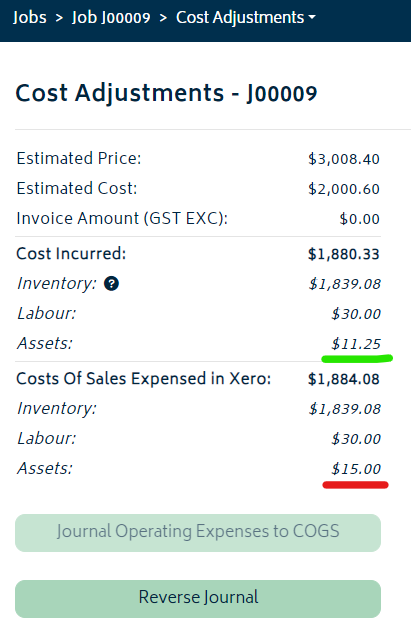
Navigate back to the Cost Adjustment page. Check the Expensed and the Incurred Cost sections, and you will notice the discrepancy as highlighted below:
To fix the discrepancy, simply click on the Reverse Journal button. You will be presented with the following modal:
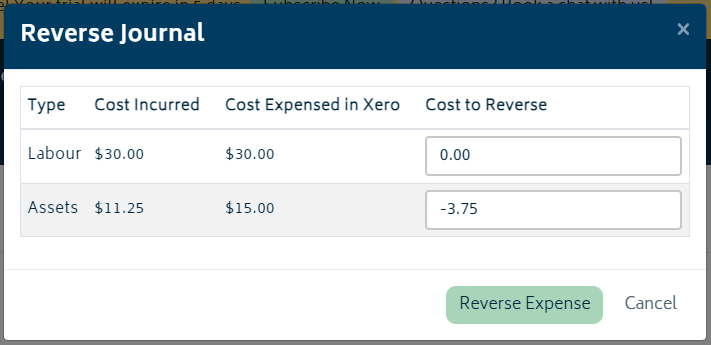
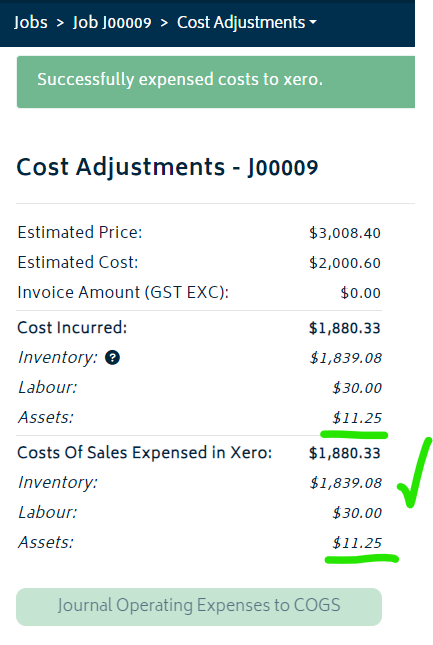
The correcting amount will default into the Cost to Reverse field. You can modify this manually as required. Once done, click the Reverse Expense button. The Cost Adjustment table will now look as follows for this job:
A summary of reversing the journal entry will be provided in Xero:
Next: Using WIP mode.