

Square Payments
Payments Tab Configuration
This section of the Payments tab will appear when Square integration is enabled. This area enables you to enter your Square account credentials to link your Square account to your Gojee account. You will need to have first created a verified Square account, then log into the developer section of the Square website to find your credentials. While the following instructions are valid for Australian customers, we make no guarantees that the process on the Square website is 100% identical for other regions.
The following steps are required to set up Square integration:
-
Login to Square:
- If you have an existing square account, you can simply login: Square Login
- If you don't have an existing account, follow this link to Create a Square Account. Make sure to complete all of the setup and verification for your account prior to continuing.
-
Once you're logged into Square and ready to connect to Gojee, follow this link to Create an Application Integration (you will be already logged in from the process above)
From the application integration page, select the option to create your first application and then follow these steps:
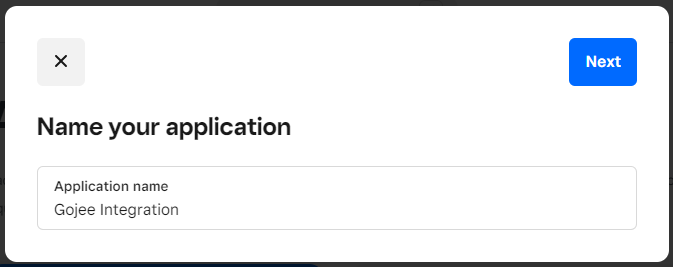
Add a name for your application, "Gojee Integration" for example would be a suitable name
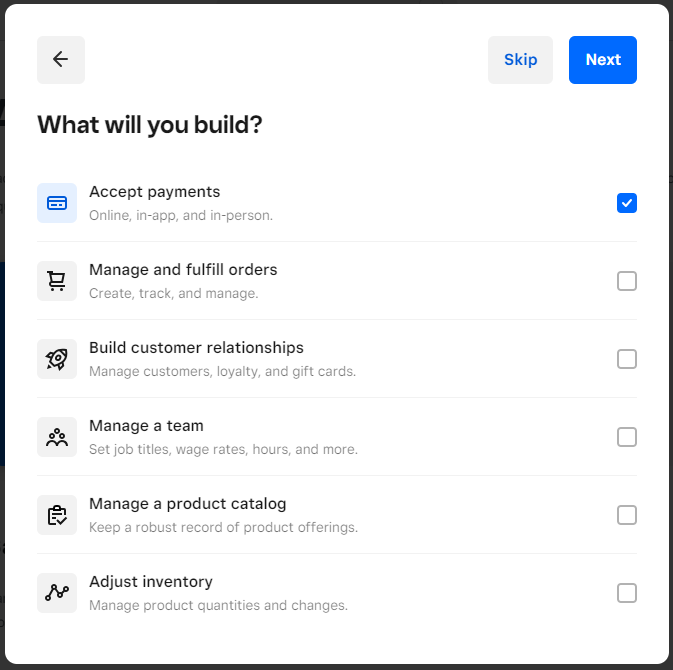
Select the option to "Accept Payments"
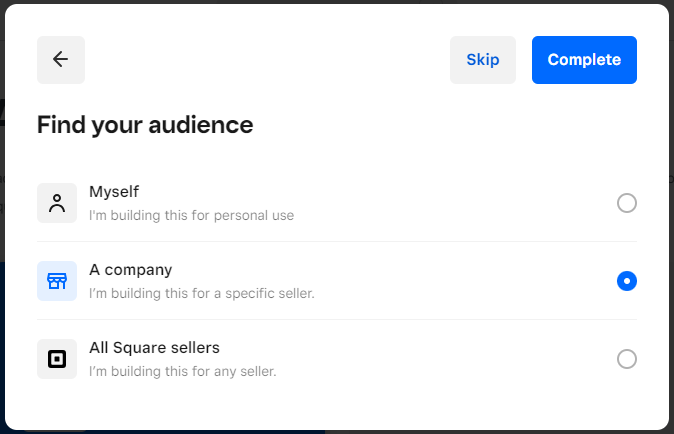
Choose the option "A company"
Your application will be create and you'll be navigated to the application page where your credentials will be available to copy into Gojee:
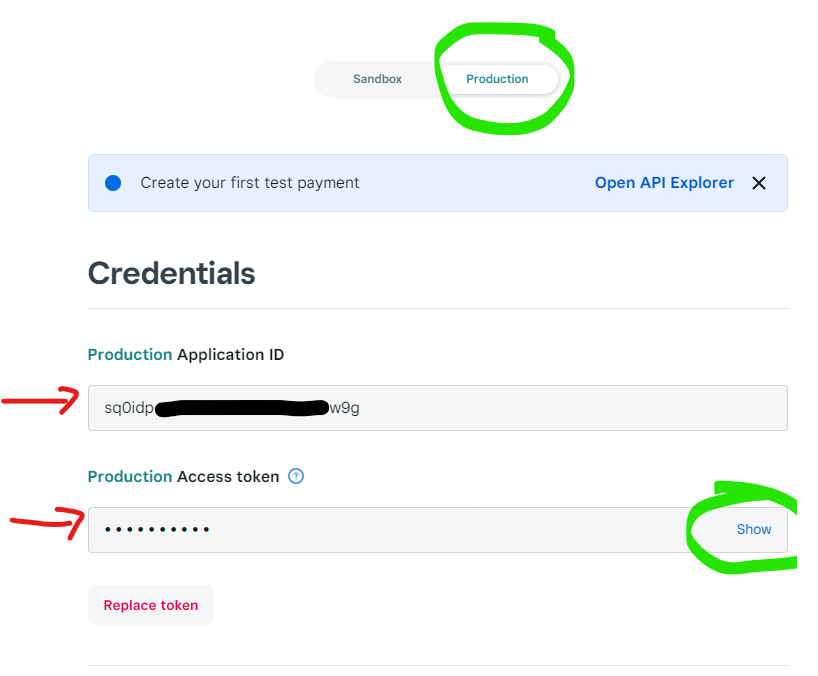
To complete the integration with Gojee:
- Select the Production option as circled at the top of the image above
- Copy the Application ID and paste it into the corresponding field in Gojee
- Click show in the Access token field to see all the information, and Copy the full access token and paste it into the corresponding field in Gojee
- Click the green button in Gojee to "Refresh Square Seller Accounts" this will check the credentials.
- Click on the dropdown to select a "Seller Account" in Gojee - there will be an option in this field to select if the credentials were entered correctly.
- Enter a payment support email in the last field in Gojee.
Click Save and you're ready to take card payments in Gojee using Square.
Taking a Square Payment
Like payments made with cash, payments going through Square can be used for invoices, prepayments, and POS jobs.
- If you are using Gojee from a mobile device, tablet or iPad, and you have the Square app installed, you'll be able to take a physical card payment.
- You'll be directed to the Square app to take the card payment and then back to Gojee once complete.
- If you are using Gojee on a desktop device, once you select Take Card Payment you will be presented with the following modal.
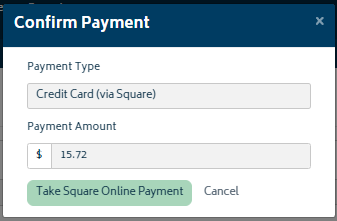
Taking the online payment will direct you to the following secure web based payment screen powered by Square:
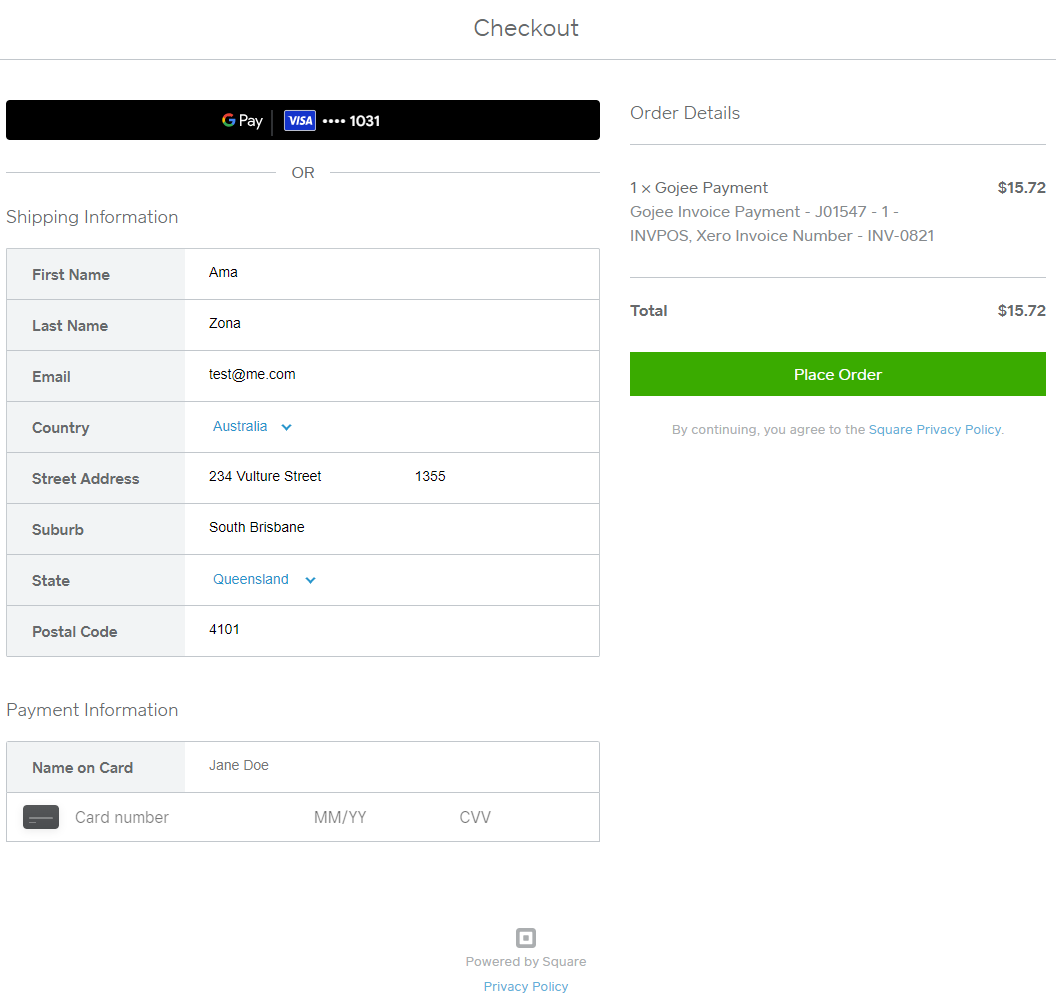
You can enter the card details to process the online payment.
Next: Organisation Add-ons.
Or: Back to Knowledge Base.