

Custom Activities
About Custom Activities
Rather than time being calculated based on earning rate allocation rules per staff, once this add-on is enabled, each activity will now have a Xero Earning Rate associated with it.
By setting this, time will be able to be directly billed in Gojee (and sent to Xero) based on different rates. This is useful for more complicated time tracking setups, such as weekend rates, after-hours rates, holiday rates etc. For each task, you can freely set it as being customer billable and timesheet billable, timesheet billable only, or not billable.
Please note only certain Xero Earnings Pay Items that are valid for use in Xero Timesheets will show up in Gojee. The following Xero Earnings Pay Items are valid for use in Xero Timesheets:
- Ordinary Time Earnings
- Overtime Earnings
- Paid Parental Leave
- Directors Fees
- Allowance
The following Rate Types are allowed for the above Xero Earnings Pay Items:
- Multiple of employee's ordinary earnings rate
- Rate per unit (With Type of Units set as "Hours" or "Hour")
Enabling this add-on will disable the option to set earning rate allocation rules, as time will now be directly and manually billed to the individual activity. Each activity (beyond the base activity) can be enabled and disabled at any time.
On the staff's page, you'll be able to set the cost individually in Gojee for each of the activities.
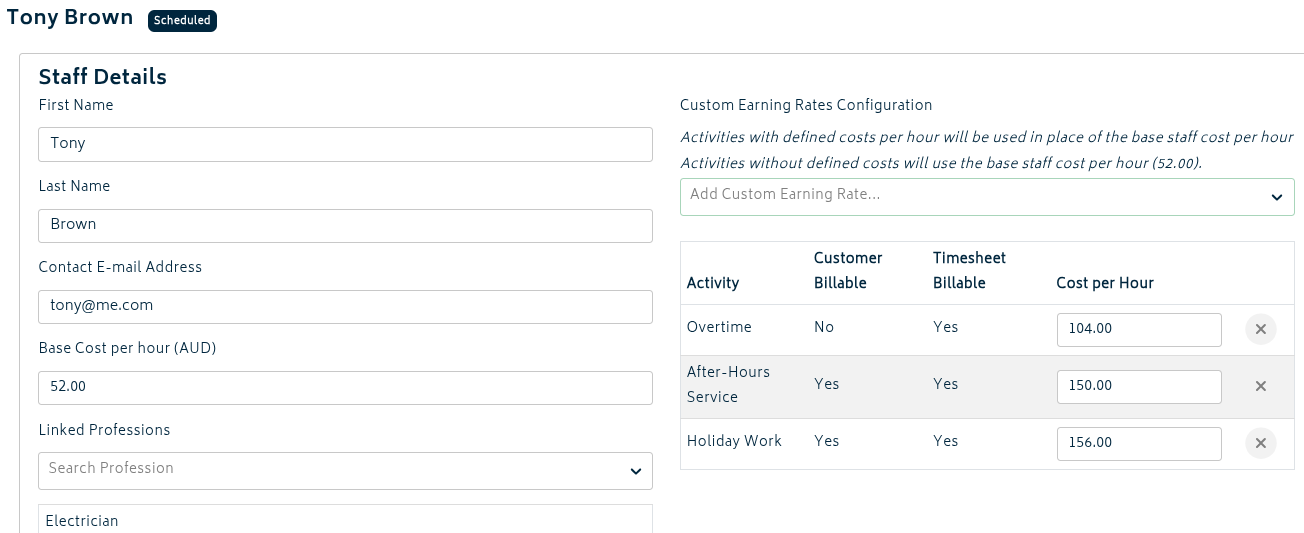
These custom costs are:
- Used in Gojee for internal cost tracking only
- Not sent across to Xero
- Applied when calculating costs for tasks and bulk time entries
- Factored into prices charged to customers on Do & Charge jobs (when using markup on cost pricing)
When entering time (eg. via the Time Entry page), only custom earning rates that have been set up for the employee will be able to be chosen. This prevents accidental entry of tasks that a user may not be set up for.
If necessary, the Daily Task Review will allow you to create a task execution record for any activity available in the system, not just the ones set up on the staff's page. If a staff member does not have a custom cost defined for an activity, the system will fall back to using their base cost per hour if time is logged for that activity.
Configuring Activities
Once enabled, additional options will appear under Organisation Settings > Job Task Activities:
- Navigate to Organisation Settings
- Click on the Job Task Activities tab
- You will see a list of all available activities
For each activity you can configure:
- Activity Name: A descriptive name for the activity (e.g., "Overtime Hours", "After Hours Work", "Weekend Rate")
- Xero Earning Rate: Select the appropriate Xero earning rate from the dropdown (required)
- Customer Billable: Toggle whether time logged to this activity can be billed to customers. An activity must also be timesheet billable for this to be selected.
- Timesheet Billable: Toggle whether time logged to this activity is sent to Xero timesheets.
- Activity for Leave Tasks: Select which activity should be used when creating leave tasks (only one can be selected at a time)
- Activity: Choose whether this activity is available or not.
Setting Custom Earning Rates
After configuring your activities, you'll need to set up custom costs per staff member:
- Navigate to HR Management > Staff
- Click on a staff member to edit
- Scroll down to the Custom Earning Rates Configuration section
- Use the dropdown to select an activity
- Enter the cost per hour for that staff member when performing that activity
- Repeat for each activity that requires a custom cost
- Click Save
Activities without a defined custom cost will use the staff member's base cost per hour.
For organisations with many staff members, you can use CSV import/export to manage custom earning rates in bulk:
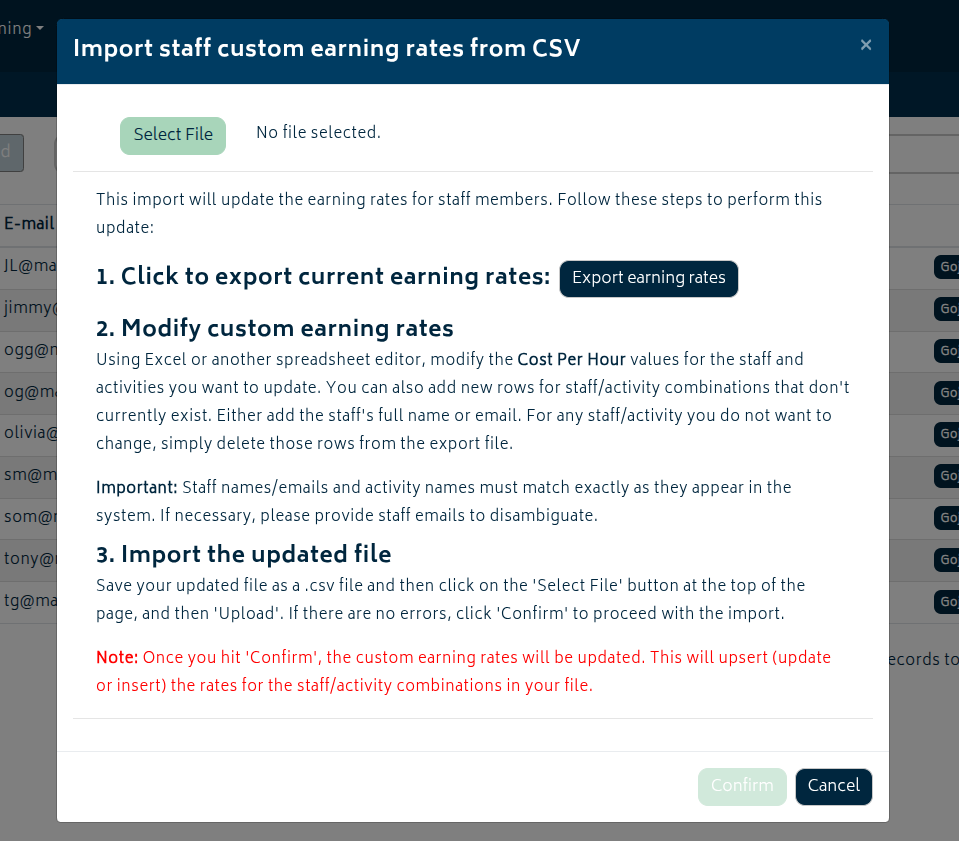
To export current rates:
- Navigate to HR Management > Staff
- Click Actions in the top right
- Select Import/Export Custom Earning Rates
- Download the CSV file with the Export Earning Rates button
To import rates:
- Prepare your CSV file with columns: Staff Name, Email, Activity Name, Cost Per Hour
- With the same modal you used to download the earning rates already there, upload your CSV file
- Review and confirm the import data before proceeding.
Considerations
The system will automatically:
- Use the activity's associated Xero Earning Rate for billing
- Apply the staff member's custom cost for that activity (or base cost if not defined)
- Mark the time as billable or non-billable based on the activity's configuration
Important: Enabling the Custom Activities add-on will disable the option to set standard earning rate allocation rules for staff members without the Advanced Payroll add-on being enabled. This is because time is now directly billed to individual activities rather than being allocated based on rules.
If your organisation currently uses earning rate allocation rules, carefully consider whether switching to custom activities is the right choice for your workflow.
Three system default activities exist and cannot be disabled:
- Ordinary Hours: The default activity for general time tracking
- Break: For recording break time (not billable)
- Downtime: For recording downtime (timesheet billable only, not customer billable)
These activities ensure basic time tracking functionality remains available.
Custom activity costs set for staff members are used for:
- Internal cost tracking in Gojee
- Calculating job costs and profitability
- Determining prices on Do & Charge jobs when using "Set Price by Markup on Cost" pricing
These costs are not sent to Xero and do not affect payroll calculations.
Examples and Use Cases
Here are some example use cases for organisations with special rules in their pay structure that may warrant this add-on:
Construction Company with Special Overtime Rates: A company in the construction industry that needs to track and bill for different types of hours.
- Ordinary Hours: Standard 8-hour workday at regular rates
- Overtime Hours: After 8 hours per day, billed at 1.5x rate
- Weekend Work: Any work on Saturday/Sunday at 2x rate
- Public Holiday Work: Work on public holidays at 2.5x rate
- Early Hours Work: Work prior to the standard start hours, billed at 1.5x rate
Professional Services with After-Hours Support: A consulting firm provides 24/7 support with different billing rates.
- Business Hours: Standard consultancy work (9am-5pm)
- After Hours Support: Evening support (5pm-11pm) at premium rate
- Emergency Support: Overnight and early morning (11pm-9am) at double rate
Manufacturing with Shift Differentials: A manufacturing company operates three shifts with different pay rates.
- Day Shift: Regular hours (6am-2pm)
- Afternoon Shift: Afternoon hours (2pm-10pm) with 10% premium
- Night Shift: Night hours (10pm-6am) with 20% premium
With Custom Activities, each of these can be configured as separate activities linked to the appropriate Xero earning rates.
Next: Organisation Add-ons.
Or: Back to Knowledge Base.