

Manufacturing Management: Inventory
Introduction
The manufacturing module brings modifications to inventory items and templates. Both of these work in tandem and are paired together to make one manufactured item. As such, this section will touch on both elements and the steps you need to take to get your items ready to be manufactured.
Setting up Templates
When the Manufacturing module is enabled, the template list will have a couple of new categories:
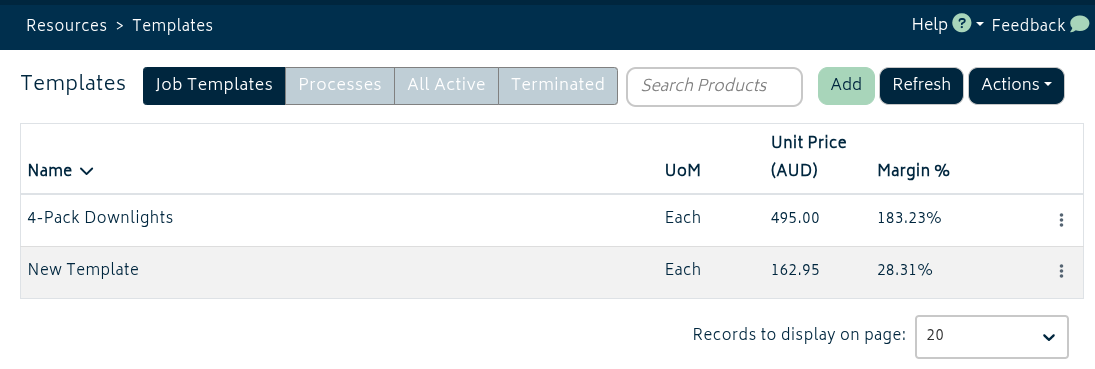
The "Processes" tab will show all manufacturing processes, and the "All Active" tab will show both job templates and manufacturing processes. When visiting this page, "Job Templates" will be the default display as usual and show only the job templates, keeping manufacturing processes out of the way until you need them.
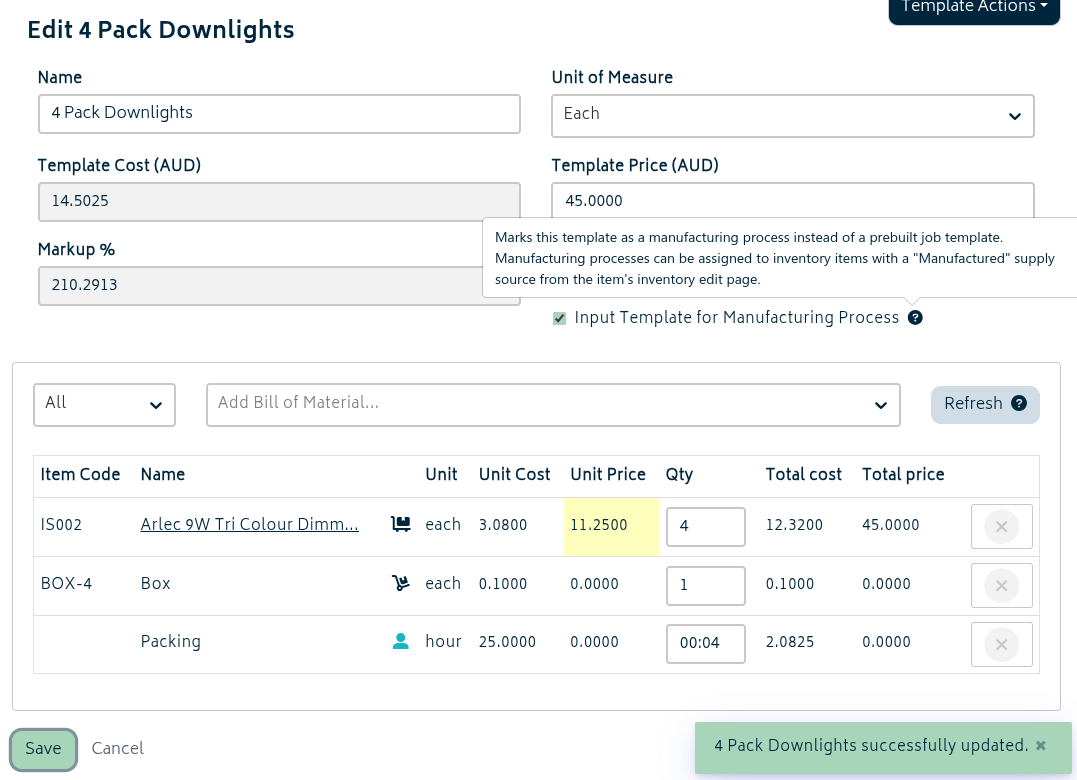
Templates have the ability to be marked as a "Manufacturing Process". If marked as such, the template will be available for use as the manufacturing recipe for an inventory item.
Note: If you have been using templates as stand-ins for manufactured items, you will need to create a new inventory item to pair with the manufacturing process.
Each process can match multiple inventory items, but each inventory item can only have one process linked to it.
You can update templates to manufacturing processes in bulk and additionally assign them to inventory items via the template import/update CSV function. If you are transitioning to using the manufacturing module, you will be able to use this to get all your manufacturing processes set up quickly.
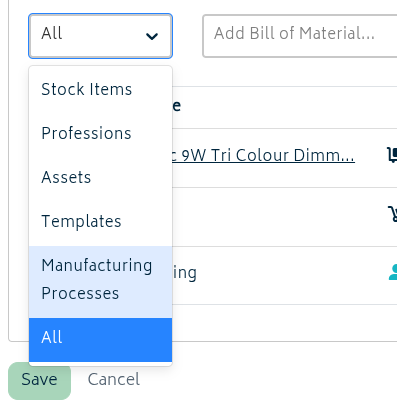
A template that is set as a manufacturing process will not show up under the "All" setting when selecting items for a bill of materials. However, if required for use, processes will be visible and able to be chosen under the "Manufacturing Processes" label:
Setting up Inventory Items
For inventory items, as long as they are tracked they will have the option to set the item's supply source to Manufactured.
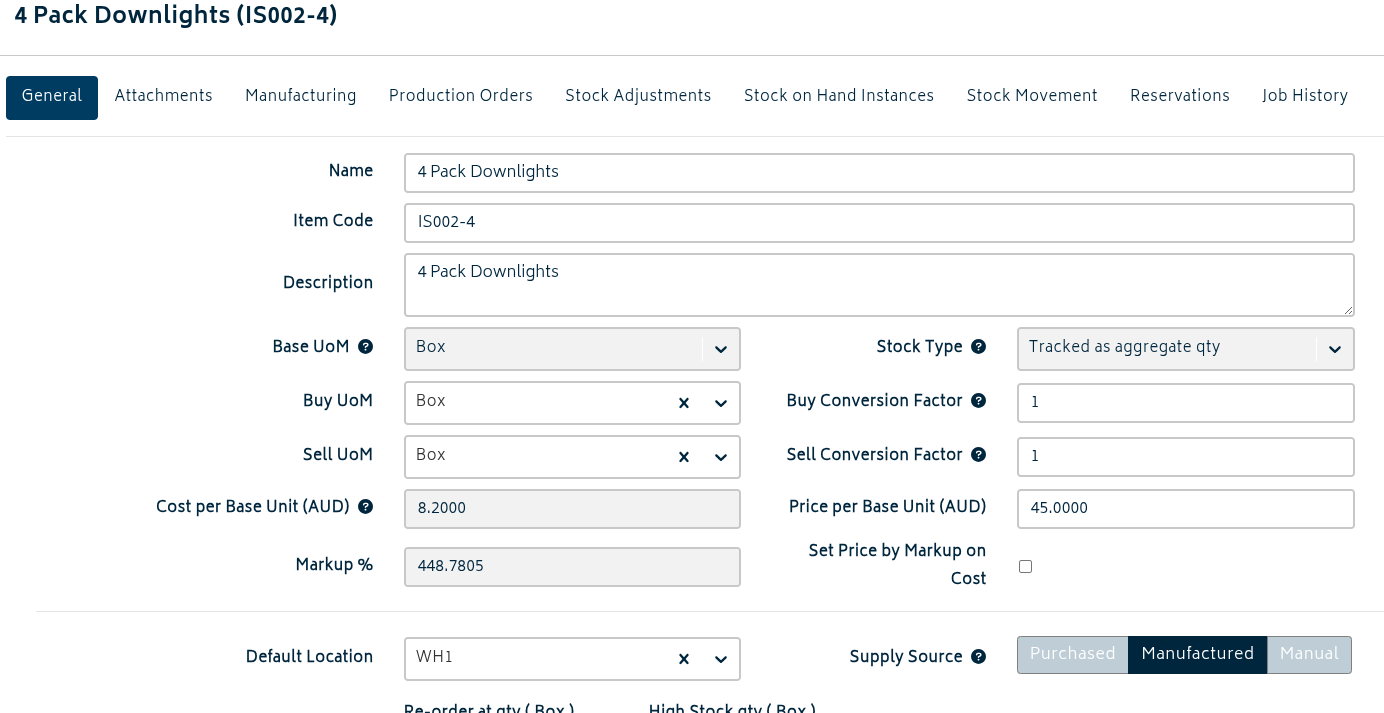
This will work similar to how it does for regular inventory items with the option to set between Purchased and Non-Purchased (Manual) - with the supply source setting changing the available tabs for the inventory item.
The "Manufacturing" tab allows you to set the input template - or recipe - to be used for producing the item.
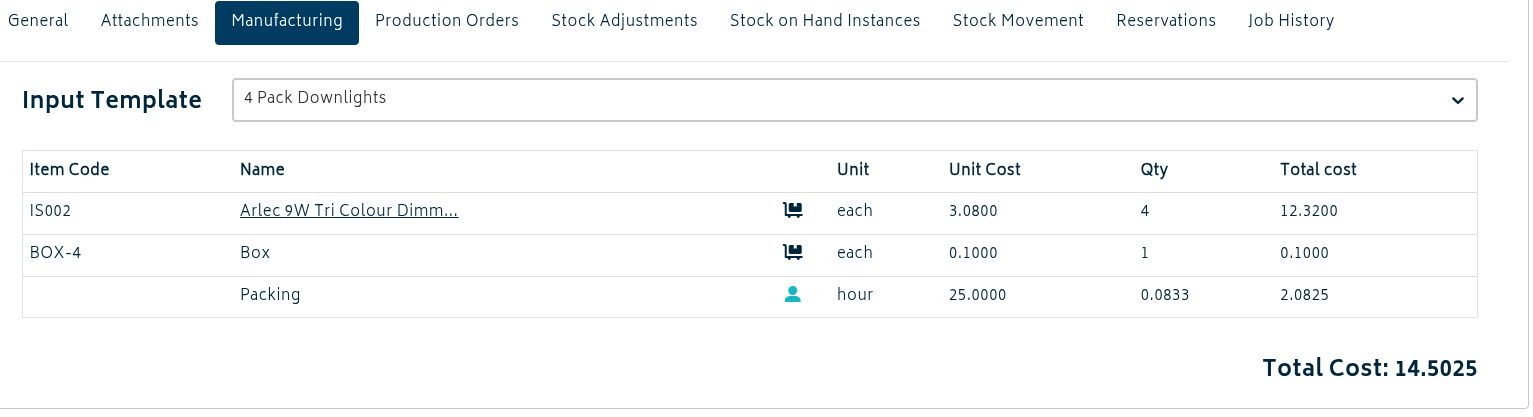
This will be the template that is brought onto the manufacturing job when it is matched with a Production Order. The Production Orders tab works identically to how the Purchase Orders tab works for standard purchased items - only showing Production Orders instead.
Next: Production Orders.