

Cost Adjustments: Using WIP mode
Introduction to WIP mode
This module is useful when you have jobs or project's that run over your financial reporting periods, and you need accurate information on your accounts for each period.
With this module, Gojee provides the ability for you to track work in progress (WIP) for your jobs as they run. This means that instead of your costs being expensed directly at the point in time the cost is incurred, they are instead captured as an asset on the balance sheet while the job is in progress. At the point of invoicing, some or all of the costs are then expensed from work in progress account on the balance sheet to the relevant expense account(s).
There a three main steps involved in using the Gojee WIP are listed below:
- Incur job costs using the normal process (i.e. using the Record Consumable or Purchasing functions from the Job Actions menu),
- Recognise the costs in the WIP accounts (this happens automatically for inventory items, for labour and asset costs there is a manual step required to recognise the costs in the WIP account).
- Invoice your jobs using the normal process (i.e. using the Invoice function from the Job Actions menu).
Note: It's recommended that you have the following options turned on for this process to be more automated (refer to Organisation Settings for more information on turning on these setting):
- Automatically consume items onto the job when receiving goods,
- Automate Expensing of Work in Progress on invoice creation.
The topics links on this page detail how to use all aspects of this WIP module.
Getting started
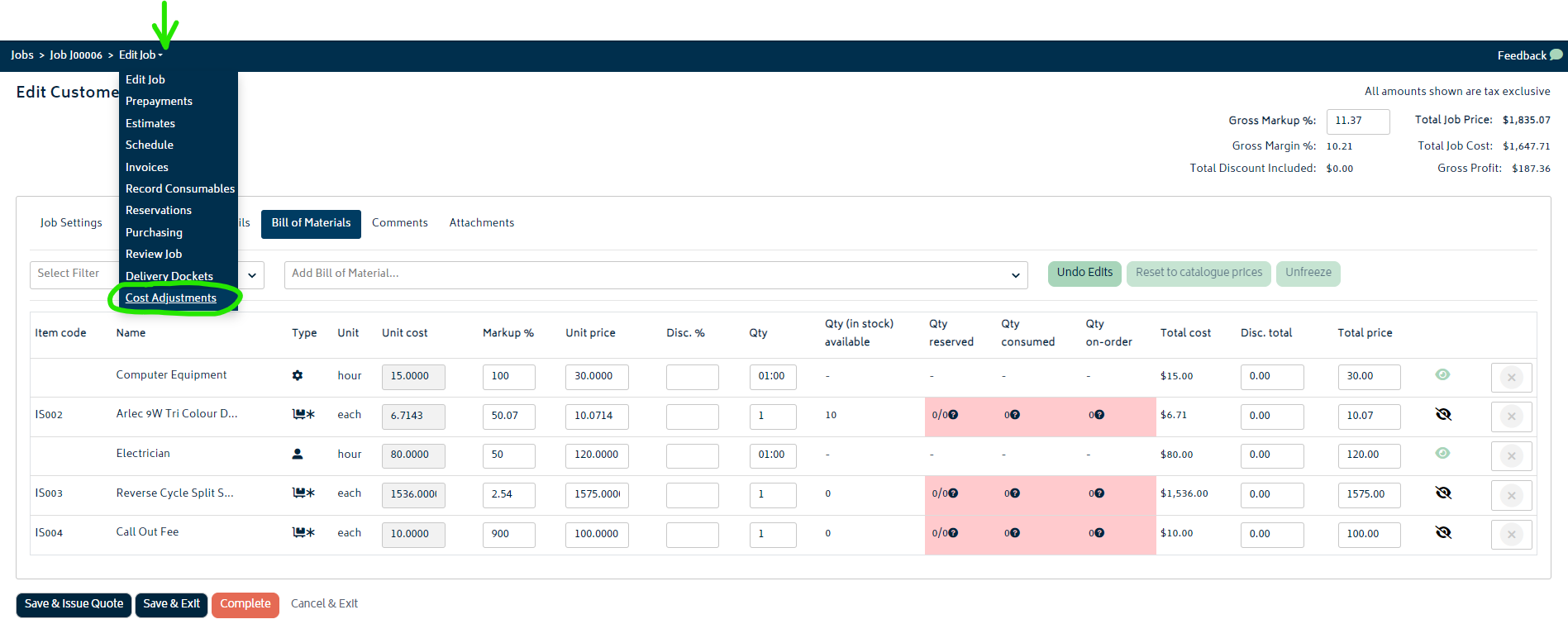
Once you have turned on this mode (refer to to the Cost Adjustment Settings page), you can navigate to the Cost Adjustment section of the Job Actions as per the image below:
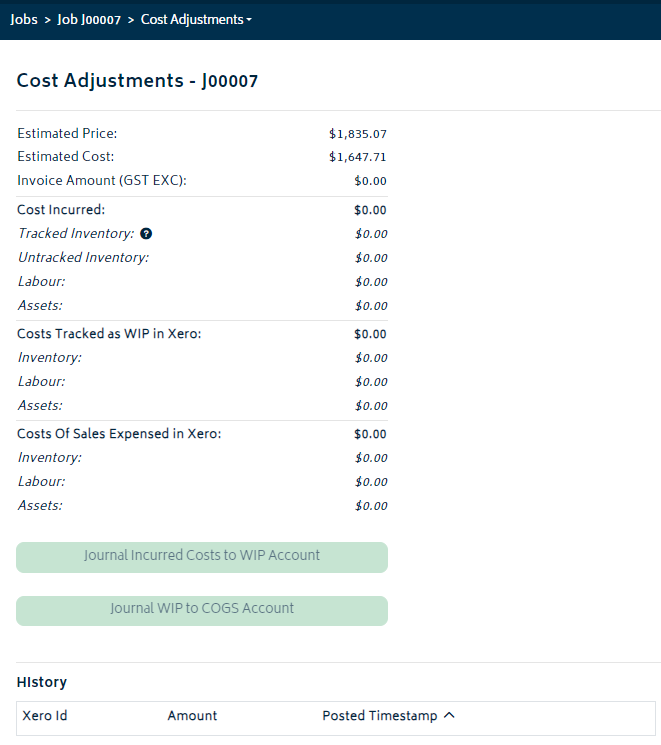
- The Cost Adjustment page will look as follows for a job which has no costs consumed onto it as of yet:
Cost incurred section
Once you have consumed costs on the job for each cost type, the Cost Adjustment table on the page will look as follows:
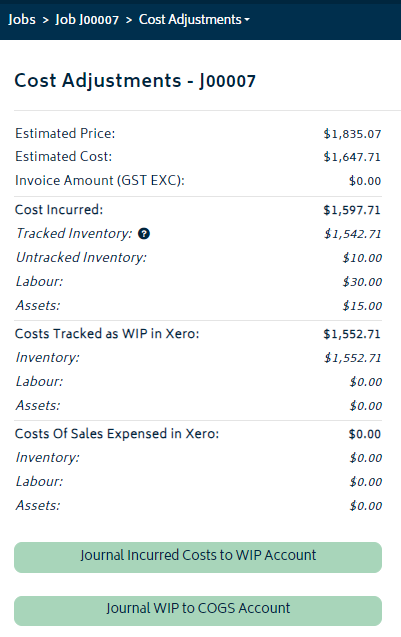
The cost incurred section shows the latest job costs and will match what is shown on the Job Review page.
Note: As detailed on the job review page, any inventory purchases made for a job will automatically be consumed for a job and have the costs allocated on the job review page once the item has been received, so long as the Automated Consumption button is selected when receiving the goods ordered. Refer to the Purchasing section for more information.
For your existing stocked inventory and assets, you will need to manually consume these costs against the job. Refer to the Record Consumables section for more information.
For professions, your employees or a manager must record time against the profession for a particular job for the costs to show on the job review page. Refer to this section for more information Time Tracking.
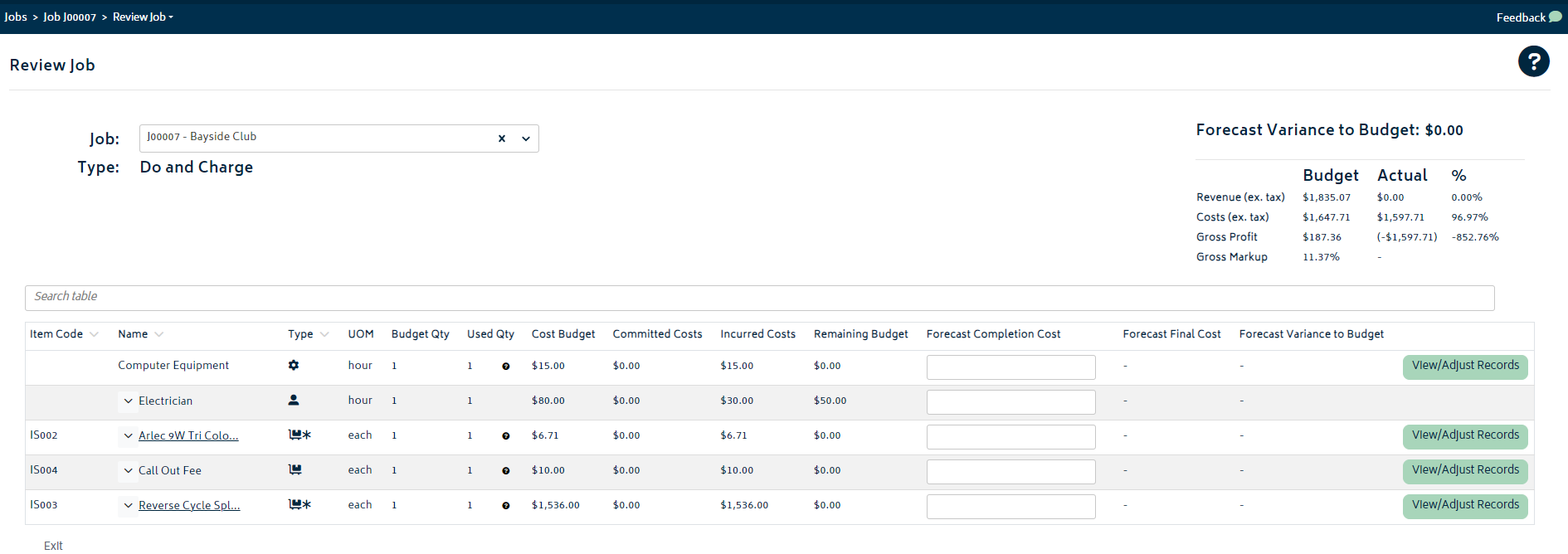
An image of the job review page for this job which matches the incurred costs from the image above is provided below:
Recognising costs in WIP accounts – automatic transactions
Inventory will automatically be journaled to the Work in Progress account when its consumed onto the job in the WIP mode. This is illustrated in the image below:
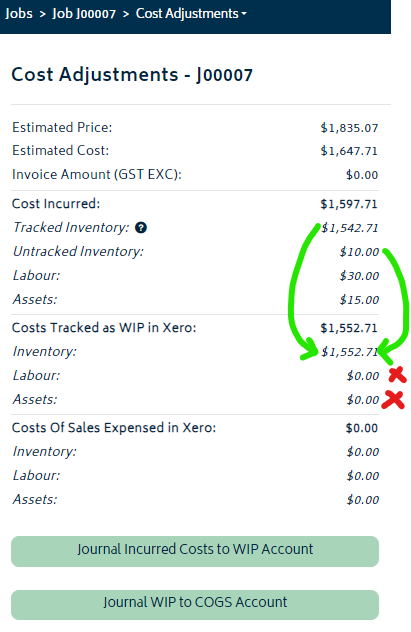
The following extracts from Xero detail the journals created automatically in Xero for this job for the inventory consumed:
Xero Journal:
This is an example Xero journal that has been posted. You have the option to open it in Xero, see the amount, view and edit the effective date, and see when it was posted to Xero.
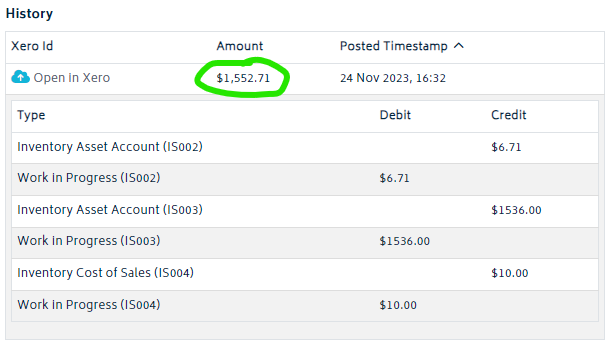
Note: in the image above, two of the items are tracked inventory (IS002 and IS003), and one is an untracked item (IS004). For the tracked items, the cost is moved from the inventory asset account(s) to the WIP account. For the untracked item, the cost is pulled from the expense account and moved into WIP.
Account Transactions Summary:
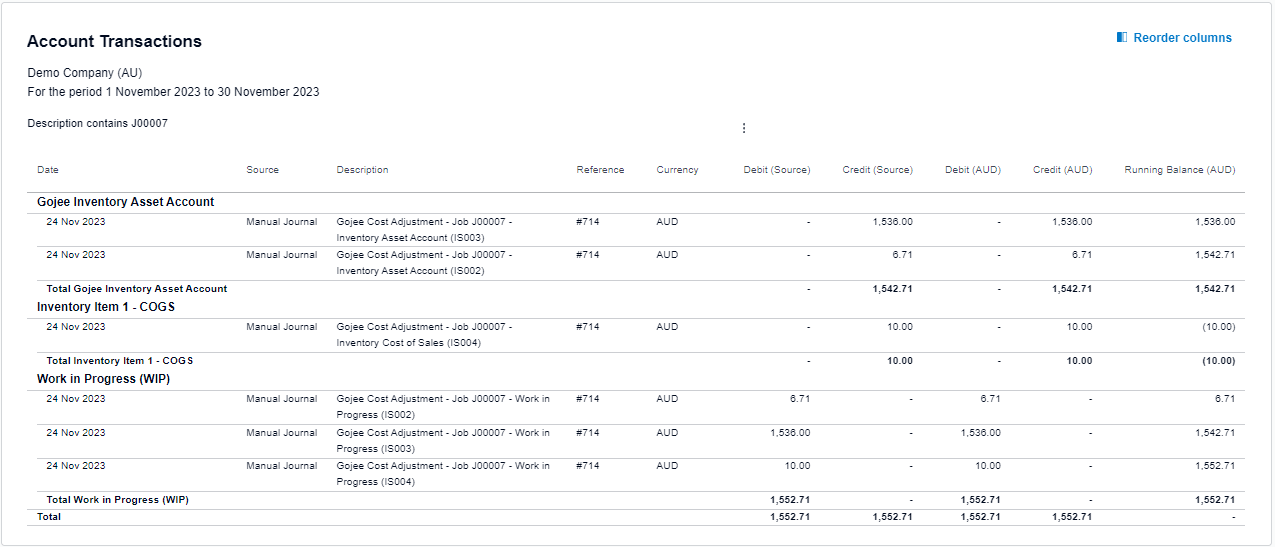
Note: If inventory is returned to stock from the job record consumables page, a reversing journal will automatically be processed into Xero.
Recognising costs in WIP accounts – manual transactions
Note: The labour and asset costs will need to be manually processed into the work in progress account.
To journal the Labour and Asset costs into WIP from their operating expense accounts, you can use the green button at the bottom of the table:
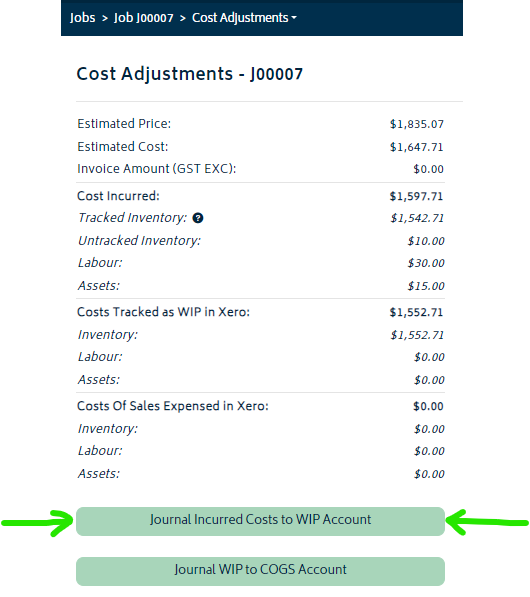
- You will be presented with a modal to choose the amount of costs to expense. The default amounts will show from what is left to be expensed from the incurred cost:
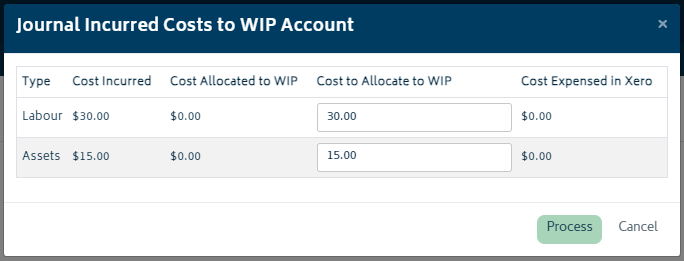
- Update the Cost to Allocate to WIP field as desired for Labour and Assets and then click the Process button. The Cost Adjustments table will now show as follows:
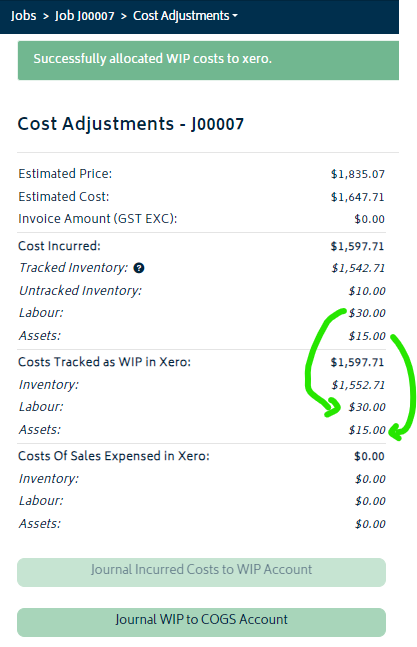
- A summary of the transactions that have been journaled into Xero are provided below:
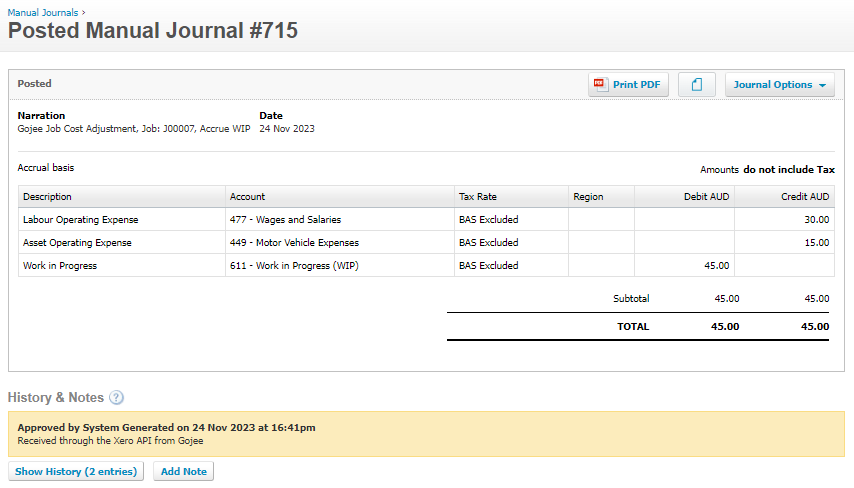
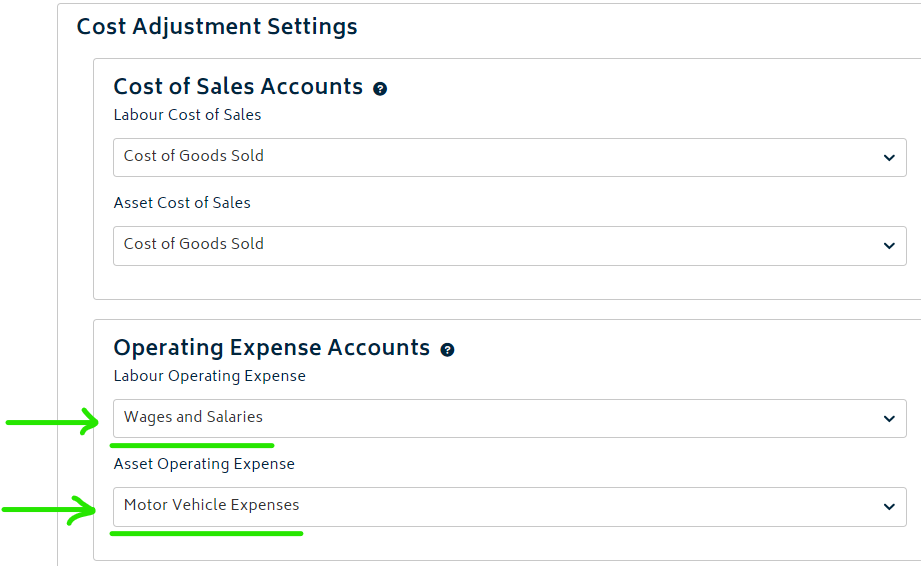
Note: in the image above, the operating expense accounts selected for labour and assets is "Wages and Salaries" and "Motor Vehicle Expenses" respectively. You can set these accounts to an option of your choosing in the Organisation Settings as per the options shown below:
Expensing costs out of WIP accounts – automatically upon invoicing
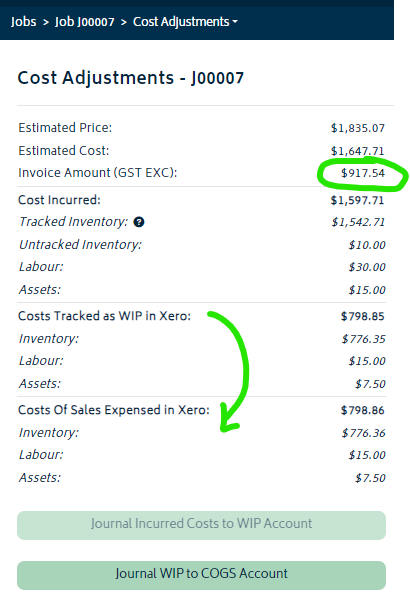
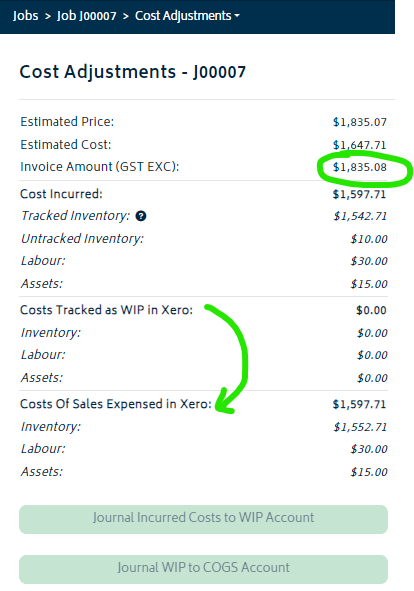
To automatically expense the WIP out to the Cost of Sales account, you simply need to raise an invoice for the job. The system will calculate the amount of WIP that should be expensed based off the amount of the invoice and a percentage of the expected invoice total. In the example below, there are two invoices raised, for 50% of the job total each, and the WIP is fully moved to the cost of sales accounts in two journals:
- Raise an invoice for the job for 50% of the total. For information on raising an invoice for the job, refer to Create Gojee Invoices.
- Once the invoice is raised, navigate to the Cost Adjustment section of the job and you'll notice that 50% of the WIP has been automatically journaled to the Cost of Sales accounts:
- If you then raise an invoice for the job for remaining 50% of the total, you'll notice that the remaining WIP has been automatically journaled to the Cost of Sales accounts:
- A summary of the net transactions that have been journaled into Xero are provided below for this job:
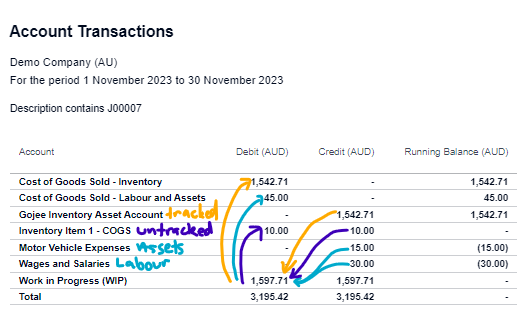
Note: The job costs have all been moved from the operating expense accounts, through the WIP account and then into the cost of sales account. Note, the untracked inventory will start and end in the same account, with the value being held automatically in WIP for the duration of the job.
Expensing costs out of WIP accounts – manually
To manually expense the cost out of the WIP account, you can use the button at the bottom of the table. This does not require an invoice to be raised for the job.
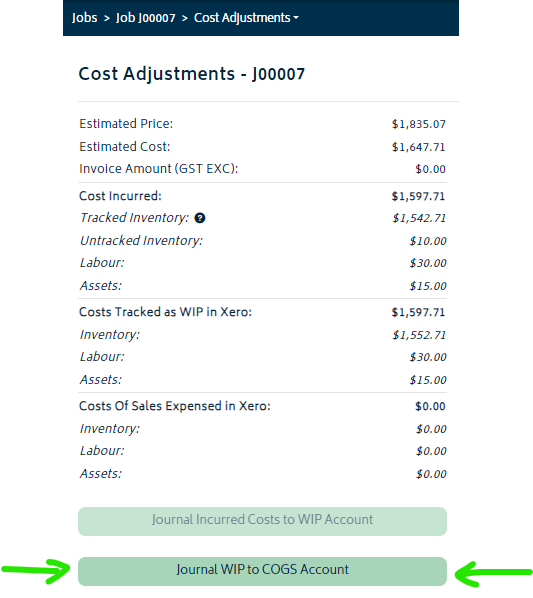
- You will be presented with the following modal:
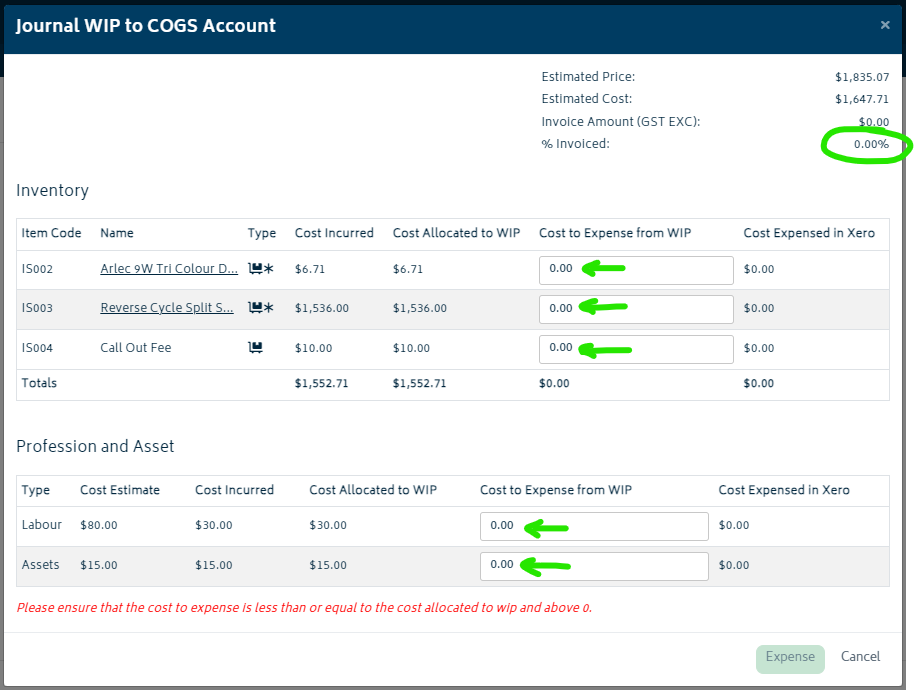
- The default values in the modal are calculated based off the invoiced %. In this case, as there is no invoice for this job, the default amounts to expense is $0. On the modal you can manually change each of the fields as shown in green above. An example of this is provided below:
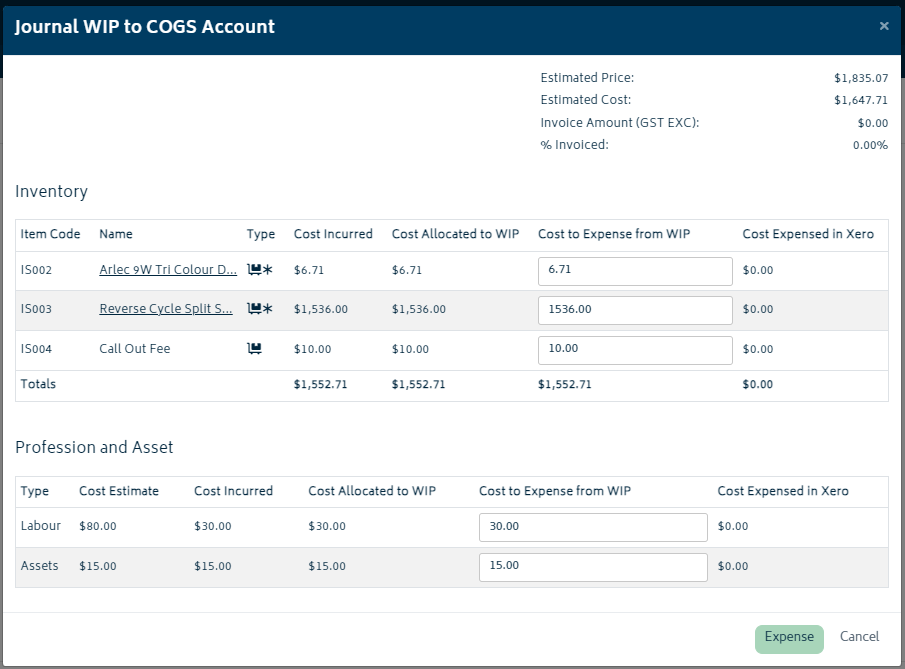
- Once you have completed the fields, hit the Expense button and the costs will be expensed out of the WIP account:
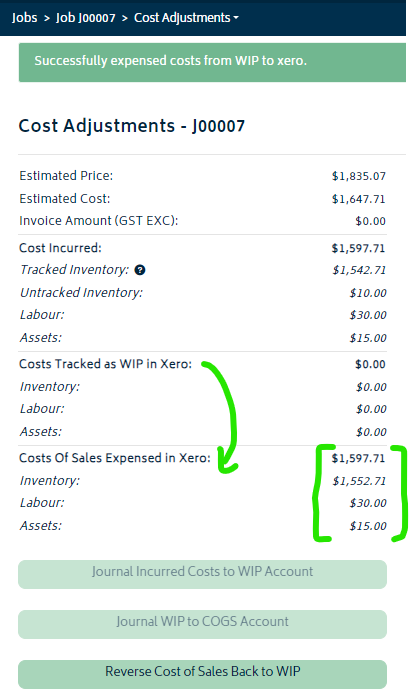
If you make an mistake or need to manually reverse this process, you can use the button at the bottom of the table to reverse the cost of sales back to the WIP account:
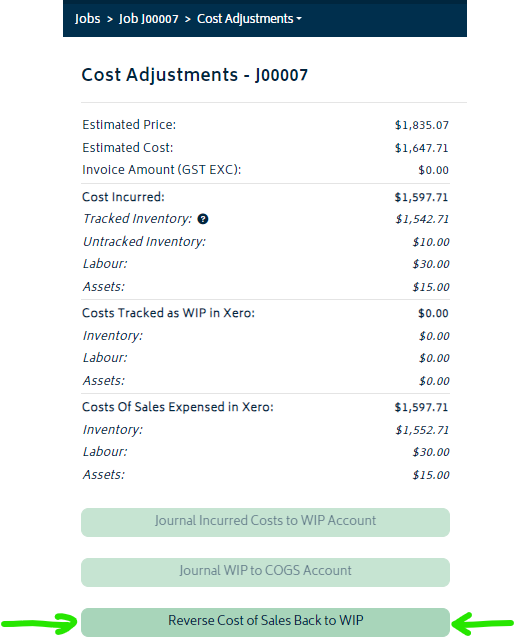
- You will be presented with the following modal:
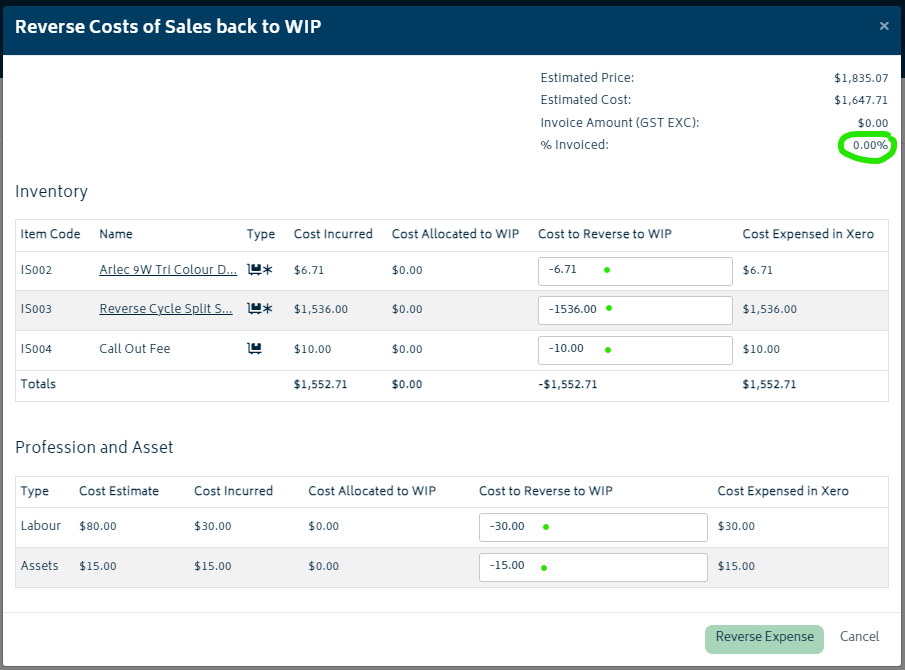
- The default values for each field is calculated based off the Invoice % total. In this example, as the invoice % is 0, its suggesting that all the expenses need to be moved back into the WIP account.
- You can change these fields as required. In the image below, the values have been manually changed to reverse around half of what was expensed:
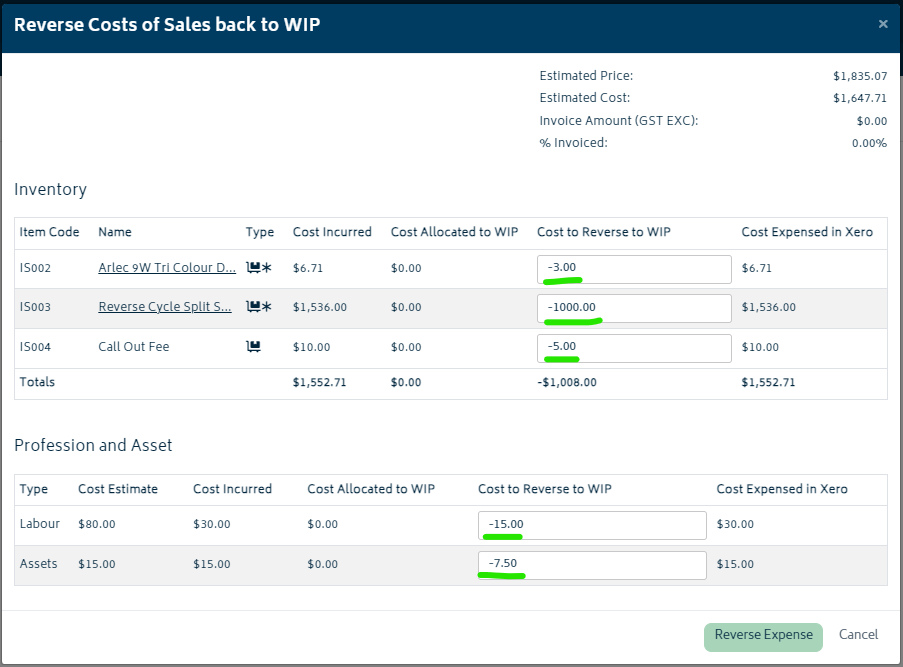
- Hit the Reverse Expense button once you have checked the values entered are correct. You will see the changes in the cost adjustments table:
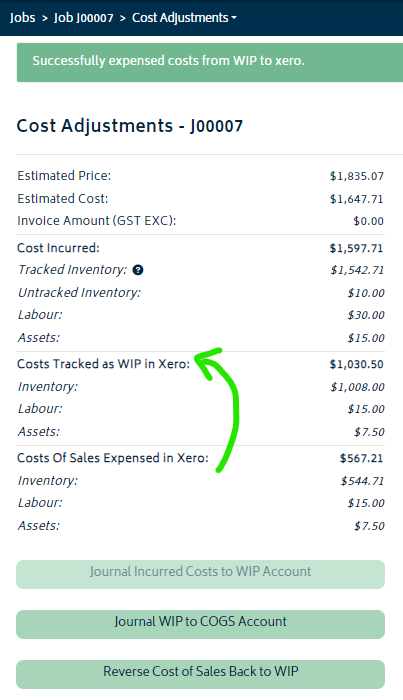
Reversing WIP transactions
For inventory items, reversal transactions occur automatically when items are consumed or returned from a job.
For labour and asset costs, there is a manual process required to reverse the costs out of WIP.
If you need to reverse any of the asset costs consumed on the job, or if you have adjusted the labour times tracked on the job to be less than that already expensed, you can reverse these journals accordingly. The example below describes the process for removing some of the time consumed for an asset used on a job.
- Navigate to the record consumables page and return some time for the asset:
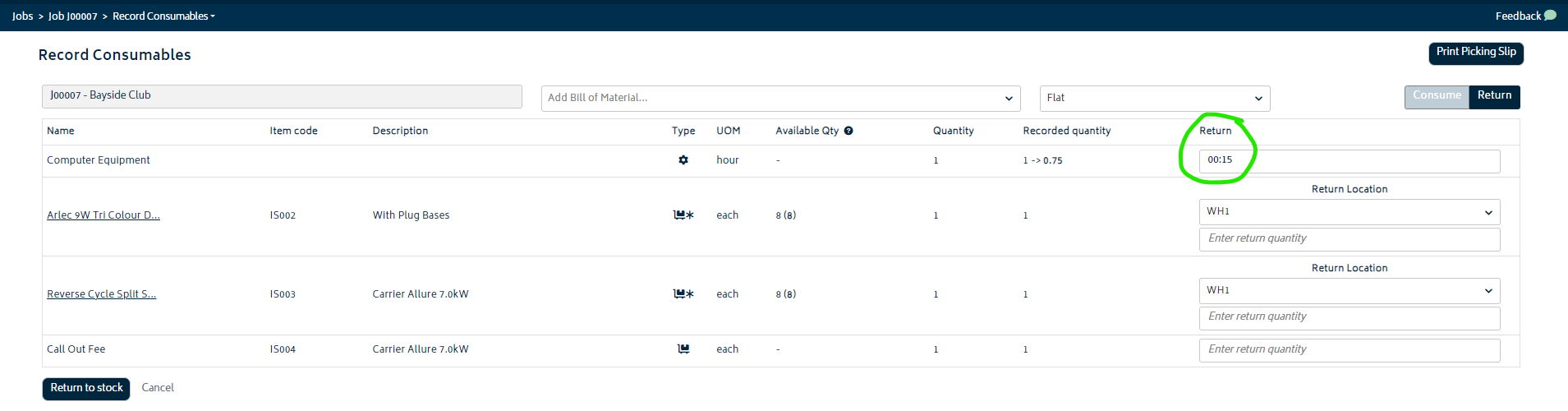
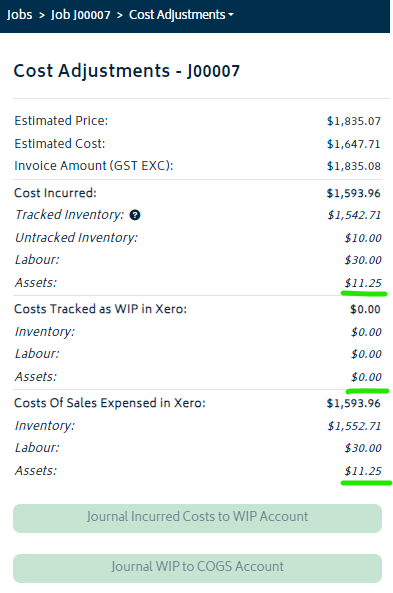
- Navigate back to the Cost Adjustment page and you will notice the discrepancy in the Expensed and the Incurred Cost sections as highlighted below:
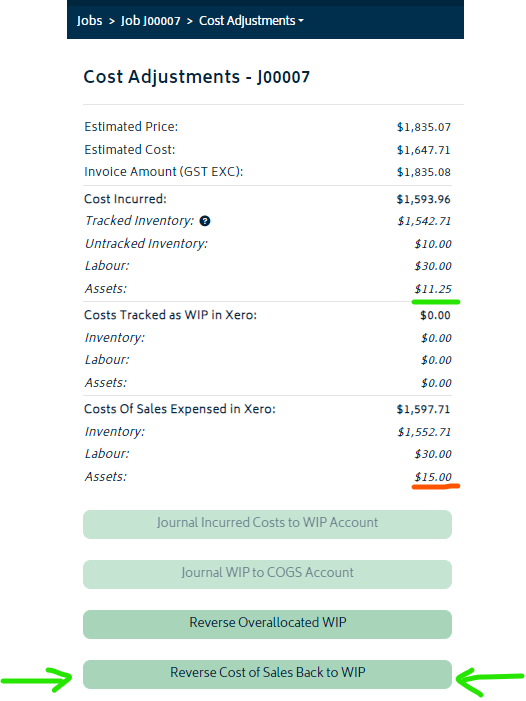
- To fix the discrepancy, simply click on the Reverse Cost of Sales Back to WIP button as shown above. You will be presented with the following modal:
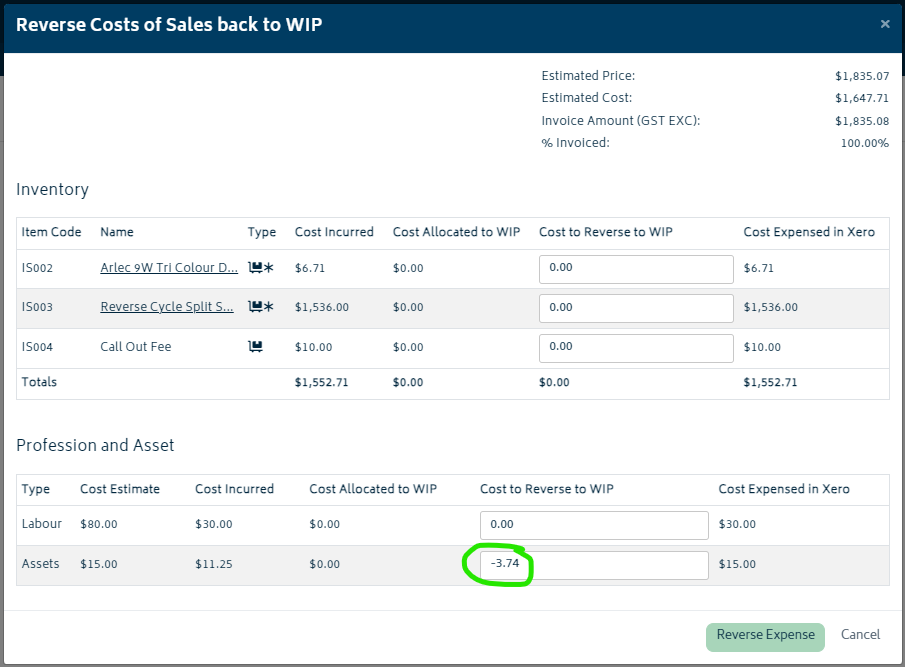
- The correcting amount will default into the Cost to Reverse field(s) however the total may be split amongst all accounts. As per the image above, simply put the correct amount into the chosen section. Once done, click the Reverse Expense button. The Cost Adjustment table will now look as follows for this job:
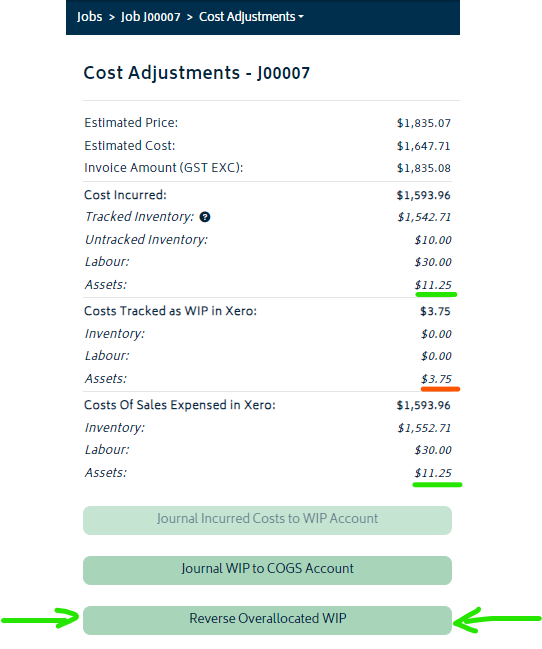
- The cost expensed will now be corrected, but you will also need to reverse the overallocated WIP amount shown in red in the image above. To do this, simply hit the Reverse Overallocated WIP button. You will be presented with the following modal:
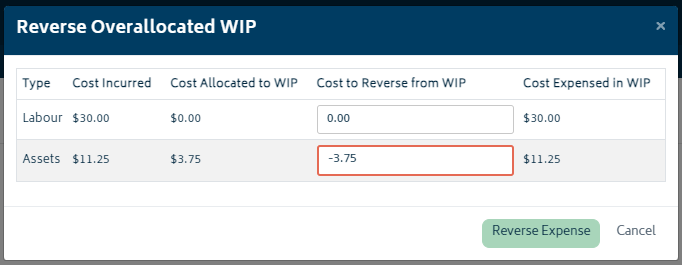
- The correcting amount will default into the Cost to Reverse from WIP field(s). Hit Reverse Expense to complete the process and you'll see the amounts in the cost adjustment page now balance:
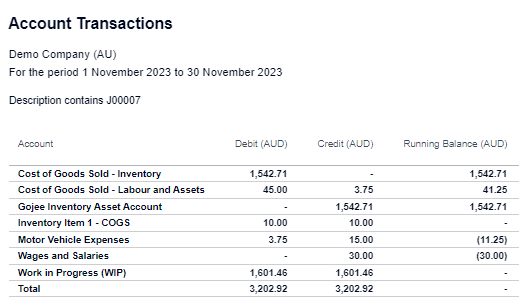
- A summary of the net transactions that have been journaled into Xero including the reversal above are provided in the image below for this job:
Next: Cost Adjustment Settings.