

Auto Supplier Bill Reconciliation
Introduction
Gojee can automatically reconcile Xero supplier bills against Gojee purchase orders (and goods receipts where applicable).
This is designed to reduce manual matching when your supplier bills reference your purchase order numbers/references.
Prerequisites
- Feature enabled: This functionality is feature-gated. If you do not see the settings or the Auto Bill Reconciliation button, contact Gojee support to have it enabled for your organisation.
- Permissions: Job manager roles or higher are required to run reconciliation.
- Purchase Orders in Gojee: The purchase order must not already be billed.
- Due date required: Bills without a due date are ignored by the auto-reconciliation process.
Enable and Configure
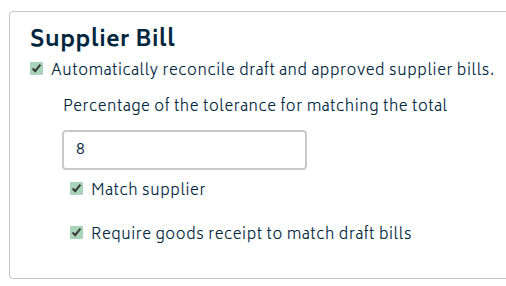
In Gojee, go to Organisation Setup → Resource Settings → Supplier Bill.
-
Click Automatically reconcile draft and approved supplier bills to enable the feature and show the rest of the settings.
-
Set Percentage of the tolerance for matching the total.
- 1% tolerance is the recommended standard (due to rounding).
- Use 0% for exact total matching. This is not recommended as totals are often out by a few cents due to rounding.
- Use a larger tolerance if your supplier bills commonly differ from PO/GR totals (small adjustments, raw material price increases, etc.).
-
Choose whether to enable Match supplier.
- On: requires the supplier on the bill to match the supplier on the purchase order.
- Off: allows matching using PO reference/number + amount only.
-
Choose whether to enable Require goods receipt to match draft bills.
- On: draft bills will only match purchase orders that have been delivered.
- Off: draft bills can match purchase orders that are awaiting shipment or delivered.
Auto-Reconciling Bills
To run the auto-reconciliation:
-
Go to the Supplier Bills list.
-
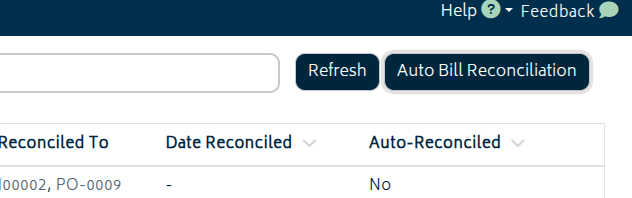
Click Auto Bill Reconciliation.
-
When the process completes, Gojee will show a confirmation message including:
- How many bills were reconciled.
- The references of reconciled supplier bills.
- Any ignored bills (for example, bills missing a due date).
Bills reconciled this way will note autoreconciliation details for quick confirmation:
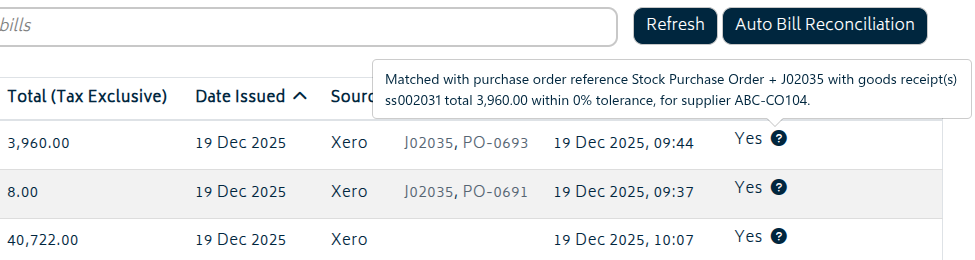
Alternatively, click into any supplier bill that is not yet reconciled. If a match is found, it will prompt you of possible matches.
What Changes When a Bill Is Auto-Reconciled
- The supplier bill is reconciled against the matched purchase order and stored as auto-reconciled.
- The purchase order is updated to partially billed or fully billed (based on what was matched).
- An audit trail entry is created describing what was matched (including the tolerance used).
Matching Methodology
Gojee attempts to match each eligible supplier bill to a purchase order using these concepts:
-
PO reference/number: the supplier bill reference is compared to the purchase order reference/number.
-
Amount within tolerance: the bill total must fall within the configured tolerance percentage. Depending on availability, the comparison is made against:
- the total of the purchase order, or
- the total of related goods receipt(s)
-
Supplier (optional): if Match supplier is enabled, the supplier must match.
-
PO shipment status: matching is restricted based on the Require goods receipt to match draft bills setting and the bill status.
Full match vs partial match
- Full match is used when the bill matches the purchase order reference/number and the total matches within tolerance. Supplier matching may be required depending on your settings.
- Partial match is used when the purchase order is partially delivered and the bill total matches one (or all) goods receipt totals within tolerance. Partial matching is only attempted when Match supplier is enabled.
Troubleshooting
No bills reconciled
- Confirm bills have a due date set.
- Confirm the supplier bill reference matches the PO reference/number used in Gojee.
- Try increasing the tolerance percentage if totals commonly vary slightly.
- If "Require goods receipt to match draft bills" is enabled, confirm relevant purchase orders have had a goods receipt generated for them.
Bills reported as ignored
- Set the bill due date in Xero, sync Gojee, then run Auto Bill Reconciliation again.
Wrong purchase order got matched
- Use the unreconcile workflow (view the reconciled supplier bill and unreconcile it), then correct the bill reference or settings and try again.
- Enabling Match supplier usually reduces the chance of ambiguous matches.
Next: Organisation Add-ons.
Or: Back to Knowledge Base.