

Cost Adjustment Settings
Setting up the Cost Adjustments Module
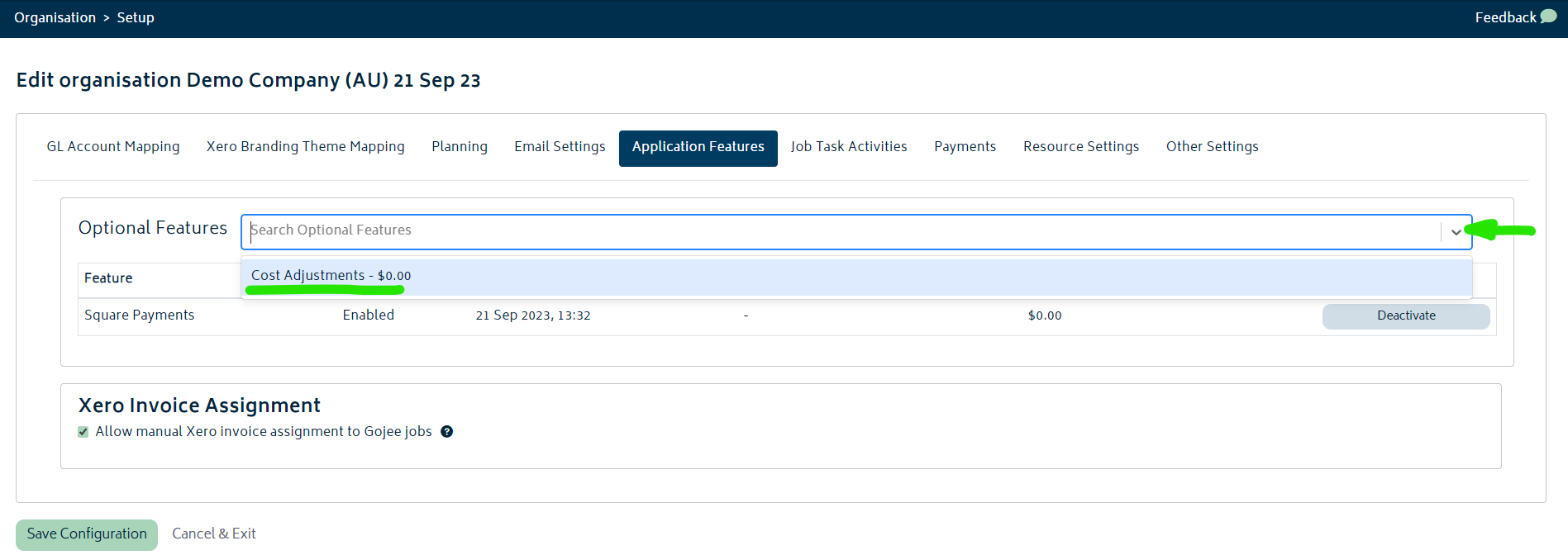
To get started with Cost Adjustments, navigate to Settings> Organisation Settings from the dashboard and choose the Application Features tab. You will be presented with the following screen where you can choose Cost Adjustments from the dropdown as shown:
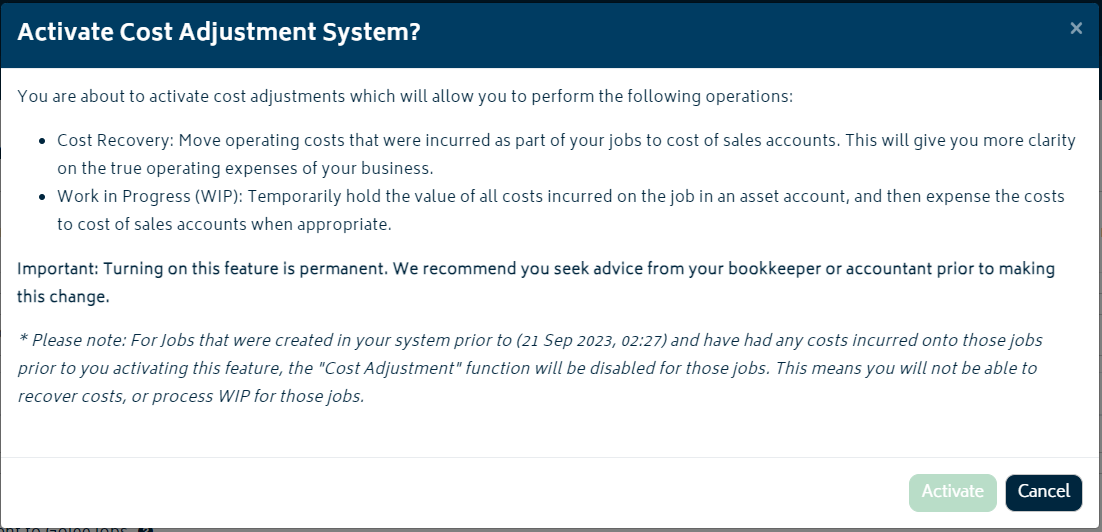
Once you have selected Cost Adjustments, you'll be presented with the following modal for confirmation:
- There is a warning provided for any open jobs (i.e. jobs that have not been marked as complete) as per the image below:
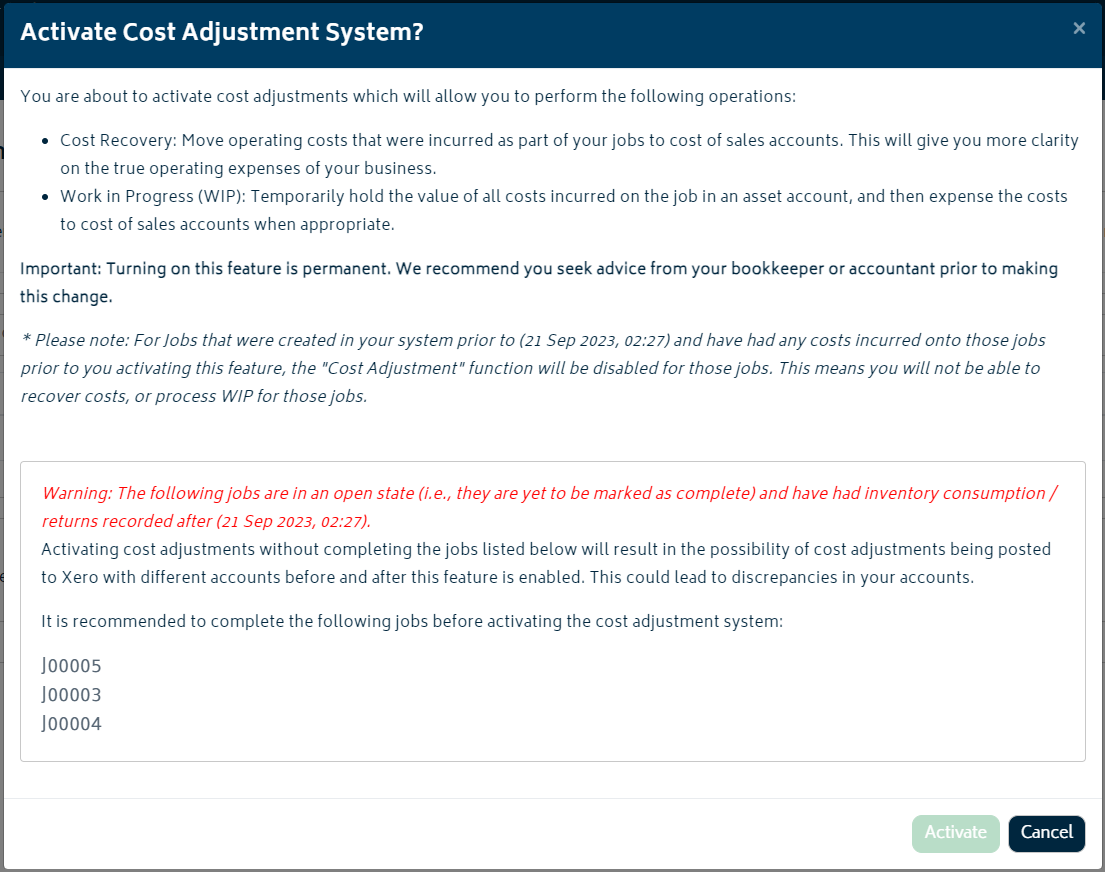
- You can click on any of the jobs in the list on the modal to navigate to the job(s) and complete any actions required.
- If you do this, you can simply navigate back to the Settings> Organisation Settings and then choose the Application Features tab, and complete the steps again to return to this modal.
- Click "Activate" to accept the warning and turn the cost adjustment feature on.
- You will then be presented with the following screen to complete the setup:
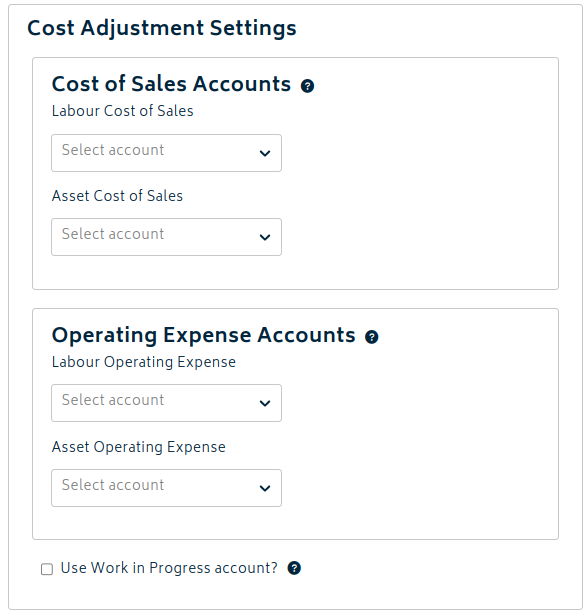
Refer to the sections below to complete the setup depending on whether you'd like to use Cost Recovery or WIP modes.
Cost Recovery Mode
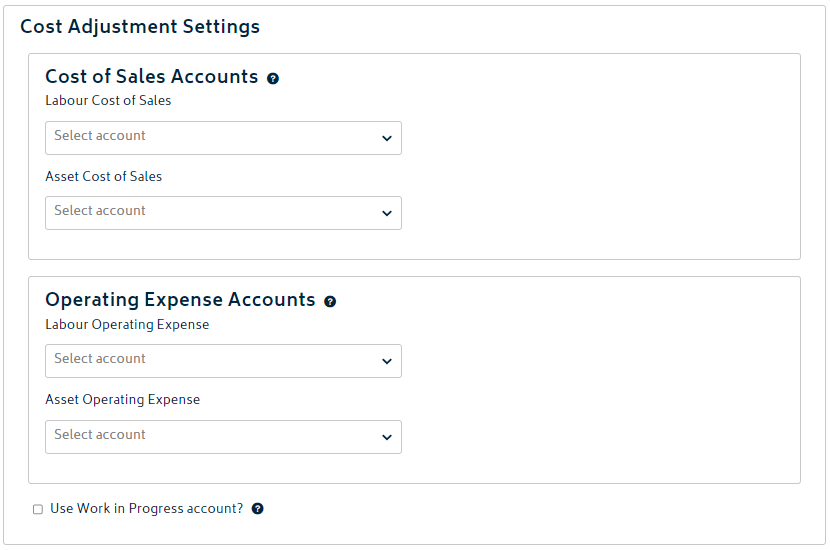
To enable the Cost Recovery mode, you will need to select an account for each of the sections shown below:
Cost of Sales accounts:
These are the Xero accounts where your job costs will be posted to. You can only select direct cost accounts here. Posting to direct cost accounts will enable you to easily identify your true cost of sales and what's left over will provide accurate information on your business admin costs.
Operating Expense accounts:
These are the Xero accounts the journals will recover the job costs from, i.e. if you use staff on your jobs, the journals will pull the costs from your labour operating expense accounts and move them to cost of sales accounts. This means time your staff spend on jobs will be allocated to cost of sales, not to one big wage expense bucket. Inventory expense accounts are set and handled for each inventory item individually.
Once you've made your selections be sure to save the changes and you're ready to use the Cost Adjustments module in Cost Recovery mode.
Work in Progress (WIP) Mode
Enabling this feature will allow you to capture job costs and hold them in an asset account while the job is running. These costs can then be expensed to Cost of Sales at the appropriate time.
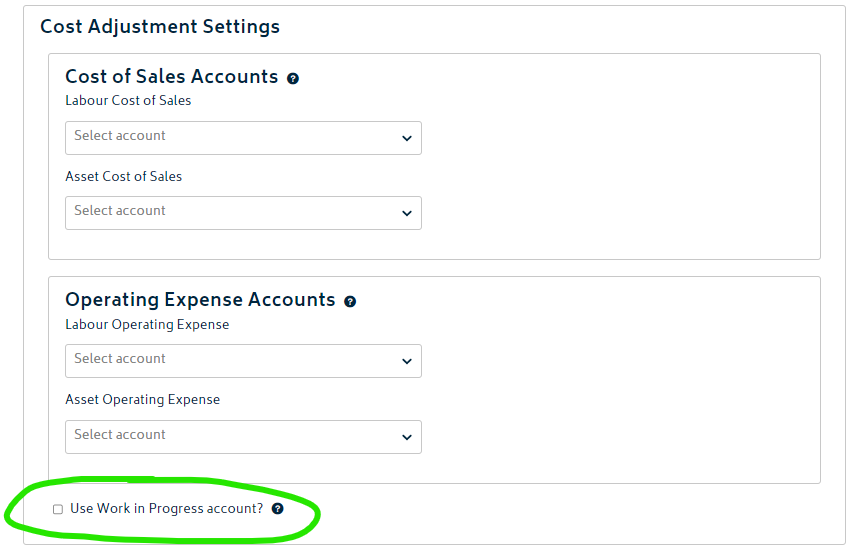
To enable the WIP mode, you will need to firstly complete the selection of all accounts listed above for the Cost Recovery mode. In addition, you will also need to select the option to use the WIP account as per the image below:
- Once you've turned this option on, you'll be presented with the following modal:
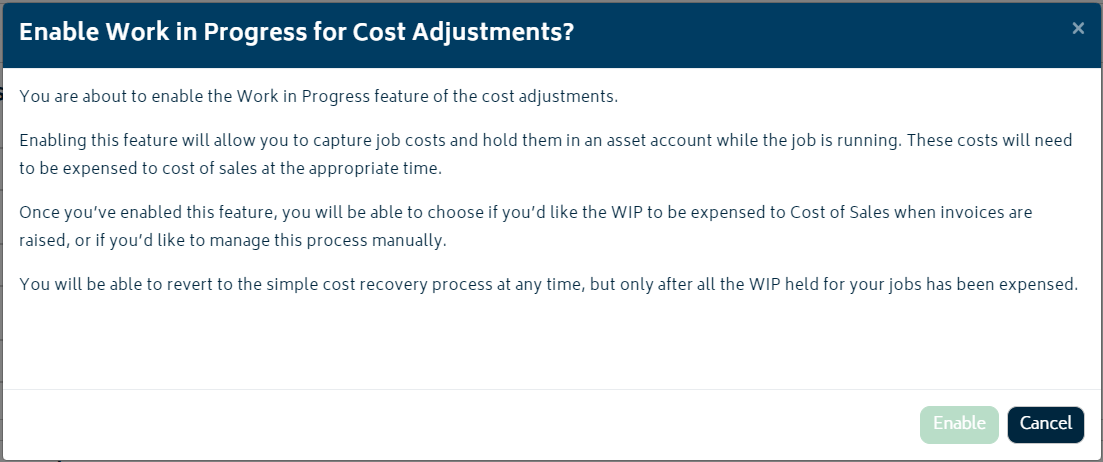
- Click on the Enable button from the modal to turn on the WIP mode.
- You will then need to select the relevant options for the WIP mode:
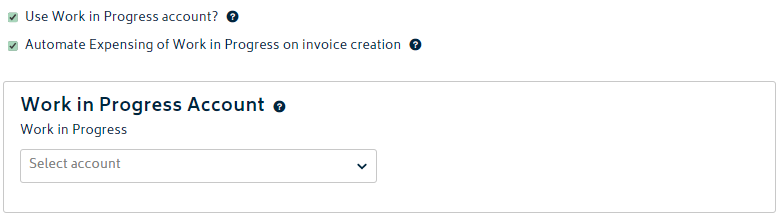
Automatically Expense WIP on Invoicing:
When an invoice is raised, Gojee will automatically expense Work in Progress to the Cost of Sales accounts. This will be done based off default calculations, comparing the invoiced amount to the estimated revenue, and the amount of costs incurred onto the job at the time the invoice is approved.
Work in Progress account:
This is WIP account where the job costs will be held on the balance sheet while the job is progressing. An example account is provided at the bottom of this page.
Once you've made your selections be sure to save the changes.
Example Xero Accounts
See the image below for some example Xero general ledger accounts that could be selected in the dropdowns shown above. These may be a useful reference to create similar accounts in your own Xero account and select those when using this cost adjustments module in Gojee.
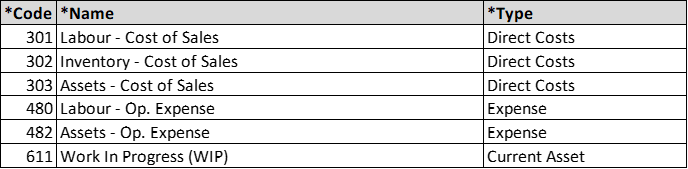
Warning: the accounts provided above are examples only. We do not recommend using these accounts in your own business without firstly gaining the advice of your accountant or book keeper.
Each individual inventory item can have its own unique Inventory Cost of Sales account selected from the inventory edit page. This individual account is where the expense will be posted for that specific item when it's moved out of the WIP account.
Next: Organisation Add-ons.
Or: Back to Knowledge Base.