

Edit Quotes & Estimates
Introduction
Note: Quotes with status "Open" or "Rejected" can be edited, and in so doing the PDF of the quote will be regenerated. This can be sent to the customer as an updated version. Quotes with status "Approved" cannot be edited. Please reject an approved quote first if you wish to edit it.
To get started, navigate to either the job quote/estimate page (refer to the Job Actions section for more information) or to the Reports > Quotes page from the top navigation menu.
Editing Quotes/Estimates
From the list of quotes, click on any open or rejected quote to edit it.

You will see the following screen when you open the quote for editing:
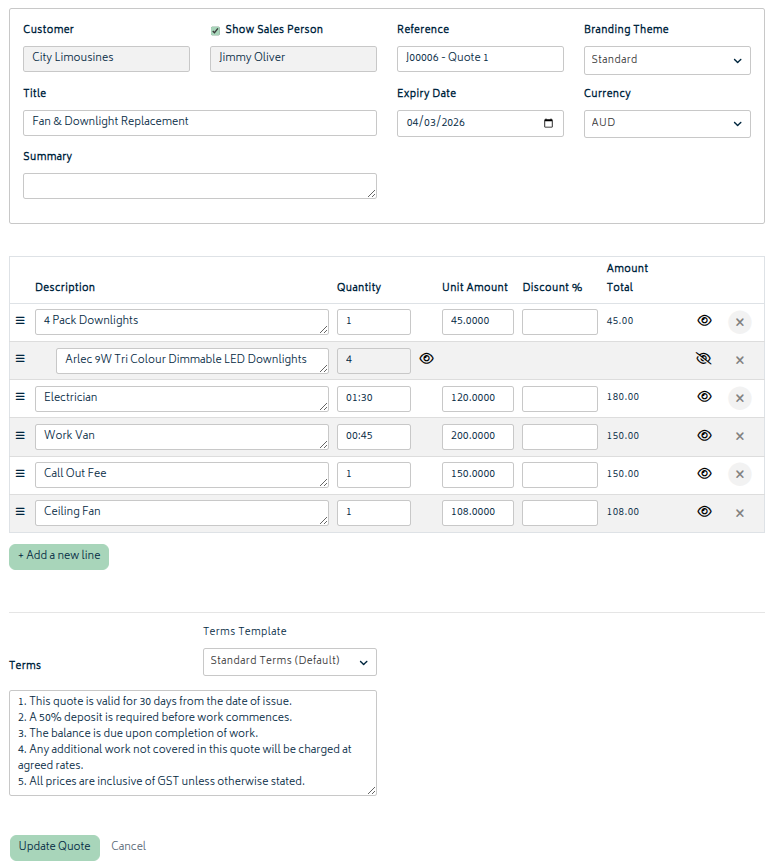
From this screen, make any changes required and select Update Quote to update it. The quote will be updated in the system, and the selected Xero branding theme will be applied to the new version of the quote to create a new PDF link. Refer to Create Quotes and Estimates for more information on these options.
After a quote has been created, the edit page includes a Quote Attachments tab. Use this tab to upload additional files from your device, or click "Add from job attachments" to copy files that already exist on the job. These can be emailed with the quote.
Next: Sales Orders.