

Add a New Asset
Add a New Asset
Note: An asset instance created directly in Gojee will not create a fixed asset in Xero. This can be useful if you want to track assets in Gojee without maintaining them on your Xero fixed asset register, such as tracking hired or rented equipment.
To add a new asset directly into Gojee, navigate to Resources > Assets. This will take you to the asset instances list. Click the Add button to open the Create a new asset instance page.
Before creating the asset instance, make sure the correct asset type already exists. If it does not, refer to the section below on creating a new asset type first.
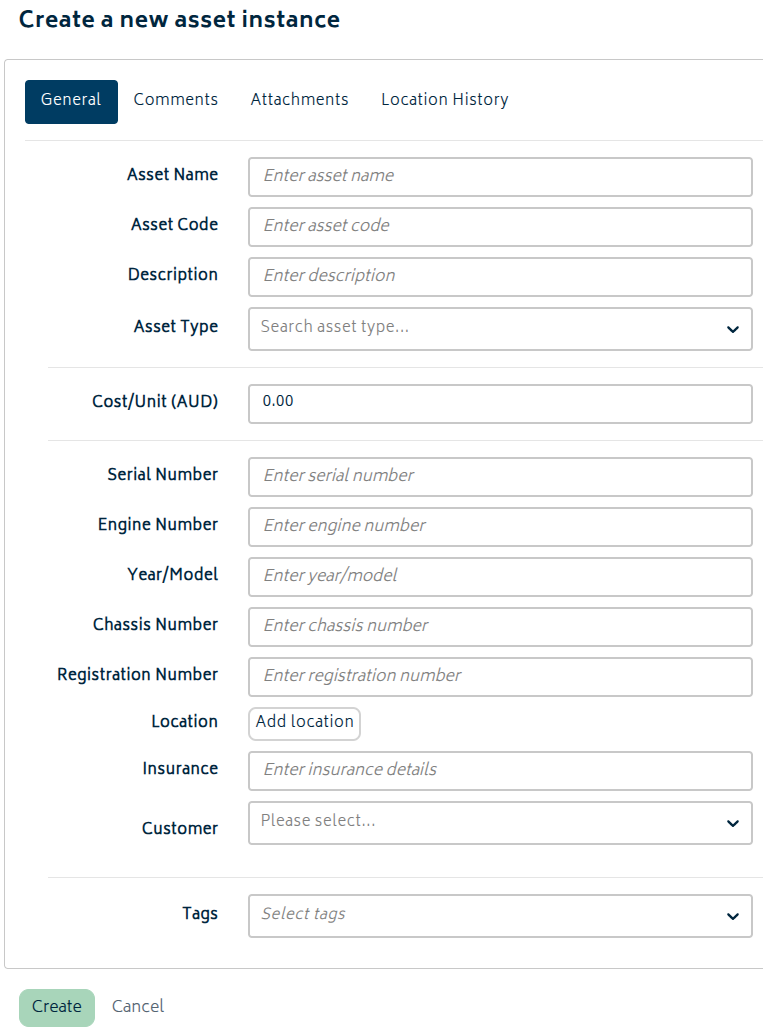
On the General tab, complete the fields for the asset instance:
- Asset Name (required field): Enter the name of the individual asset instance.
- Asset Code (required field): Enter a unique code for the instance.
- Description: Enter any notes that help identify the asset.
- Asset Type (required field): Select the asset type this instance belongs to.
- Cost/Unit (required field): Enter the cost to use for this instance.
- Serial Number, Engine Number, Year/Model, Chassis Number, and Registration Number: Enter identifying information as required.
- Location: Optionally record the asset’s current address or site location.
- Insurance: Optionally record insurance details for the asset.
- Customer: Optionally assign the asset to a customer.
- Tags: Optionally add tags to make searching and filtering easier.
If your organisation uses the Asset Management add-on, additional tabs will also be available for Finance, Service Settings, Service History, and Monitor Points.
Once the details are complete, click Create. The new asset instance will then appear in the asset instance list. After the asset has been created, you can also return to the record to use the Comments, Attachments, and Location History tabs. Comments and attachments cannot be added until the asset has been saved for the first time.
Create a New Asset Type
Asset types store the shared setup used by one or more asset instances.
To create a new asset type, you can either click "Asset Types" from the asset register to view the list directly, or visit the Navigation Dashboard.
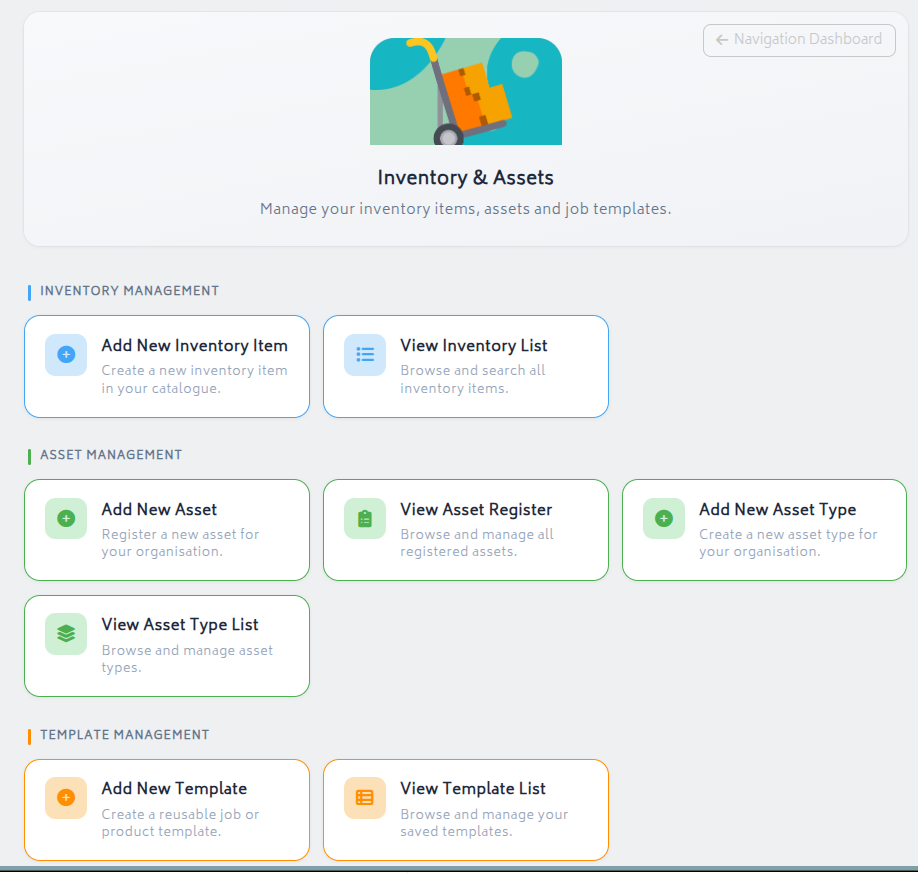
Under Inventory & Assets, you can or you can click "Add New Asset Type" directly to start creating.
Alternatively, click "View Asset Type List" to view the types of assets that are available for the organisation.
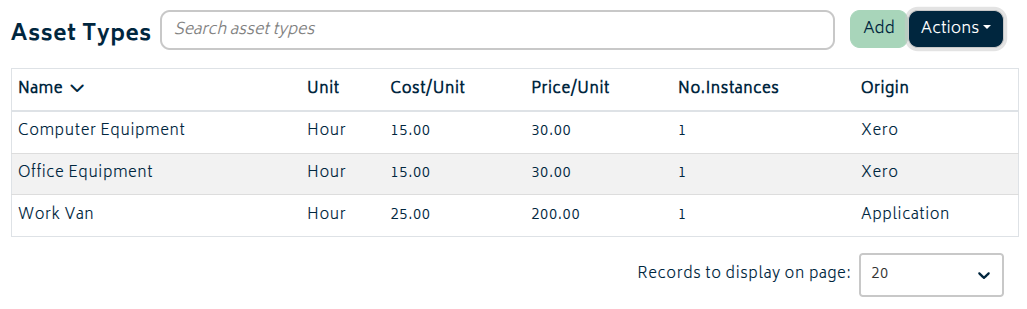
This allows you to confirm which are available before you add one. Just click "Add" to add a new asset type.
In either case, when you go to create the new asset type, you will be presented with this screen:
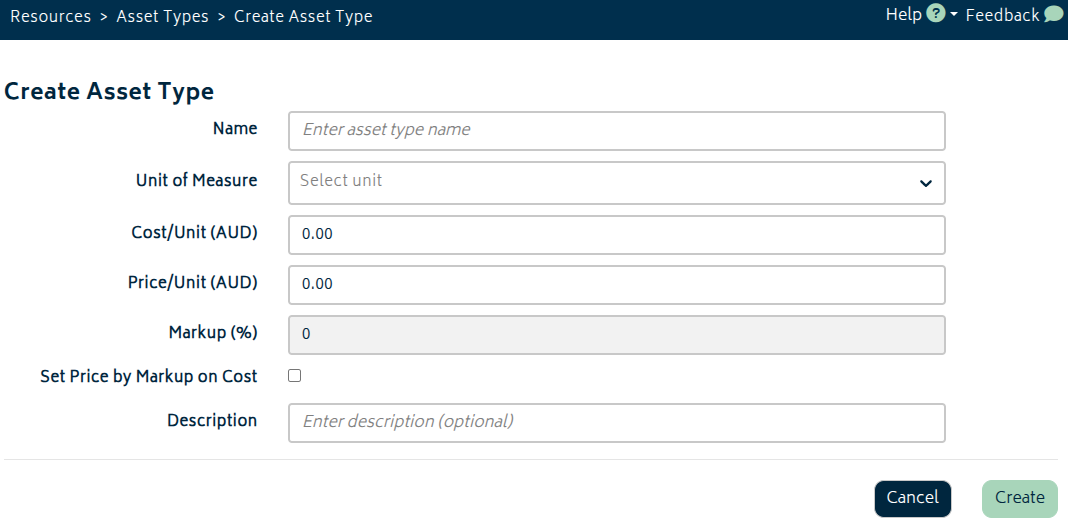
Enter the following details for the asset type:
- Name: The shared name for this class of asset.
- Unit of Measure: The unit used for costing and pricing.
- Cost/Unit and Price/Unit: The default financial values for the type.
- Markup (%) and Set Price by Markup on Cost: Controls how the selling price is maintained.
- Description: Optional notes for the asset type.
Once saved, the asset type will be available to select when creating or importing asset instances.
Note: The cost/unit for asset types is an estimate for the BOM - the actual costing that is recorded to the job will come from the cost/unit on the asset instance. There is no differentiation in price/unit between asset instances, so the price charged comes from the asset type. This is unlike professions, where setting markup on cost can be used to charge different prices based on labour recorded to Do & Charge jobs.
Sync a Xero Asset
If you have fixed assets of type Registered in Xero, these can be synced into Gojee. Gojee imports both the asset type and the individual registered asset instance. An example of registered assets in Xero is provided below:
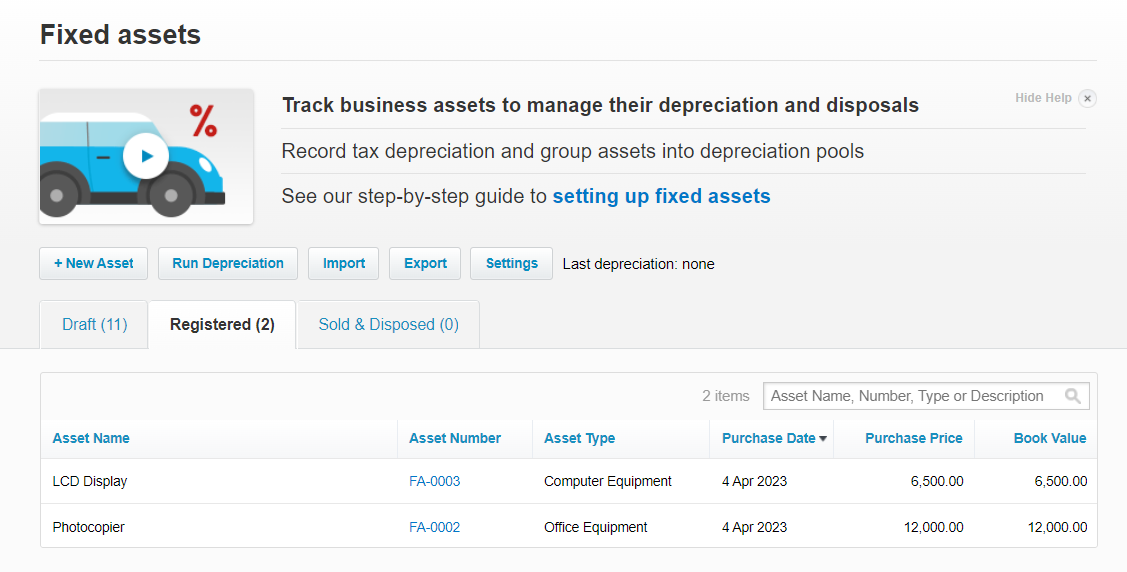
Synced records will appear in the relevant Gojee list with Xero listed as the origin.
If you create a new registered asset in Xero, it will be brought into Gojee by the normal sync process. Records created directly in Gojee remain Gojee-managed records and are not pushed back into the Xero fixed asset register.
Next: View and Edit Assets.