

View and Edit Assets
Viewing the Asset Register
To see your list of assets, navigate to Resources > Assets. This opens the Asset Register page.
The asset register shows the individual asset instances in your organisation. At a glance, the list can show the Instance, Asset Code, Type, Customer, Tags, and Origin for each record.
If the asset you expect is not shown, check the search field and type filter described below before assuming the record is missing.
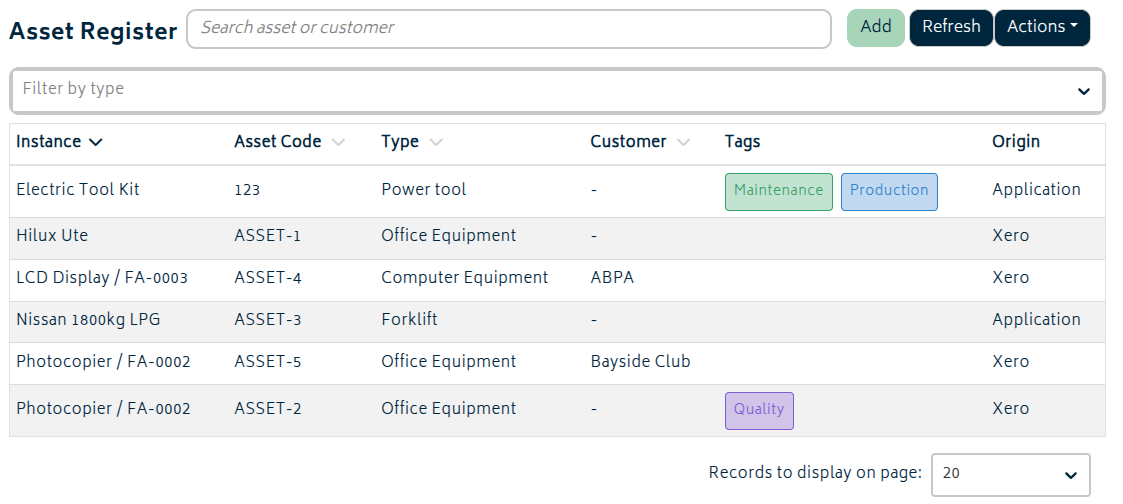
If you want to edit an asset instance, just click its row in the list. The fields and actions available are the same as when creating the asset instance.
Filters and Actions
The options available on the toolbar are outlined below:
-
Add: Opens the Create a new asset instance page.
-
Refresh: Reloads the list without clearing your current search or filters.
-
Actions: Opens the asset tools menu. From here you can:
- Import/Update Instances from CSV
- Export Instances to CSV
- If the asset management add-on is enabled, you may also upload/export CSVs for Monitor Points
-
Search: Filters the list using asset and customer information.
-
Filter by Type: Restricts the list to a selected asset type.
The register can also be switched between active and archived asset instances. Archiving an asset removes it from the normal active list without deleting its history, and archived assets can be re-activated later if they need to return to service.
The Origin column shows whether the asset instance came from Xero or was created in Gojee.
Editing Assets
Besides being able to edit details on the General tab, asset records also include these supporting tabs:
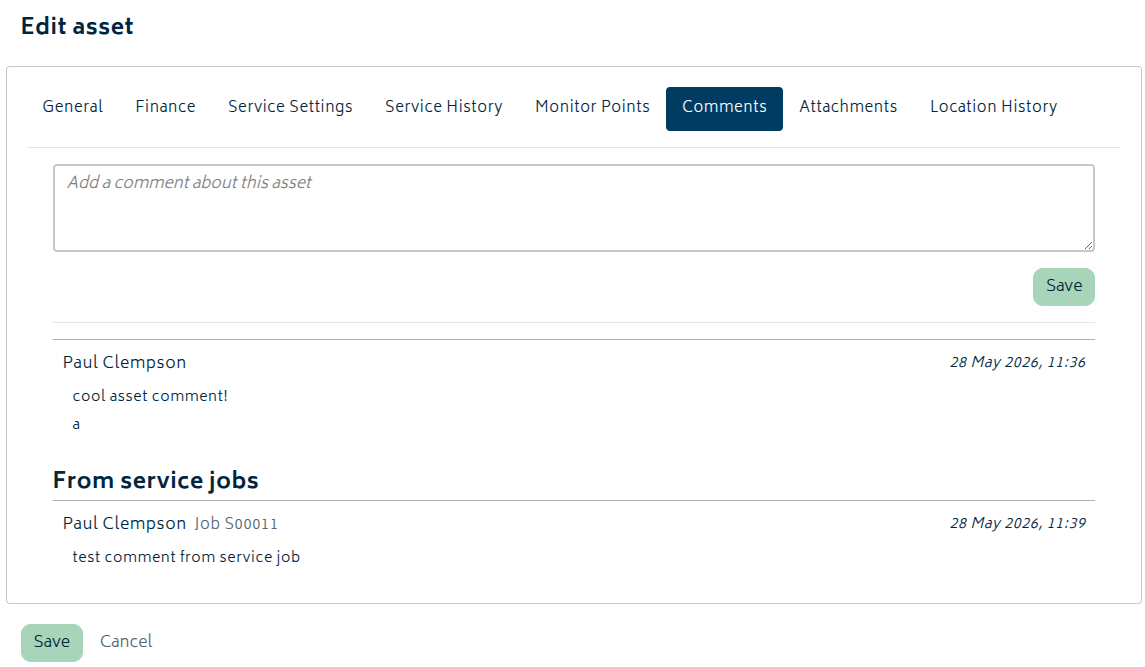
- Comments: Add and review comments recorded against the asset. If any service jobs are performed on the asset, comments from those service jobs will also appear here.
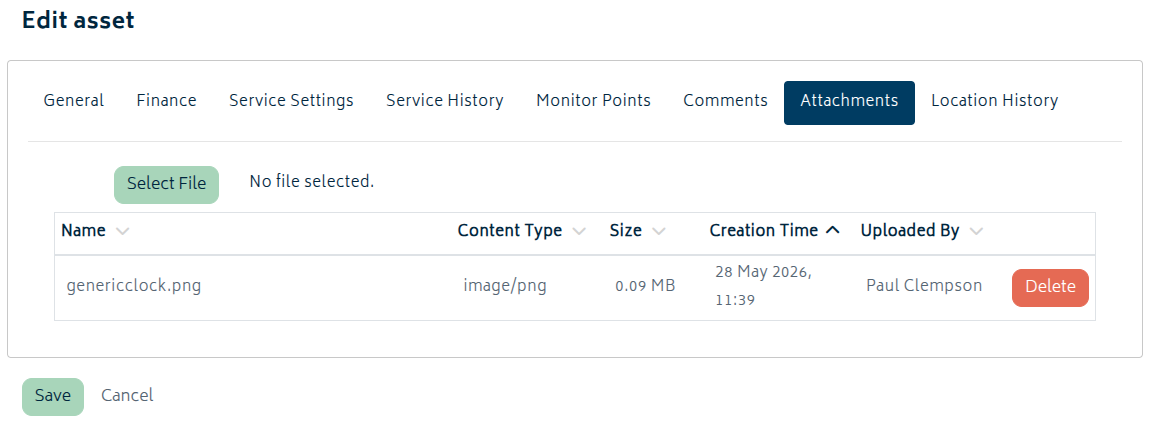
- Attachments: Upload and review files linked to the asset record. These can be accessed at any time.
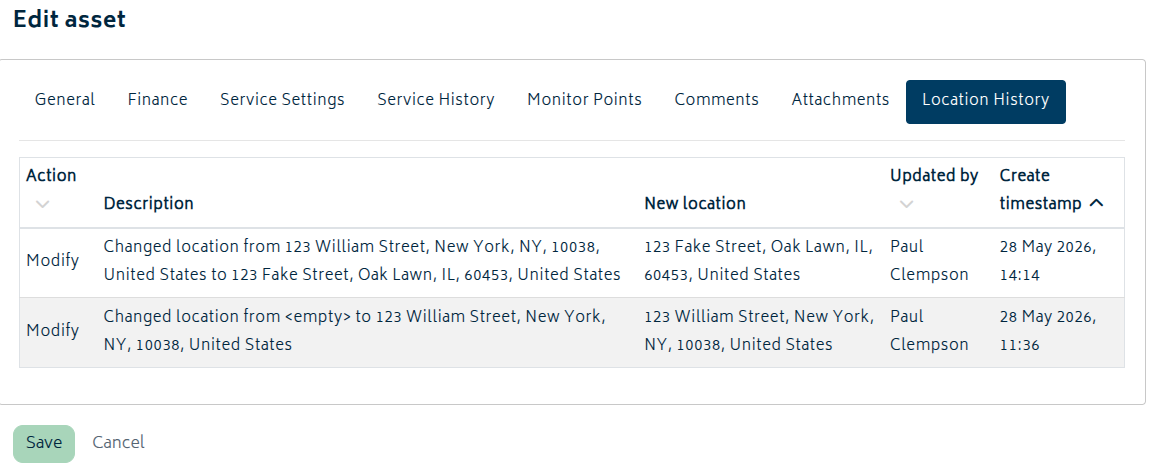
- Location History: Review recorded location changes for the asset. These are not recorded until the asset instance is saved.
At the bottom of the asset edit page, you can archive an active asset instance or re-activate an archived one. This allows you to retire an asset from day-to-day use while keeping its related records intact. Archived asset instances will retain all information but not be able to be selected for use when recording consumables or when creating service jobs (if the Asset Management add-on is enabled).