

My Account
My Account
This page allows you to review the status of your organisation's Xero connection, sync your Xero file with Gojee, switch between multiple Gojee accounts (if you have multiple organisations linked to the same email address) and link a new Xero organisation.
To get started, navigate to the My Account page. You will be presented with the following screen:
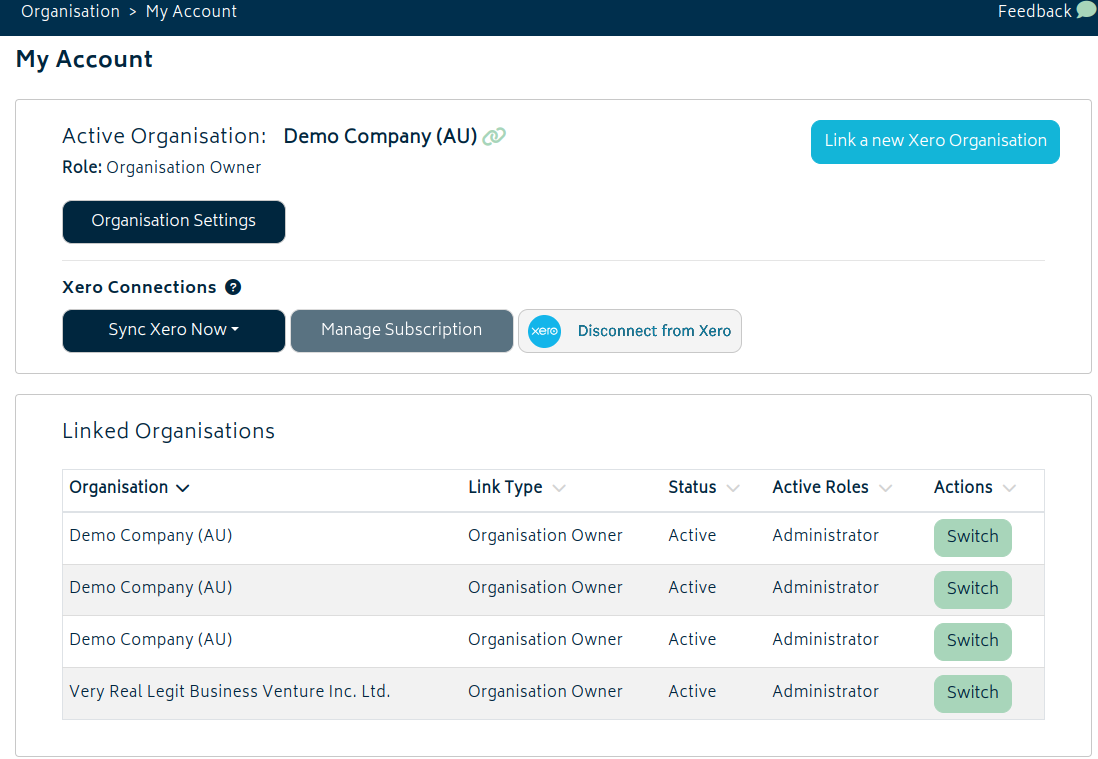
The items in the image above are described below:
Xero Linkage
Active Organisation + Xero Link Status: Shows the active organisation that you are logged in to. If the icon next to Active Organisation is green  , this means that your account’s connection between Gojee and Xero is active. If it is red
  , this means that the connection between your Gojee and Xero account has been disconnected. Note that only the organisation owner can re-generate the token for this connection if the org becomes disconnected.
Sync Xero Now: This is an option that allows you to trigger a sync to pull in any changes from Xero to Gojee on demand.
Note: By default, the changes made in Gojee will be pushed into Xero automatically and these do not need to be synced manually. For example, adding new customers / suppliers, sending invoice & bill transactions, payments etc.
There is an overnight sync which also happens automatically to pull the latest information from Xero into Gojee. As such, you should only need to use this button on rare occasions when you want to pull in a new transaction immediately.
- When processing a sync on demand, you will be presented with several options. To process the sync as quickly as possible, it's recommended you select only the items you would like to sync:
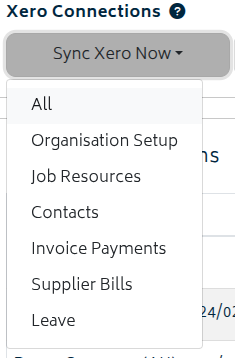
Organisation Setup
- Organisation
- Branding Themes
- Payroll Calendars
- Accounts
- Pay Items
Job Resources
- Assets
- Staff
Contacts
- Customers
- Suppliers
Invoice Payments
- Transactions on xero invoices
Supplier Bills
-
Supplier Bills
- NOTE: This sync must be run manually once to pull in Xero SBs.
- Once it has been run once manually, it will sync automatically with the overnight sync.
Leave
- Staff
- Leave balances and types
All
- All above components
Manage Subscription: Navigates you to Xero subscription page where you can manage your Gojee subscription i.e. upgrade plans, or service cancellation.
Disconnect from Xero: Allows you to disconnect a Gojee account from Xero. This is not recommended unless you know what you're doing.
Link Type: Displays your access role for the connected organisation. "Organisation Owner" means that you are owner of the Gojee account and have access to the Xero account it is linked to, where "Employee" or "Administrator" for example means that you have been added by an admin to the account.
Switch Active Organisation
Switch: Allows you to switch between the multiple Gojee accounts you have been granted access to. When you switch you will log out of the active account and log into the new account. The name of the new organisation you switch to will then be listed at the top of this page. Simply click on the "Switch" button to change the account.
Link a new organisation: This provides an option to link a new Xero organisation your Gojee account. Clicking “Link a New Organisation” will direct you to Xero:
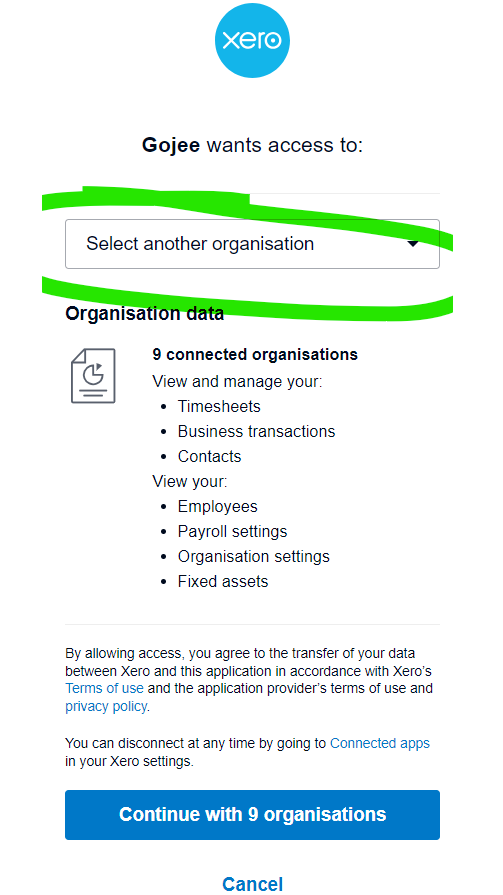
- From the dropdown "select another organisation", choose the organisation you'd like to connect, and click “Allow Access” or "Continue". If you only have one Xero company to connect, there may not be a dropdown option, and your company will already be selected.
- If you need to reconnect your organisation, the org owner will use this button to connect the existing org and generate a new link.
Organisation Settings: This is a link to the settings page. Refer to Organisation Settings section for more information.
Next: Organisation Settings.