

Add a New Template
Adding a new Template
There are two ways to add a new template - from the Navigation Dashboard directly and from the Template List.
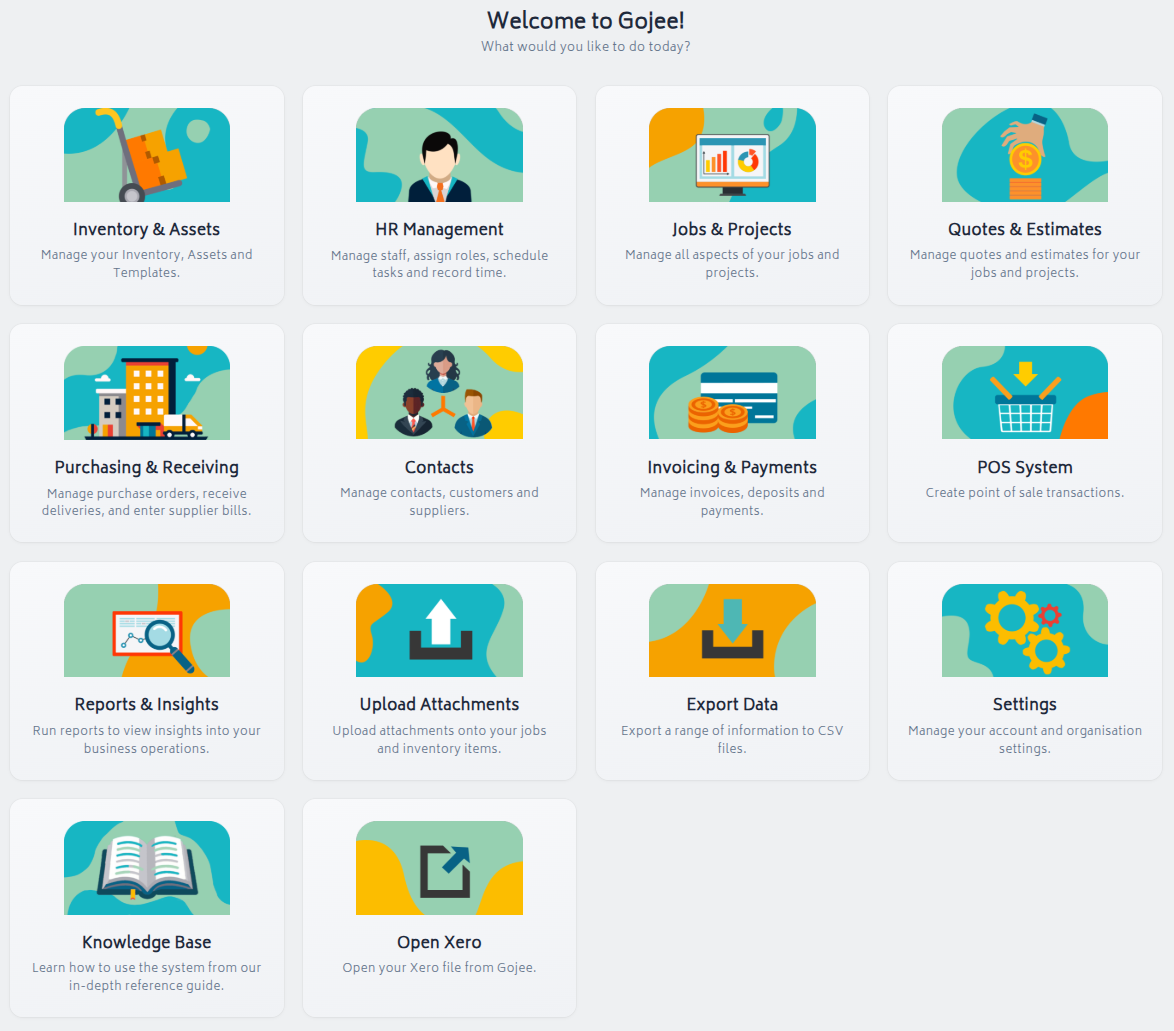
From the Navigation Dashboard, navigate to Inventory & Assets, then click Add New Template under the Template Management header. This will take you directly to the Create New Template page.
Page Glossary
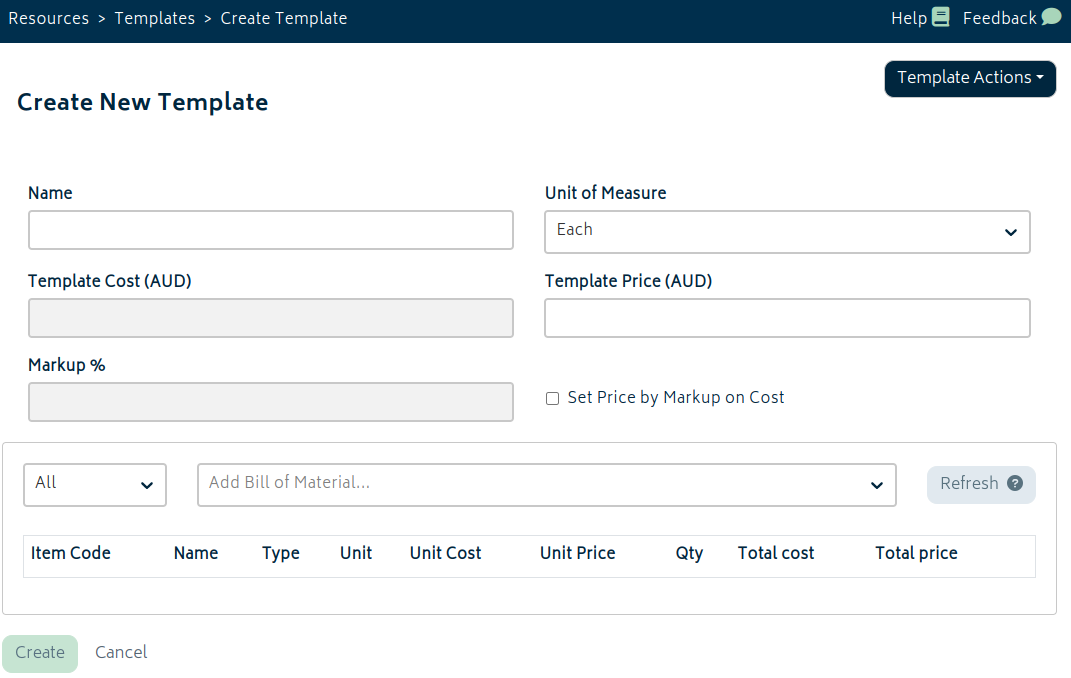
- Template Actions: After a template is created, this dropdown contains actions relevant to the template, such as undo, clone, terminate, and re-activate.
- Name (*Required field): Enter the name of the template you’re creating
- Unit of Measure (*Required field): Select the required unit from the dropdown list
- Template Cost: Read only field generated from the cost of the items added to the template
- Template Price: By default this will sum to the total of all the lines on the template. If you edit this field it will increase or decrease the unit price of each line item in the template evenly, i.e. the example below shows the outcome of increasing the template shown above to a price of $3000.
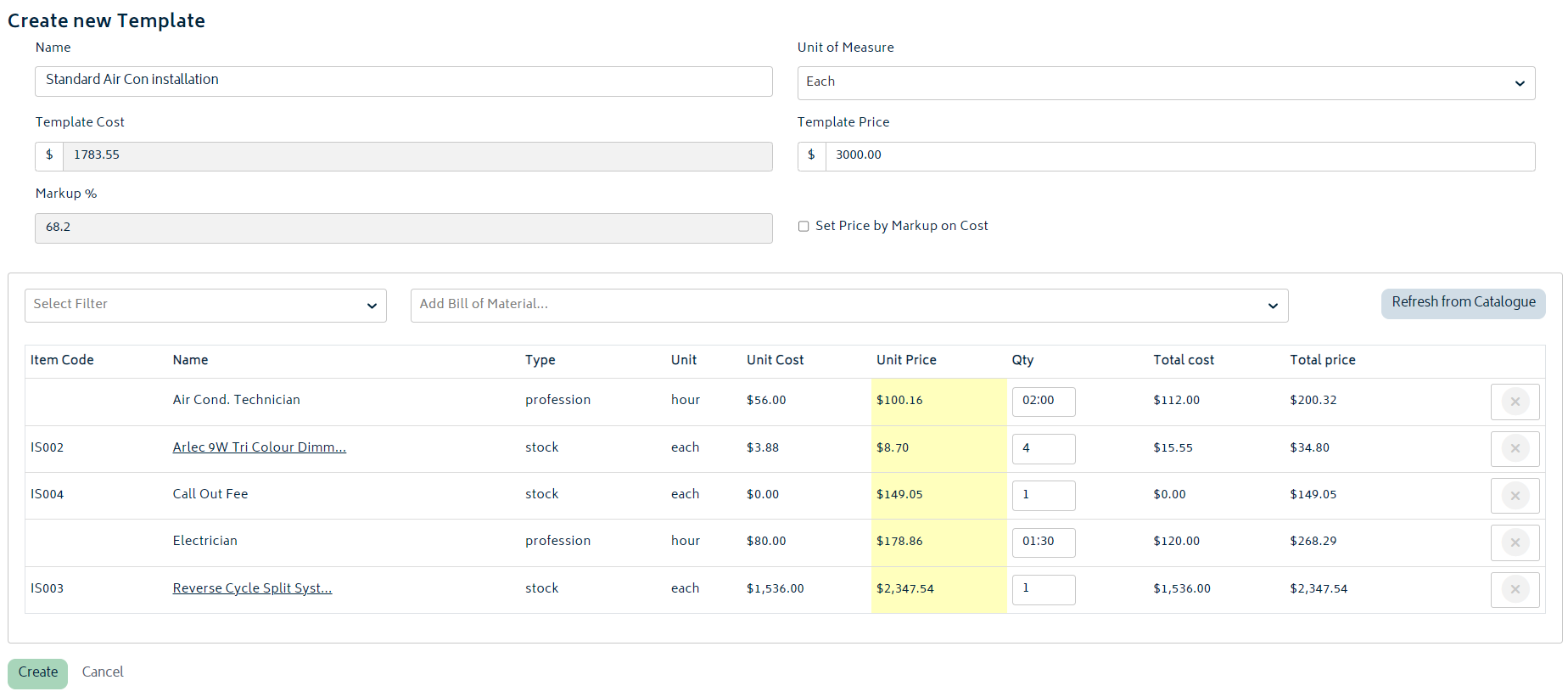
Note: when the total price of the template is adjusted, the price per unit of the items updated will be shown in yellow. This indicates the price of the item on the template is different to the catalogue price of that item.
- Markup %: This field is either calculated based off the price and cost, or is set by the user and used to calculate the price (see details below).
- Set Price by Markup on Cost: If this option is ticked, then the price of the template will be updated whenever the cost is updated by applying the markup % to the cost. If it's not ticked, then the price will be static and not change when the cost of the template items are updated.
Adding items
To add items to your template, click on the Add Bill of Material dropdown and select the item you’d like to add one at a time. There is a pre-filter on the left hand side of this dropdown which allows you to filter the list by the resource type, i.e. profession.
Note: You can also create single-use items here. However, they may not be modified from this screen, so please use the Advanced Settings dropdown to change their properties prior to adding them into the template. Refer to the articles on adding inventory, professions and assets and complete these steps prior to creating your templates.
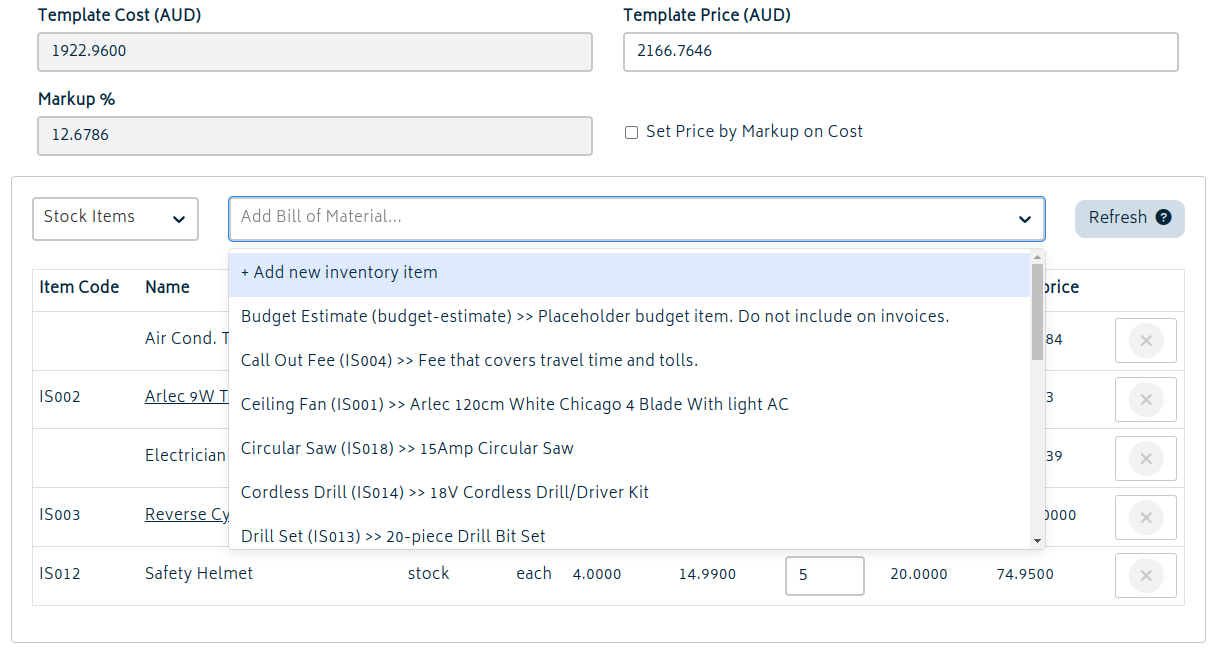
Once you’ve added your item, you can adjust the quantity of this item required for the template using the box in the Qty column. If you’d like to remove one of the lines added to the template simply hit the (x) on the right hand side of the line.
You can also re-order the template's bill of materials to control how lines appear. That saved order will be preserved when the template is later brought onto jobs.
Refresh
If you’ve adjusted the prices of individual items, or the template itself, you can return the price per unit of all items to the catalogue price by clicking on the “Refresh from Catalogue” button. This button will pull the latest information from the database to update each item in the template.
Other Considerations
The combination of items and their individual quantities on the templates combine to make one unit of the template. In the example provided in the image above, the unit of measure is each which mean that one standard air con installation requires 2 hours of the air cond. Technician, 1 call out fee, etc.
If the items in a template are further modified in a job, it will not modify the template itself. However, any added items or modified quantities in child items will lock the template and prevent its overall quantity from being changed.
Templates set to divisible units of measure with indivisible components will still require those items to be consumed as wholes.
Next: View and Edit Templates.