

View and Edit Templates
Viewing Templates
To see your list of templates, you can either find the list under Inventory and Assets from the Navigation Dashboard, or by navigating to Resources > Templates.
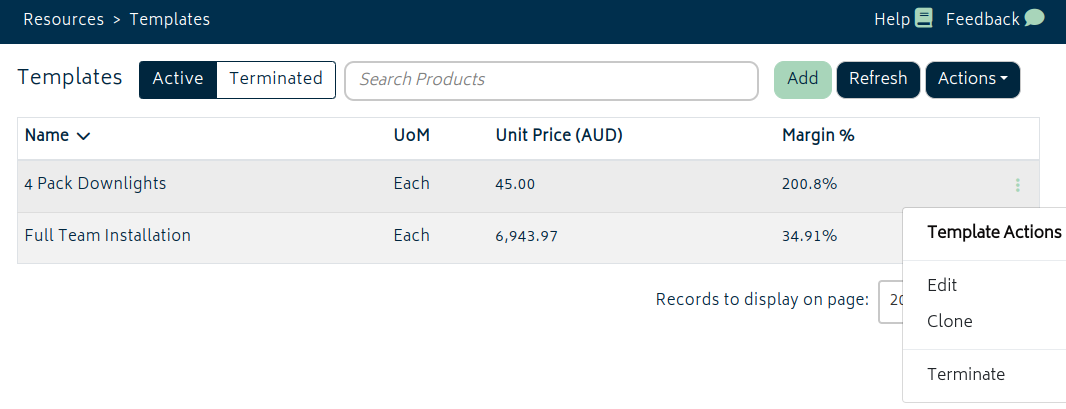
All your templates will be shown in the list, showing their Unit of Measure (UoM), Price and Markup (Margin %). On the right is the dropdown for Template Actions, which will allow you to edit the template, clone its items into a new one, and manage which templates are active. You will have the option to terminate
Note: Terminating a template or archiving an inventory item will also automatically terminate any parent templates that use it as a child item. If this happens and you want to re-activate that parent template, you will need to reinstate the child template/inventory item before you can restore it to an active state.
At the top of the page are options to search, switch the view between active templates and terminated templates, add new templates into the system, and perform a number of actions.
To add a template onto a job, refer to the Create a Job section.
Editing Templates
To edit a template, or to terminate it, click on the row in the table above. This will bring up the template edit page, where any changes can be made and saved. Refer to the Add a New Template section for more details on the editable fields.
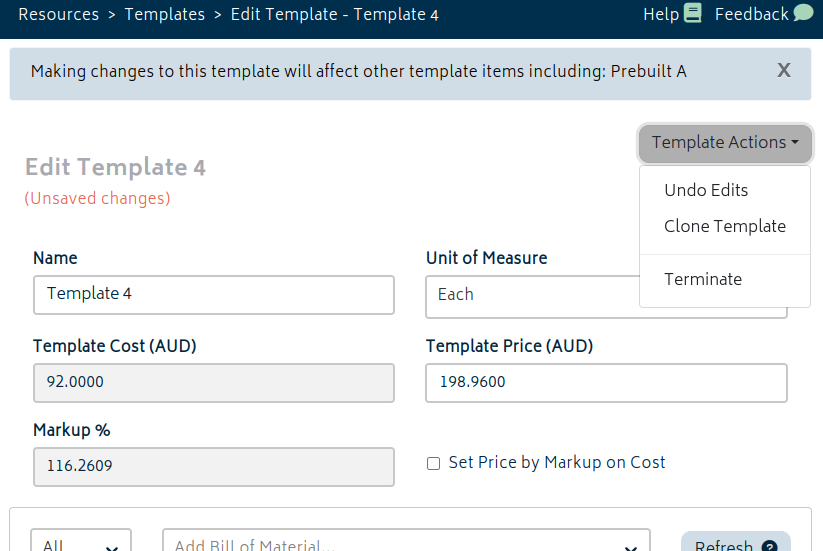
When editing a template, you will now have access to another Template Actions menu - this will allow you to access similar actions to those available from the template list. You can discard current changes, clone the template's saved items to a new template, and terminate or re-activate a template.
At the top of the page, you will also be able to see which templates (if any) will be affected by changes to this template. Changes saved to a template will also propagate to parent templates and the BOM of any jobs that do not have an approved quote yet - as their BOM is not yet frozen.
Importing and Exporting Templates
From the Actions menu at the the top of the page, templates can be imported from CSV (and updated via the same way) and existing templates can be exported to CSV.
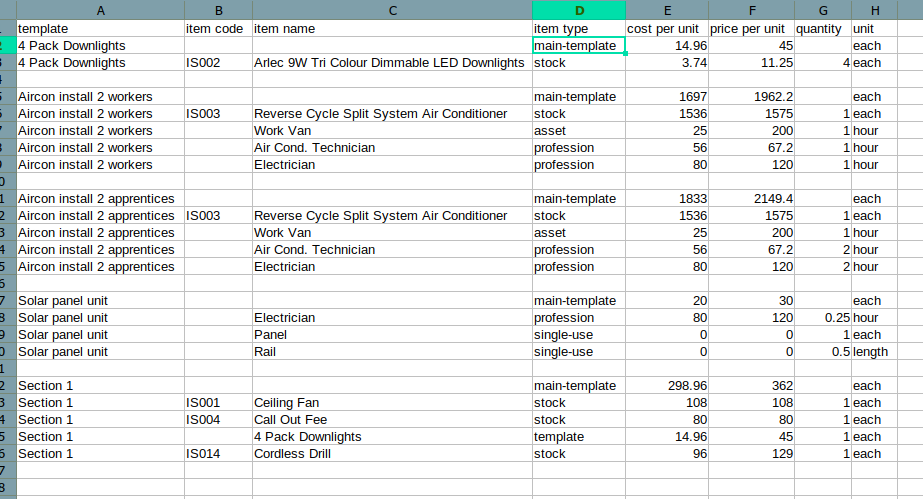
Importing and exporting is performed in a similar fashion to the inventory and job import. Like the job import, multiple templates can be imported at once. Each template is defined by a "main-template" line, and subsequent lines will allow for import of stock items, assets, professions, other templates, and new single-use items. Similarly, edits such as adding or removing lines can also be done by making the adjustments in the CSV and importing the changes.
Any issues that occur during the import will appear in the modal and allow you to fix them or ignore them before import.
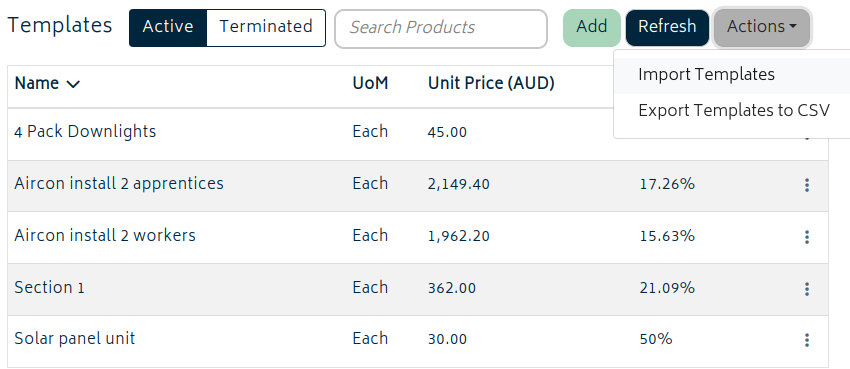
Once an import goes through, all newly added templates will appear in your Templates list. This is done in the background, so you may need to refresh the page.
Next: Back to Knowledge Base.