

Importing and Exporting Inventory Data
Importing from CSV files
This process should be used when you’d like to import a bulk list of inventory items, or if you’d like to make bulk changes to items previously imported into Gojee.
The import process uses the item code to assess whether the item is new or already exists. Due to this, changes to item code cannot be made in bulk, but most other inventory fields can be updated.
To start an import, navigate to Inventory & Assets > View/Edit Inventory.
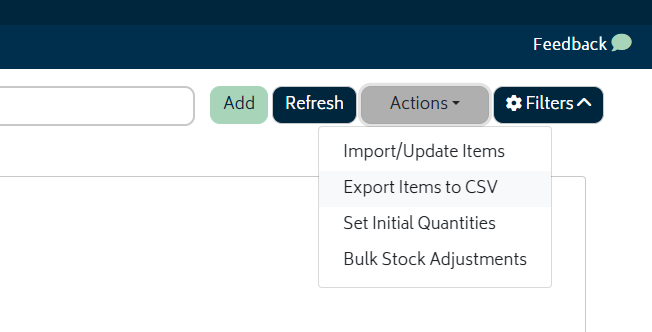
Click on the Actions button at the top right of the page and select Import/Update Items. You will be presented with the following modal:
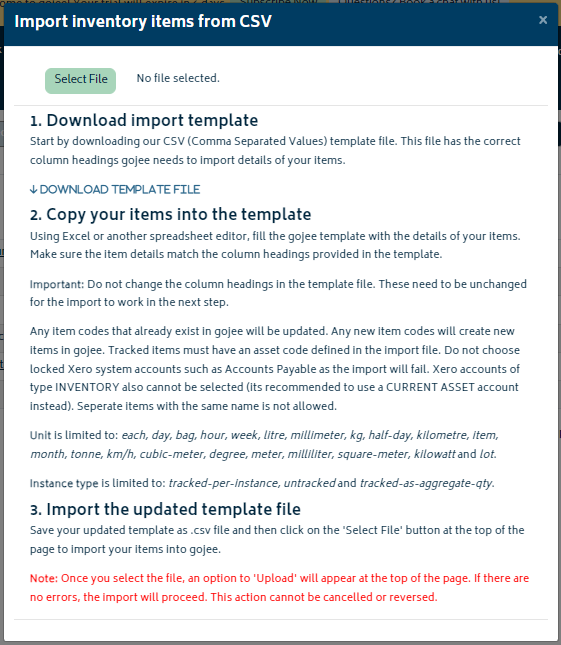
Follow the instructions in the modal to complete the import.
Troubleshooting
- If you find there are errors in the import, check the sections and line numbers, close the modal, and try again.
- If you are importing a large number of items (eg. 10,000+), it may take a while. Please be patient and refresh the page after the import is complete.
Setting Initial Quantities & Bulk Stock Adjustment
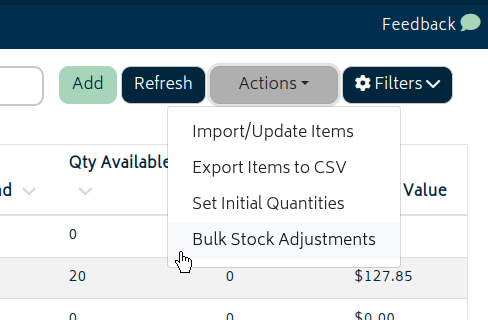
For these options, the process is a little different. Again, navigate to Inventory & Assets > View/Edit Inventory. For both initial values and bulk stock adjustments, the process will be the following.
-
- Click on either Set Initial Quantities or Bulk Stock Adjustment
-
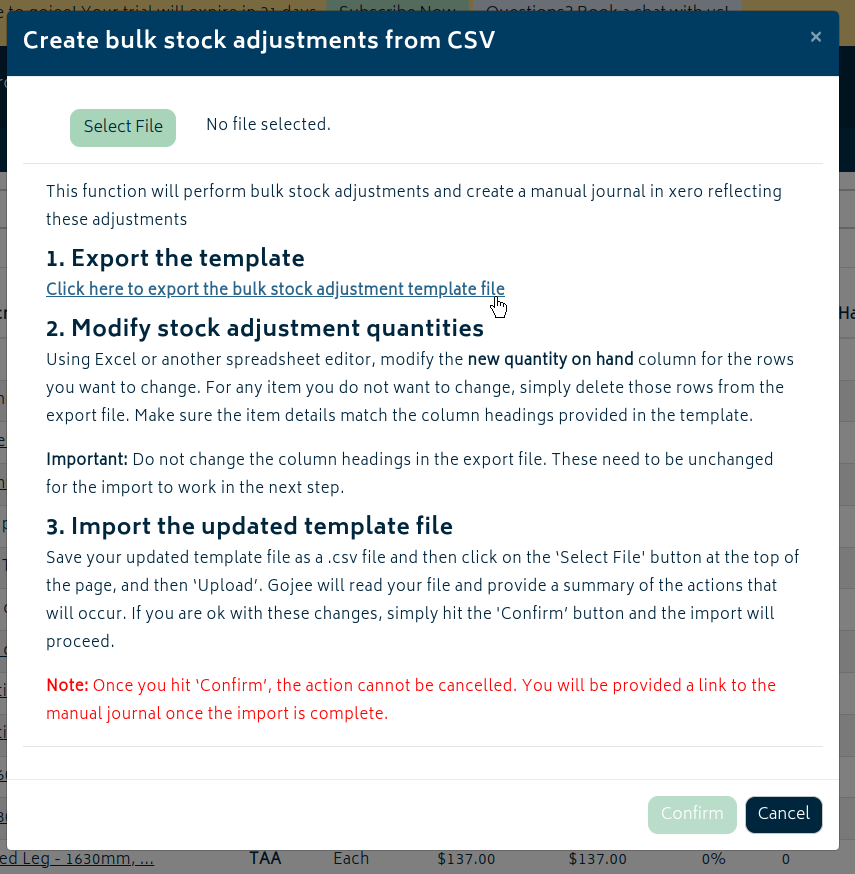
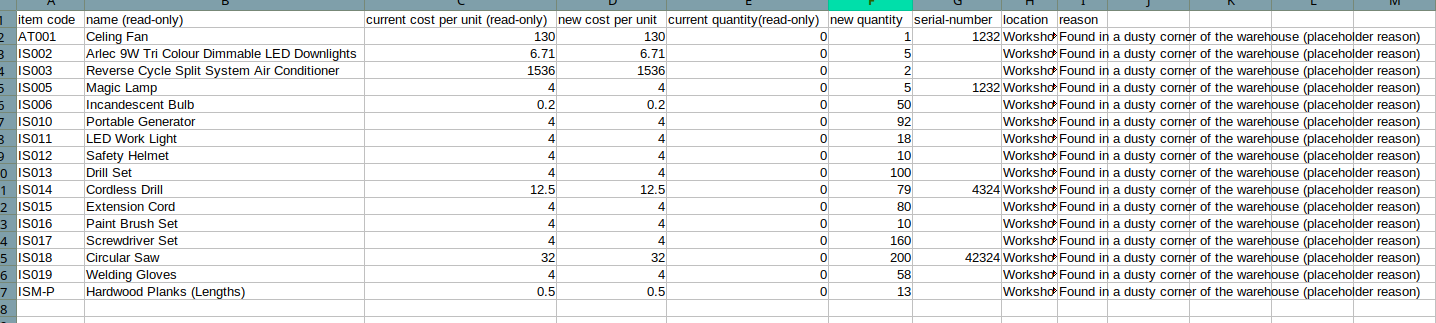
- For either one, you must export the template. This CSV will contain a version of your inventory that is formatted correctly for the a quantity import.
-
- For Stock Adjustments, you must provide a reason that the stock has been adjusted. For setting initial quantities, the stock must be at a quantity of 0 and not have a history of usage.
Troubleshooting
- For tracked and serialised items, you must also provide the serial numbers of these items. Depending on your situation, it may be more time efficient to import just tracked and unserialised items by this method first to make sure you have the correct method, then doing the serialised items in a separate import. If you have a low number of serialised items to modify, you should modify them in the inventory item listing directly.
- If you have issues importing initial quantities, make sure you remove excess lines with a quantity of 0.
Export Items to CSV
This process will export all your items and the quantities on hand to a CSV file.
To run the export, navigate to Inventory & Assets > View/Edit Inventory. Click on the Actions button at the top right of the page and select Export Items to CSV. A CSV file will be generated and available from the downloads section of your browser.
Note
-
The inventory export will contain all the fields necessary to import/update items as well as additional fields that detail the stock numbers. CSV imports will ignore fields that are not relevant to the type of import.
-
For example, if you are exporting in order to bulk update inventory item details, the quantity fields will be safely ignored.
Next: Back to Knowledge Base.