

New Prepayment (Deposit)
Prepayments Introduction
A prepayment is an acknowledgement of money taken from a customer, but it isn't yet treated as revenue from an accounting perspective. Gojee facilitates these transactions by creating "Prepayments" transactions in Xero, linking them to the jobs and the customer that the payment was taken from.
This enables users to take deposits against their jobs prior to commencing work, without needing to raise an invoice.
Gojee has an automated workflow for prepayments, where any deposits are automatically allocated to invoices once they are raised for the job the prepayment was taken for. This saves time and admin, and ensures your accounts are always up to date.
Taking a Deposit for a Job
To get started, navigate to the Job Actions menu for a job and select Prepayments. Alternatively you can click Invoicing & Payments on the navigation dashboard and click “New Prepayment (Deposit)".
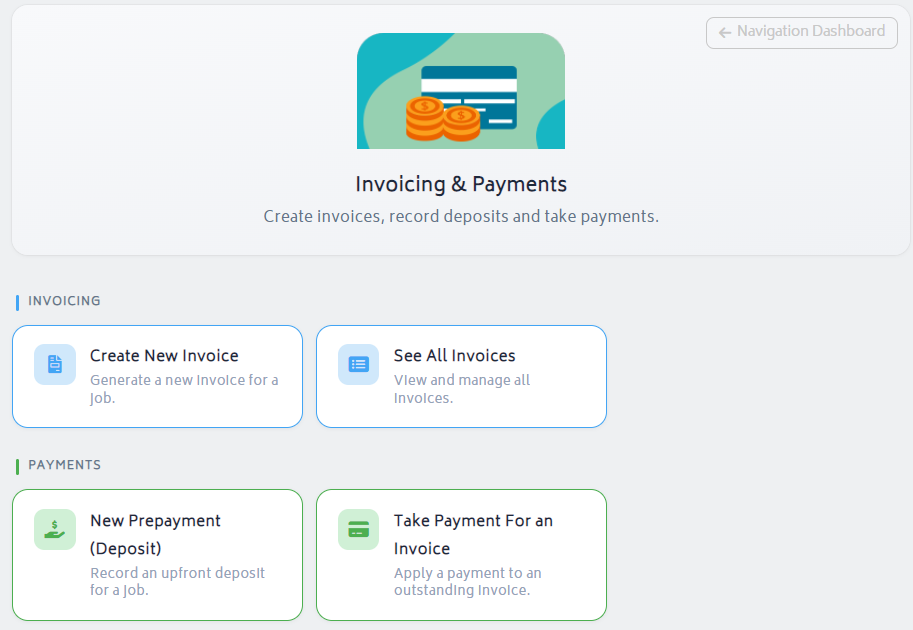
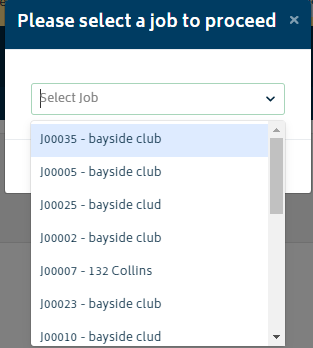
- Select a job number to take payment against a job from the modal:
You will be navigated to the “Prepayment” page for the job:
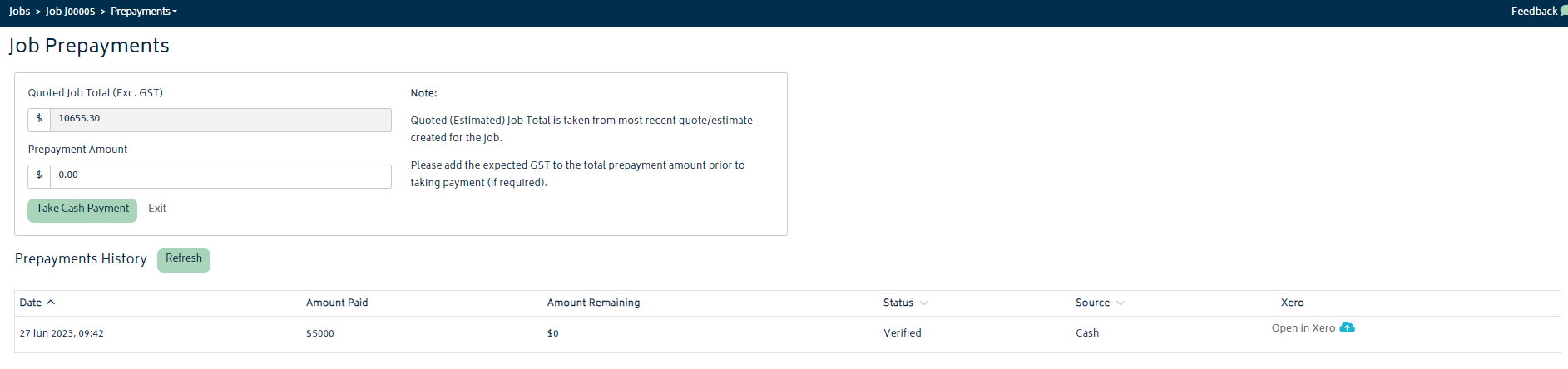
Enter the amount that you wish to take as Prepayment/Deposit and click “Take Cash Payment”. Once processed, you will be able to see the payment under Payment History on the same page:
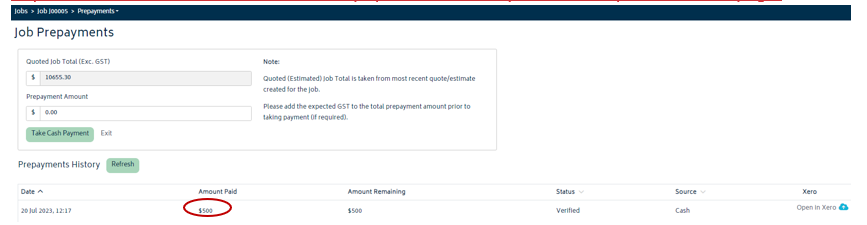
When the next invoice is approved for the job, any prepayments will be automatically allocated towards that invoice. Note that if a prepayment is recorded after an invoice is raised, it cannot be applied manually.
Note: If you have the square payment integration turned on (refer to Organisation Add-ons), you will also be able to take a payment via card. Refer to Take Payment for POS Jobs section for instructions on taking card or online payments.
Next: Create an Invoice.