

Gojee Basics for Employees
About Gojee
Welcome to Gojee! Gojee helps businesses keep track of their costs and record time you are working on their jobs. It's simple and easy to use, and we hope that you find it easy to use too.
Your First Login
If everything has gone correctly, you should have received the following email in your inbox.
| Welcome to Gojee! Dear User, Your employer has registered you as a user on the Gojee system. You will now be able to access the organisation Your Company Name in Gojee. To get started, please follow these 3 simple steps: To set up your new password, follow this link. Note, this link will only be active for 48 hours. To login to the Gojee App with your new password, follow this link For training on how to use the system, please discuss your specific role with your employer. Note: if your password reset link has expired, you can obtain a new link at any time by entering your email address into the forgot password page. Thanks for using Gojee. Visit our site |
If you did not receive the above email, please check your junk or spam folders. If it does not appear, you can reset your password from the the password reset page. If this still does not work, please contact your manager for assistance.
Saving Gojee to your Homescreen
As you will be using Gojee on a consistent basis, you can install Gojee as an app on your phone for easy access. This is done through your browser.
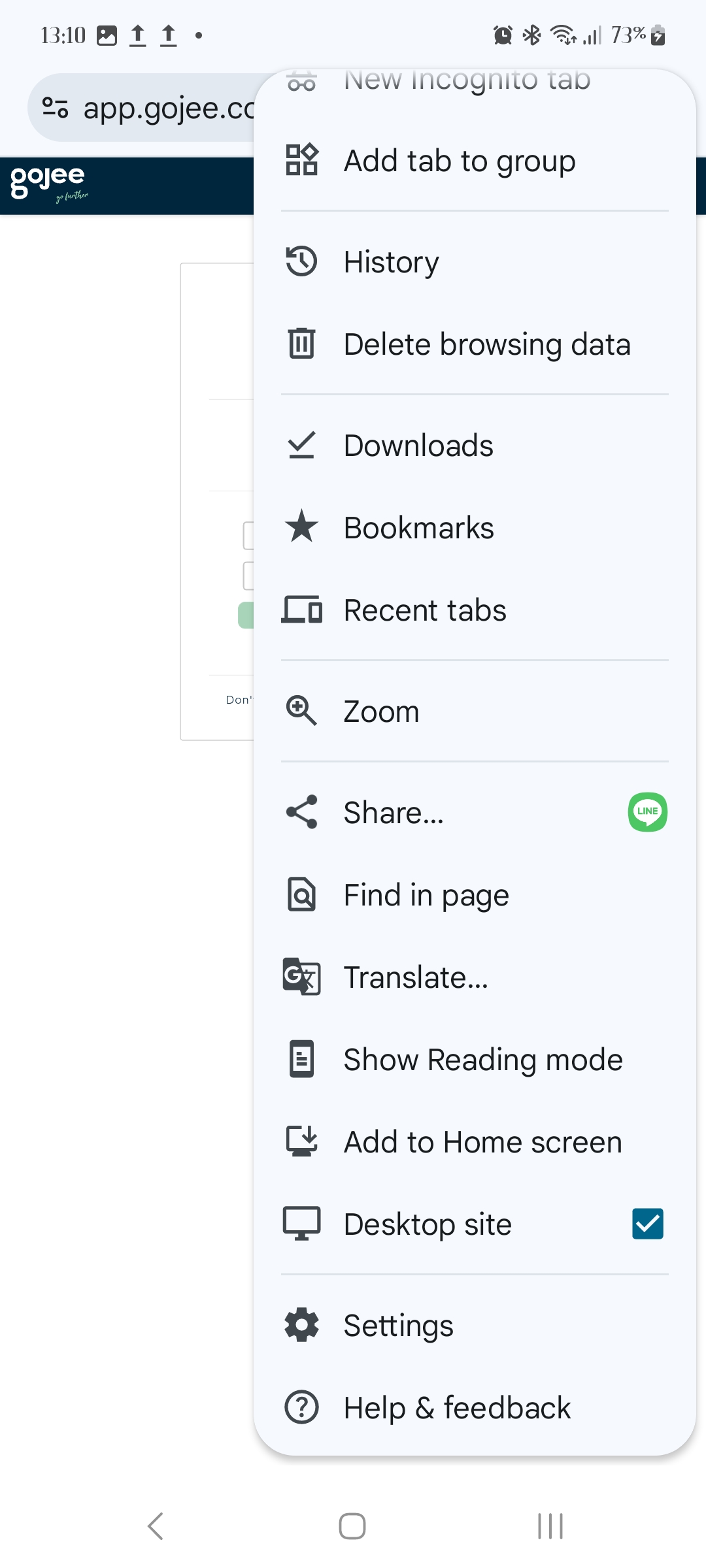
In Chrome, you will be given the option to "Add to Home screen":
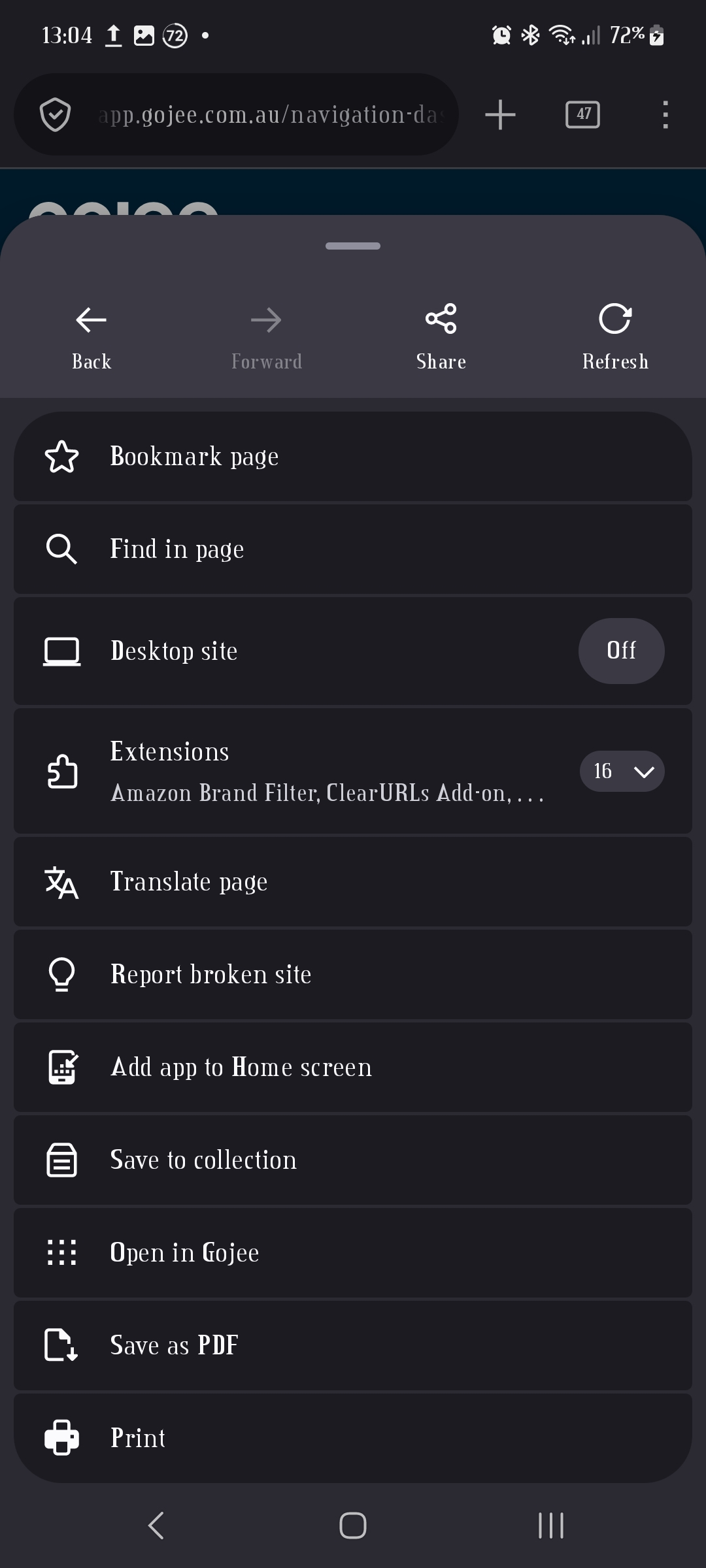
In Firefox, the option is "Add app to Home screen"
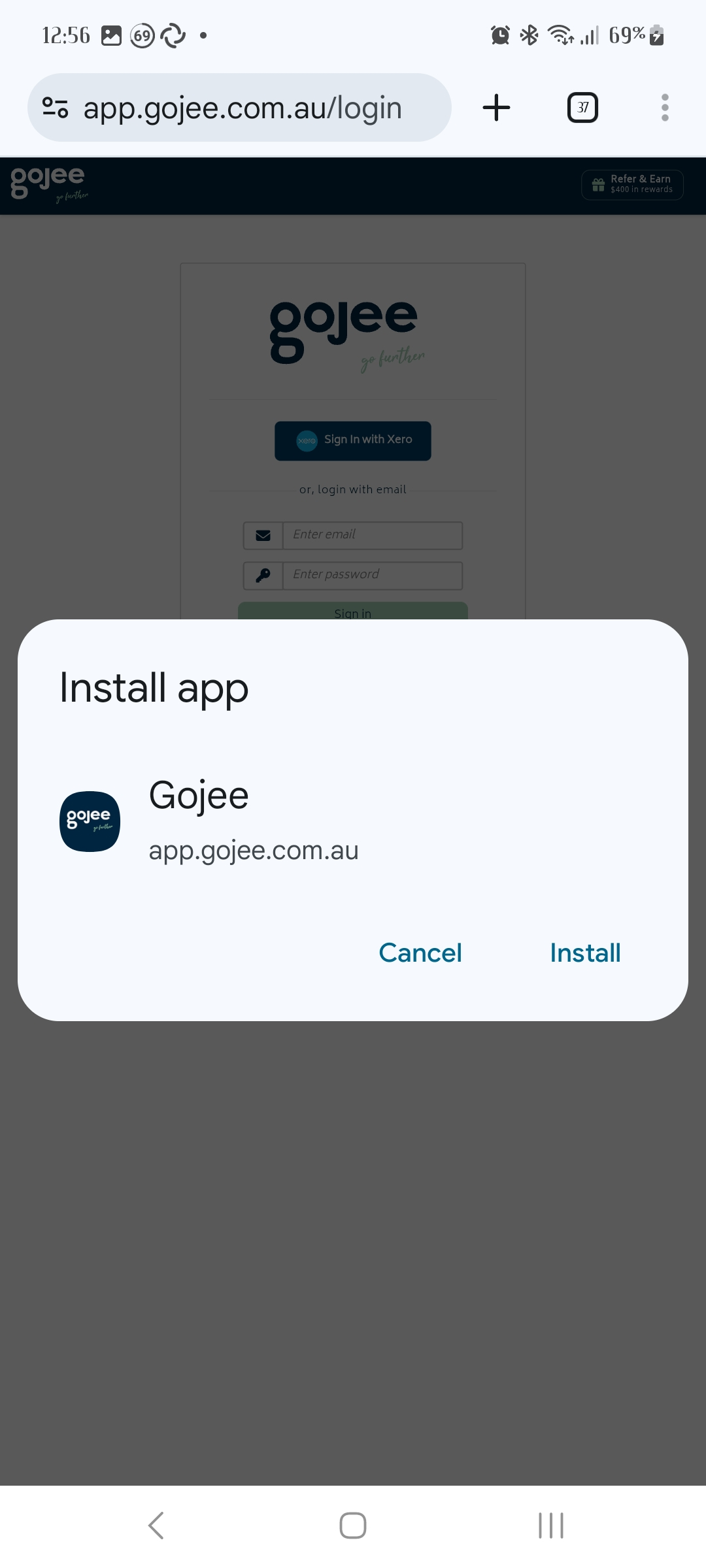
Follow the instructions your phone gives you and decide the placement of the app. Chrome will typically ask you to install Gojee as an app, whereas Firefox will add a widget directly to your home screen.
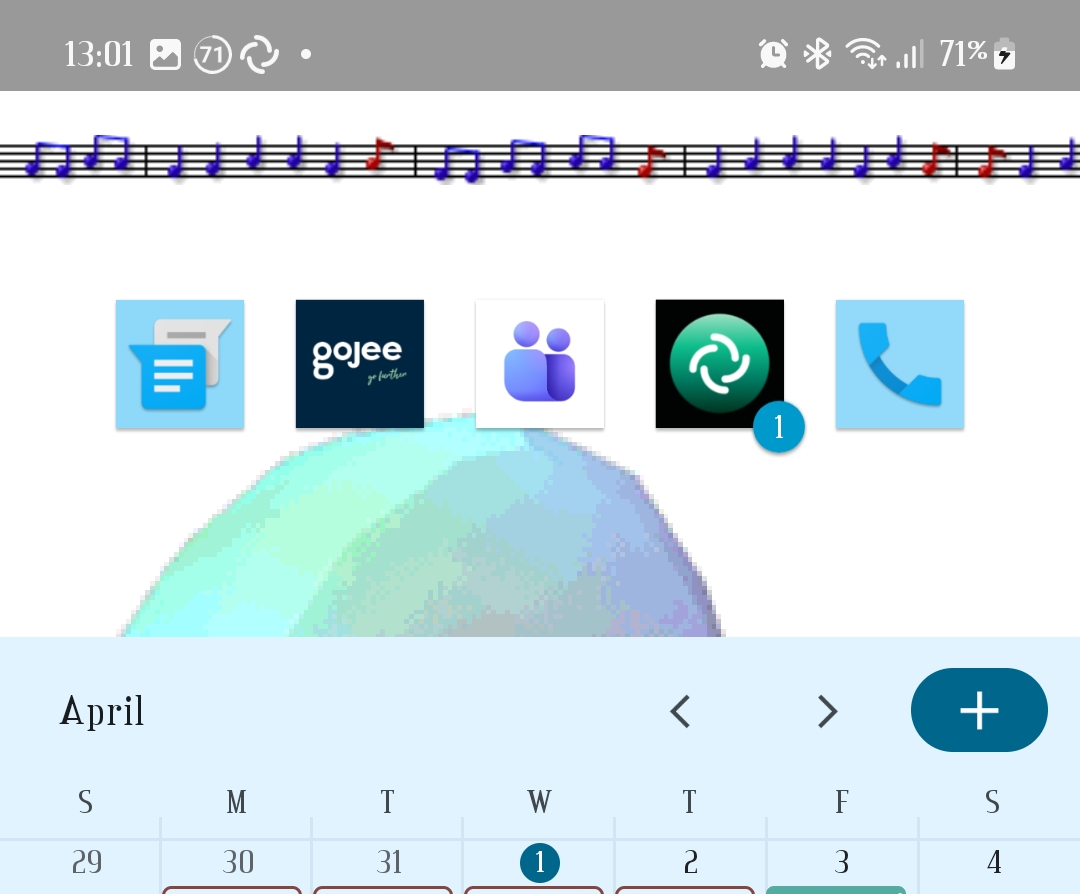
You will have Gojee on your home screen. Depending on your phone and chosen homescreen app, how Gojee is displayed as an app may differ - it may have a badge representing your browser or be treated as an app that lives in your app drawer:
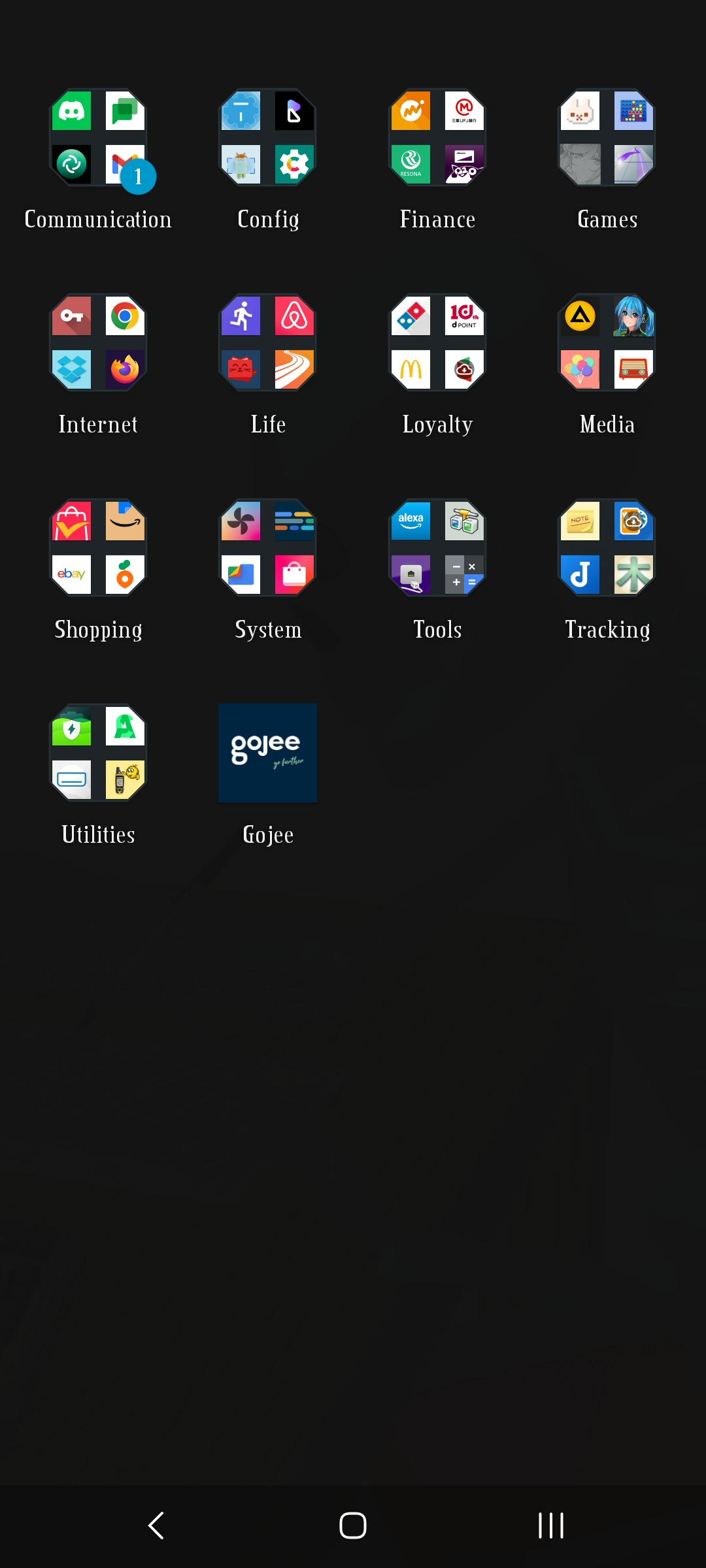
If you have any issues with finding the option to save the app to your phone, please ask your manager for assistance. Sometimes the option may be hidden under "More" or be hidden somewhere else in your browser's menu.
The Navigation Dashboard
When you log in to Gojee, you will be greeted with this screen as your home screen. It can be accessed at any time from the Navigation icon next to the clock at the top of the screen.
On desktop, it will look like this by default:
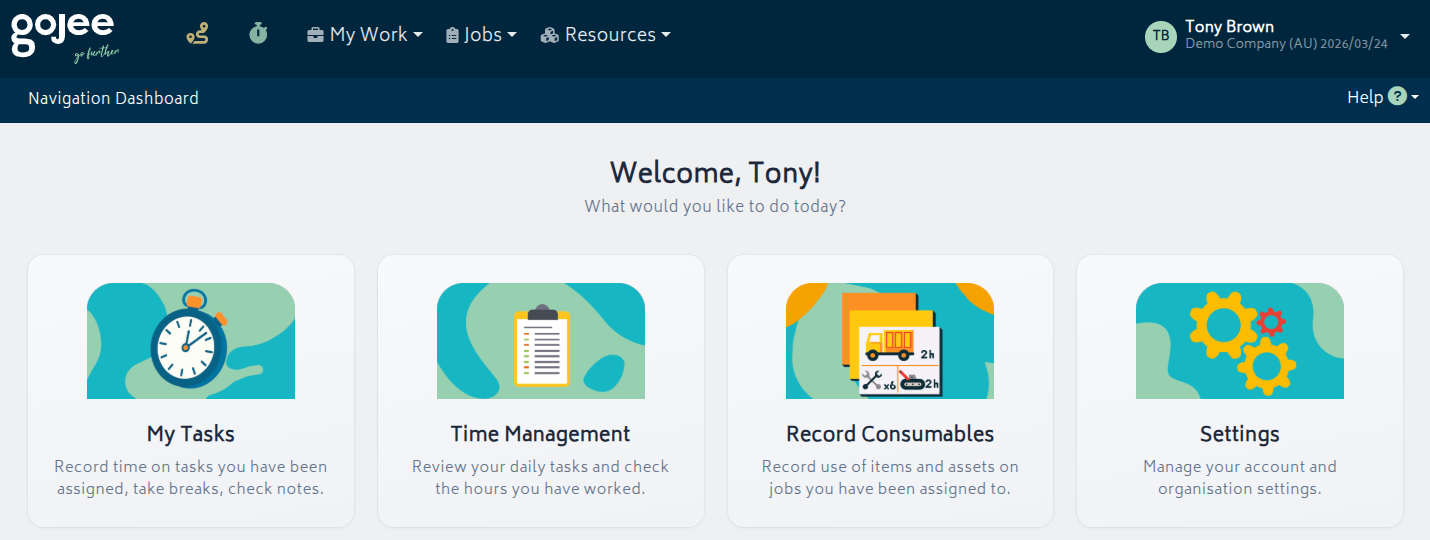
This screen gives you a quick way to access things you can do in Gojee.
On mobile, the view will default to list mode:
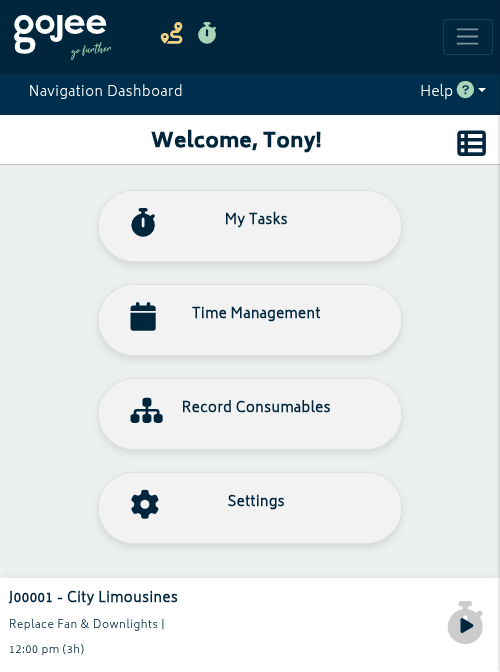
If you are currently scheduled for a job or have a task that is actively being performed, it will appear on the bottom of the page. You can click on the clock icon to start/stop the task. Clicking on the name of the task will bring you to the Active Jobs page.
The Active Jobs page
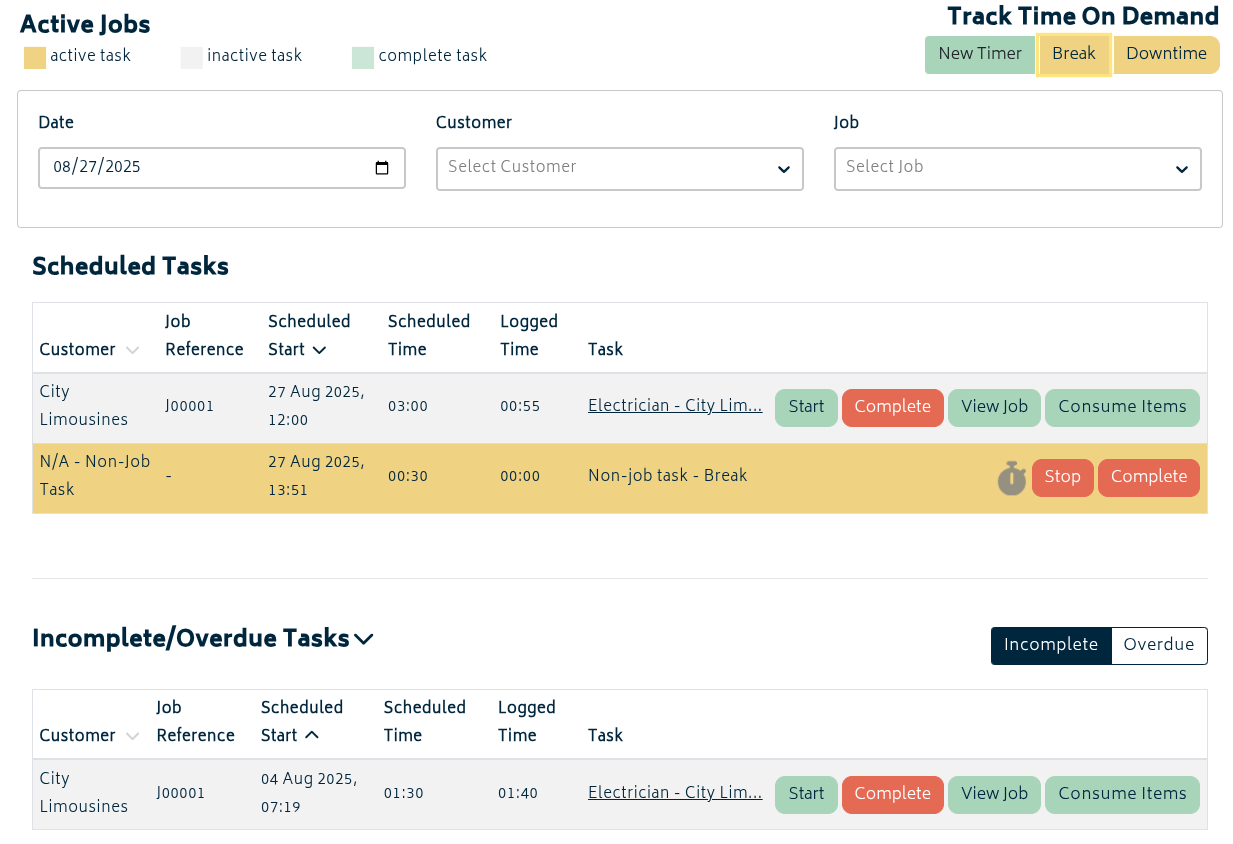
The Active Jobs page shows you jobs on which you are scheduled. Jobs that are for the selected day will show up at the top, and any remaining tasks from previous days will show up under "Incomplete Tasks". On desktop mode, it will look like this:
On mobile devices it will look like this.
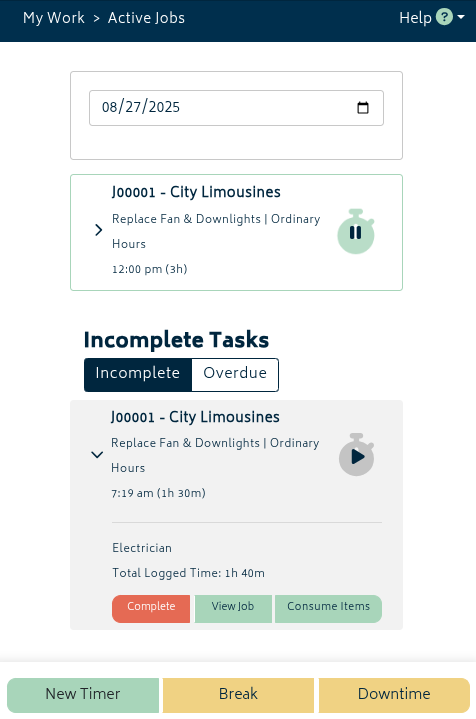
Clicking "Break" or "Downtime" will allow you to start tracking your breaks and any time that you are held up from completing the task at hand (eg. vehicle malfunctions, transit time). Breaks are considered unpaid, downtime is paid. Please confirm with your manager how these should be used for your organisation.
Clicking "New Timer" will allow you to start a new job timer. If your organisation sets up your tasks in advance, you should not use this except when directed to do so.
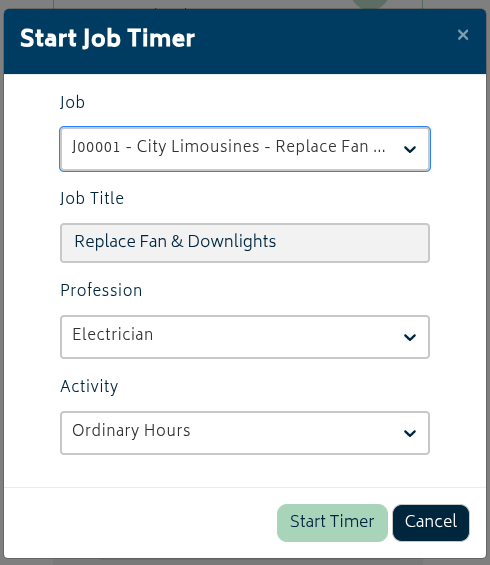
You can click on the name or the arrow to open more details about the job and get options to view, consume items, or complete the task. Only completed tasks will disappear from the "Incomplete Tasks" list.
Viewing the job opens this view of the job info:
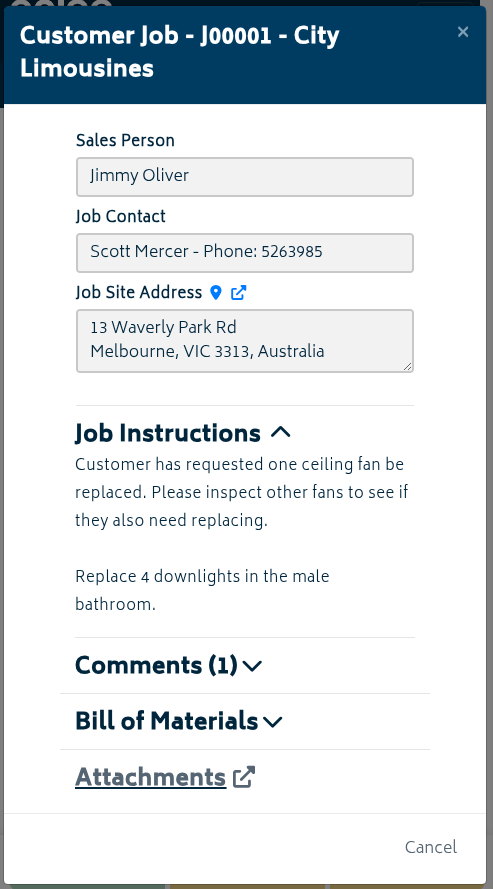
You will see the following fields:
- Sales Person - Usually the person responsible for setting up the job information.
- Job Contact - The general person to contact regarding job details, or the person at the site.
- Job Site Address - Click this to open a map view of the address.
NOTE: Some info may not be available if not provided by the job. In this case, you will not see one or more of the above fields.
- Job Instructions - Collapsible. If there are specific instructions for how the job is to be carried out, the job manager should enter them here.
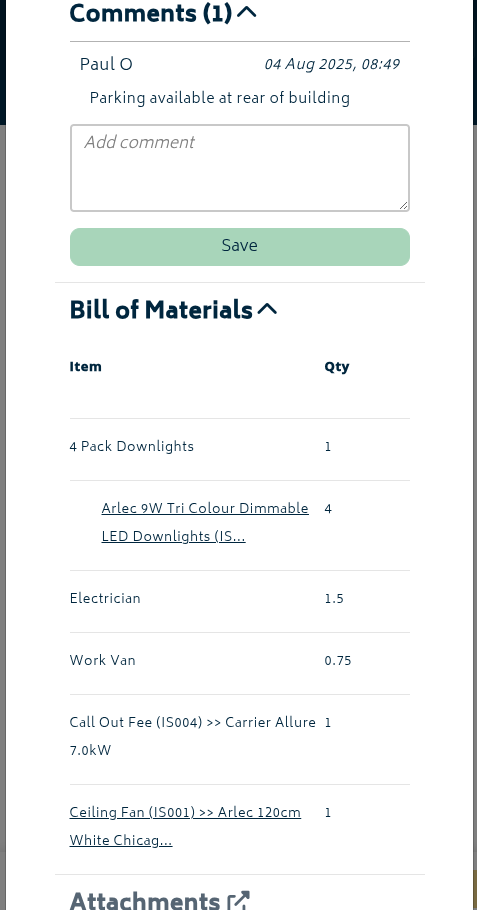
- Comments - Anyone with access to or scheduled on the job can leave comments here visible to all. Note that these comments are not able to be edited, so please ensure you have the details correct before submitting.
- Bill of Materials - The full list of materials required to carry out the job - including stock items, work vehicles, labour etc.
- Attachments - Clicking this brings you to the Attachments page for the job. If there are images or other files necessary to carry out the job, they will be available here.
Recording Item Use on Jobs
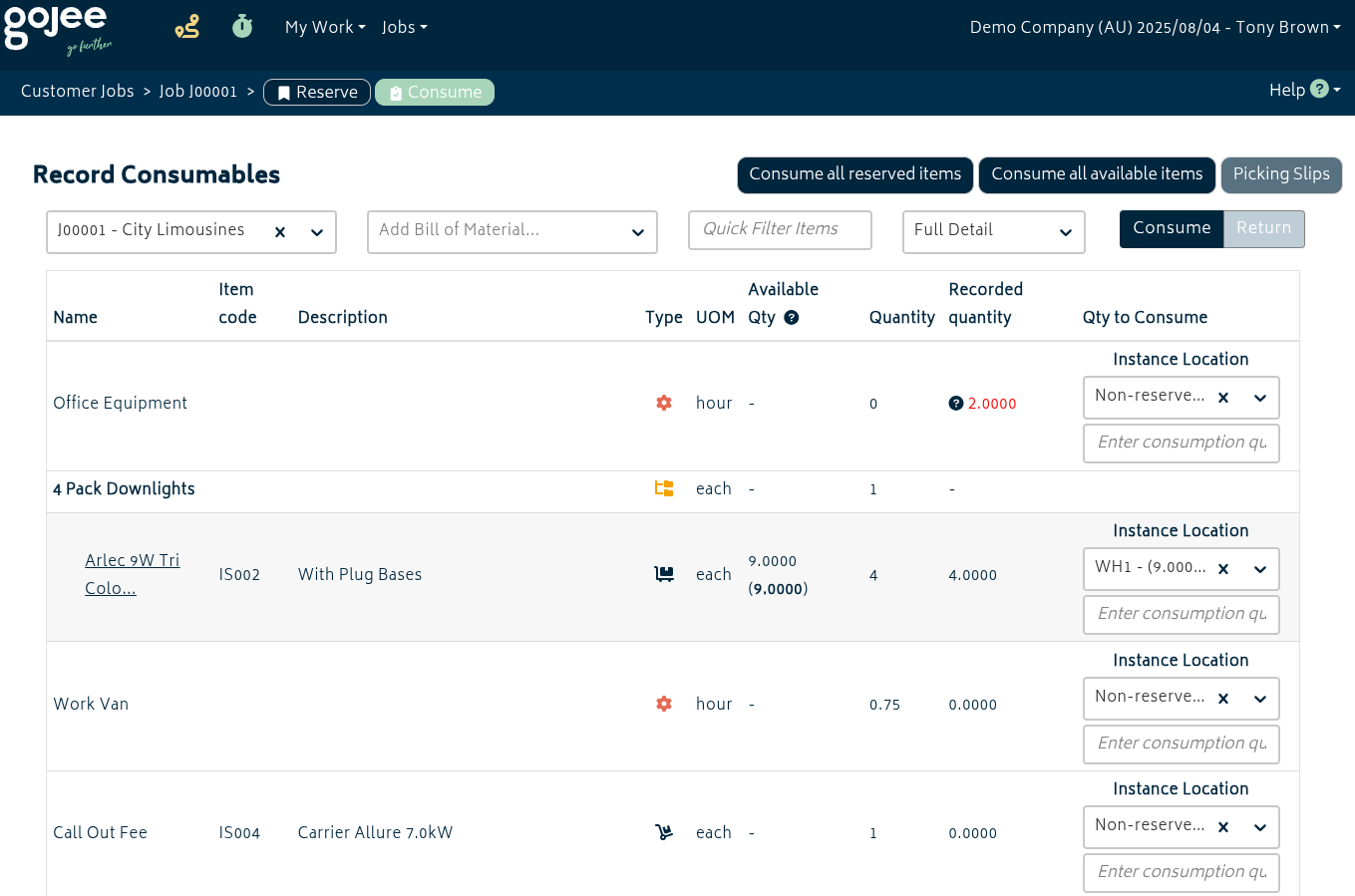
In order to record the use of stock items for jobs, you can use either the "Consume Items" button from the relevant job on the Active Jobs page - or the "Record Consumables" option on the Navigation Dashboard. The desktop and mobile versions of this page are very different and used for different things.
Desktop mode allows consumption of multiple items at once by typing in their quantity:
Mobile does not show a full record of all items required for the job. It only shows items that have already been recorded as used.
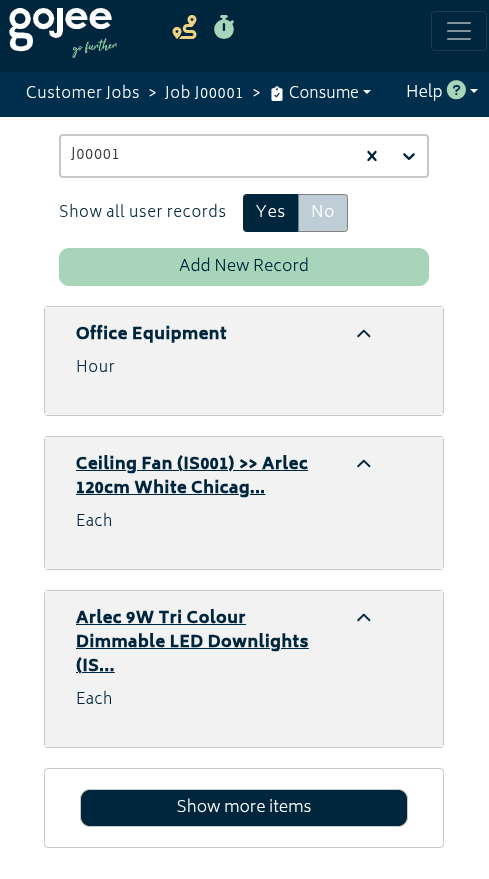
You can record item usage with the "Add New Record" button. Select the item you want to record usage of. Sometimes items can be reserved for the job in advance - if so, you can use "Select Reserved Instances" to pick them.
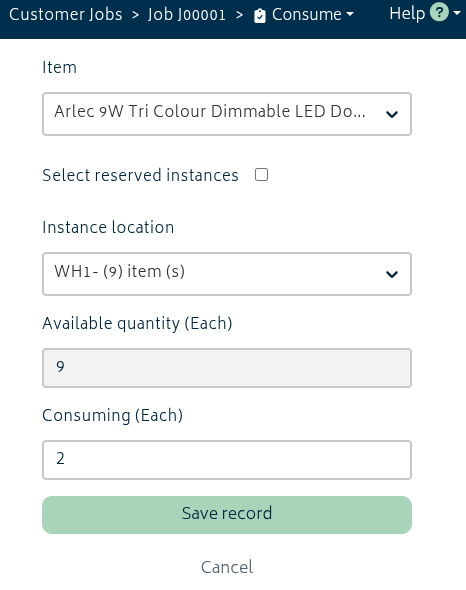
As such, the mobile view is optimised for individually recording items one by one as you use them or grab them for the job.
Next: Back to Knowledge Base.