

Learning Center
What is the Learning Center?
The Learning Center is an interactive onboarding and training environment designed to help new and existing users learn Gojee's key features through step-by-step guided tutorials. It provides a structured learning path organized into modules covering core business processes.
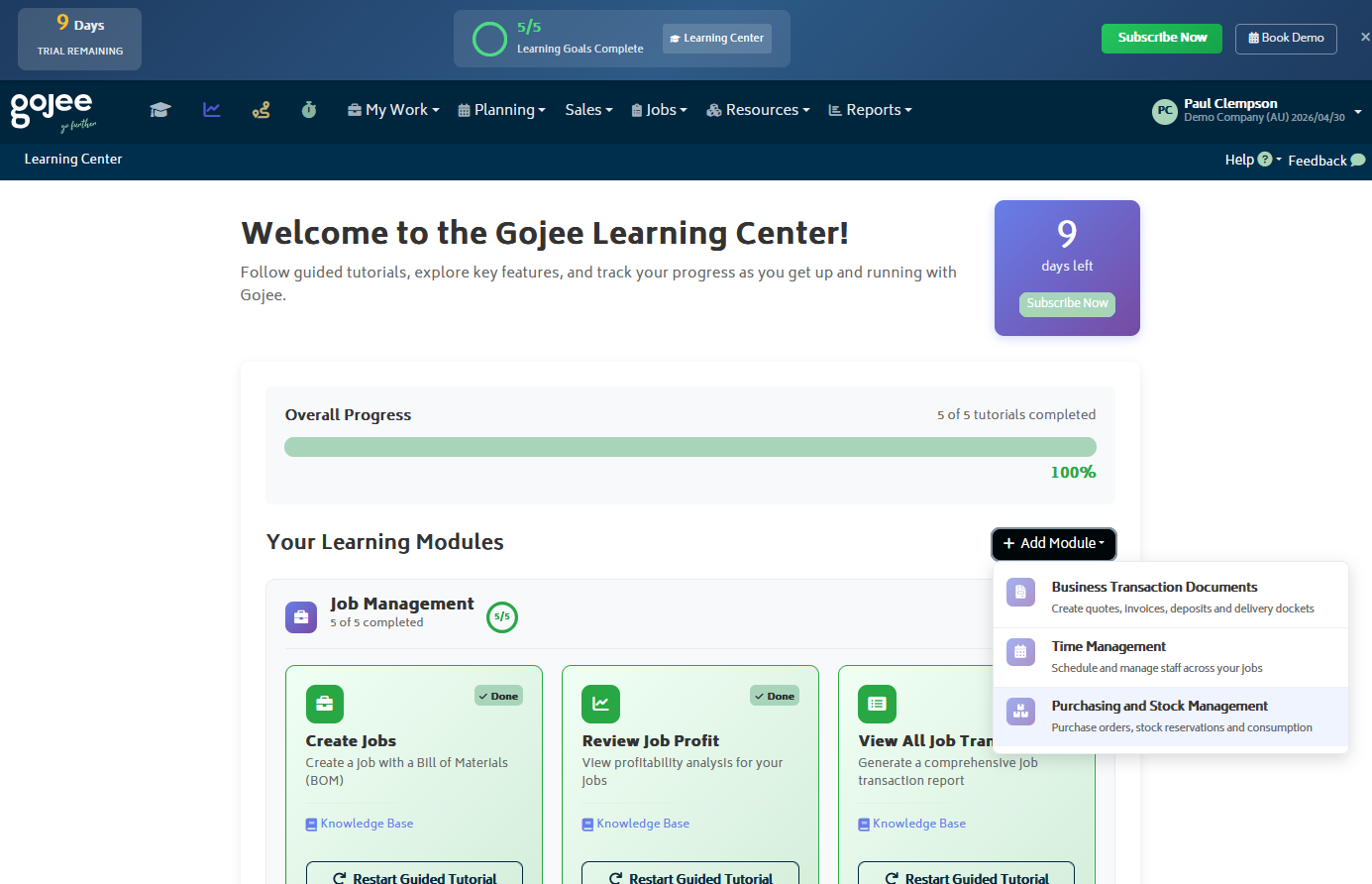
The Learning Center includes:
- Interactive Tutorials: Step-by-step guides with visual highlights and contextual instructions overlaid directly in the Gojee interface
- Organized Learning Modules: Content grouped by business function (Job Management, Business Documents, Time Management, Purchasing)
- Progress Tracking: Visual indicators showing your progress through each module and goal
- Goal-Based Learning: Achieve specific learning outcomes by completing tutorial steps
The Learning Center is available in demo organisations to provide support for new users. If your organisation is a demo organisation, you will see a persistent Learning Center badge in your navbar, and progress will be tracked in the trial bar at the top of the screen. Just click the badge to open the Learning Center dashboard. From there, you can browse available modules and tutorials and select a tutorial to begin the interactive guided experience.
Available Modules and Tutorials
The Learning Center contains four main learning modules, each with multiple tutorials organized by topic:
Module 1: Job Management
- Create Jobs
- Create a job with a Bill of Materials (BOM)
- Review Job Profit
- View profitability analysis for your jobs
- View All Job Transactions
- Generate a comprehensive job transaction report
- Process POS Transaction
- Create a quick point-of-sale transaction
- Manage and View Jobs
- Use search, filters, and table options to manage jobs
- Create Manufacture Job
- Build manufactured items on the shop floor and track materials used
- Create Service Job
- Raise a service job from a service template to maintain an asset
Module 2: Business Documents
- Create Quote/Estimate
- Create a professional quote for your customers
- Email Quote/Estimate
- Send a quote to your customer via email
- Create Deposit
- Take a cash payment or deposit for a job
- Create Invoice
- Create and approve an invoice for your customer
- Email Invoice
- Send an invoice to your customer via email
- Raise Delivery Docket
- Create a delivery docket for goods
Module 3: Time Management
- Schedule Staff
- Schedule staff to work on jobs
- Time Recording - Bulk Time Entry
- Record time for multiple employees quickly
Module 4: Purchasing
- Raise PO
- Create a purchase order for your suppliers
- Email PO
- Send a purchase order to a supplier via email
- Receive PO
- Receive goods from a purchase order
- Reserve Stock for Jobs
- Reserve inventory stock for specific jobs
- Consume Stock to Jobs
- Record stock consumption against jobs
- Create a New Inventory Item
- Manually create a new inventory item in your catalogue
- View and Edit Inventory Items
- Browse, search and edit your inventory items
- Import and Export Inventory Data
- Bulk import items from CSV or export your inventory
- Set Up Manufacturing Process Template
- Define a manufacturing process template that drives how items are built
- Create Manufactured Item
- Create a stock item that is produced in-house from a process template
- Create Production Order
- Schedule production of manufactured items, for stock or for a job
- Set Up New Asset Instance
- Register a new asset and configure its details, finance and service settings
- Record Asset Monitoring
- Capture monitoring readings against an asset to track its condition
As you complete modules, your overall progress bar will fill up. This is based on the modules you have selected - so if your business doesn't need a specific module, you won't be forced to complete every tutorial. Not all of the tutorials will be shown by default, only the core ones necessary to get around the system. Any additional tutorials can be added by clicking "Add Tutorial" and selecting the one you wish to view.
Some tutorials depend on optional add-ons being enabled first. For example, if you start a Manufacturing Management or Asset Management related tutorial without the required add-on active, Gojee will prompt you to enable that add-on before the tutorial can continue.
How Interactive Tutorials Work
When you start an interactive tutorial, Gojee will construct new data for the tutorial and provide real-time guidance directly in the user interface.
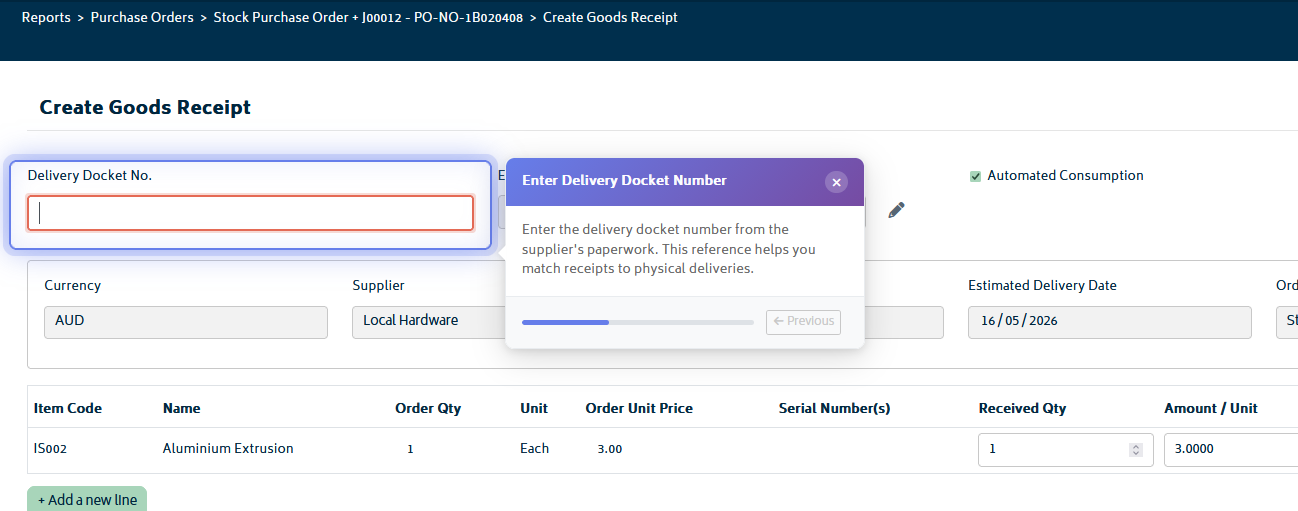
During a tutorial, you'll have step-by-step instructions with a floating tooltip that displays the current step and what actions you need to take. Each step automatically advances as you complete the required action (clicking a button, navigating to a page, entering data).
To complete a tutorial:
- Read the instruction text in the overlay
- Perform the action shown (click a button, fill in a field, navigate to a page, etc.)
- The tutorial will automatically validate your action and move to the next step
- Continue until all steps are complete
- Receive a completion confirmation
Tip: You can pause or exit a tutorial at any time. If you need to go back to read any of the text, you'll be able to step back through to previous tutorial steps or step forward to the latest step.
Tracking Your Progress and Completing Goals
The Learning Center tracks your progress through tutorials and modules to help you stay motivated and see your learning achievements.
Progress indicators include:
- Module Progress Bar: Shows percentage of tutorials completed in each module
- Goal Status: Visual indicators (checkmarks, incomplete markers) for each learning goal
- Overall Completion: Your overall progress across all modules and goals
How to complete a learning goal:
- Select a goal from the Learning Center dashboard
- Review the related tutorials for that goal
- Complete each tutorial step by following the on-screen instructions
- Finish the final step to mark the tutorial as complete
- The goal status automatically updates to mark it as achieved
When you're done, you can celebrate your achievement!
Re-taking Tutorials:
You can replay any tutorial from the Learning Center dashboard. This is useful if you want to refresh your knowledge or practice a feature again before using it with your real organisation.
Next: Back to Knowledge Base.