

Performance Overview
Introduction
Viewing your business's performance at a glance is easy. The Business Performance Dashboard allows for visualisation of all of your ongoing jobs in one place.
The Business Performance Dashboard is available for job managers and above from the top left of the screen for easy access. It is the purple chart icon, shown here:

It is also available under Reports > Business Performance.
Business Performance Dashboard
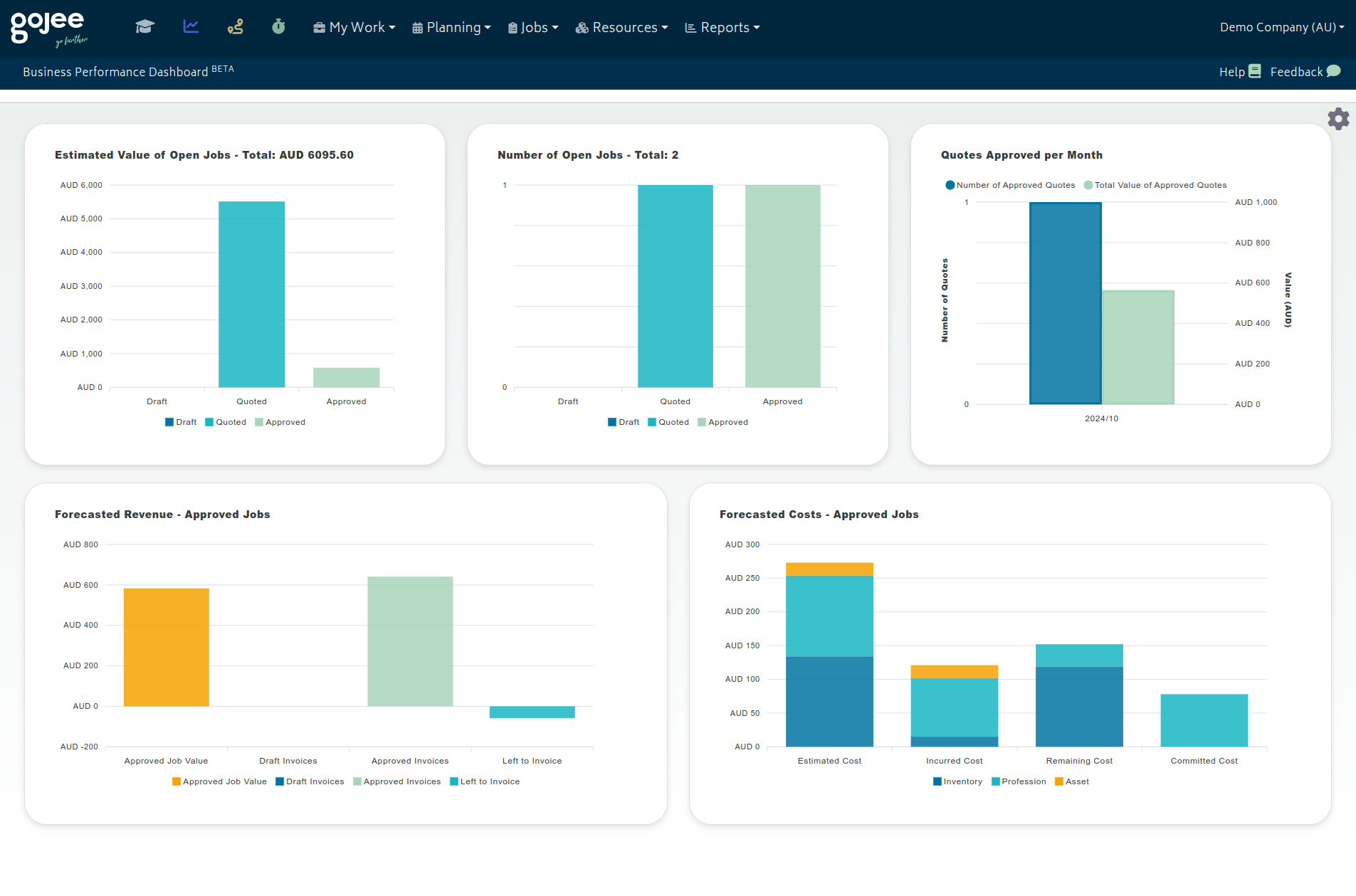
The dashboard itself will have different appearances and visible charts based on how your business is run. By default, this will pull all data from all open jobs in your organisation. "Open" jobs are considered to be jobs in "Draft", "Quoted", or "Approved" status. A draft job has no quote created for it and an approved job has the quote approved.
By clicking on the cogwheel icon, you will open up the Filters section.

This section allows you to further filter jobs by tags given to them so you can see only jobs with specific tags or combinations of tags. Filtering jobs this way does not refresh the job data, so if you change any jobs in a different tab (or anyone else in your organisation does), you can perform a full refresh of job data with the Refresh Job Data button.
Open job charts
Currently, the following charts are available for viewing the data pulled from open jobs in your organisation:
-
Estimated Value of Open Jobs
- This will show you the combined value of jobs in draft, quoted, and approved status.
-
Number of Open Jobs
- This will show you how many jobs you have of each of the above statuses.
-
Work in Progress Status
- If you have the Cost Adjustments add-on enabled, you this chart will be shown.
- This chart will show you the current status of Work in Progress for all open jobs.
If you do not currently have any approved jobs, the below charts will not appear as they would not have any data.
-
Quotes Approved per Month
- This will tell you the total number and value of approved quotes separated by month.
- Months that have no approved quotes will be excluded.
-
Forecasted Revenue for Approved Jobs
- This will show you the invoices for jobs which are approved versus the estimated value of those jobs.
- The "Left to Invoice" column counts takes both draft and approved invoices into account when calculating how much potential revenue remains unaccounted for.
- The "Left to Invoice" column may go negative if more is invoiced than expected.
-
Forecasted Costs for Approved Jobs
- This will show you overall costs split by asset, profession, and inventory item for all approved jobs.
- Committed costs here are calculated both from open purchase orders and from professions that have been scheduled but not yet executed.
- Incurred costs will be asset and inventory consumption that has been recorded in addition to professions that have time recorded against them.
Note: Jobs with "Rejected" and "Completed" status will not be included in these reports. Jobs are considered "Rejected" if they have one or more rejected quotes and no open/approved quotes. Jobs marked are considered completed if the "Complete" option is chosen from the Job Edit screen. POS jobs are automatically marked as complete.
Next: Back to Knowledge Base.