
Raise and Reconcile Supplier Bills
Introduction
Once you have created a purchase order (refer to Create Purchase Orders for more information), you can raise a supplier bill for the PO so it can actually be paid for. You have two options to do this:
-
Any incoming supplier bills from Xero will be synchronised to Gojee and can be reconciled against a PO.
- This can happen either before or after the goods are actually received (refer to Receive Goods for more information).
- If the prices are different, you will either need to either receive the goods or modify the PO to match the prices received in the SB.
-
You can raise a supplier bill directly from Gojee and send it to Xero.
- This is based on the value of the goods received (not the PO itself).
- Once you have received the goods, the supplier bill can be raised (as it is based on the value of the goods received).
Of these two options, we will be looking at how to raise supplier bills from Gojee first.
Raise Supplier Bills
You can use Gojee to raise a supplier bill to close out the purchase order. This will mark the purchase order as complete and the supplier bill will be sent into Xero.
Note: You can raise supplier bills in several parts for the one purchase order. So if you need to bill part of the purchase order then this workflow is supported in Gojee. Purchase orders will be assigned a status of partially billed if there is a partial supplier bill allocated to the order until the billing is completed.
To get started, navigate to the Reports > Purchase Orders page:
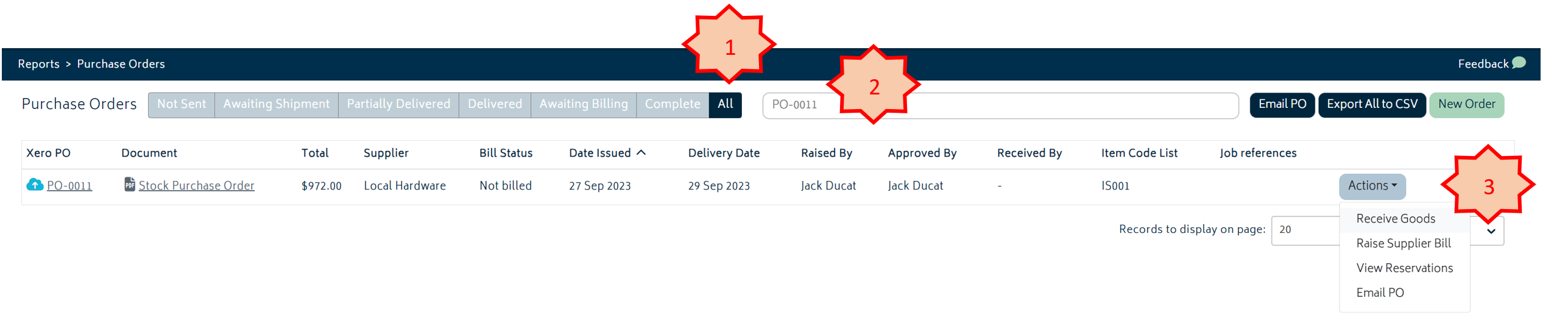
- Filter the list onto the "All".
- Search for the purchase order from the list.
- Click on the actions button and select "Raise Supplier Bill"
Tip: if you don't know the purchase order number, you can also use the search bar to search for one of the item codes on the purchase order, or the supplier, or job number.
You will be presented with the supplier bill page:
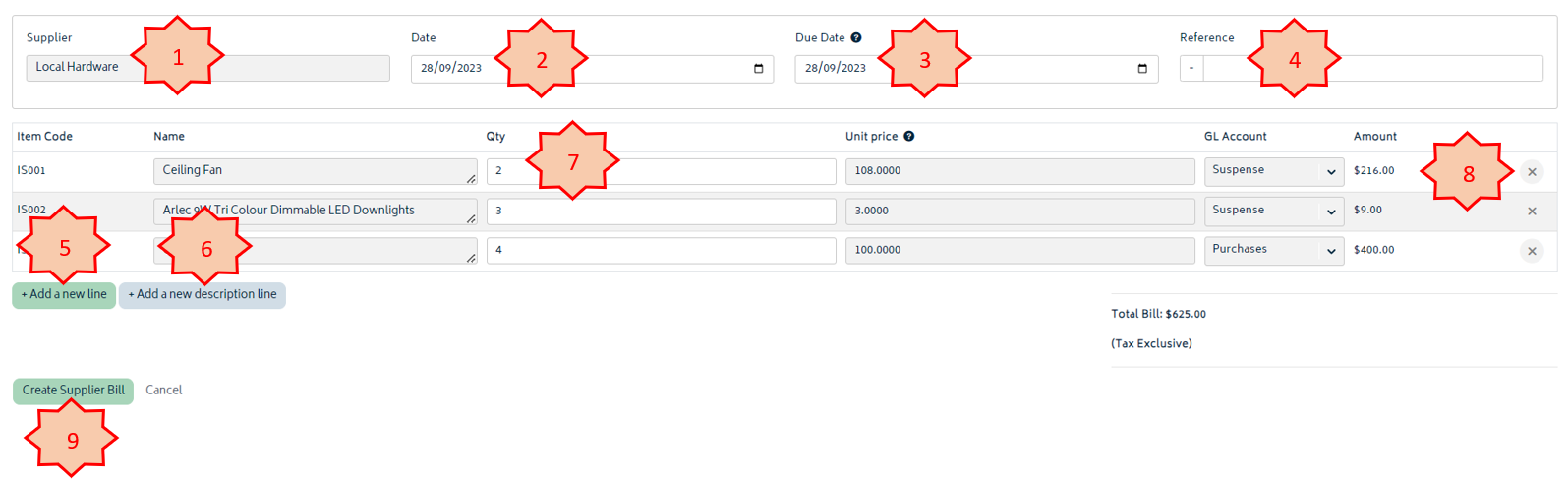
The numbered items in the image above are described below:
1. Supplier: This defaults from the purchase order.
2. Date: The date the supplier bill will be added onto the Xero file.
3. Due Date: The date that the supplier bill is payable.
- Note: The default due date is derived from the setting configured in Xero organisation settings. For more information on how to use and configure this setting in Xero please click here.
4. Reference: The reference that will show on the Supplier Bill in Xero.
5. Add a new line: You can add a new line onto the supplier bill that wasn't originally part of the purchase order.
- Note: items added in this way will have no reservations to jobs, and will be charged to jobs. If you want the item to be allocated as a cost for a job, you will need to go back and edit the purchase order prior to receiving the goods, or create a new purchase order for a job for the additional item.
- When adding a new line item onto the bill, you will see a new line added as follows

6. Add a new description line: Use this function to add extra text onto the supplier bill, with no quantity or price associated with it.
- When adding a new description line item onto the bill, you will see a new line added as follows.

7. Quantity: This is the quantity of the line item.
8. (x) Remove Line: Use this option to remove a line completely from the supplier bill. This may be useful when the supplier sends the goods in multiple shipments, with multiple bills for the one purchase order.
9. Create Supplier Bill: Hit this button once all the information is entered and the system will record the supplier bill. You can also save the supplier bill as a draft if it needs further adjustments.
Note: The item code, the name, the unit price and the GL account will be locked for editing. This information is pulled from the goods receipt and/or the purchase order.
Once complete, the purchase order will be updated to either "Billed" or "Partially Billed" and a supplier bill transaction will be pushed through to Xero.
Note: If you'd like to add an attachment to the supplier bill, navigate to the supplier bill list page (refer to the section below on viewing supplier bills), and click on the deep link into Xero. This will load up the specific supplier bill and allow you to add the attachment(s).
View Supplier Bills
Navigate to the Supplier Bill list page to see a list of all the supplier bills raised in Gojee and Xero. You have the option to view reconciled and unreconciled Supplier Bills, view them in Xero, as well as to view the PDF generated for them. Supplier bills will be synced from Xero via the overnight sync - but system administrators may trigger this sync on demand.
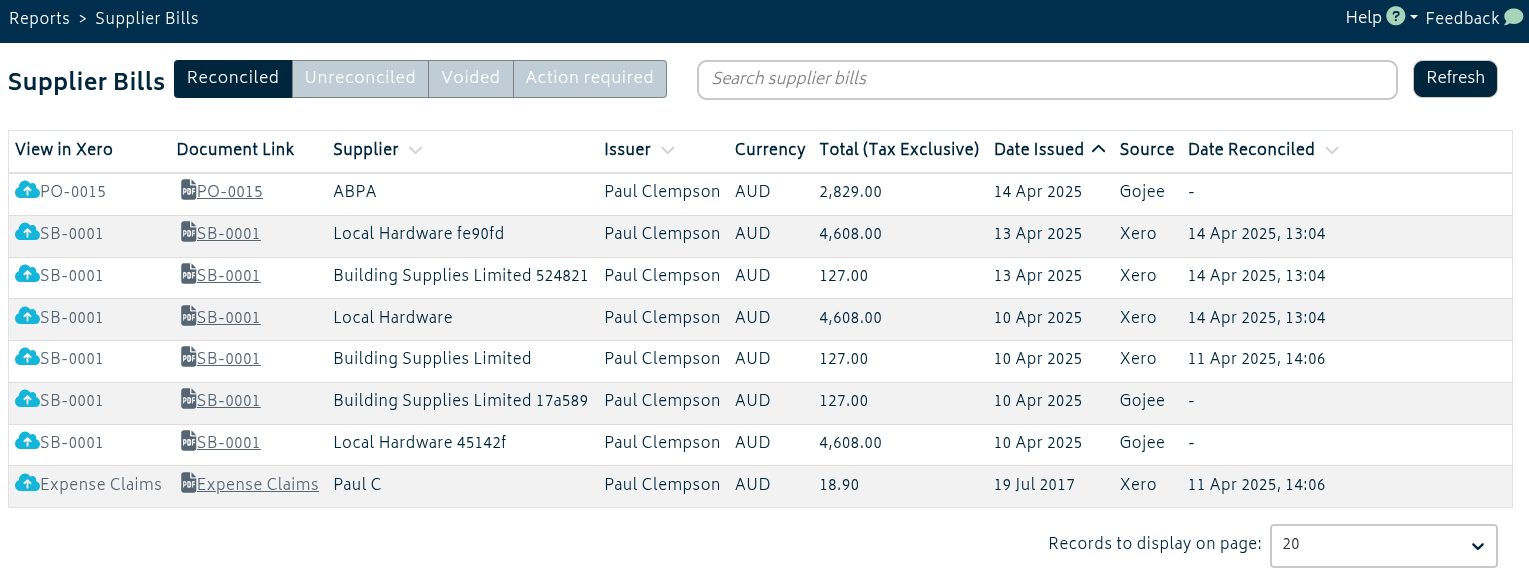
The filters allow you to view reconciled bills, unreconciled bills, voided bills, and those that have been updated in Xero and require your attention. The search on this list can be used for supplier bill references, supplier names, the user who issued the bill, as well as purchase order numbers and job references linked to the supplier bill.
By clicking any of the lines for bills you have reconciled, you will be able to see the reconciled amounts of each item as well as which type of cost (purchase order item, job cost, or inventory item(s) that individual line was reconciled against. From the list view, you will also be able to see an overview of which purchase orders, jobs, and inventory items a SB is related to via the "Reconciled To" column. If items are reconciled against a PO that has items related to jobs, those jobs will be listed. Inventory items will only appear here if lines on the SB are specifically reconciled against those inventory items.
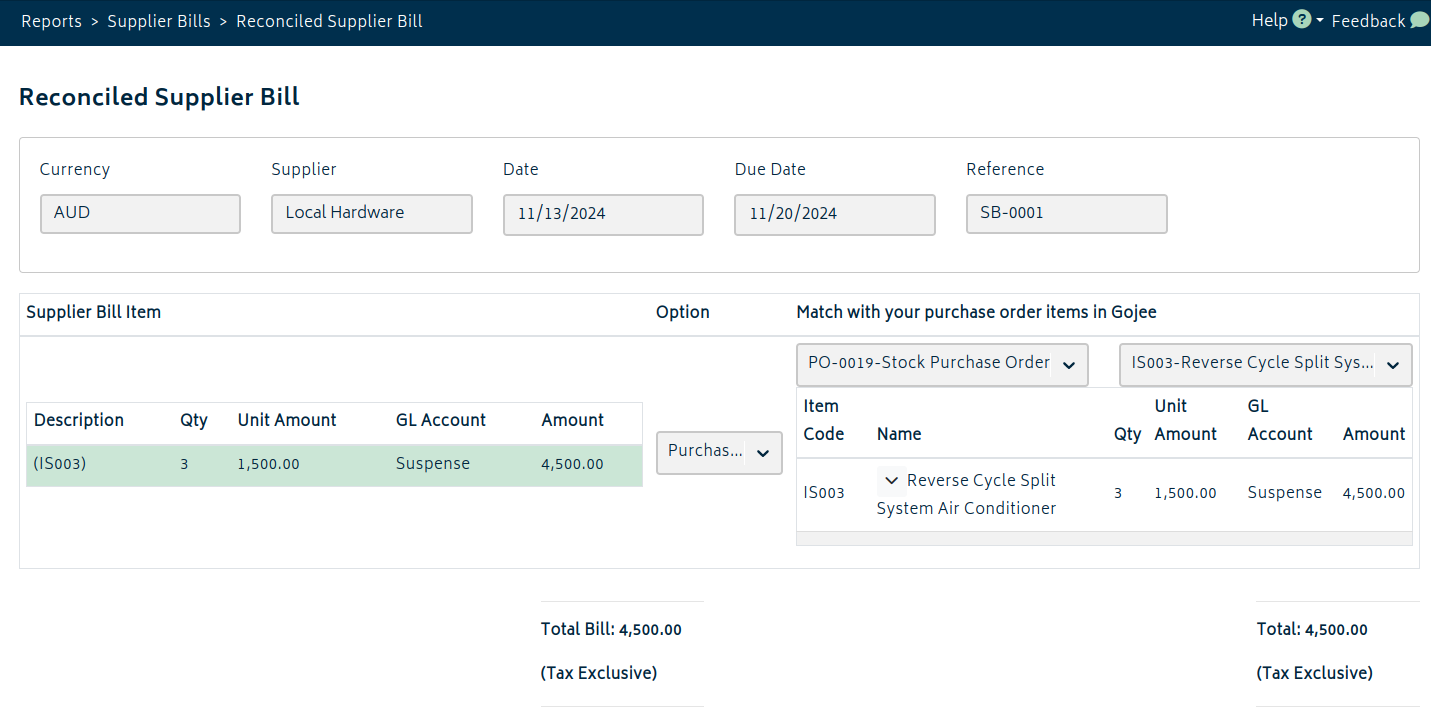
Note: When a Supplier Bill is updated in Xero, it may go to the Action Required tab in Gojee. This can happen if the line amounts or tax information changes, or if the bill is voided. Updates to parts of the supplier bill that do not cause line amounts and totals to change will simply update the supplier bill. This event will be recorded in the Reconcile History tab of the supplier bill.
Reconciling Supplier Bills Imported from Xero
From the Unreconciled tab, you will be able to see the list of Supplier Bills that have yet to be reconciled. Clicking the three dots will open the Bill Actions menu for that Supplier Bill.
At present, the available bill actions are the options to Reconcile or to Mark as Reconciled.
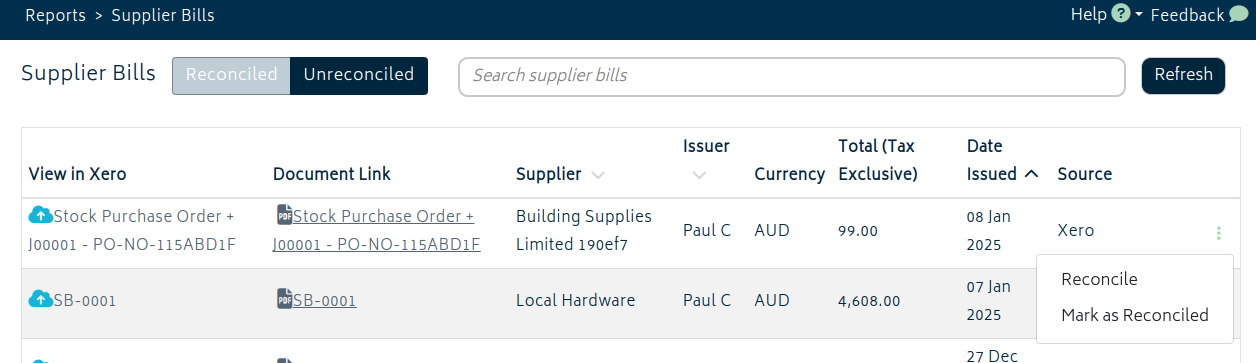
Clicking Reconcile, or clicking the row the bill is on, will take you to the Reconcile Supplier Bill page.
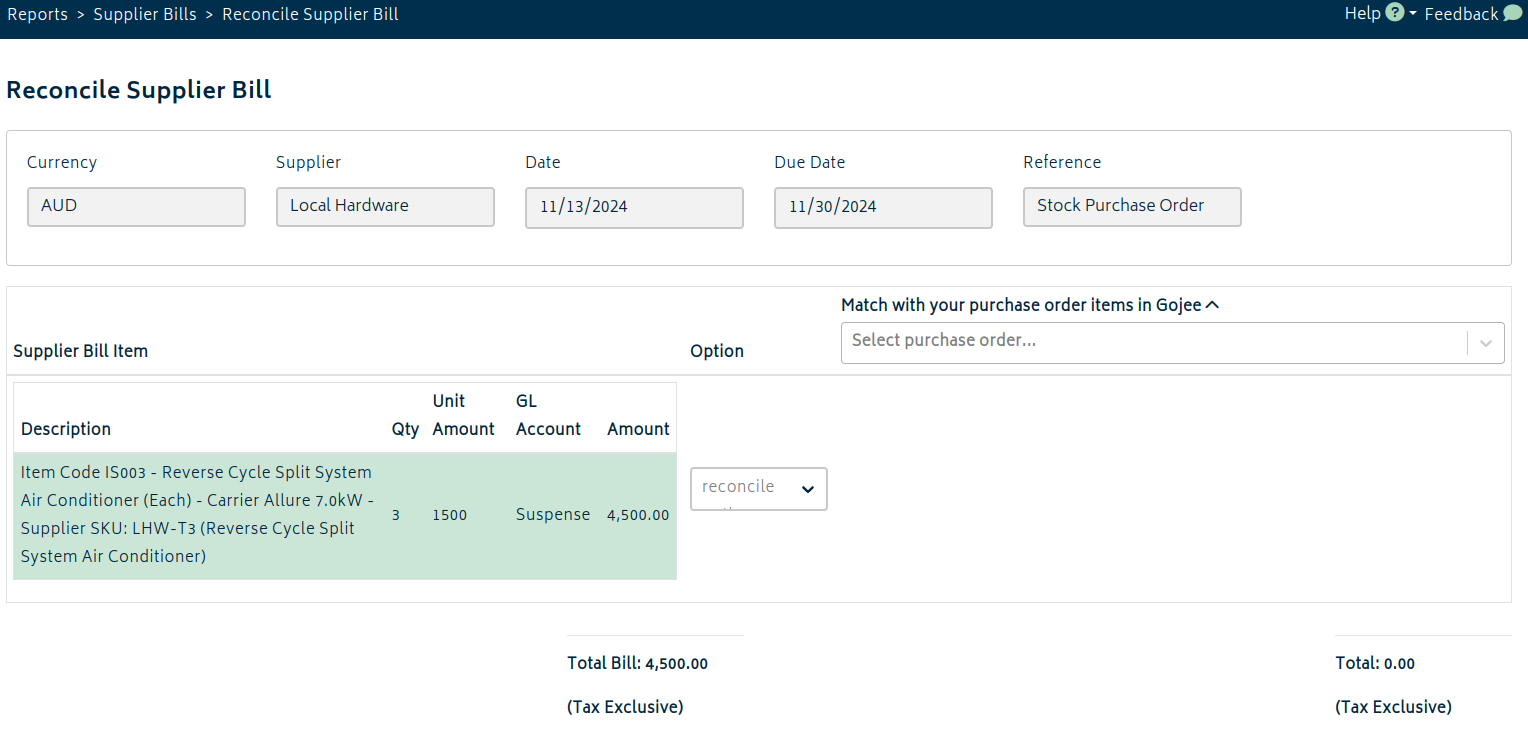
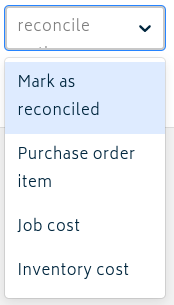
For each line item, you can reconcile it against a purchase order item, a job, or an inventory item. You can also treat it as a non-job cost by just marking it as reconciled.
Tip: The item's name on the reconciled bill does not matter, but to reconcile the bill, the amount MUST match. For tracked (aggregate or per-instance) items, additionally the general ledger account must match.
Negative amounts and description lines cannot be reconciled against anything and can only be marked as reconciled within the system.
Clicking "Mark as reconciled" from the supplier bill list will reconcile all line items in the bill as non-job costs and the supplier bill will immediately be moved to the Reconciled tab. If you need to process a batch of bills or expenses unrelated to jobs/POs set up in Gojee, there is a Bulk Reconcile option (visible only on the Unreconciled tab) that allows you to select bills to mark as reconciled in bulk.
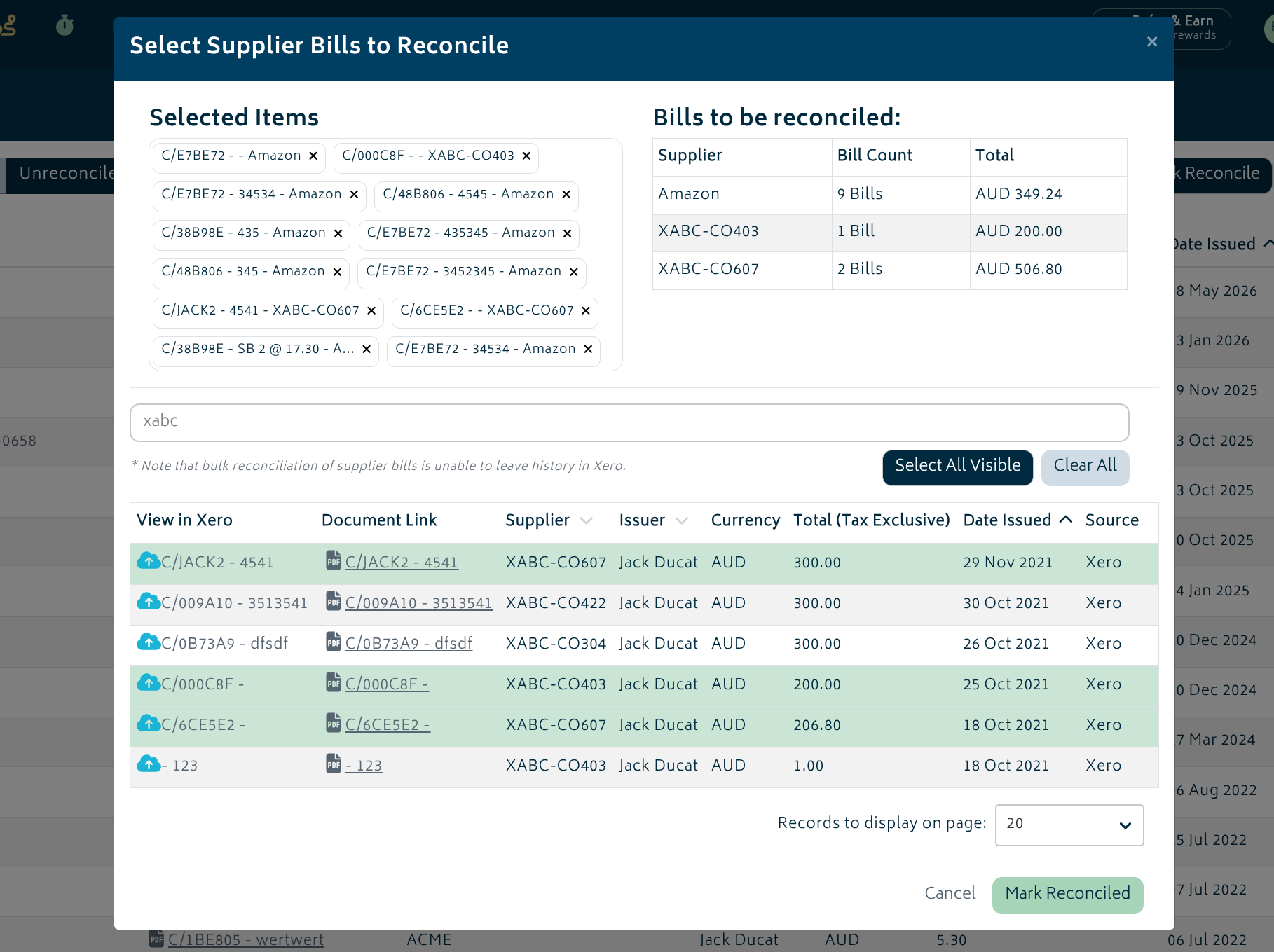
Note that due to Xero API limitations, performing bulk reconciliation this way will not be able to update the SBs in Xero with reconciliation history.
When the bill is fully reconciled, it will go into the Reconciled column in the Supplier Bill list. You can click the item to view the summary of its reconciliation at any time.
Reconciling against Purchase Orders
If there is only one open purchase order from this supplier, setting a line as a Purchase Order Item will automatically select that purchase order. Otherwise, clicking the chevron next to the "Match your purchase order items with Gojee" header will allow you to fill all current "Purchase Order Item" lines with the chosen PO.
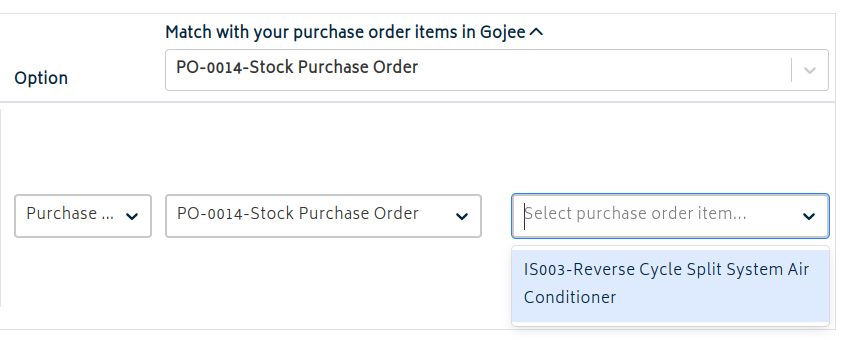
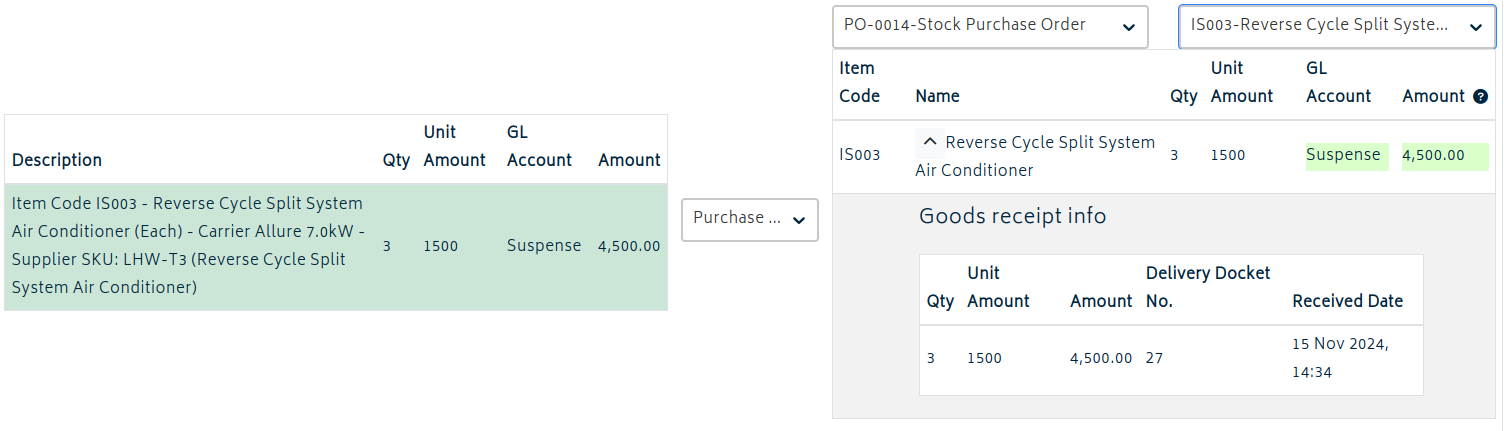
In this case, we have a match - the GL account and the amount match. In this case, there is already a Goods Receipt for this order. As this item is a match, clicking Save will reconcile this Supplier Bill.
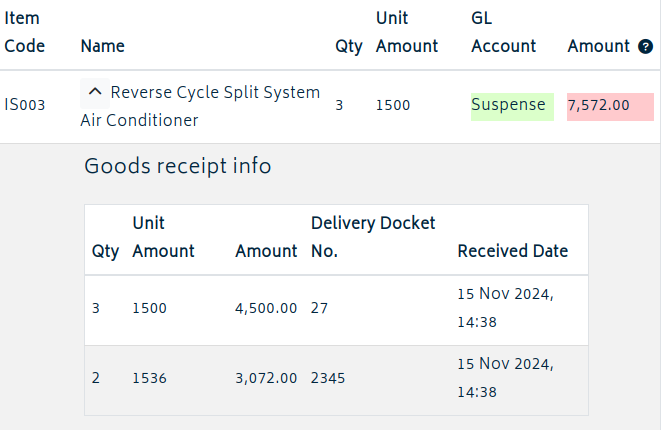
In the case of multiple goods receipts, each will appear sequentially. In the case where the amount or GL account does not match, the fields will be highlighted in red.
If the purchase order is linked to a job and the linked job uses Xero tracking categories, those categories are also carried onto the supplier bill lines where applicable. In the case where a line is applicable to multiple jobs (i.e. a single line item was ordered with reservations for multiple jobs) then the tracking categories will not be applied.
Reconciling against Jobs
Job costs can be reconciled against untracked items. You will have the options of reconciling against existing untracked and single-use items already in use on the BOM or have the option to add a new single-use item to stand in for the job cost.
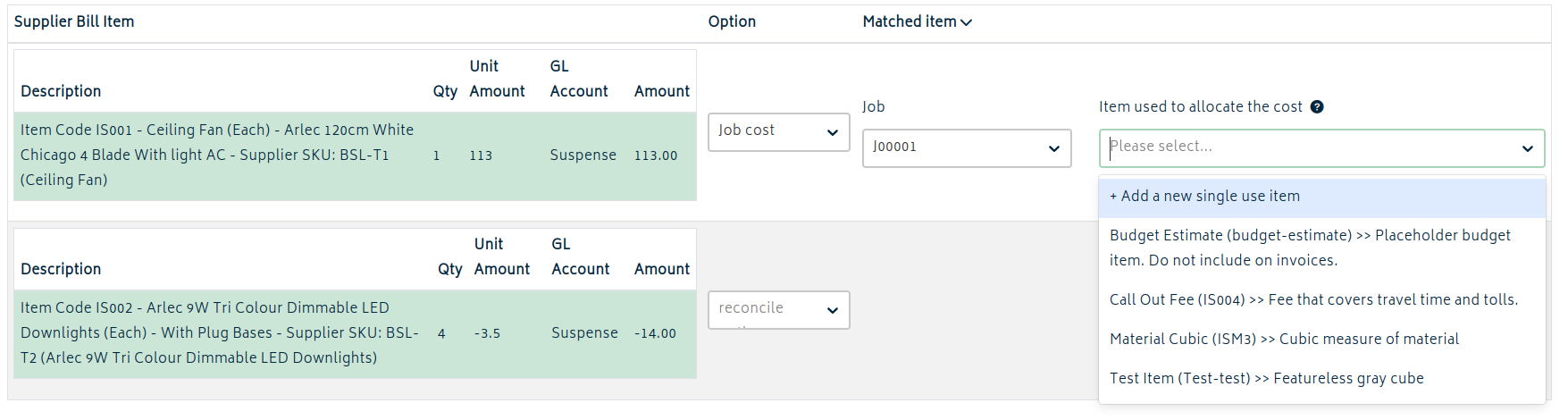
Adding a new single-use item will generate a new item on the Record Consumables page to absorb the costs of the reconciled SB entry.
When reconciling against an existing job item, note that the item will appear as a manually added item in the Record Consumables page to differentiate it from regular item consumption:
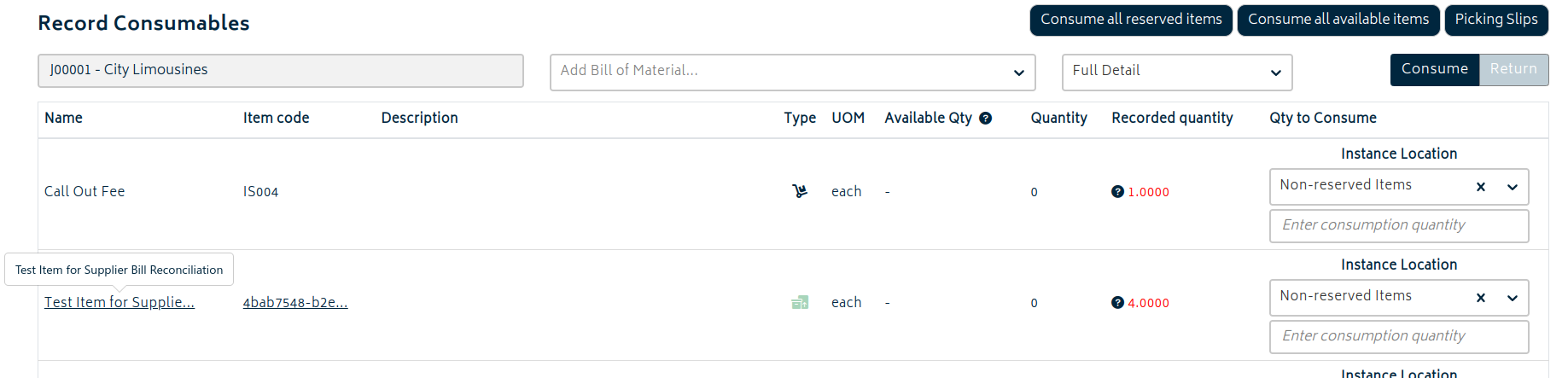
Note: If you want expenses to be linked to a job but are unsure what to reconcile against, usually reconciling against a purchase order is the correct option. In principle, only reconcile as job cost if there is no related purchase order to reconcile against and you do not plan to raise a PO to record stock consumption. This is usually done for expenses such as transportation or unplanned incidentals.
Reconciling against Inventory Items & Landed Costs
In the case of reconciling against an inventory item, the costs will be added to the cost of an inventory item. This can be used to add landed costs and distribute them across various items in a purchase order.
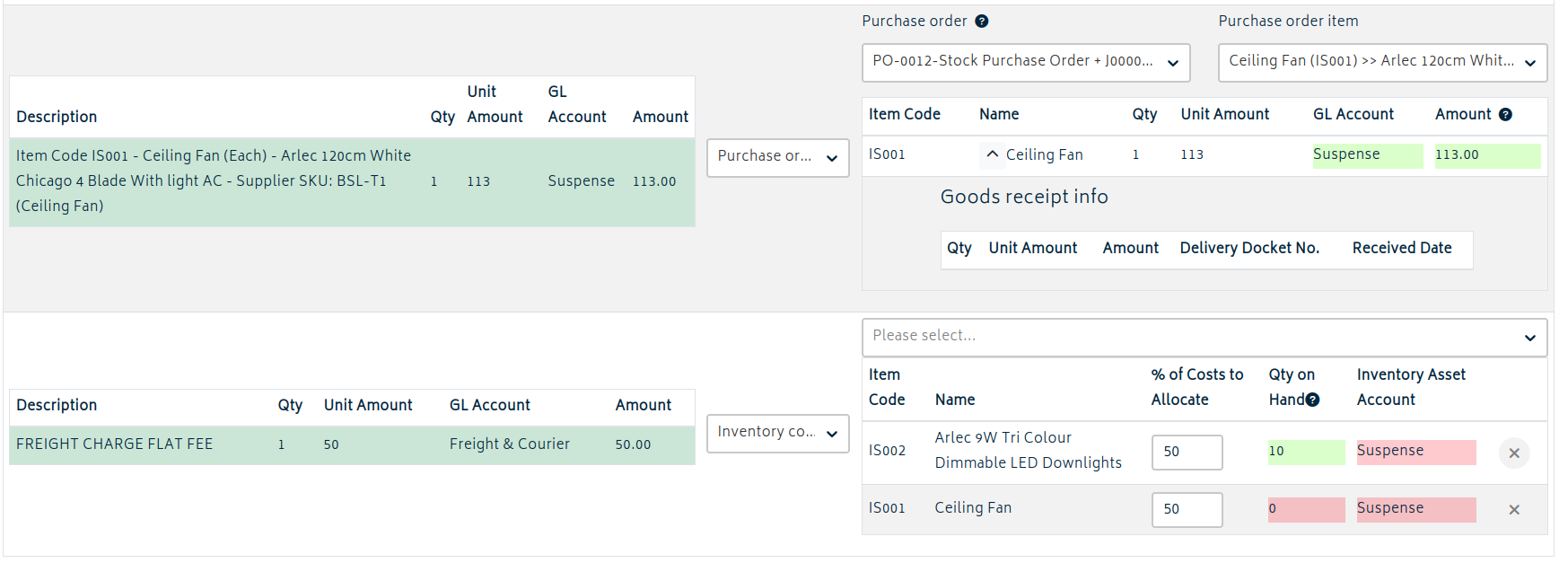
The above image is a fairly standard use case for this - matching a supplier bill to a purchase order with freight fees included that we want to distribute. Let's look a little closer at some of the specifics of this situation.
-
The freight fee will be $50, and we want to split the value of this freight fee will be split across the included items.
- We can consider what percentage of the freight fee we want to associate with each item - the LED Downlights are small and light, so they may have a smaller impact on freight charges.
- The LED Downlights cost $3.50 each and the Ceiling Fan is $113.00 - depending on the organisation, you may want to forego the even split and manually calculate a split based on relative cost
-
There are LED Downlights in stock, but there are no Ceiling Fans in stock. Despite this, it would still be possible to reconcile the bill.
- In this case, the proportional cost of the freight (50% of $50 - $25) would be added to the inventory value of the LED downlights.
- There is no stock and no stock value of Ceiling Fan to assign the landed cost to. In this case, it will directly create a manual journal in Xero and not affect your stock value in Gojee.
However, note that this line item would be unable to be reconciled against inventory values. The reason in this case: the GL accounts do not match, so it will not be able to be reconciled this way. In order to do so, the bill will need to be modified in Xero to fix the account and a supplier bill sync will need to be run by an administrator/by the overnight sync.

If we wish to distribute the cost across more items, any of the items can be added from the dropdown at the top - they need not be related to the other items on the bill.
Next: Back to Knowledge Base.