

Receive Goods
Receiving Goods
Once you have raised a purchase order (refer to Create Purchase Orders for more information) you can can receive the goods into the system as the next step of the purchasing process. This will bring the stock onto the system, taking into account any reservations that were established as part of the purchase order creation (i.e. should the stock be reserved for job(s), or will it be allocated to available stock).
Note: You can receive goods in several parts for the one purchase order. So if you receive only part of the stock in one delivery this workflow is supported in Gojee.
To get started, find the purchase order you want to receive items for under the Reports > Purchase Orders list - or if you know which job the PO is for, you can also do this from the job's Purchase page.
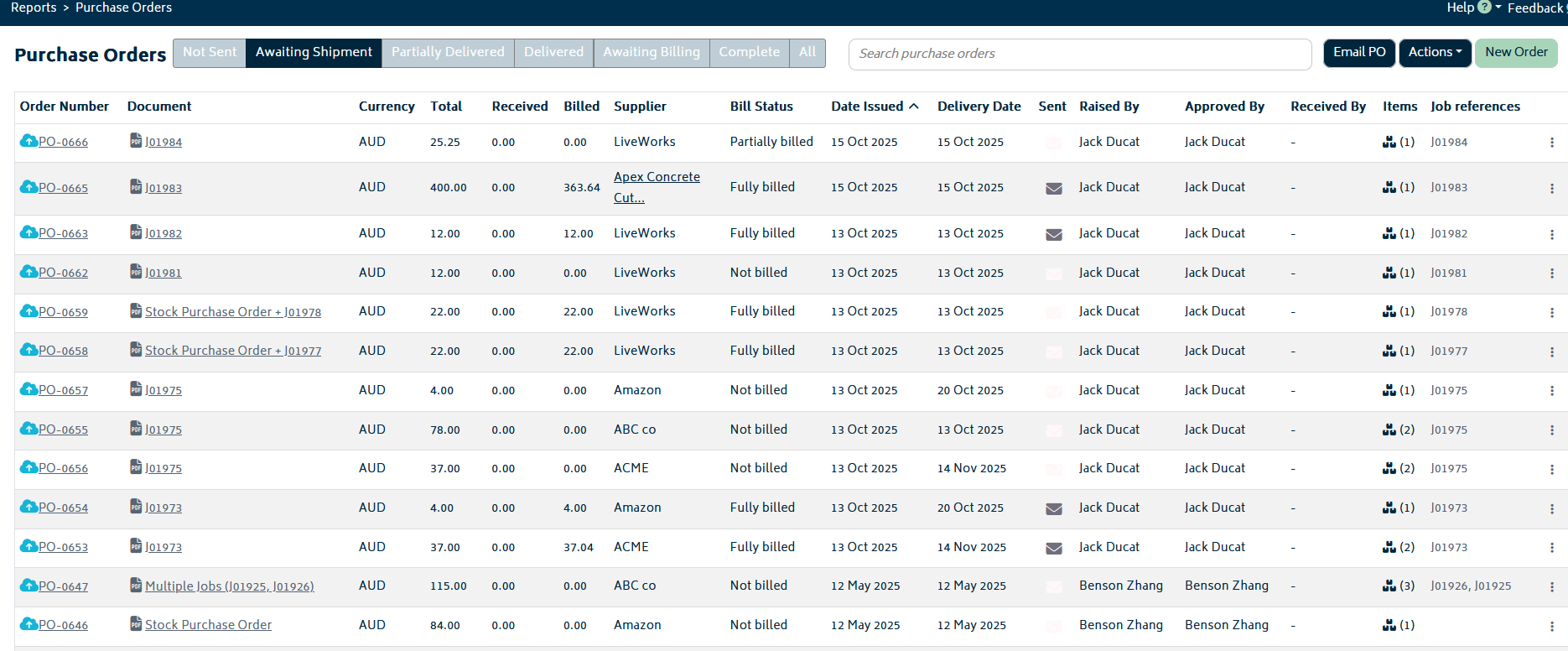
Find the purchase order in the list. You can use the search bar to help find it quickly.
Click on the Order Actions button (the three dots) and select "Receive Goods"
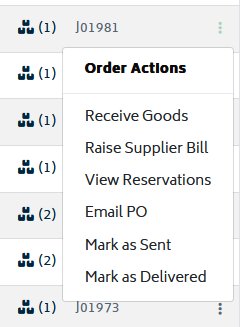
Tip: if you don't know the purchase order number, you can also use the search bar to search for one of the item codes on the purchase order, or the supplier, or job number.
You will be presented with the goods receipt page:
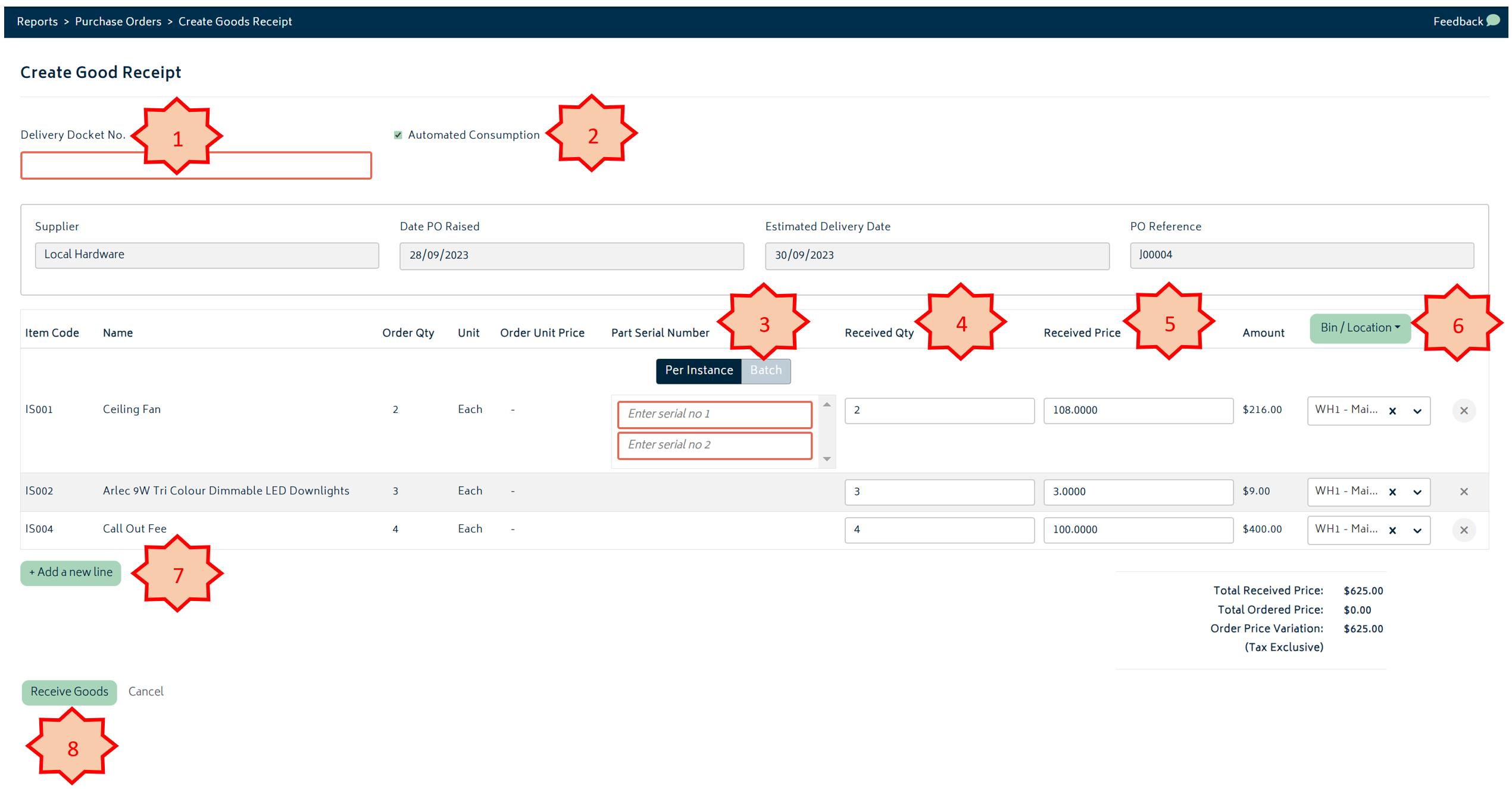
The numbered items in the image above are described below:
- Delivery Docket No: enter the reference number for this delivery.
- Automated Consumption: this will default to the setting chosen in the organisation settings page. If this tick box is checked the goods received will be consumed onto the job automatically. If this box is not checked, the goods will be received into stock with a reservation for the job attached. In this case, the records consumable process will need to be completed manually for the items placed into stock.
- Serial No: if the item being received is a tracked per instance item, you will need to enter the serial number(s) for the items being received. This can be done individually, or as a batch. Refer to the image below:

- Received Quantity: Enter the quantity of each item being received in this delivery. This will default to the remaining item quantity.
- Received Price: This will default to the price from the purchase order. This field is editable if the supplier has indicated a change in price.
- Bin/Location: Select the location from dropdown for each item as to where it will be stored. You can do this individually for each row, or you can click on the green "Bin/Location" button to choose one location for all items being received.
- Add new line: If the delivery docket has an item not originally on the purchase order, you can add this onto goods receipt at this point. Note: items received in this way will have no reservations to jobs, and will be received into stock only. If you want the item to be reserved for a job, you can either reserve the item for the job after receiving the goods manually, or you can go back and edit the purchase order prior to receiving the goods.
- Receive Goods: Hit this button once all the information is entered and the system will record the receipt of the items.
Once complete, your stock levels will be updated and a journal transaction will be pushed through to Xero to recognise the value of the inventory assets on hand. If your organisation has clearing accounts configured and is configured to recognise purchases at Goods Receipt, this journal instead credits the goods received clearing account selected in Organisation Settings. The related supplier bill is then coded to the clearing account so it clears the amount already recognised at receipt.
View Goods Receipts
Navigate to the Goods Receipt list to see a list of all the goods receipts created in Gojee.
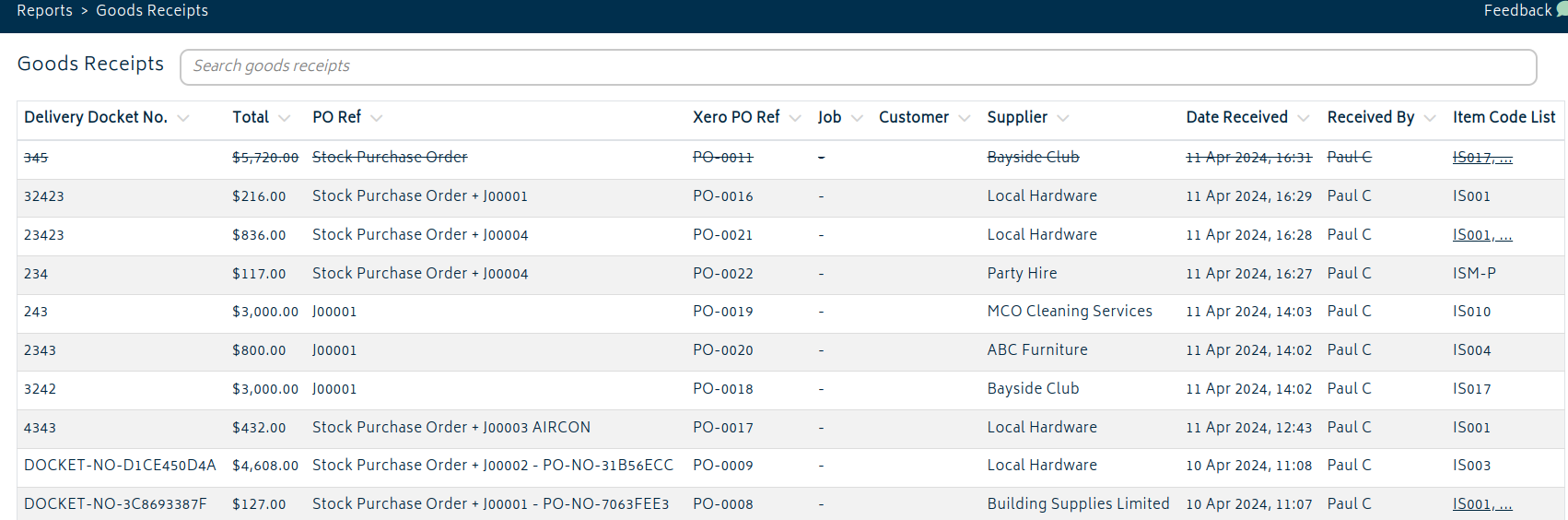
If you interact with the goods receipts, you can edit the details of what was received, where it was received, and serial numbers of received goods. It will update items that are in stock.
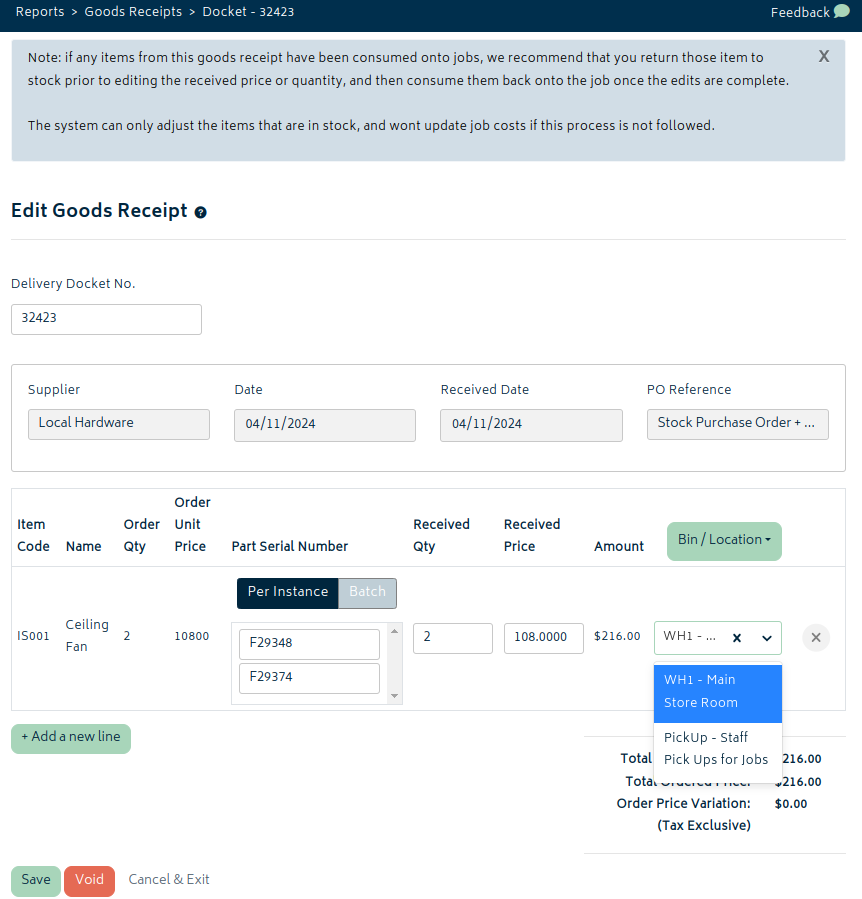
Voiding a goods receipt removes the items from stock, and can only be done if there is enough stock remaining.
Next: Raise Supplier Bills.