

Professions
Add Professions
To add a new profession into Gojee, navigate to HR Management from the Navigation Dashboard.
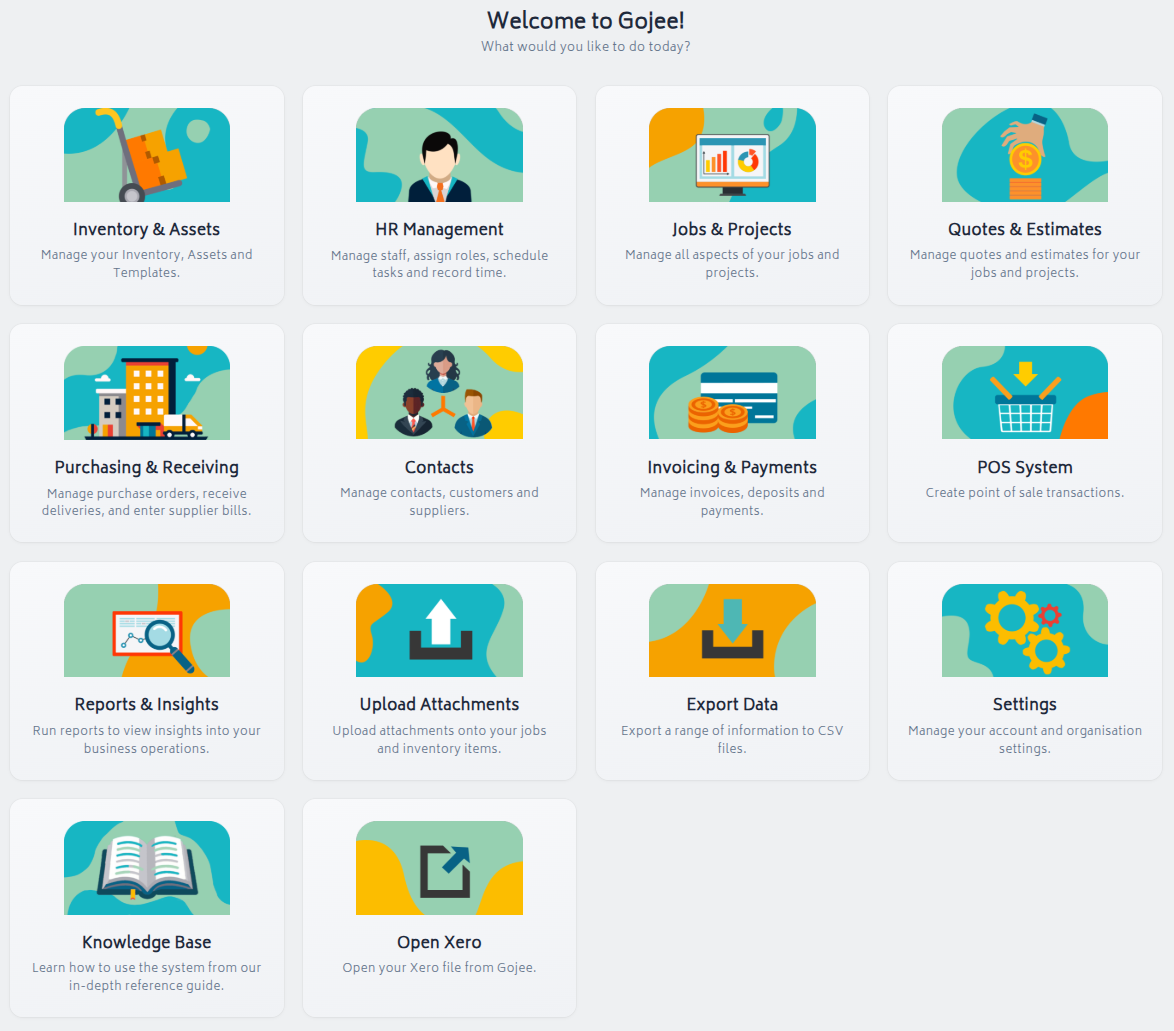
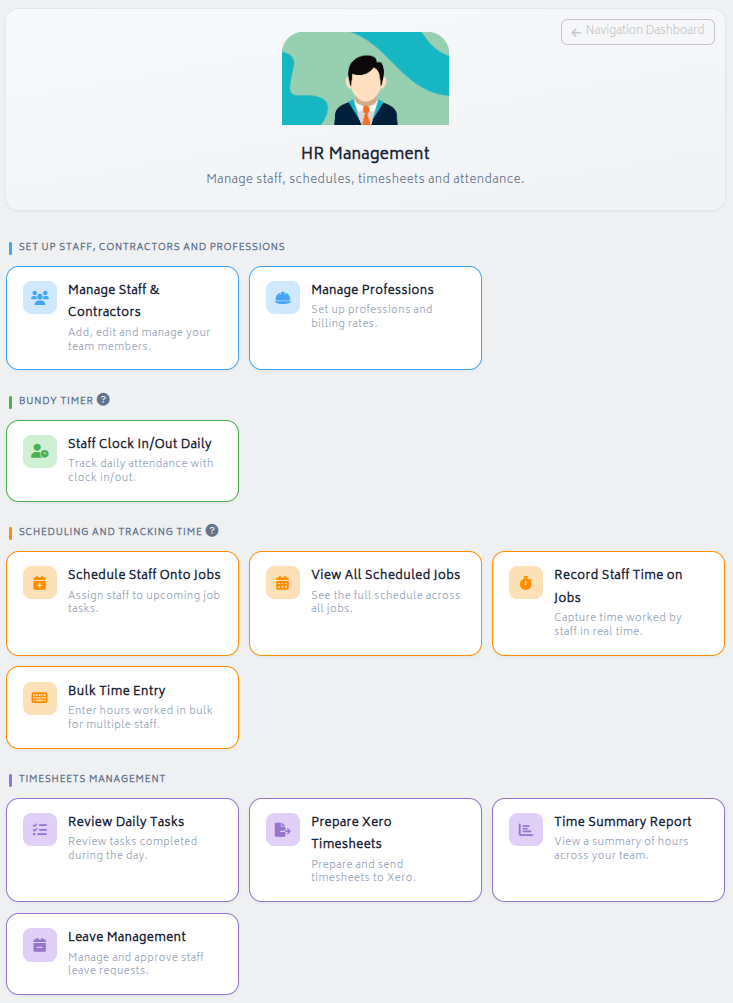
Click Manage Professions. This will take you to the Professions list.
Click the "Add" button at the top right.

You are required to add the below details to create a profession:
- Name of profession
- Cost per hour
- Price per hour
- Staff Members (people who are part of this profession within your organization - these users must be Gojee users)
Please note that every profession's unit of measure is hourly by default, and it is important that you select the correct cost and price as the professions will be used to determine your budget vs actuals.
You can either set up the price manually by entering the dollar amount or you can set it up based on the Markup %.
Press "Create" and the profession will be created.
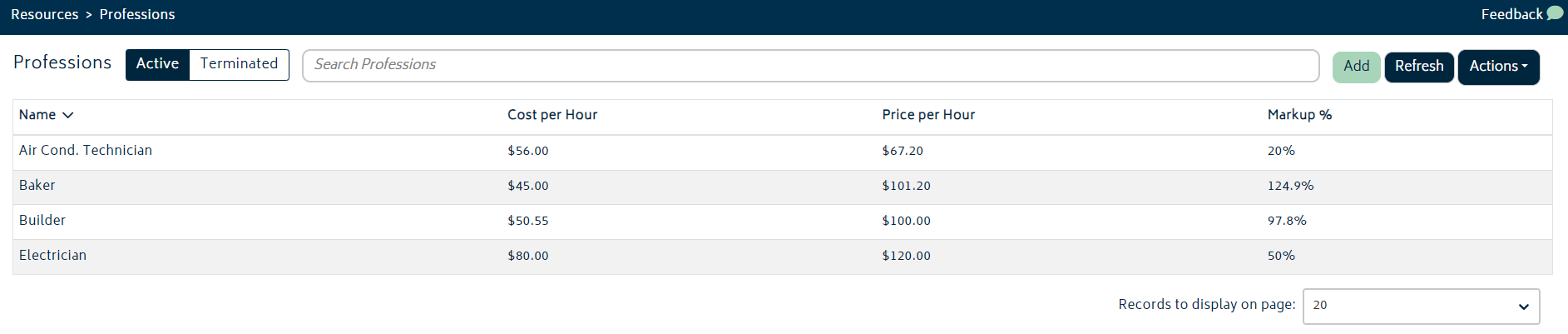
You can navigate back to the profession page and check all the professions:

View/Edit Professions
Viewing and editing a profession in Gojee can be done in much the same way. Again, navigate to HR Management from the Dashboard and click Manage Professions to go to the Professions page.
From the list of all the professions for your account, please click the profession you wish to edit:

Simply edit/update the desired information and click "Save" for the changes to be reflected.
Importing and Exporting Data
Exporting and importing professions can also be done from the Professions list. In order to export, click “Actions” on the top right side and click Export to CSV.

All the existing professions will be exported via a CSV file onto your device.
To import the professions into Gojee, simply select “Import from CSV” on the same page. You will be presented with the following modal:
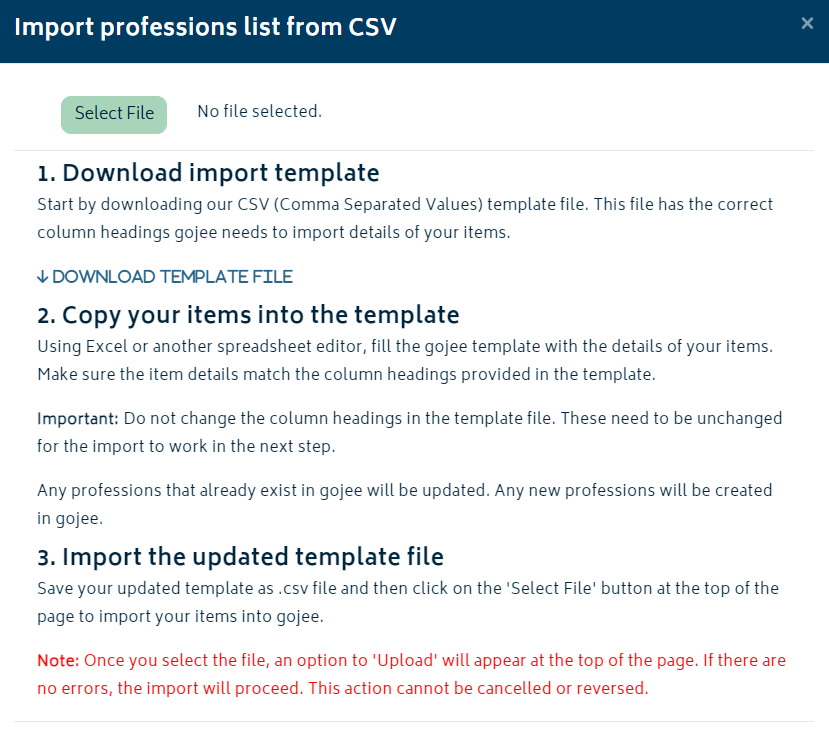
Follow the instructions on the modal to complete the import. You will need to download the CSV template file, and update it with your list of professions. An example CSV template it provided below:
CSV template
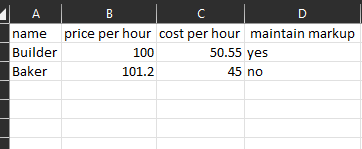
To upload the CSV hit "Select File" in the modal, select the file, then hit Upload.
Upon successful import of professions, you will be able to see the new professions created successfully under your professions list:
Next: Scheduling.