

Time Clock (Bundy Timer)
Introduction to the Time Clock
The time clock is designed to allow your workers to clock in and out of the workplace for the day. It records a start and stop time for the workers day. The time clock doesn’t start a timer running on jobs, but a worker clocking out will automatically stop any of their running job timers.
Clock in and out of the workplace
Navigate to HR Management from the navigation dashboard and select the Staff Clock In/Out Daily button - or select "Time Clock" from the menu.
- You'll be directed to the following page:
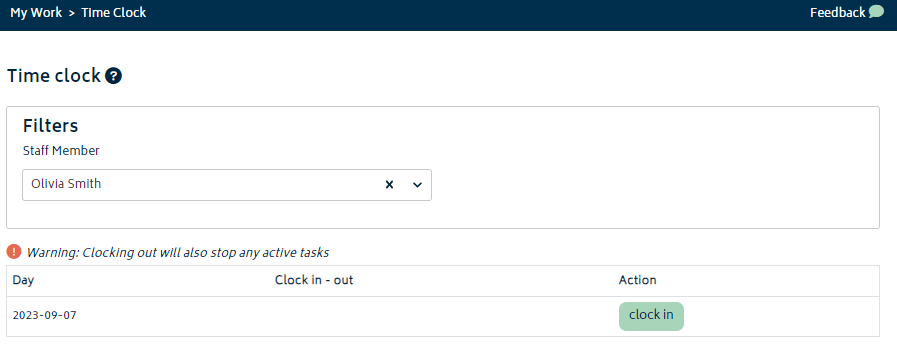
- Select a user, then hit Clock In or Clock Out.
Note: If a user starts a timer for any task, then the time clock for the day will automatically be started. If the user clocks out using the time clock, any running task for that worker will have the timer stopped.
Once your workers are logged in there will be a green calendar icon displayed on the Staff Scheduling page next to the workers name. When the worker clocks out for the day, the calendar icon next to their name on the staff scheduler page will go red. If the user is yet to clock in for the day then the calendar icon will be grey.
While task times and recorded work may be modified after the fact to fix any errors and correct the amount of hours allocated to jobs, clock in/out times cannot be edited by anyone. As long as staff regularly clock out, they are an accurate method of keeping track of staff system usage.
Next: Bulk Time Entry.