

Importing Job Data
Importing Jobs via CSV
The Import Jobs function lets you create one or more jobs in bulk by uploading a CSV file. It is located on the Customer Job List.
It is designed for importing a job’s Bill of Materials (BOM) quickly (stock items, single-use items, templates, sections, professions, and assets), or that of multiple jobs at once.
Before you start:
- Customers must already exist in Gojee (the import matches customers by name).
- Catalogue items must already exist for these item types: stock (found by item code), profession, asset, and template (found by item name).
- Single-use item accounts must be configured in your organisation settings. If these aren’t set, the importer will not analyse or import any file.
- Do not rename the column headers from the template.
How the import works (2-step process)
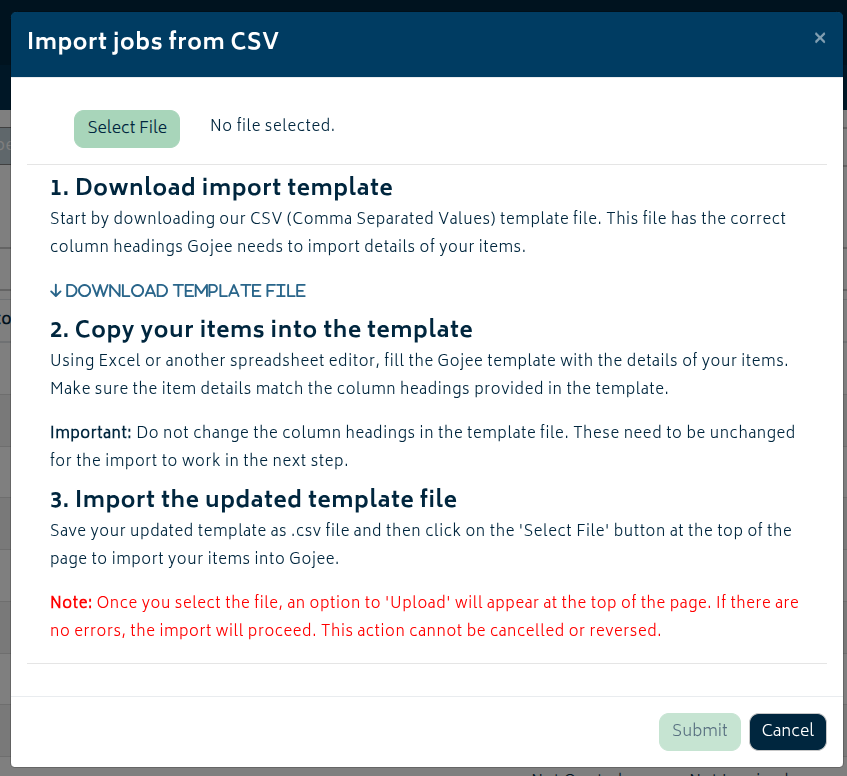
-
Upload / Analyse: Gojee validates your CSV and shows you any errors and warnings.
- Errors must be fixed before you can submit.
- Warnings do not block import, but may change how Gojee interprets the file.
-
Submit: If there are no errors, the job(s) are created and will appear on your job list.
An example multi-job CSV to be imported:

Job Import: CSV Column Rules
Your CSV must contain the following columns (exact spelling/casing is not important, but the headers must match the template):
| Column | What it does | Rules / examples |
|---|---|---|
| Job Reference | Groups rows into a job. | - If you are importing multiple jobs, every row must have a Job Reference. |
- If you are importing a single job, you can leave it blank and Gojee will auto-generate a new reference.
- Maximum length: 30 characters. | | Job Title (optional) | The job title. | * Only the first row of each job is used as the job title.
- You can leave it blank if you plan to fill it in later. | | Charge Type | Sets the job’s quote type / charging model. | - Allowed values: fixed-price or do-and-charge.
- Important: Charge Type must be present on the first row of each job. | | Customer | Assigns the job to an existing customer. | * Customer must already exist.
- Important: Customer must be present on the first row of each job.
- The importer matches customers by name (case-insensitive). If you have multiple customers with the same name, results can be ambiguous — rename duplicates before importing. | | BOM Level (optional) | Controls hierarchy (nesting) of items under sections/templates. | - Leave blank to add an item at the top level of the job.
-
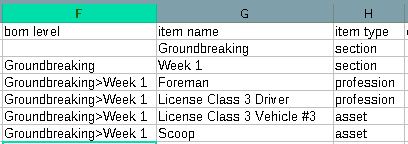
To nest an item under a parent section/template, set BOM Level to the parent name or path. Use > to represent nesting.
-
Example:
- Parent section name: Groundbreaking
- Child section name: Week 1 (set BOM Level to Groundbreaking)
- Item under that child: set BOM Level to Groundbreaking>Week 1
 |
| Item Code | Identifies stock items from your inventory catalogue. | * Required for item type stock.
|
| Item Code | Identifies stock items from your inventory catalogue. | * Required for item type stock.
- Used to look up the inventory item in your catalogue. | | Item Name | Identifies non-stock items and names created items. | - Required unless you are importing a stock item with a valid Item Code.
- For these item types, Item Name must match an existing catalogue item name: template, profession, asset.
- For stock items, Item Name is optional (you may leave blank or supply a description for quoting/invoicing).
- For single-use items and sections, Item Name becomes the name created on the job. | | Item Type | Tells Gojee how to interpret the row. | * Required.
- Allowed values: stock, profession, asset, template, single-use, section. | | Cost per Unit (optional) | Overrides cost for some item types. | - Must be a non-negative number.
- Not accepted for: profession, template, and section. (Those costs are calculated from their underlying items or setup.)
- For stock items, you typically leave this blank (the catalogue cost is used). If you supply a cost for a tracked item, Gojee may warn that it does not match the catalogue. | | Price per Unit (optional) | Overrides sell price in quotes/invoices. | * Must be a non-negative number.
- Required for item type single-use.
- Templates may have their effective price recalculated depending on whether they have children on the job; see Warnings below. | | Required Quantity | How much of the item is required on the job. | - Required for all item types except section.
- Must be a positive number.
- If the unit of measure requires whole units (e.g. each), quantity must be a whole number. | | Unit (sometimes required) | The unit of measure (UoM) for the row. | * Required for item type single-use (e.g. each, meter).
- If you are importing an existing catalogue item (stock/profession/asset/template), you can usually leave Unit blank and the catalogue unit will apply.
- If provided, it must be a valid Gojee UoM. | | Discount Percentage (optional) | Applies a discount to an item or group. | - Must be between 0 and 100.
- Best practice: only set discounts on top-level rows. If you set a discount on a child row under a section/template, it will be inherited/overwritten. |
Job Reference
What it does: Groups rows into a job.
Rules / examples:
- If you are importing multiple jobs, every row must have a Job Reference.
- If you are importing a single job, you can leave it blank and Gojee will auto-generate a new reference.
- Maximum length: 30 characters.
Job Title (optional)
What it does: The job title.
Rules / examples:
- Only the first row of each job is used as the job title.
- You can leave it blank if you plan to fill it in later.
Charge Type
What it does: Sets the job’s quote type / charging model.
Rules / examples:
- Allowed values: fixed-price or do-and-charge.
- Important: Charge Type must be present on the first row of each job.
Customer
What it does: Assigns the job to an existing customer.
Rules / examples:
- Customer must already exist.
- Important: Customer must be present on the first row of each job.
- The importer matches customers by name (case-insensitive). If you have multiple customers with the same name, results can be ambiguous — rename duplicates before importing.
BOM Level (optional)
What it does: Controls hierarchy (nesting) of items under sections/templates.
Rules / examples:
-
Leave blank to add an item at the top level of the job.
-
To nest an item under a parent section/template, set BOM Level to the parent name or path. Use > to represent nesting.
-
Example:
- Parent section name: Groundbreaking
- Child section name: Week 1 (set BOM Level to Groundbreaking)
- Item under that child: set BOM Level to Groundbreaking>Week 1
Item Code
What it does: Identifies stock items from your inventory catalogue.
Rules / examples:
- Required for item type stock.
- Used to look up the inventory item in your catalogue.
Item Name
What it does: Identifies non-stock items and names created items.
Rules / examples:
- Required unless you are importing a stock item with a valid Item Code.
- For these item types, Item Name must match an existing catalogue item name: template, profession, asset.
- For stock items, Item Name is optional (you may leave blank or supply a description for quoting/invoicing).
- For single-use items and sections, Item Name becomes the name created on the job.
Item Type
What it does: Tells Gojee how to interpret the row.
Rules / examples:
- Required.
- Allowed values: stock, profession, asset, template, single-use, section.
Cost per Unit (optional)
What it does: Overrides cost for some item types.
Rules / examples:
- Must be a non-negative number.
- Not accepted for: profession, template, and section. (Those costs are calculated from their underlying items or setup.)
- For stock items, you typically leave this blank (the catalogue cost is used). If you supply a cost for a tracked item, Gojee may warn that it does not match the catalogue.
Price per Unit (optional)
What it does: Overrides sell price in quotes/invoices.
Rules / examples:
- Must be a non-negative number.
- Required for item type single-use.
- Templates may have their effective price recalculated depending on whether they have children on the job; see Warnings below.
Required Quantity
What it does: How much of the item is required on the job.
Rules / examples:
- Required for all item types except section.
- Must be a positive number.
- If the unit of measure requires whole units (e.g. each), quantity must be a whole number.
Unit (sometimes required)
What it does: The unit of measure (UoM) for the row.
Rules / examples:
- Required for item type single-use (e.g. each, meter).
- If you are importing an existing catalogue item (stock/profession/asset/template), you can usually leave Unit blank and the catalogue unit will apply.
- If provided, it must be a valid Gojee UoM.
Discount Percentage (optional)
What it does: Applies a discount to an item or group.
Rules / examples:
- Must be between 0 and 100.
- Best practice: only set discounts on top-level rows. If you set a discount on a child row under a section/template, it will be inherited/overwritten.
Job Import: Errors and Warnings
The following are some errors and warnings that you may encounter when uploading the CSV. If there are errors, you will not be able to submit. If there are warnings, you will be able to click submit to proceed anyway.
Common errors (will block import)
- Missing customer / charge type on the first row of a job: customer and charge type must be on the first row for each Job Reference group.
- Customer does not exist: customer name must match an existing customer.
- Item does not exist: templates/professions/assets must exist in the catalogue (matched by item name and type).
- Required quantity missing or invalid: quantity must be present (except for sections) and must be positive.
- Single-use items missing data: single-use items require Unit and Price per Unit.
Warnings (import can still proceed)
- Cost mismatch for tracked inventory: if a stock item is tracked and you supply a different cost per unit, Gojee will warn of this. The catalogue cost will be used.
- Missing parent section/template: if a row’s BOM Level points to a parent that is not present in the file, the item will be added at the top level of the job.
- Child discounts: discounts applied to child rows may be ignored because discounts inherit from the top-level parent.
- Extraneous unit: a unit provided for profession/asset/template/section is not required.
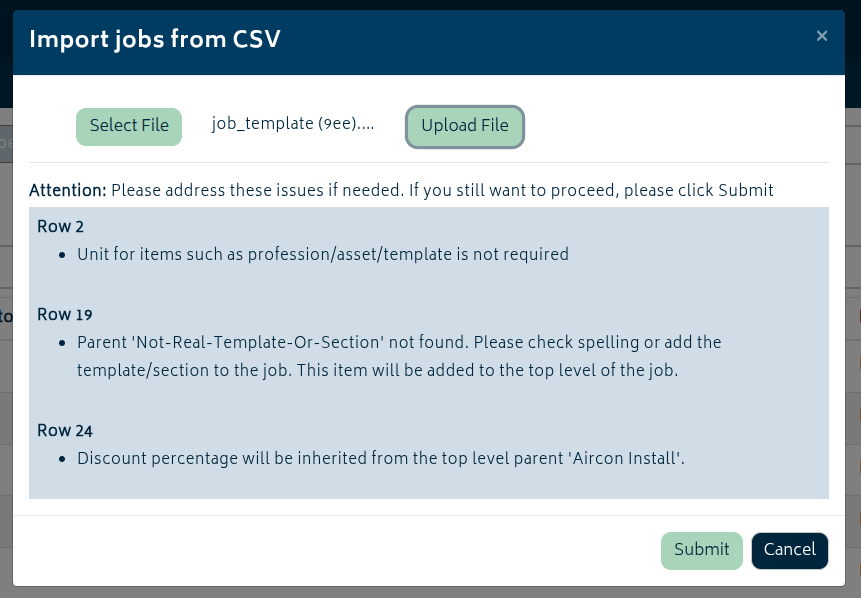
Once you click "Submit" at the bottom of the modal, the job(s) will be imported into the system and be ready for you to fill in any further information if required.
Tips:
- Start by downloading the template and then fill it in. If you are building a hierarchy, create the section/template rows first, then place child items under them using BOM Level.
- If you are importing multiple jobs, keep each job’s first row complete (Job Reference, Customer, Charge Type, Job Title). Then you can leave those fields blank for the remaining rows of that job.
- When in doubt, upload and analyse first — Gojee will tell you exactly which rows need attention.
Next: Back to Knowledge Base.