

Sales Leads
Sales Leads
Sales Leads is the part of Gojee used to manage opportunities that are still in the sales pipeline. A lead may be quoted, have job details updated based on customer feedback,. Once the opportunity is ready to become operational work, it can be converted into a Customer Job.
This is an important distinction in Gojee:
- Sales Leads is for managing opportunities and pre-delivery sales activity.
- Customer Jobs is for managing work that is ready to be delivered, scheduled, purchased, recorded, and invoiced.
The same underlying record can move through both parts of the system over time, but it does not stay in both places at once. Its lifecycle determines whether it appears in Sales Leads or Customer Jobs. The operational side of creating a job, whether lead or customer job, is covered in the Create a Job and Viewing Existing Jobs articles.
Key Concepts
It is helpful to understand four related terms:
Lead
A lead is a job record that is still being managed as part of the sales process. Typical examples include enquiries, quoted customers, and potential opportunities awaiting decision. Leads appear on the Sales > Leads page.
Customer Job
A customer job is work that has moved beyond the lead stage and is now being managed operationally. Customer Jobs appear on the Jobs > Customer Jobs page.
Status
Status describes the commercial or workflow state of the record, such as draft, quoted, approved, completed, or lost. Status helps you understand what state the job is in at a glance.
Workflow Stage
Workflow stage is the kanban column the record appears in. Stages are configurable by organisation, so your business may use different stage names from another business. Stages are used to visually organise work on the kanban board. Status and stage are related, but they are not the same thing.
Typical Sales Leads Workflow
An example flow for how leads work is:
- Create a lead by entering customer and opportunity details. A contact will be created using these details.
- Build a simple or detailed BOM depending on how early the opportunity is. This will drive the expected deal size for the job.
- Generate one or more quotes.
- Track the lead in the Leads List/Kanban. Move it through the stages set up for the workflow.
- Continue refining the opportunity until it is either won or lost.
- Convert the lead to a Customer Job when it becomes operational work. At this point, the contact created would also be converted to a customer.
When a lead is converted, it leaves the Sales Leads workflow and becomes a Customer Job. Similarly, the original contact created will also be converted into a customer. It can optionally be assigned to a Customer Jobs workflow stage after conversion. The wider job execution workflow can continue from the Customer Jobs area. It will be placed in the first stage of workflows automatically - you can continue moving it through the workflows after conversion.
Conversion does not mean the record is being recreated from scratch - the same work item simply moves from the sales pipeline into the delivery pipeline.
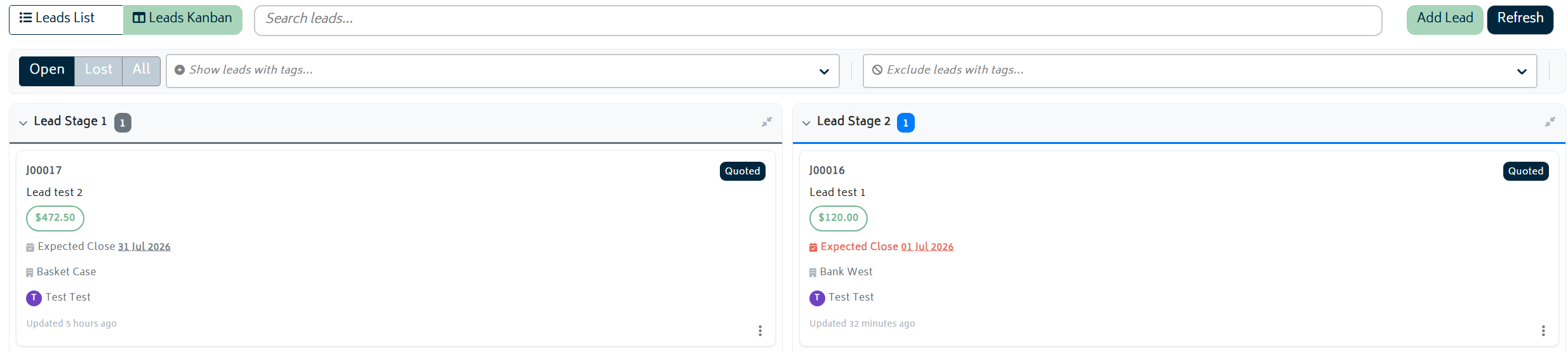
Leads Management (Kaban)
A detailed breakdown of the generated Lead can be seen within the Kaban list, displaying the following key details:
- Job reference number
- Job Title
- Expected close date
- Expected cost values
- Customer name
- Assigned salesperson
It provides a comprehensive breakdown of each lead, allowing the tracking of the statuses and ensuring necessary follow-ups are completed on time.
Sales Lead vs Customer Job Start
Use Sales Leads when:
- You are still qualifying the opportunity.
- You are building or revising a quote.
- The customer has not yet committed to proceed.
- You want to manage opportunities in a pipeline separate to active jobs before they become active work.
You can still capture customer details, build a basic BOM, generate quotes, and organise the opportunity while it is a lead.
Some businesses create a Customer Job directly when the work is already confirmed or when the sales process is handled outside Gojee. If that is how your organisation works, use Introduction to Jobs & Projects as the main starting points for the customer-jobs side of the workflow.
Sales Leads Import
The "Import Leads" function allows you to create one or more leads in bulk by uploading a CSV file within a given format. This function is useful for migration purposes or for setting up a large number of leads gathered physically. Start off by interacting with the “Import Leads” button.
 This will bring up the Modal requirements shown.
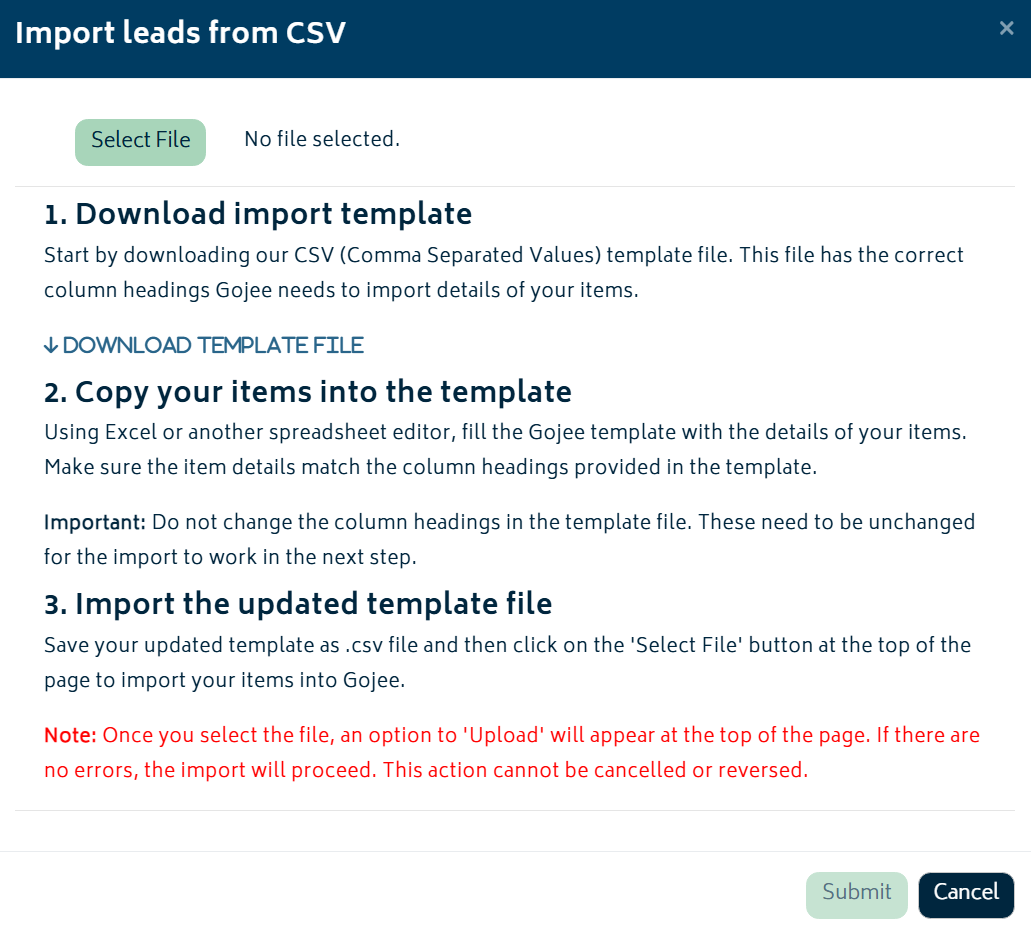
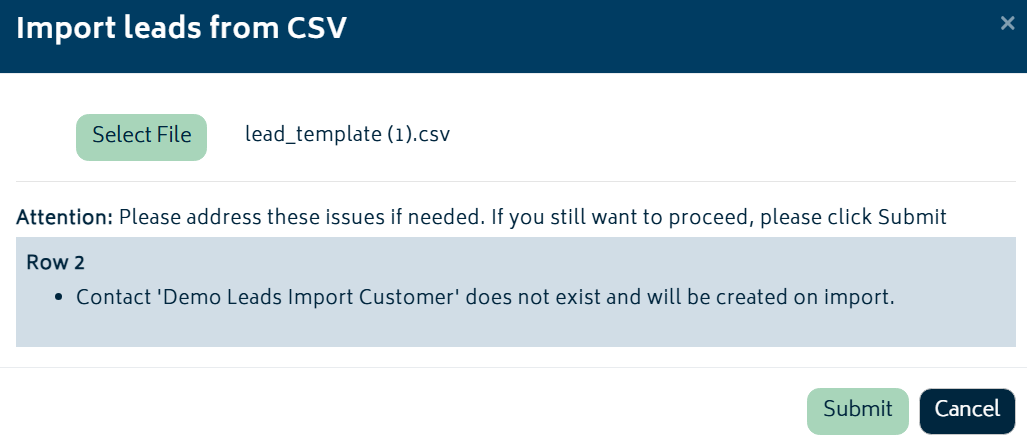
When importing there are some variables to consider which must already exist within the organization if utilised. These include key item details and tags. Customer details can also be input and if they do not exist within the organisation, a notification will show up confirming the creation of a contact. If the lead is accepted and converted to a job, the contact would also then be converted into a customer.
Next: Create a Job.