

The Bill of Materials (BOM)
The BOM Tab
The Bill of Materials is used to set the requirements for the job, which feeds into the other modules (quoting, purchasing, et cetera).
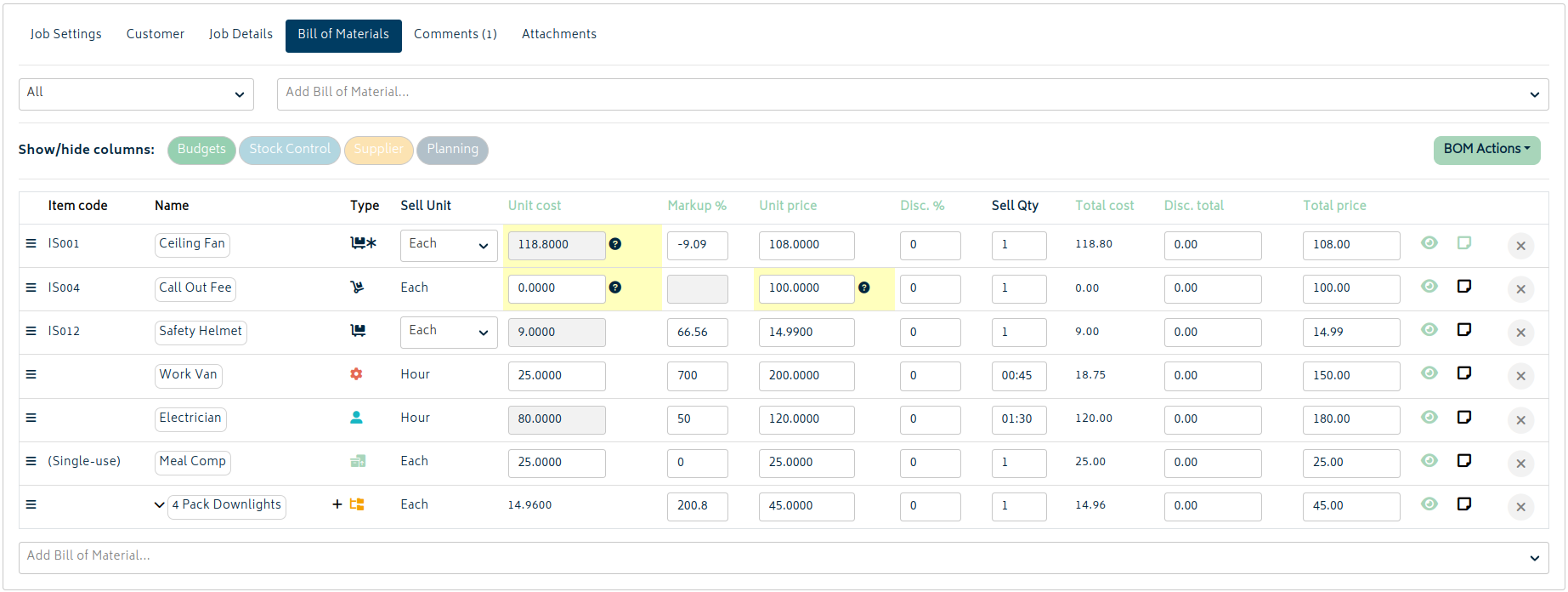
Setting professions on a job's BOM allows those professions to have employees' time scheduled and tracked against the job. Adding stock items allows those items to later be purchased or reserved from inventory and consumed onto the job to record their costs.
As the job evolves, you may return here multiple times to modify the items or professions required to carry out the job.
Adding Line Items
You can choose any combination of Stock Items, Professions, Assets, or Templates that will be needed for the job from the dropdown menu in the middle of the page or near the bottom.
Adding these items on the BOM does not remove the items from stock. Using items and removing them from stock is done through recording consumables.
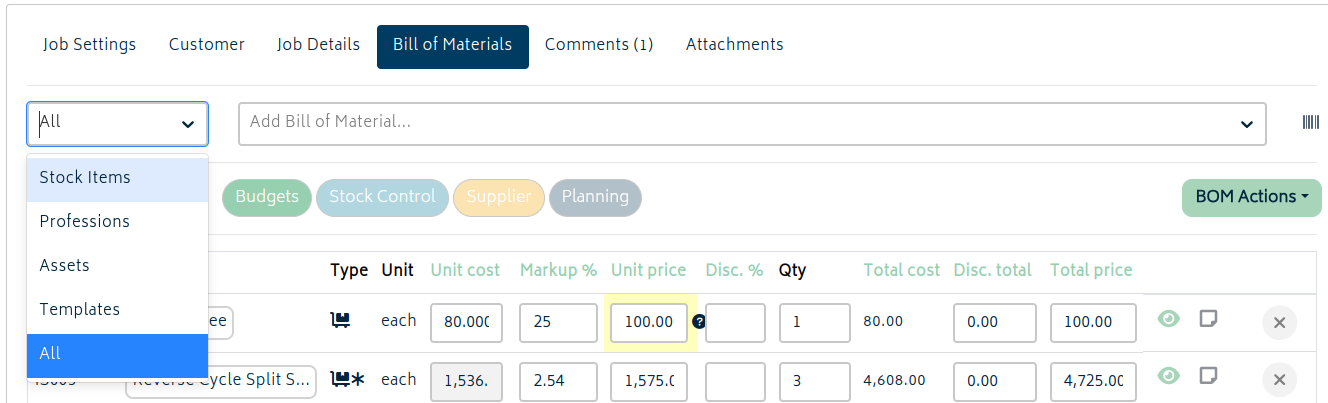
There are two dropdowns at the top of the BOM tab.
-
The dropdown on the left allows you to filter the dropdown search on the right to show only “Stock Items”, “Professions”, “Assets” or “Templates”. By default, the system searches “All” cost categories.
-
The dropdown in the middle of the page allows you to search for the specific item you'd like to add. For Inventory items and Templates, the search reads from any combination of Item Code, Item Name or Item Description. For Professions and Assets, the name alone is used to search.
- You also have the option to create a new Stock Item if it does not exist. It also allows you to create temporary inventory item to be used for that job and that job only.
- You can also create a Job Section for better organisation of items across the job as well as planning - job sections work just like templates.
Once you have found your items from the dropdown on the right, click on the item in the dropdown and it will be added to your Bill of Material list for the job. The items in the BOM are sorted so that the most recent item added is at the top of the list. If you add from the dropdown at the bottom of the BOM, the item will instead be inserted at the bottom of the list. Items added to the BOM can be rearranged as you please with a drag and drop function, and this order will carry over to the quoting and invoicing stages of the job.
Clicking the barcode icon will convert both dropdowns into entry fields for scanned codes (scancodes) to be entered. These can be barcodes, QR codes, or anything else as long as you have a scanner handy.
- Scanning anywhere on the page will add the item at the bottom of the list. The code will be removed after scanning.
- Clicking into the top or bottom field will allow you to enter the code directly. The code will not be removed when "Enter" is pressed, so the same item can be added repeatedly.
- Each time the same item is added via this method, it will increase the quantity.
Note:If you are unable to search for a particular item that is part of your existing inventory, professions, assets, or templates, it’s most likely because the item has already been added into the BOM for this job. Unless the item is inside a template, it cannot be added twice at the same level onto the BOM. The system does not allow you to duplicate an identical item into multiple positions - however, it allows you to update required quantity as needed.
Creating New Line Items
When selecting from stock items, you have the option to create new items on the spot via the "+ Add new item or job section" option under the "Add Bill of Material" dropdowns.
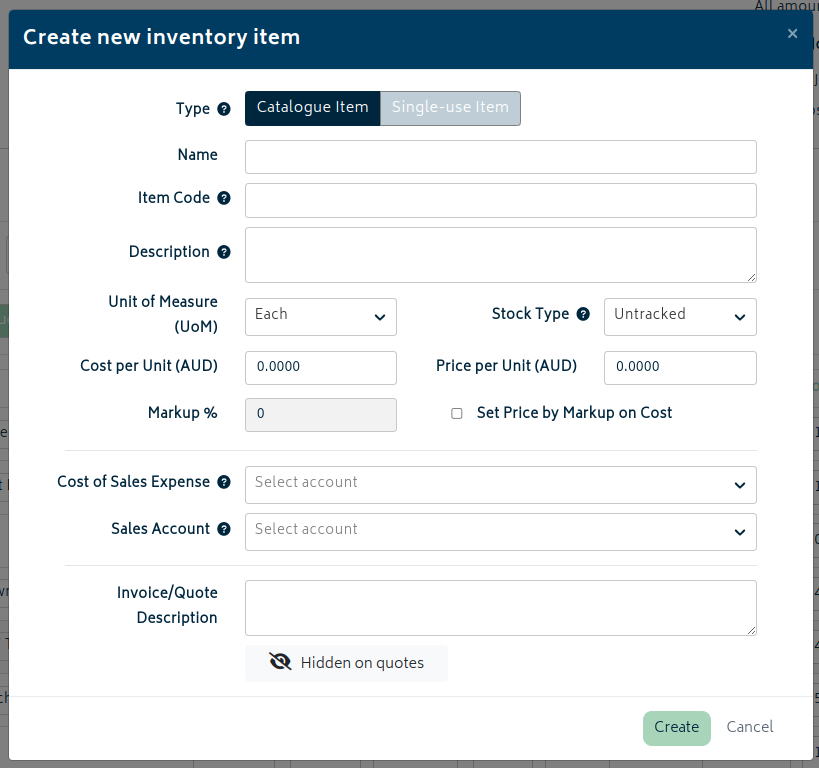
These can be either catalogue items (reusable across other jobs) or single-use untracked items. If you make a catalogue item, it will be visible in your inventory, but single-use items are job-specific and do not appear in the inventory. To learn more about making inventory items in general, refer to the Create a New Inventory Item article.
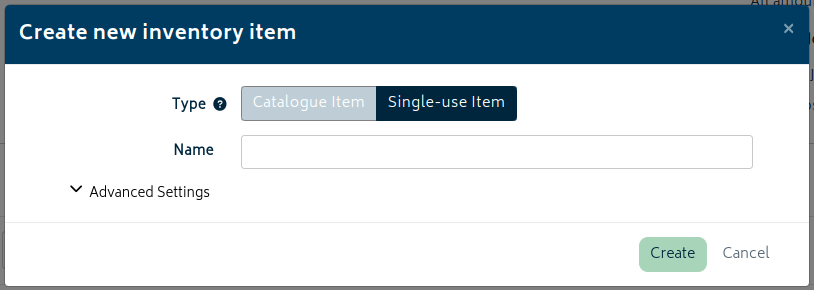
Single-use items are useful for a variety of purposes:
- Custom orders from a customer or for a supplier
- Items you need to purchase to complete this job that you don't expect to purchase again
- Services you have contracted out and need to record against the job
- Various employee expenses (such as transportation or meal reimbursement)
- Tracking receipts and on-the-spot purchases related to the job
- Site rental fees
Unlike catalogue items, single-use items can only be created as untracked. In order to create single-use items, you will need to set up their GL accounts under Organisation Settings.
Line Item Components
Once you've added an item, it will show on the list with several columns of data. You can use the Budgets, Stock Control, Supplier, and Planning buttons to show or hide their related columns so the amount of visible data doesn't get overwhelming, or to allow it to fit on your screen.
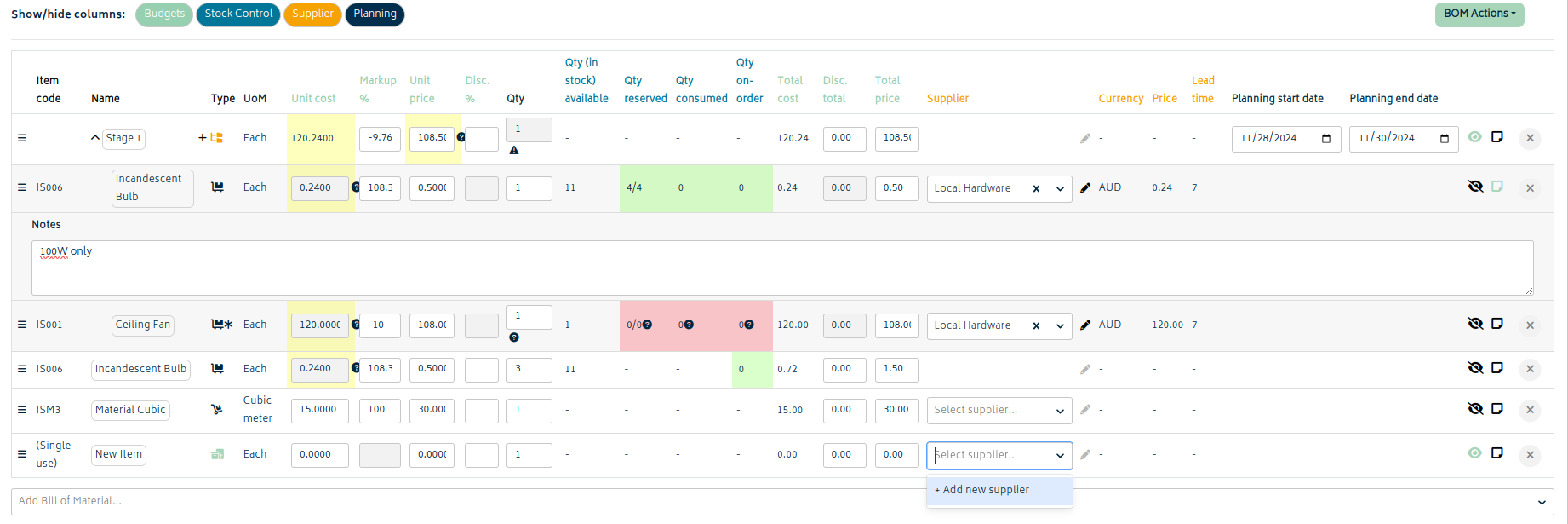
If you have a lower zoom setting or are using an ultrawide monitor, you will be able to see more of these fields at once. These fields are described below:
Standard columns
- Item Code: The unique item code. Asset types, Professions, Templates, and Single-Use Items don't have this.
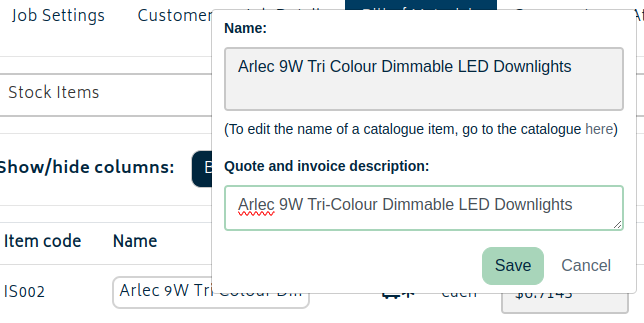
- Name: The name of the line item. You can click this to change the item description used on quotes and invoices, or the name of single-use items.
- For single-use items, an Edit button will also appear here. Clicking it will allow you to edit the item's properties.
- Type: The icon indicates the type of item it is:
 indicates an untracked inventory item.
 indicates a tracked inventory item.
 indicates a tracked-per-instance inventory item (each has a serial number).
 indicates an asset.
 indicates a template. By clicking "+" you may add items to the template.
 indicates a profession.
-
-
- Note that for Point of Sale jobs, professions and assets cannot be present on the BOM.
- Unit: Displays the unit of measure that has been set up in catalogue for the item.
- Qty: Indicates the quantity required of this item to complete the job. Next to the field will be a calculator icon - you can use this to enter a formula when you need Gojee to calculate the quantity for you, such as multiplying length by width or adding several measurements together. Once the formula is applied, the calculated result is saved as the line quantity.
-
Budget columns
- Unit Cost: For untracked items, professions and assets this is set in the edit page for these catalogue item. Refer to editing inventory, professions, and assets for more information. For tracked inventory items, the cost is based off an average cost of stock on hand, and updated from the purchasing module as items are purchased.
- This will be set to the chosen supplier's price if the supplier is specified for this item - see below.
- Markup%: Indicates the mark up based on the difference of cost (purchase price) & price (selling price).
- Unit Price: Indicates your selling price for an item.
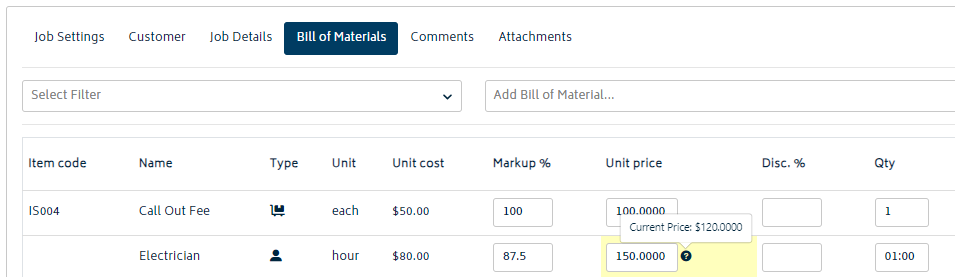
Note: If there are any changes made to the selling price on the BOM page i.e. the markup has been increased or reduced or the selling price itself has been amended, the system will highlight the “Unit Price” in yellow with a popover “(?)”. If a user hovers onto the “(?)”, they will be able to see what the current price for this item is in the catalogue.
-
- Disc%: Allows users to add a discount % on selling price. This can be further displayed on the invoice. If you’d like to automate pricing adjustments for a customer, refer to the Customer Price List section.
- Total cost: The cost of the item multiplied by the quantity required displays that total cost of an item.
- Total: Indicates the actual discounted amount based on disc%.
Note: a user can either add the discount % under “disc%” or discount amount under “Disc. total.”
- Total price: The price of the item multiplied by the quantity required displays the total price of an item.
Stock columns
-
Qty (in stock) available: Shows the stock on hand quantity (for tracked inventory items).
- The qty available is items that are sitting in your inventory that are not already reserved.
-
Qty Reserved: This shows the items that are reserved for jobs.
- The first qty is the total number reserved (ordered and on hand), the second qty is the number of reserved stock on hand. This is useful if you reserve from stock or do not automatically consume when receiving goods.
-
Qty Consumed: Shows the quantity of an item that has been consumed for this job.
- This column displays values for both untracked and tracked inventory items, but not professions or assets.
- An item will not be included into actual cost unless it is consumed onto the job. To learn more about consuming items onto jobs, refer to the recording consumables section of the Job Actions knowledge base page.
-
Qty on-order: Displays the quantity that is on order, meaning a purchase order has been raised for this job for this line item and awaiting delivery.
- This column displays values for both untracked and tracked inventory items, but not professions or assets.
Formatting of the Qty columns on the BOM page:

Supplier columns
-
- Supplier: When a purchase order is raised for this item, this will be the supplier chosen by default.
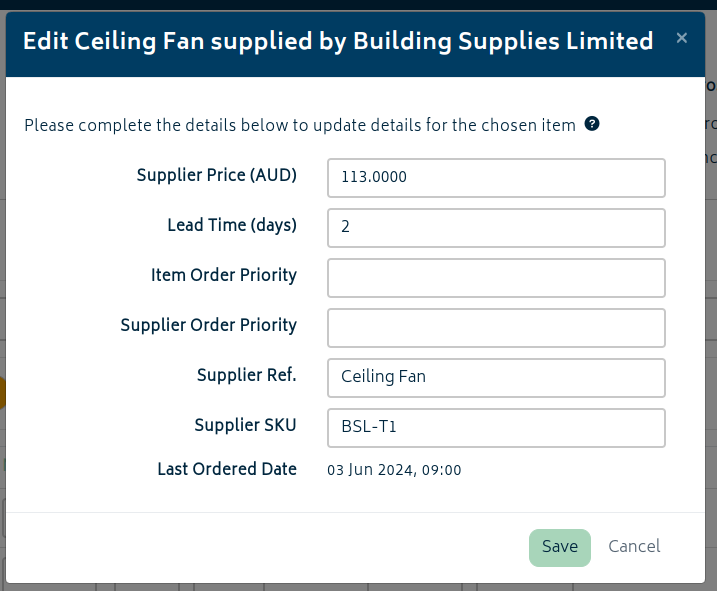
- You can view and edit the supplier's item information using the pencil icon next to this field. Doing so will allow you to fill in any missing information and also see the last time this item was purchased.
- Supplier: When a purchase order is raised for this item, this will be the supplier chosen by default.
- Currency: If the multi-currency add-on is enabled, this column allows you to see the currency the supplier prices their items in.
- Price: This column shows the price of the item as set by the supplier. If it is priced in an international currency, the Cost column will reflect an estimated converted price.
- Lead time: How many days it will usually take for supplier turnaround. This will be used to calculate the expected date the PO will be received when it is made.
- As shipping service is highly variable, note that the lead time is measured in calendar days - not weekdays/business days.
Planning columns
Planning is available for top-level templates and job sections.
- Planning start date: Date field for the provided section's start date.
- Planning end date: Date field for the provided section's end date.
As the job evolves over time, it is inevitable that these dates will likely be subject to change. As such, these can be modified even if the job budget is locked.
Icons and Actions
Item Visibility on Quotes:
 The eye icon means that an item will be included into the quote/estimate by default.
 If the eye icon has a slash through it, the item not be shown by default and its price will be added to a "General Quote Amount".
Note: other ways to change the visibility toggle:
- A user can change the default display options for items by editing the inventory item itself. This can also be done in bulk from the inventory upload/update function.
- On the quote/estimate pages, this field can also be toggled and changed from the default. Any updates made for this item on the job, either on this page, or on the quote page, will be saved and visible on both pages.
Note section:
-
 The notepad icon, when clicked, opens up a "Note" section. You can keep any internal information related to the item here.
- If you remove the item and re-add it to the BOM later, this information will be saved.
- Information can be saved and updated even when the BOM is frozen.
- This icon will be green if a note exists.
Removing a line item:
 The X icon allows users to remove an item altogether from the BOM for the job.
Note: in Gojee you can set up pricing schemes and apply these to a combination of customers and/or job items. Refer to the Pricing Schemes section for more information.
Changes to Cost and Price
When an item is added to the BOM, the cost and the price of the catalogue item at the time the item was added on the job is stored in the job data. When changes to the cost and price of an item are made after adding an item to a job (this could be via purchasing items at a different list price, editing the inventory item through stock adjustments, or setting a supplier for the item that is different than normal), this information is presented visually to the user so they can see what has changed. The cost and or price cell for a line item will change to yellow highlighting in this case.

Changes to cost:
- Hover over the (?) icon next to the cost field and you will be presented an option to reset the cost saved on the job for this item to the latest catalogue cost:

Changes to price:
- Like on costs, you can hover over the option to reset the price to the latest catalogue price:

- Price resetting can also be done in bulk on the BOM page using the "Reset to Catalogue Prices" BOM action detailed below.
BOM Actions
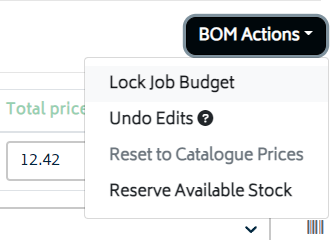
Lock Job Budget:
- This will lock any changes on the BOM page to prevent the job's planned financials from changing. This is usually done once the quote is approved to prevent accidental changes to the job's budget.
Note: The BOM is used for planning the job. Even with the job budget locket, Record Consumables can be used to record items used on the job that aren't included in the BOM.
Undo Edits:
- This will reset the BOM back to the last saved state. It's equivalent to closing the BOM page without saving and re-opening it. This allows you to keep any changes made on other parts of the job if you change your mind about modifying the BOM.
Reset to Catalogue Prices:
- This will reset all prices for line items on the BOM to the current catalogue price. This function will not update cost, only price. To update costs to current catalogue cost, you will need to do these one at a time.
Reserve Available Stock:
- If stock is available in inventory, this will make a reservation for those items. Stock received through job-specific purchase orders have reservations made for them automatically.
Next: Viewing Existing Jobs.