

Introduction to Leads, Jobs & Projects
Introduction
Leads, Jobs and Projects are at the heart of the Gojee system. They enable you to bring together all the resources (Inventory, Staff and Assets) from across your business into the one place and run the operations of your business.
The basic functionalities are Leads, Customer Jobs, and POS.
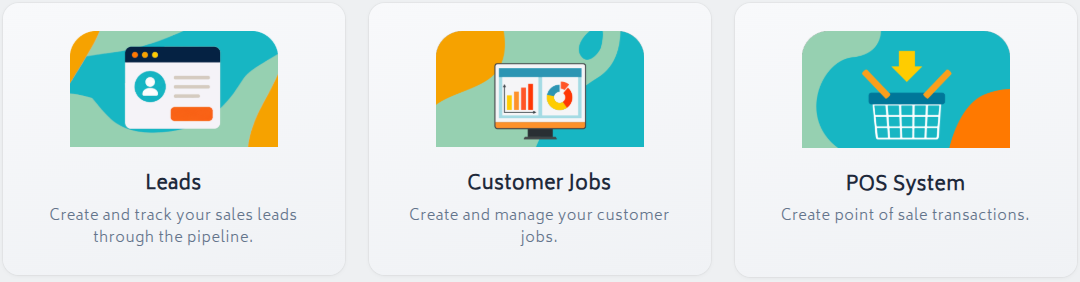
Advanced job types can be enabled via the add-ons system. These include Service Jobs (for recording costs against and optionally billing maintenance for fixed assets) and Manufacturing Jobs (for tracking the costs of manufacturing your own stock).
Jobs can be created from scratch in Gojee - or the job's information and bill of materials can be specified via CSV import. Once the job is created, there are a range of actions that can be undertaken in any order from within the job itself to fit with your existing work flows.
Note: For users to able to estimate a job or calculate their profitability against a job, users must create jobs within Gojee. The more accurately you are able to track your Bill of Material (BOM) onto a job, the better insights you will have.
Example Job Flow
A common flow of events for regular jobs in Gojee (POS jobs are simplified):
> Create a Lead
- Create a new potential job by recording customer information (or by importing via CSV).
- Specify the Bill of Materials (BOM).
- (Optional) Preselect suppliers from the BOM to get an accurate idea of costs.
- (Optional) Add comments to the job to keep track of job information, record job site location.
- (Optional) Use attachments to attach files to the job.
- (Optional) Use tags and categories to organise and sort the job.
- (Optional) Move the job through stages as it progresses.
> Approve the job
-
Generate a quote or estimate for the job.
- (Optional) Generate multiple quotes/estimates with different contents and discuss which one to move forward with.
-
Approve the quote that the customer/team agrees upon and convert the job from a Lead to a Customer Job.
- (Optional) Email the quote to the customer for review from within Gojee.
- (Optional) Create a Sales Order for the quote for internal use.
-
(Optional) Lock the job budget from the BOM to prevent accidental changes to the estimated costing.
-
(Optional) Take prepayment from the customer towards the total prior to raising an invoice.
-
Approve the job for purchasing.
> Set up workers and materials
-
Schedule workers onto the job.
- This uses a calendar tool to allocate jobs to staff members.
- You can view all the jobs already scheduled, and optimise your workers' days.
- This can be done at any point during the process, but is highly dependent on your workflow.
-
Reserve available stock for the job.
-
Raise a purchase order for materials that are not on hand.
-
Send the purchase order directly to suppliers.
-
Receive goods from the purchase orders.
-
Raise supplier bills to update your expenses in Xero to the amounts actually received.
- Some suppliers will ship slightly different prices/amounts than ordered, so this will update the information in Xero.
- You will also be able to reconcile supplier bills received from Xero.
-
> Record work being completed
-
Record consumables onto the job.
- This is the process to take inventory out of stock and expense it onto the job.
- Consuming items through this page records how much of the budget has already been consumed for inventory and assets.
- You can consume items not on the BOM, like incidentals and non-budgeted items.
- (Optional) Create picking slips for workers to pick available stock items.
- This generates a PDF of the items and quantities needed for the job, which you can print and give to your workers.
- (Optional) Generate delivery dockets to be sent with items being shipped to your customers - a record of items to be delivered to the job site.
-
Have workers record their time on the job through time tracking.
- If workers are scheduled onto a job, that job will show up in their My Work page on the day they're scheduled to work.
- Workers can start/stop a job, mark their time as complete, and track their breaks and downtime.
- If not scheduled but they have the matching profession, workers are able to use on demand tracking to track time spent working on a job.
- If you prefer to track time for workers manually, you can also do it via bulk time entry.
> Review Job (Any time)
-
- View real time profitability of the job, compare costs and revenues to budgets, and add forecast for completion and variances to budget.
- Incurred costs are recorded live as item consumption and worker time is tracked against a job.
- View real time profitability of the job, compare costs and revenues to budgets, and add forecast for completion and variances to budget.
-
Compare multiple jobs via reports.
- View financials and progress of multiple jobs at once.
- Manage documents and progress tracking across jobs.
> Take payment
-
Draft an invoice:
- For Fixed Price jobs, this will be based on the expected BOM for the job.
- For Time and Materials jobs, this will be based on the materials used on the job and may require tweaking based on customer and business expectations.
- You can create multiple invoices at different project stages - each one will keep track of what's been invoiced previously.
- For either type, you can create an invoice directly from a quote and it will inherit the quote's formatting and line items.
- You can see what's already been invoiced for a job and keep track from the Invoices page for that job.
-
Take payment for the invoice through Square integration or by recording cash transactions.
While you don't have to follow every single step of this process as written (as we know every business is built differently), this is an example of how a customer job is usually performed in Gojee.
Navigation
Jump to the relevant content sections: